
Best Ways to Sync Google and Outlook Calendars: A Complete Step-by-Step Guide
Syncing Google Calendar and Outlook creates an incorporated time-specific schedule. This is a single source of syncing that permits users to manage calendars, avoid double-bookings, and share accurate information across both platforms.
Why Sync Google Calendar and Outlook?
- Merging Personal and Work Life: Users often use personal accounts on Google and work on Microsoft 365/Outlook. Syncing connects two platforms, saving your time from moving into multiple tabs.
- Create Strong Relationships: Syncing calendars within freelancers, entrepreneurs, and professionals often operate across multiple clients or teams. This system permits you to view all appointments in our preferred calendar clients.
- Reduce Manual Work: Manual work like copy and paste events takes time and causes the risk of human error. The automation system ensures no meetings are missed.
- Accurate Scheduling Links: If you use scheduling tools, syncing authorize your booking page to focus on your actual time availability across all connected calendars.
Benefits of Calendar Synchronization
- The Two-Way Alignment: A two-way sync ensures edits, deletions, or the creation of new events in one calendar immediately focused in the other, keeping both platforms updated.
- Prevents Double Bookings: Through blocking your time dynamically, both Google and Outlook accurately highlight tasks when you are busy.
- Customizable Sharing: You can sync specific event details while keeping other details hidden. This protects your privacy when sharing anything with outside organizations or personal contacts.
- Incorporated Notifications: Receiving instant alerts, reminders, and updates for meeting changes on the application you choose to use.
Syncing between Google and Outlook Calendar benefits your business but requires time to sync calendars, permissions, and verification. Businesses assign a remote virtual assistant to synchronize and view unified calendars. Therefore, owners or professionals think more about big things and avoid double-booking burnout.
Types of Google and Outlook Calendar Sync
Syncing Google Calendar and Outlook Calendars keeps your schedules up-to-date across platforms. For a read-only view, choose One-Way Sync. For continuous updates between apps, just choose Two-Way Sync. Also, choose Manual Export or Import for a static, one-time transfer of your content data.
One-Way Sync
A one-way sync is just like sharing your calendar with others for a read-only subscription, but nothing can change. This works well if you want to see personal events in your calendar, but nobody makes changes across platforms.
- How One-Way Sync Works: You generate an iCal link from the source calendar and paste it into the target calendar. This is like adding an Outlook URL to Google Calendar, or vice versa.
- Limitations of the Sync: Events can only be edited in the original calendar where they were created. Updates can be done anywhere from a minute to 24 hours to reflect.
- Notable Action: Read the Microsoft Support Guide to subscribe to a Google Calendar in Outlook.
Two-Way Sync
Two-way synchronization provides you with actual (nearly exact) bidirectional updates. Using this sync, you can create, edit, or delete an event from Google Calendar, which automatically updates your Outlook and Google Calendar.
- How Two-Way Sync Works: To edit or update, integrate business tools with Google or Outlook Calendar. These tools are CalendarBridge, Sync2 Cloud, or OneCal.
- Significant Benefits: You can avoid double-booking and allow you manage all your schedules in one place without jumping between apps.
- Notable Action: Compare to continuous bidirectional tools on platforms like CalendarBridge or Sync2 Cloud.
Manual Export and Import
Manual transferring is best if you can switch primary accounts or save old calendar history
- How Manual Sync Works: Export your current calendar as on file and manually upload it into your other calendar.
- Limitations of Manual Sync: This is a static snapshot. Since the calendars don’t sync, you have to update your offline copy at the time you make any change.
- Significant Action: See the Looken Blog for step-by-step instructions on exporting and importing calendar files.
How to Sync Google Calendar With Outlook Calendar
If you want to skip the iCal link, connect your full Google account directly to Outlook; the process is much simpler. This method syncs your calendar automatically through the cloud and gives you a two-way sync (meaning you can edit from both sites)
Here are the direct, simple steps depending on which version of Outlook you are running:
Add Google Account to Outlook
If you want to skip the iCal link entirely and connect your full Google account directly to Outlook, the process is much simpler. This method syncs your calendar automatically through the cloud and gives you a two-way sync (meaning you can edit events on either side).
Here are the direct, simple steps to add a Google Calendar with Outlook.
Adding to New Outlook
Step-1: To integrate the Google account with Outlook, go to the following:
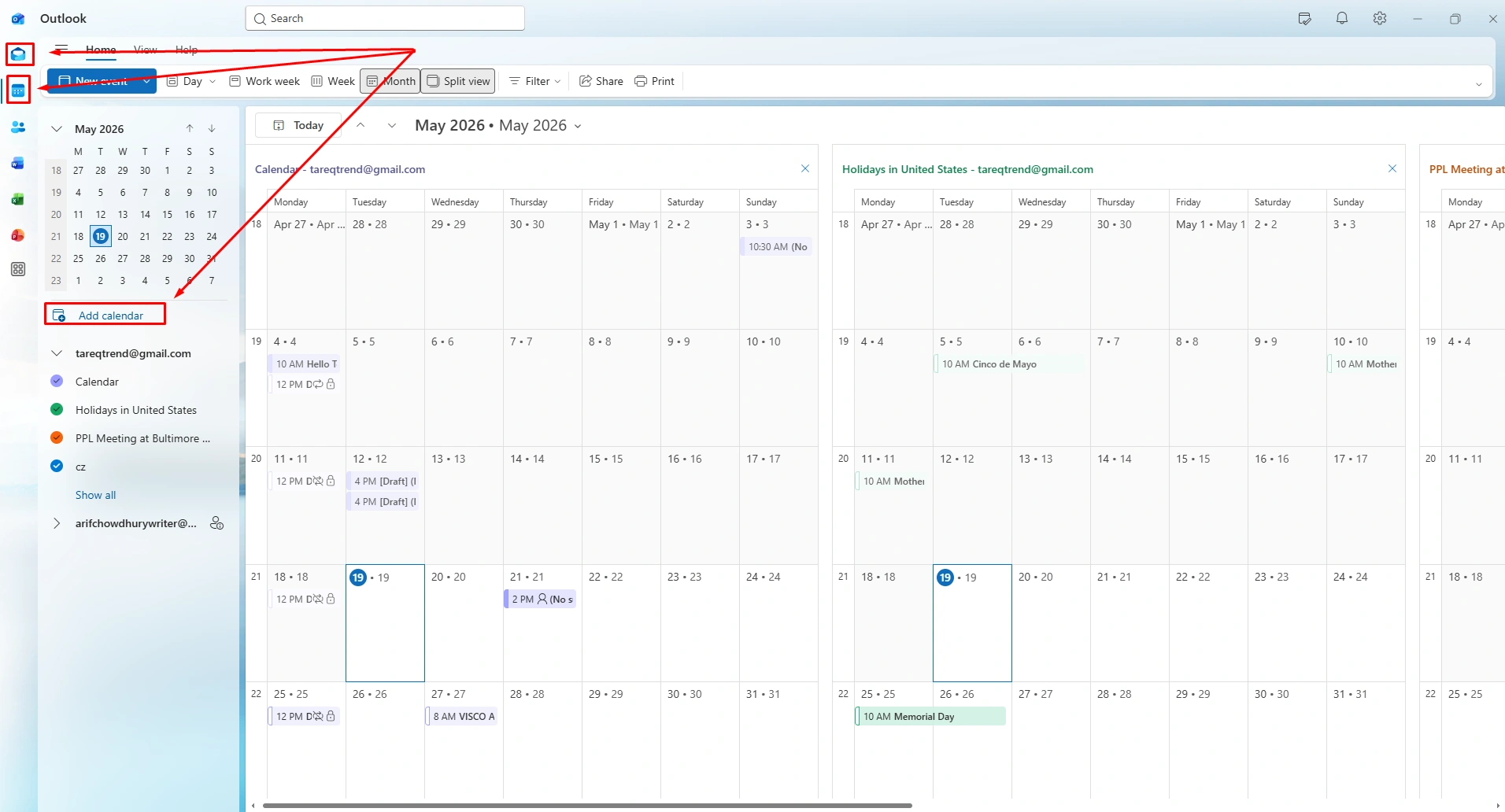
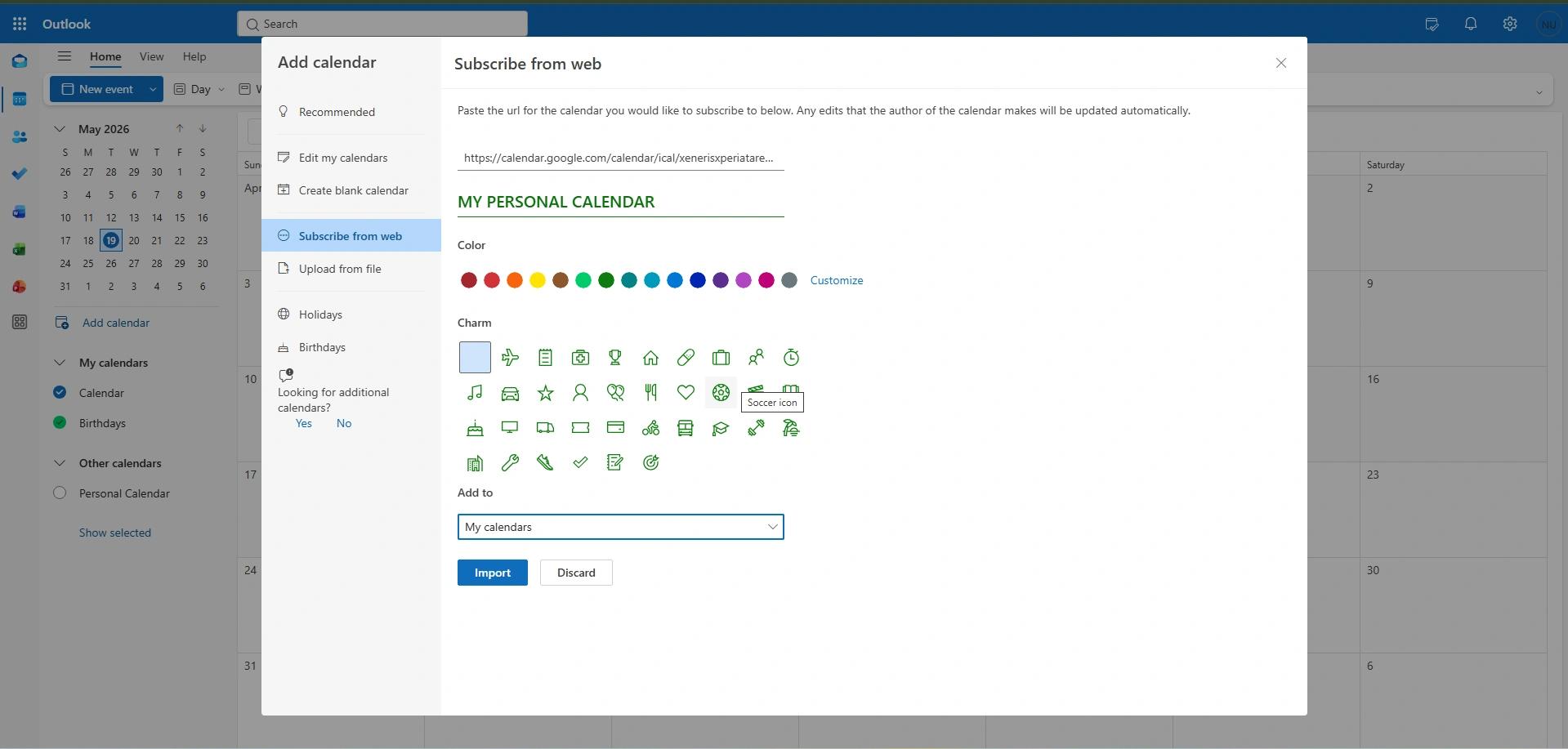
- Open your Outlook Calendar with the New Outlook app and click the Calendar icon on the left sidebar.
- Now, click on “Add Calendar” located right underneath the small monthly calendar grid on the left.
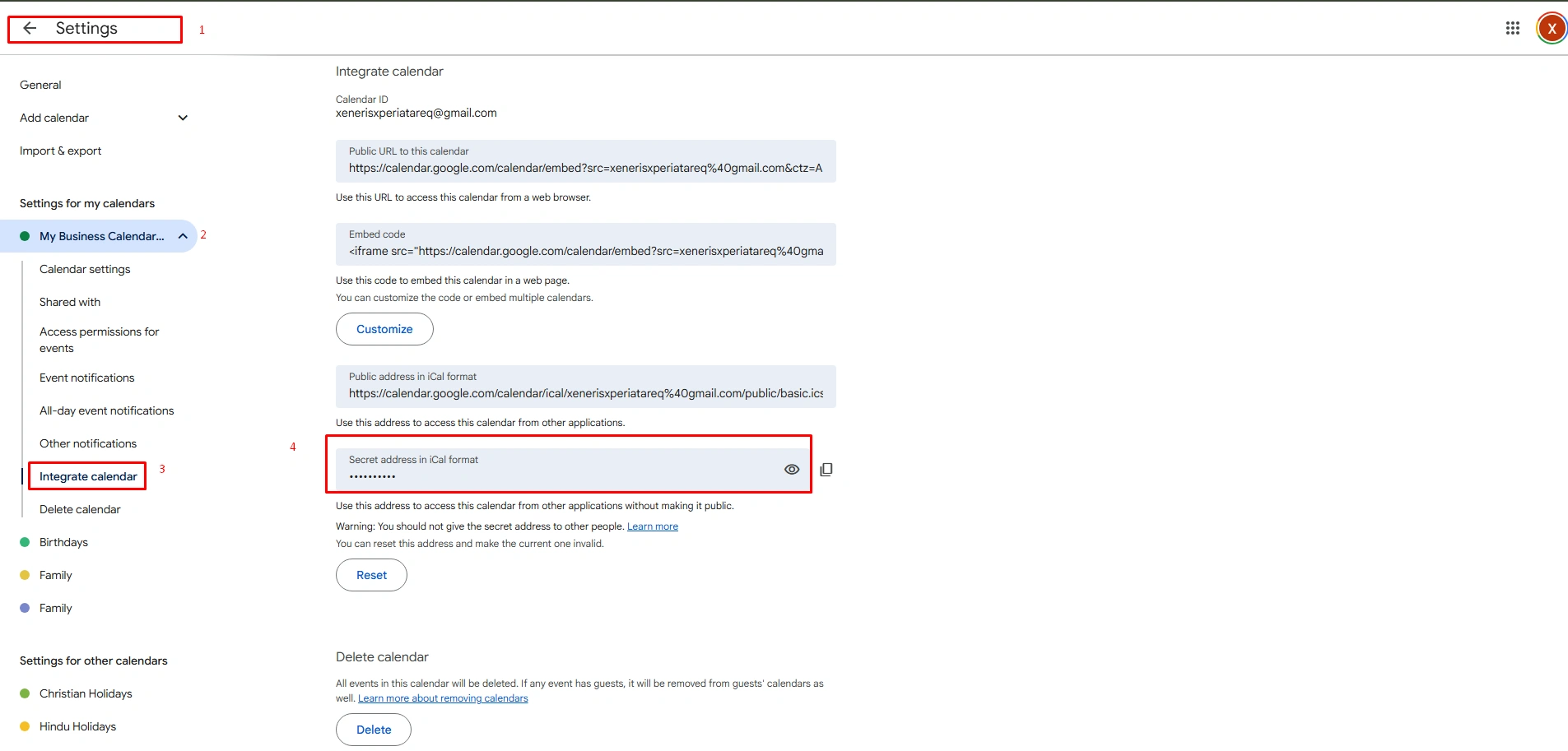
Step-2: In this step, go to your Google Calendar option, click the left sidebar (+), and click “Settings and sharing.”
- Under the “Settings” option, go to “Integrate calendar” and copy the iCall URL
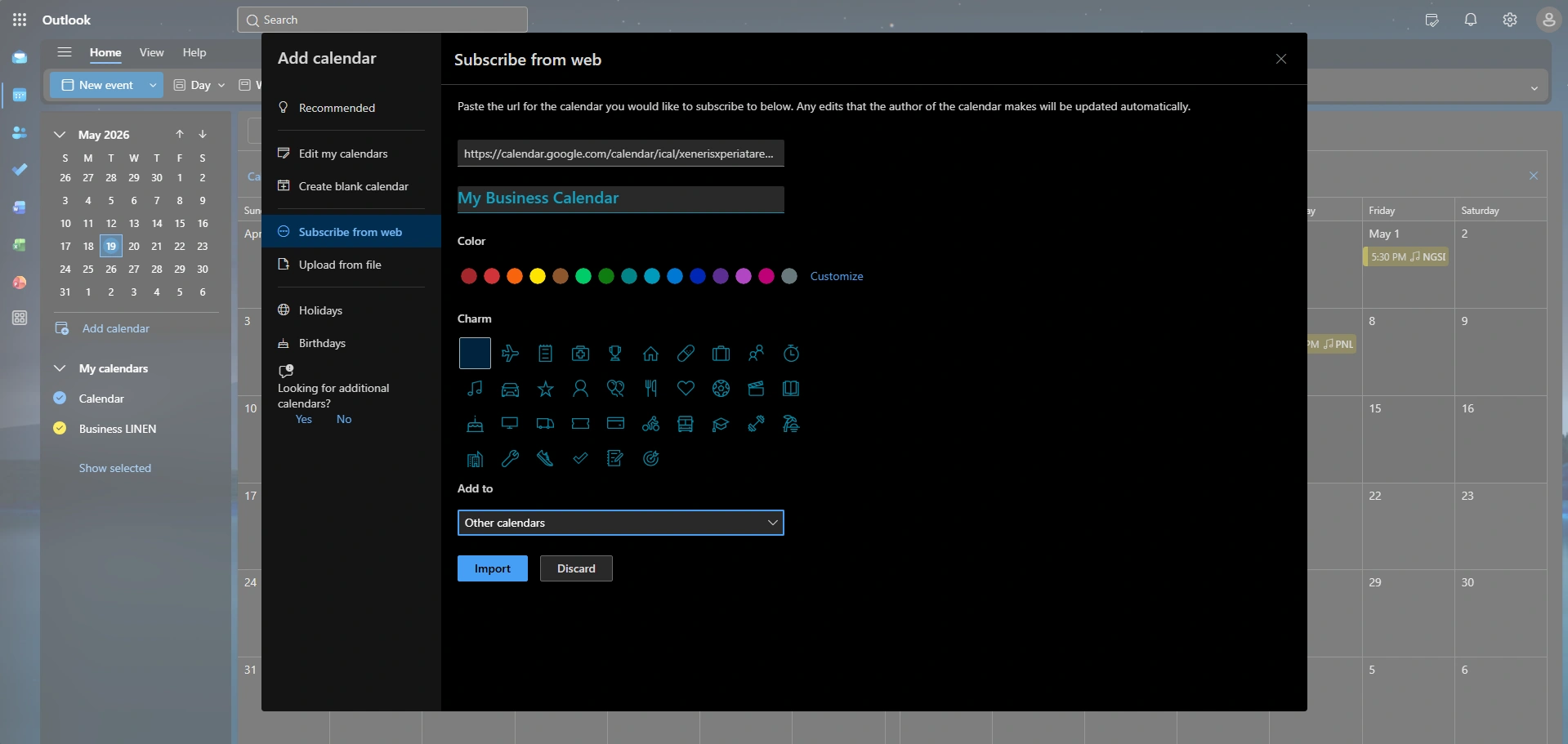
Step-3: In this step, click the (+) Add calendar button on the left sidebar (underneath the mini-calendar grid)
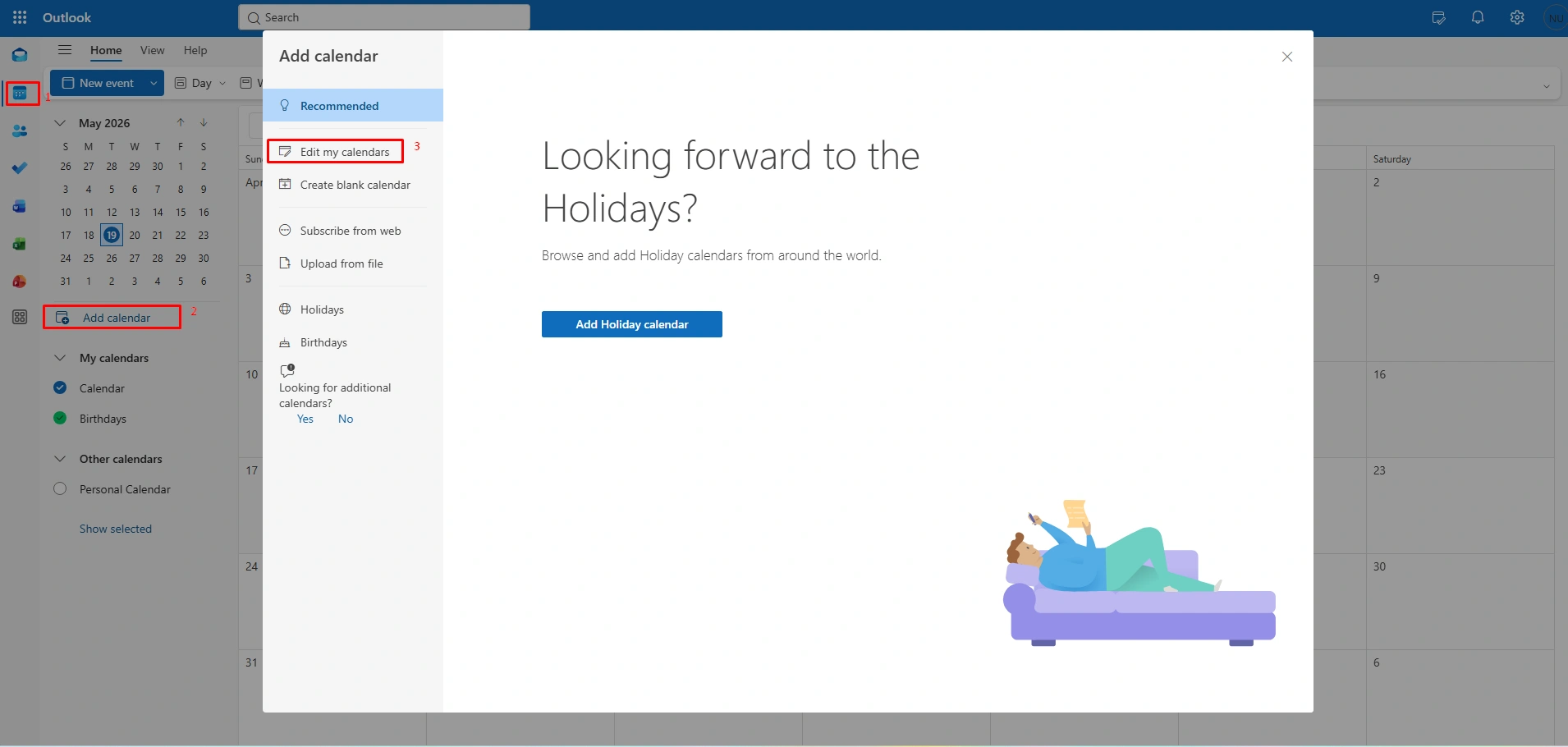
Step-4: Finally, go to the box that says “Link to the calendar” and right-click and select paste to insert your Google secret iCal URL
- Type a name under the “Calendar name” box (Like My Personal Calendar)
- Click the blue import button at the bottom
Enable Calendar Permissions
Step-1: Open a web browser and sign in to your Google Calendar.
- Go to “My Calendar” located on the list on the left side.
- Now, keep the cursor over the specific calendar you want to sync with.
- Click on the option (three dots) and choose “Settings and sharing.”
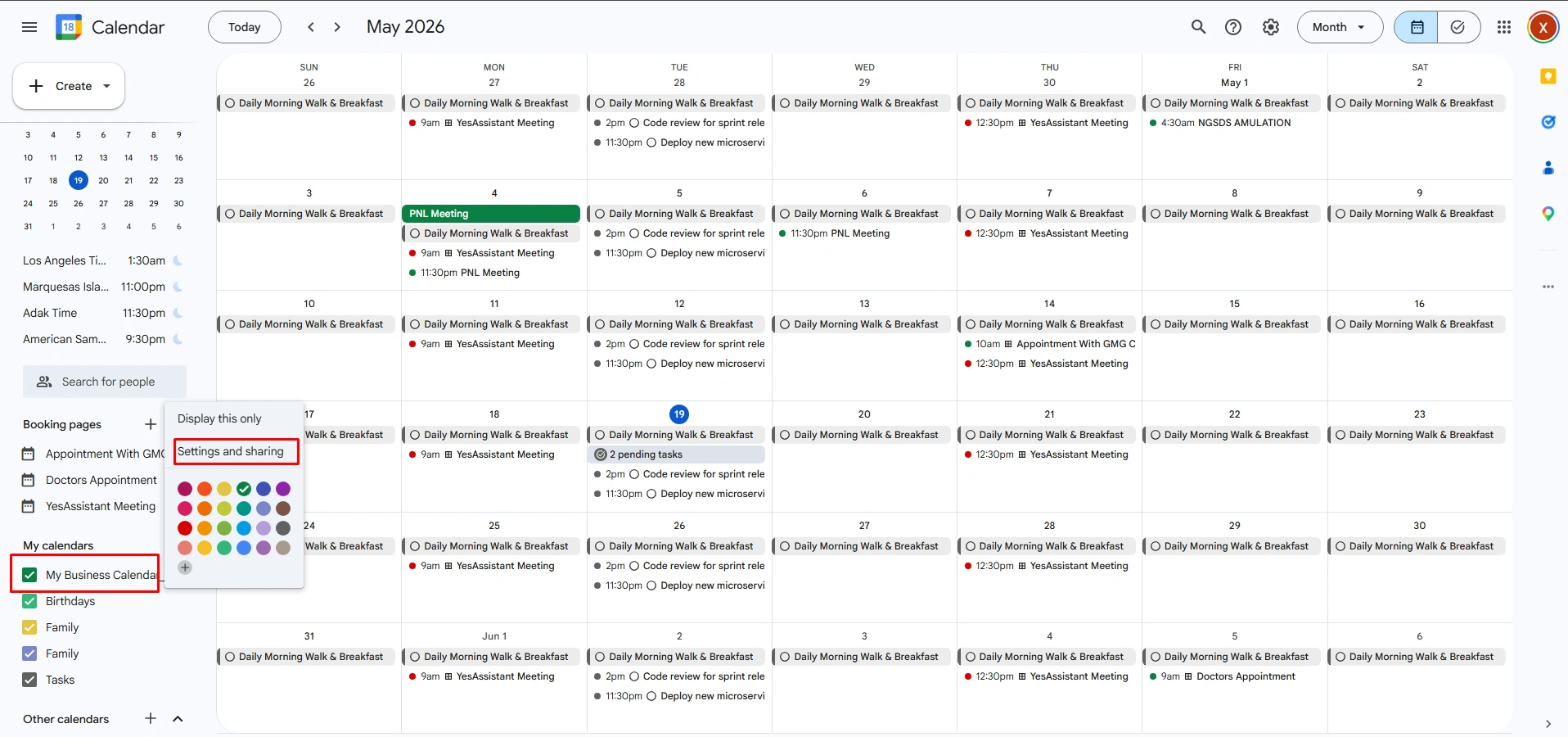
Step 2: Now copy the secret iCal Link
- On the “Settings” screen that opens, look at the menu on the far left and click on “Integrate calendar (Scroll you mouse down until you see that section header)
- Now, look at the box labeled with “Secret Address” in the iCal format.
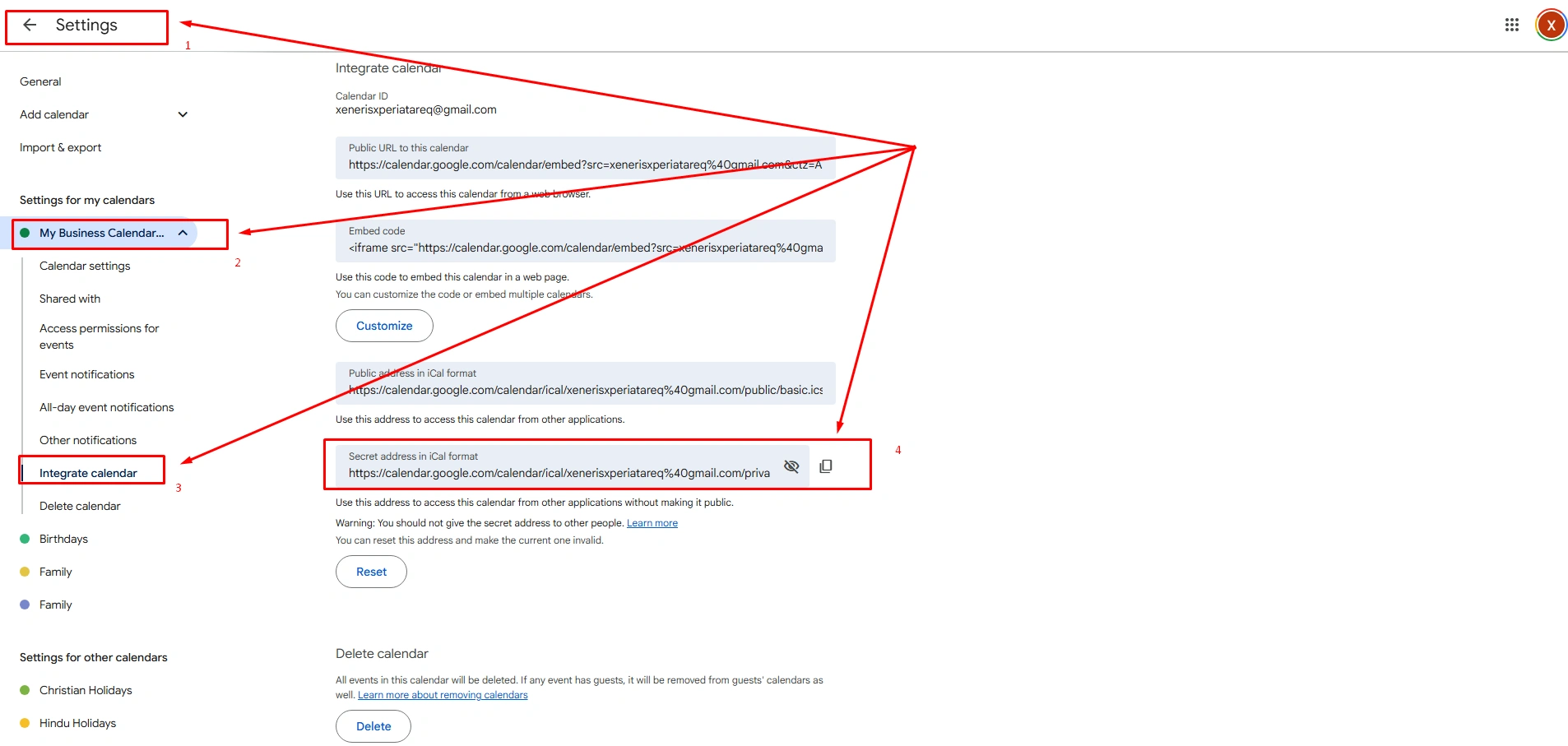
Step-3: In this step, click the copy to clipboard icon on the right side of that long, hidden web address.
- Then go to the Outlook app, click to subscribe from the web.
- Paste this link, give it a name, and hit import.
Verify Successful Sync
Now return to Outlook Desktop Calendar, do the following, and check integration.
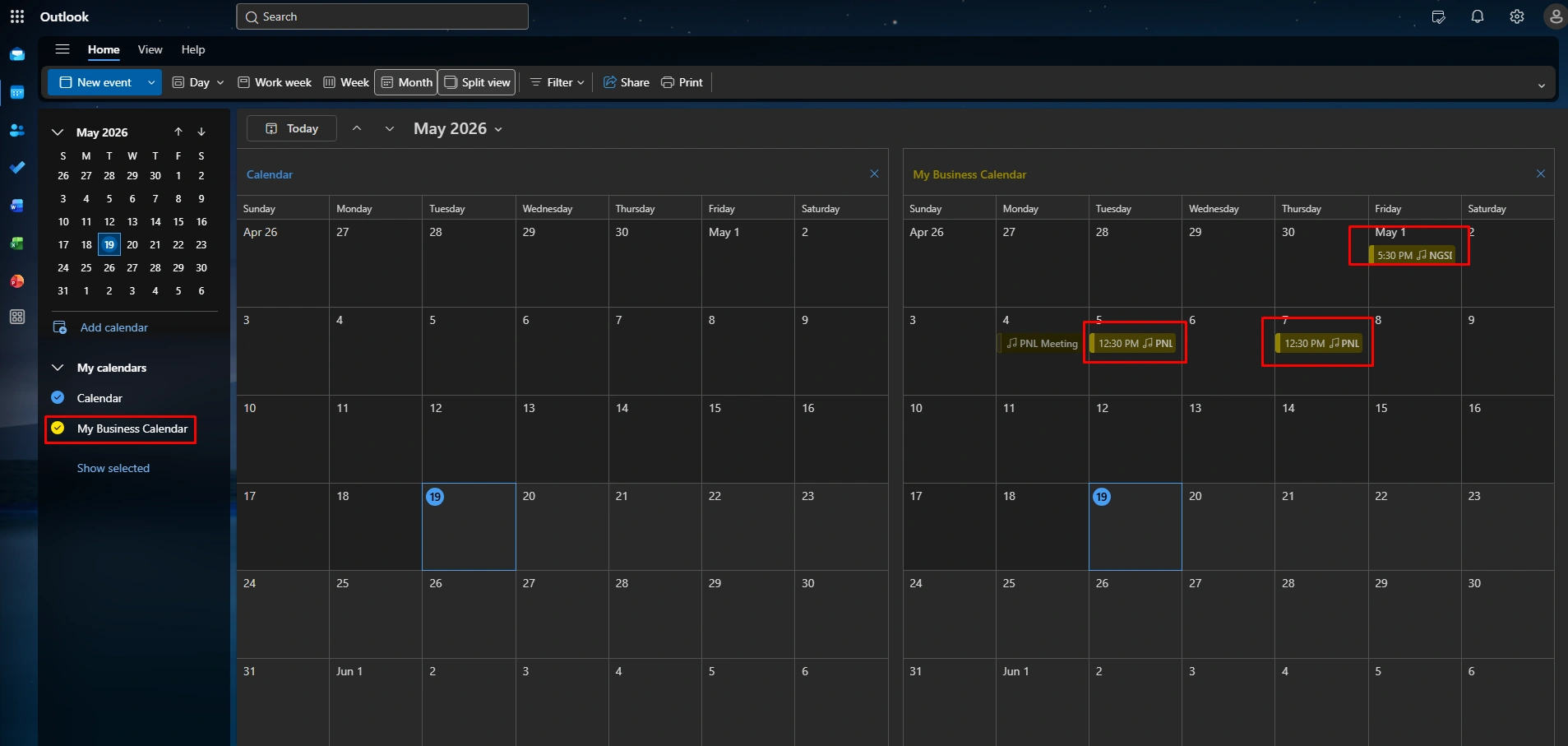
- Look at your main Outlook calendar grid, and you should immediately see your Google appointments shown besides your regular Outlook appointments.
- On the left sidebar, your new calendar will be shown when your imported calendar checkbox is on. You can uncheck it anytime to show or hide your Google events.
How to Sync Outlook Calendar With Google Calendar
Syncing your Outlook and Google Calendars keeps your schedule up to date. Managing two calendars without syncing can easily lead to missed appointments and double-booking appointments or meetings. Linking Google and Outlook Calendar directly to bring all your events, scheduling, and set reminder insights into a single view.
Export Outlook Calendar
Before you bring your schedule over to Google, you need to extract your data from the Outlook desktop calendar. Also, export your calendar to create a static data file containing all your current appointments, which creates a bridge between two platforms. This is the ideal step if you want to move quickly from your existing overall at once.
How to complete the steps:
Step 1: Open Calendar Settings (Marked in RED)
- First, go to the top right corner of your calendar screen.
- Click the “Settings” Gear Icon (located to the left of your profile).
- A large setting window will pop up over your calendar.
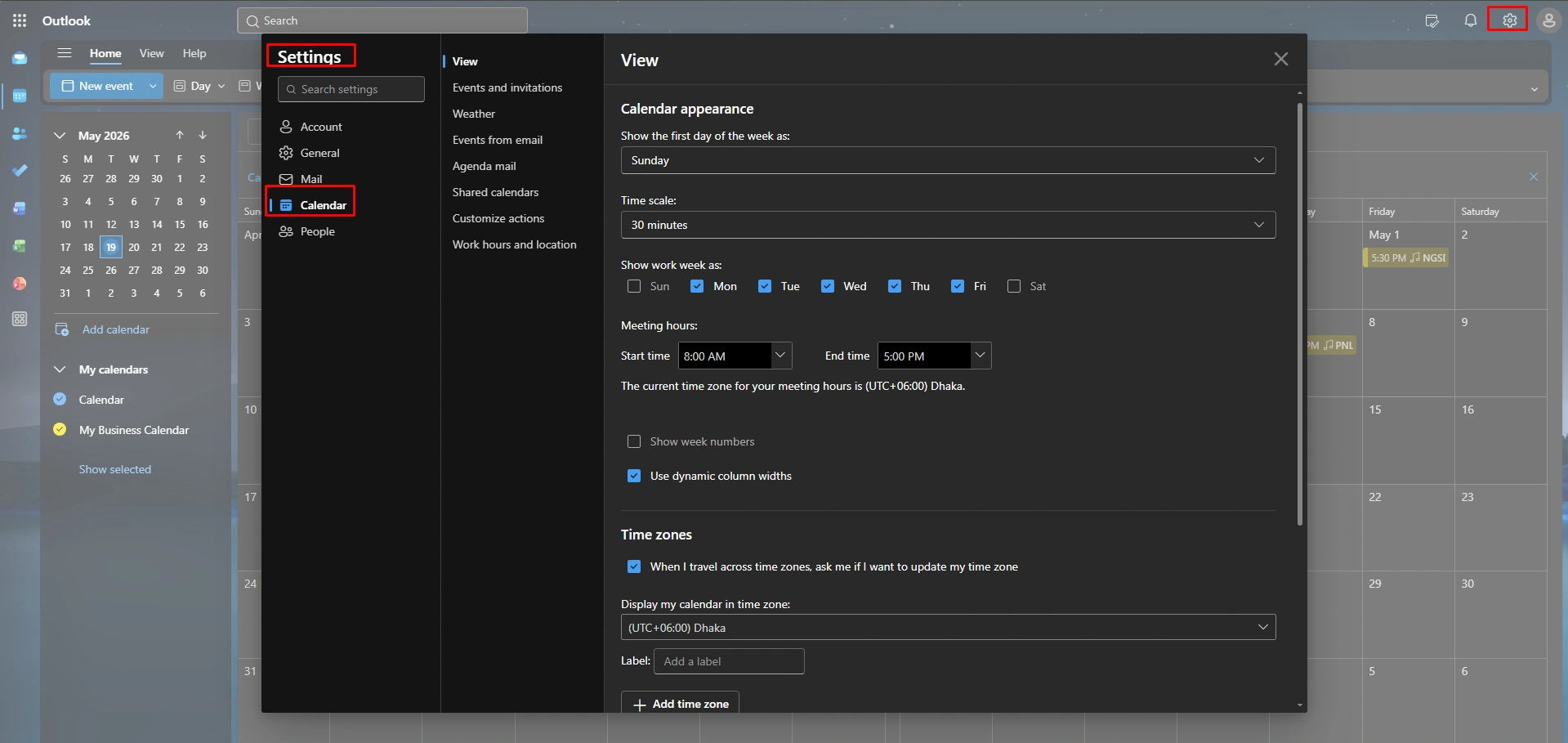
Step 2: Navigate to Shared Calendars (Inside the Settings Window)
- On the far-left menu of the new window, click the “Calendar” option.
- In the middle column that appears, just click on “Shared calendar.”
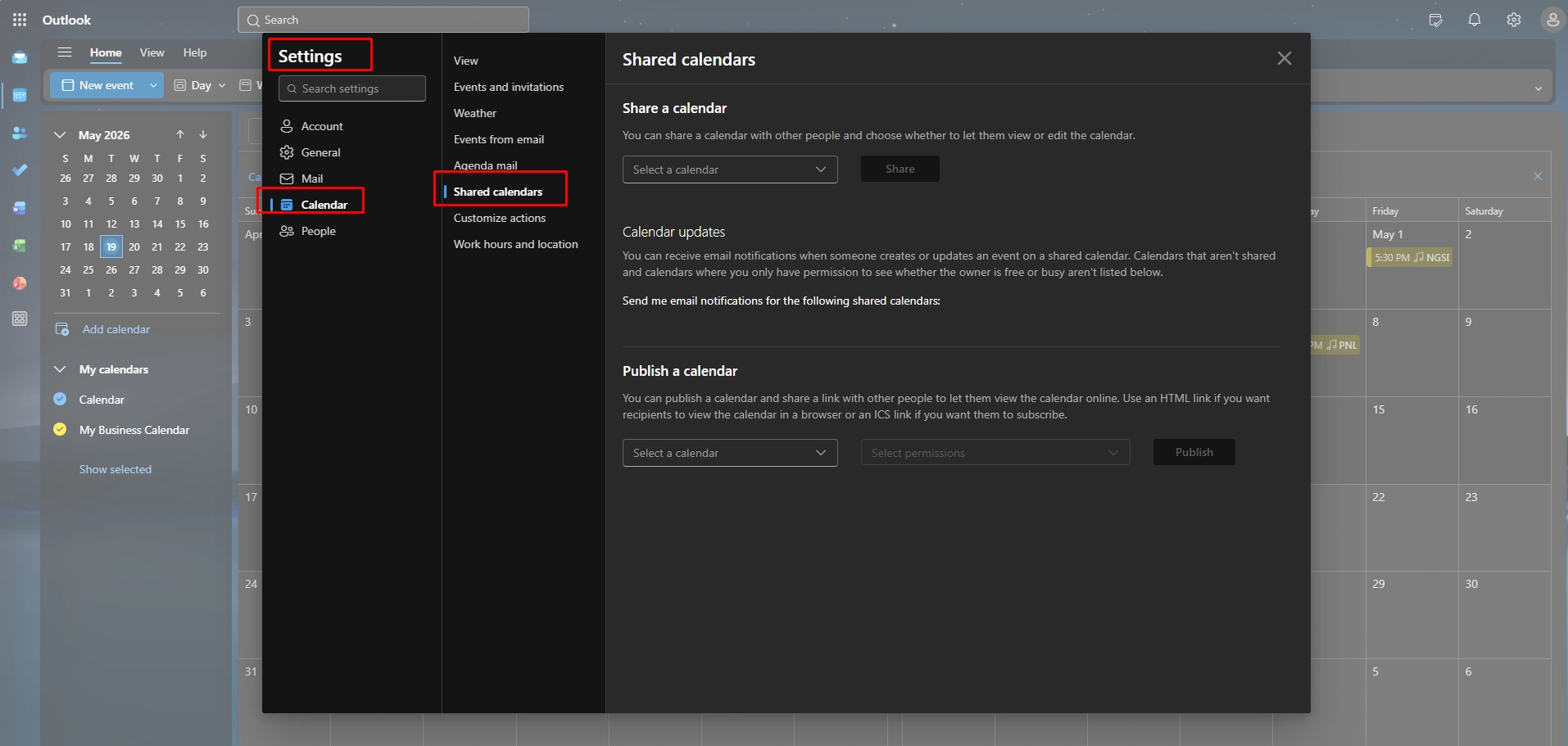
Step 3: Select and Publish Your Calendar
- Now, scroll down to the section titled “Publish a calendar.”
- Click on the dropdown menu and select the calendar you want to export (like, like., Calendar – [email protected]).
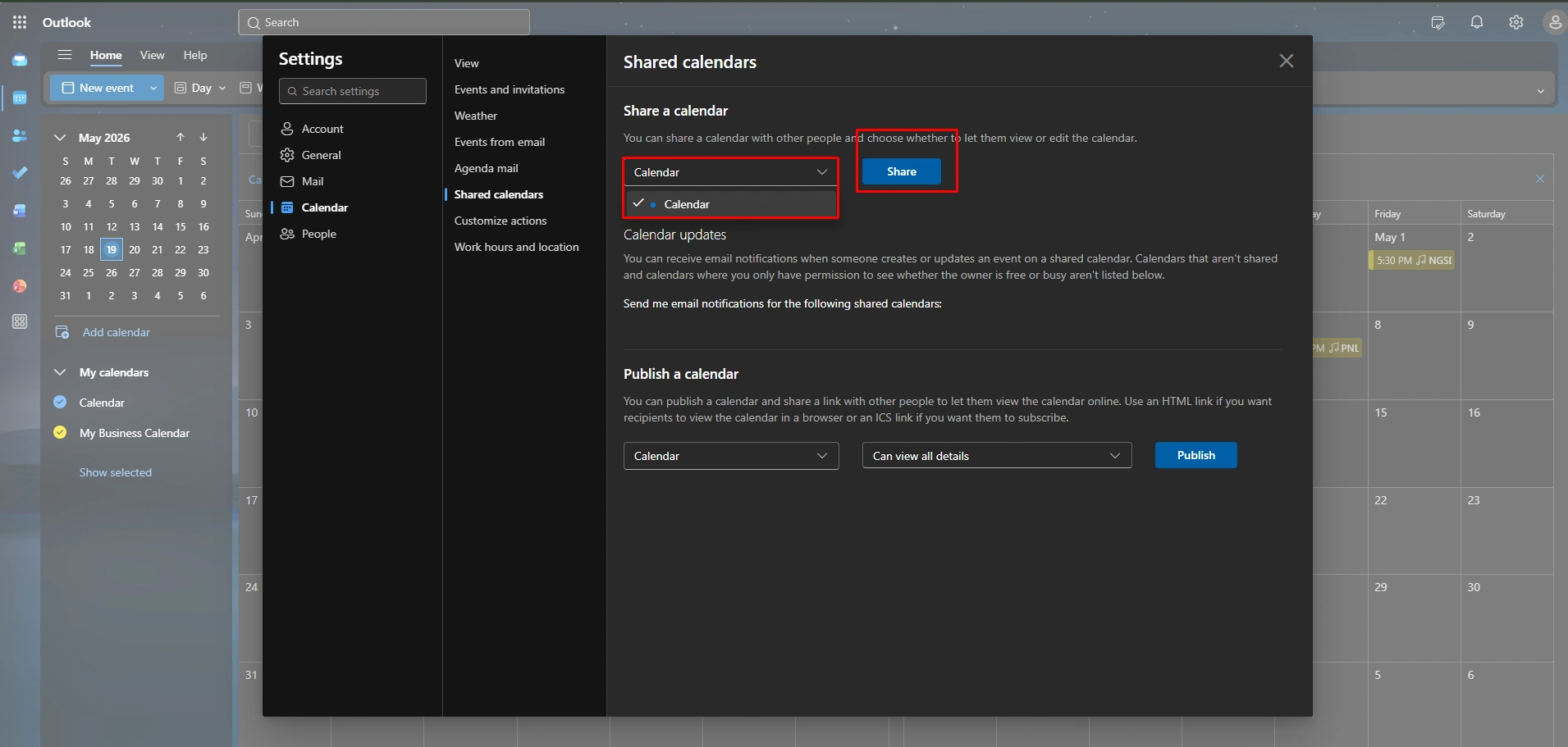
Now, share your selected calendar.
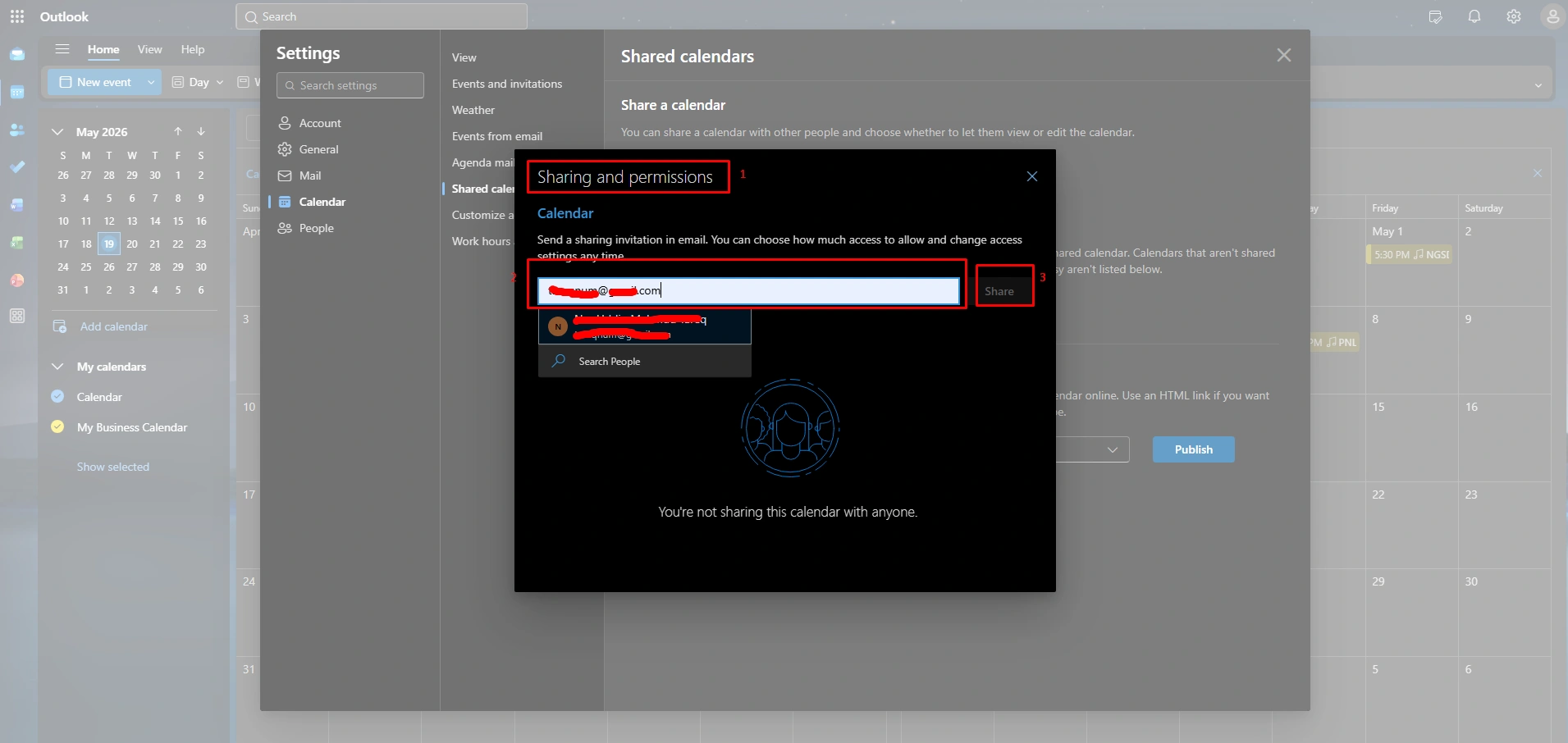
In this step, click on the second dropdown menu and select “Can view all details,” and then click the blue publish button.
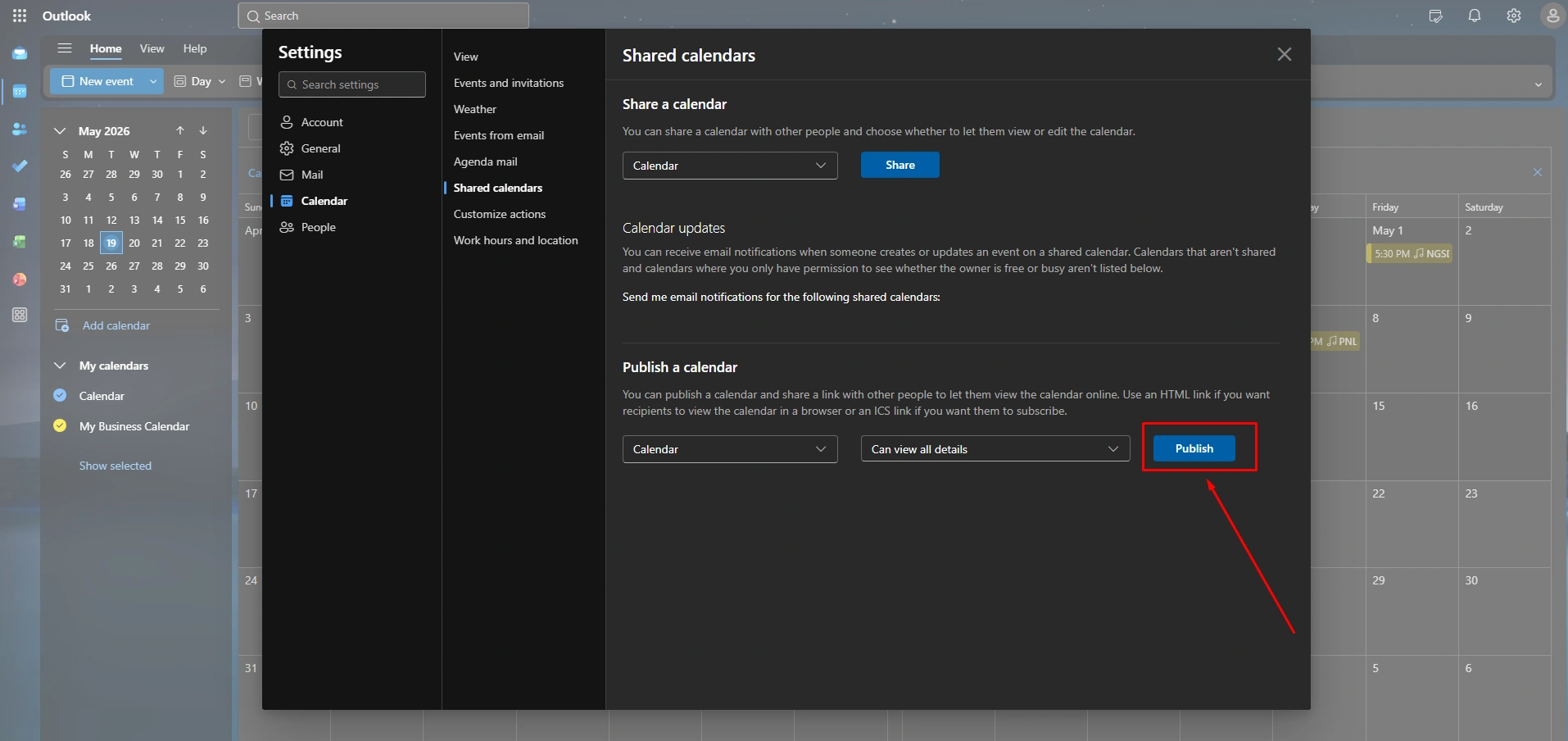
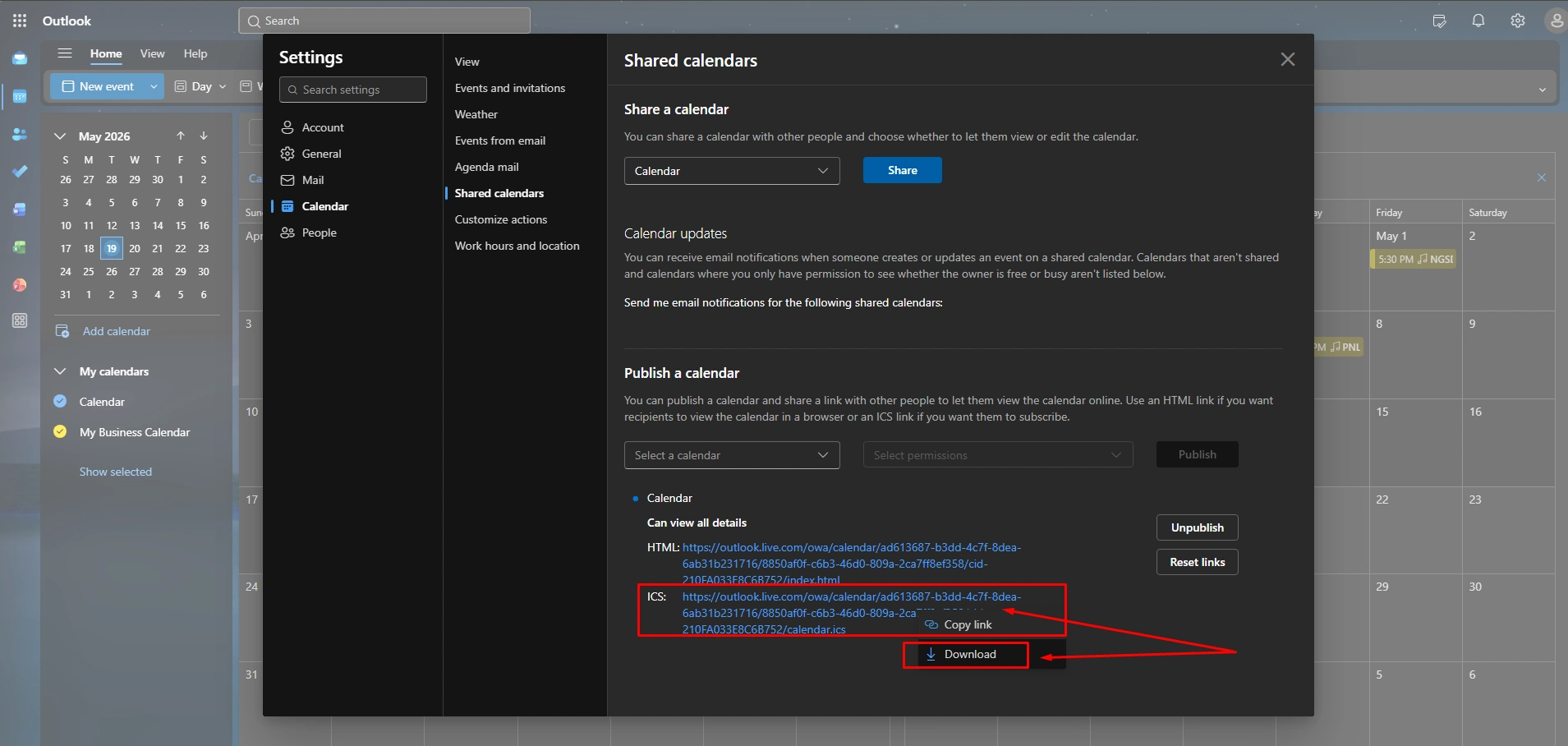
Step 4: Download the File
- Once you publish, you’ll see two long web links appear at the bottom.
- Click directly on the link labeled ICS.
Finally,
- A small menu will pop up.
- Select “Download” from the menu.
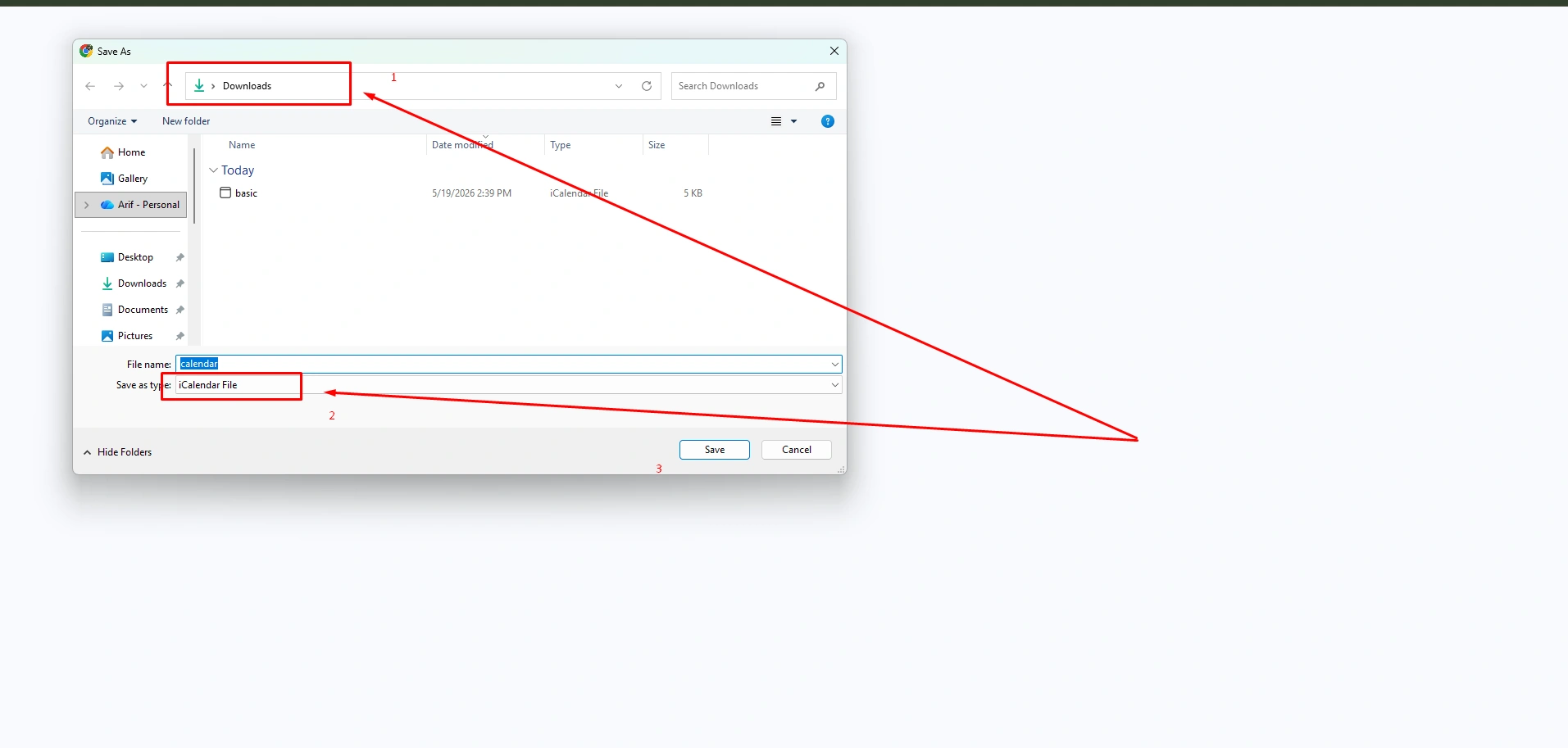
The calendar will instantly save to your computer’s downloads folder as an .ics file.
Import Calendar Into Google Calendar
Once you have saved your Outlook data file to your computer, you need to upload it to your Google account. Importing the file injects all of your exported Outlook meetings and events straight into your main Google Calendar grid. Just manually export an updated .ics file from Outlook and upload it again to your Google Calendar.
How to complete the Process:
Since this part happens inside your web browser on the Google Calendar website, the steps are perfectly accurate. To make this completely clear and easy to follow, here is a step-by-step process to import Calendar into Google Calendar.
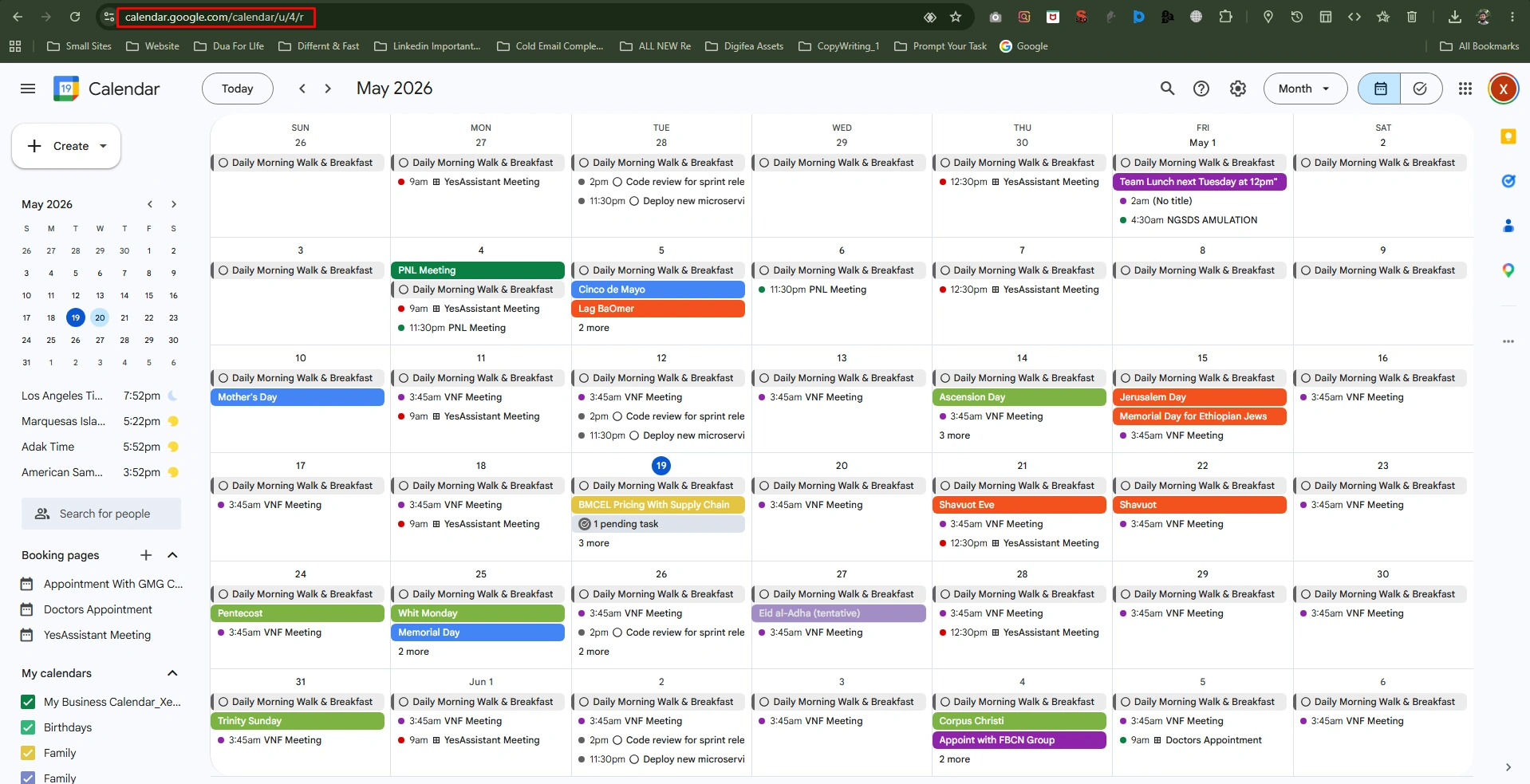
Step 1: At first, open your Google Calendar
- Open your Google Calendar at Browser
- Just go to calendar.google.com and sign in with your Google account.
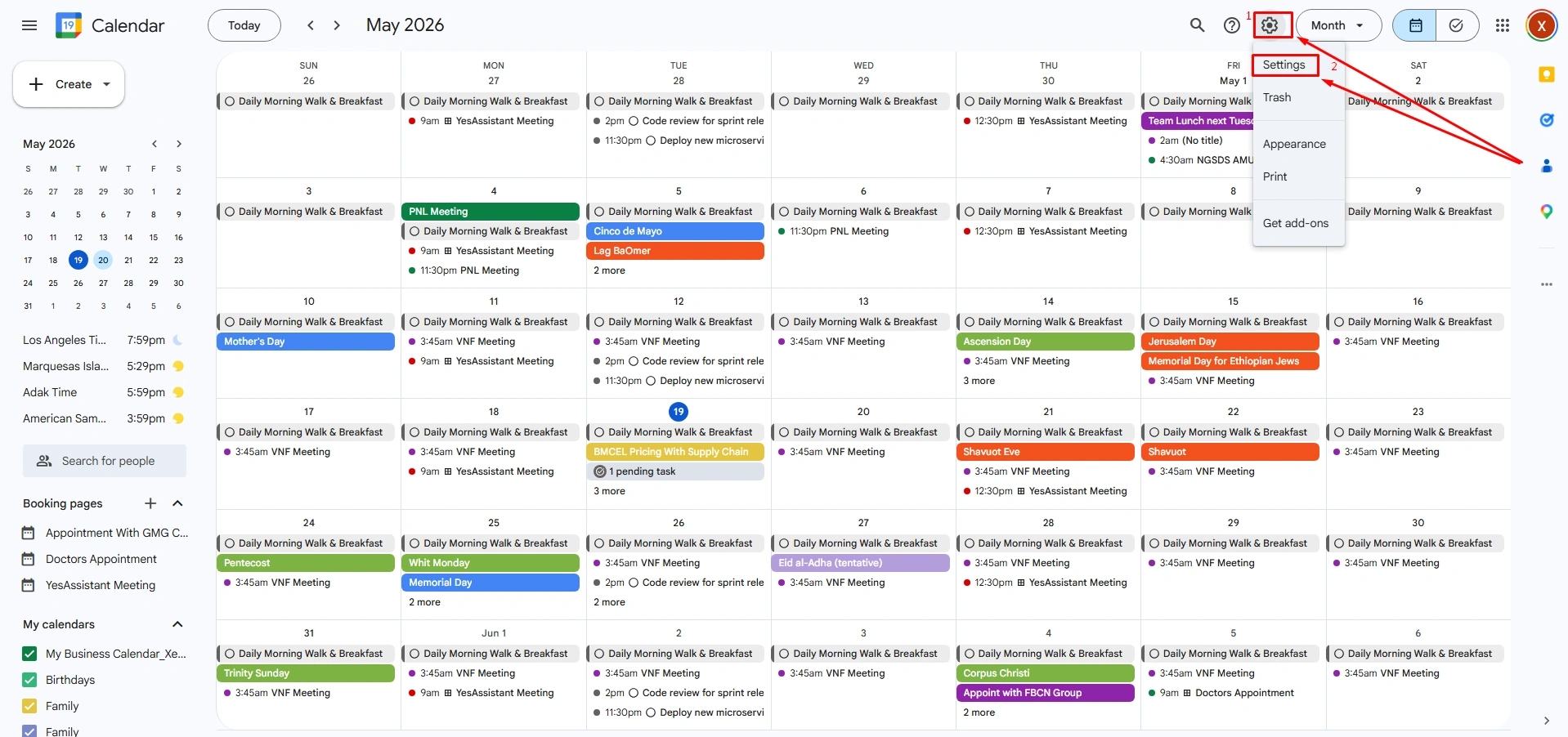
Step 2: Open Settings (Top-Right)
- Look at the top right corner of your Google Calendar screen.
- Click the “Settings” gear icon (located right next to the “Day/Week/Month” to view the button)
- Now, select the “Settings” option from the drop–down menu.
Step 3: Navigate to Import (Left Sidebar)
- In this step, look at the left-hand sidebar menu on the settings page.
- Click on the “Import & export” option.
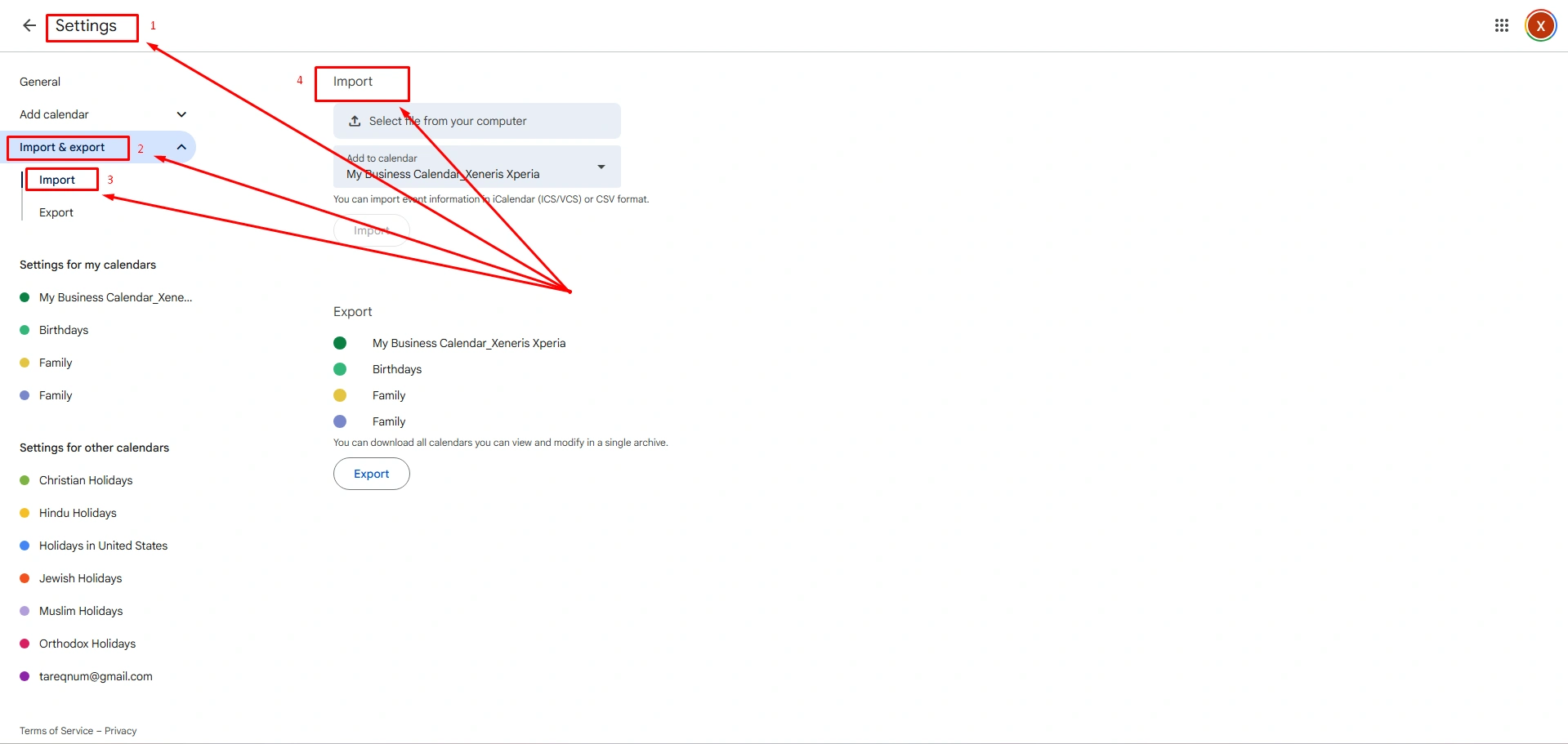
Step 4: Upload Your Outlook File (Center Screen)
- This is the most important part in the middle section of the screen under Import.
- Check the box that says “Select files from your computer.”
- A file window will pop up.
- Go to your Downloads folder under your desktop, and click on the file named “.ics” you saved from Outlook.
- Now click to “Open.” Under the file box, click on the dropdown menu labeled “Add to calendar.”
- Select the specific Google Calendar layer where you want these events to show up (usually your main persona calendar with your name).
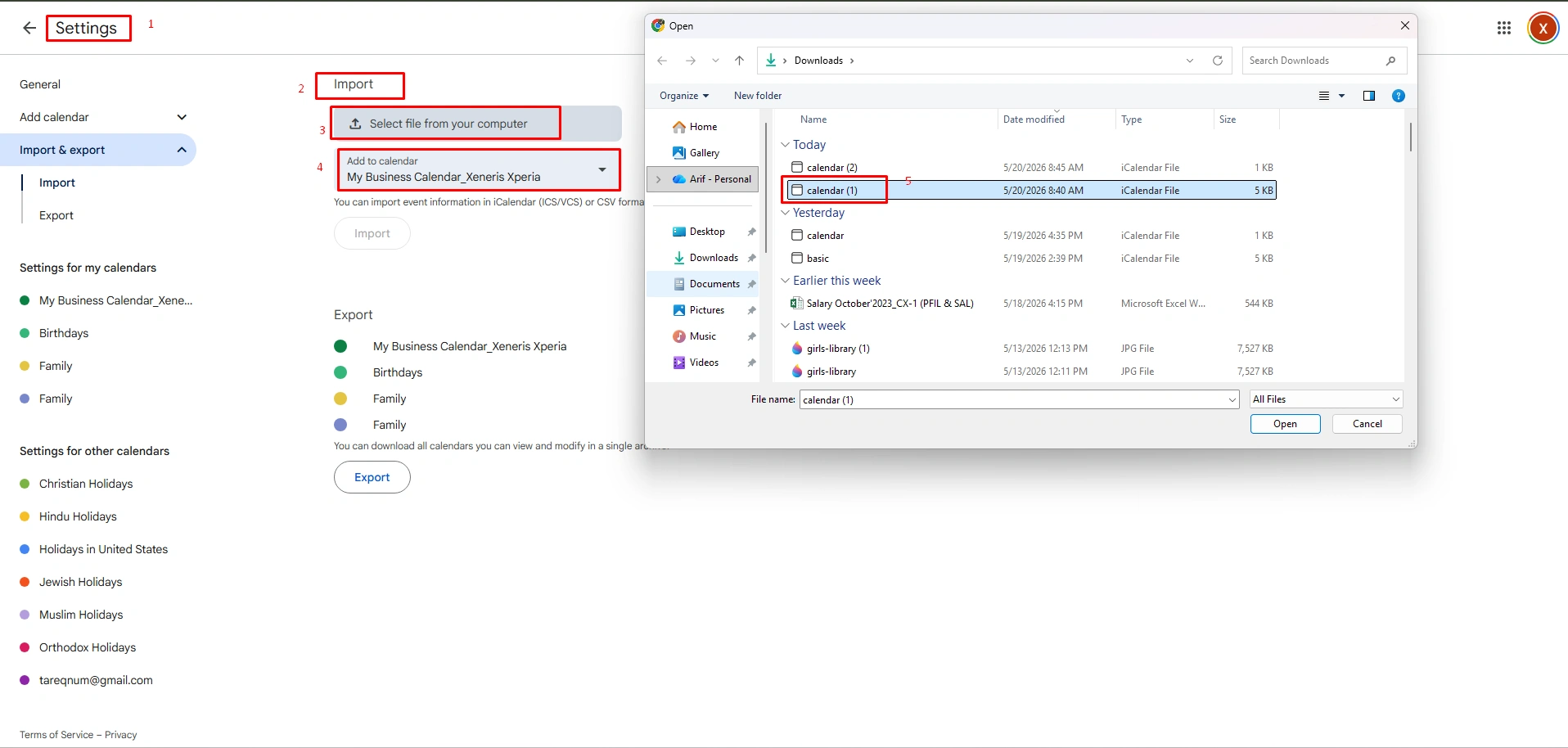
Step 5: Finish Import
- At the final stage, click the “Import” button at the bottom of the section
- A small confirmation box will pop up on your screen telling you exactly how many appointments and meetings were successfully brought over.
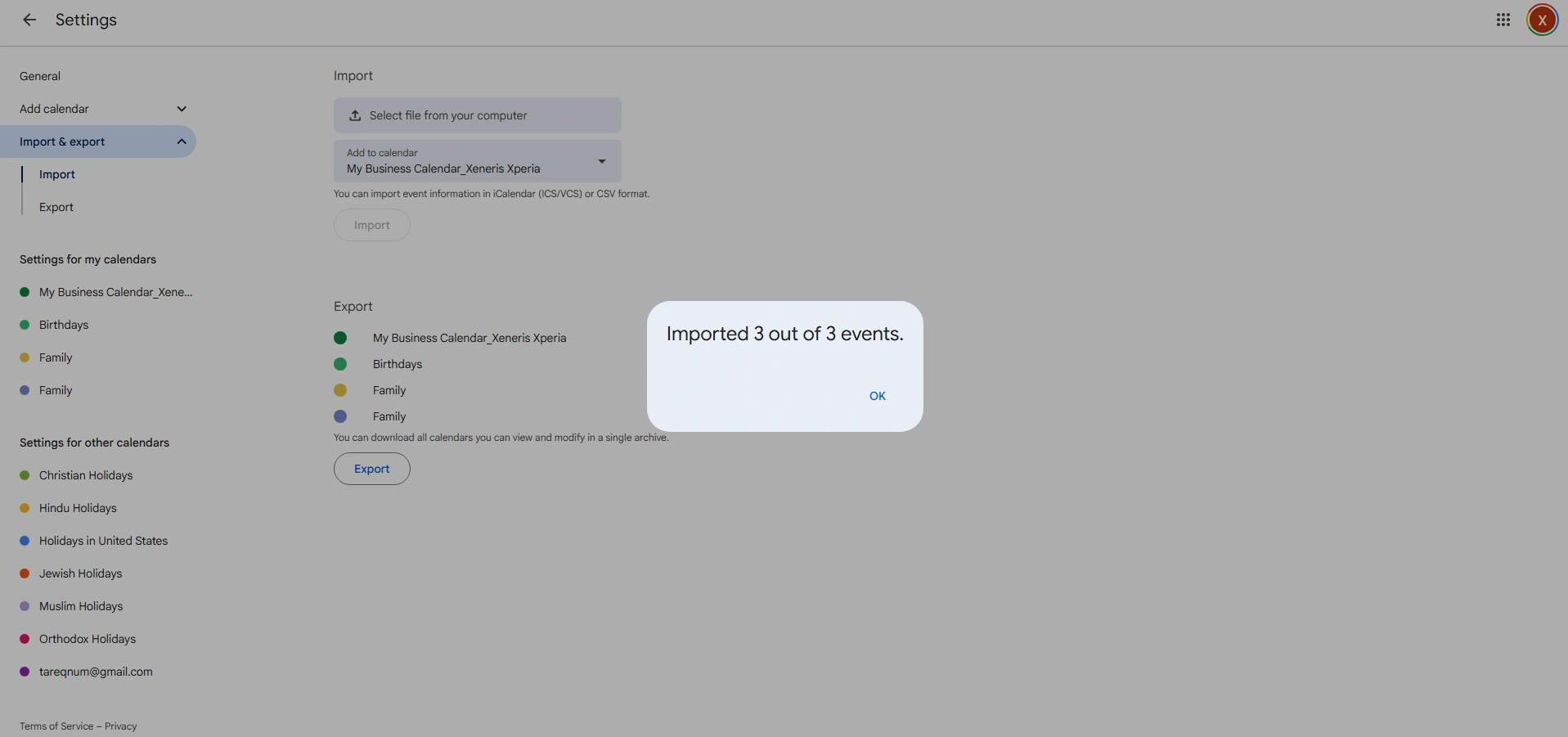
Once you are done, click the back arrow in the top-left corner of the Google settings page to return to your main calendar and view your newly added schedule.
Subscribe to Outlook Calendar URL
If you don’t want to keep uploading manual files, just subscribing to a live Outlook URL is the ultimate solution. This method generates a secure, private web link from your Outlook account that plugs into your Google Calendar. Google uses the link and automatically checks your Outlook schedule for changes or refreshes your view in the background.
How to complete the steps:
Step-1: Open Outlook Web Settings (Since live sharing requires web permissions).
- Open New Outlook or log into your Outlook on your browser.
- Click the “Settings” gear icon at the top right and
- Go to Calendar and click on “Share calendars.”
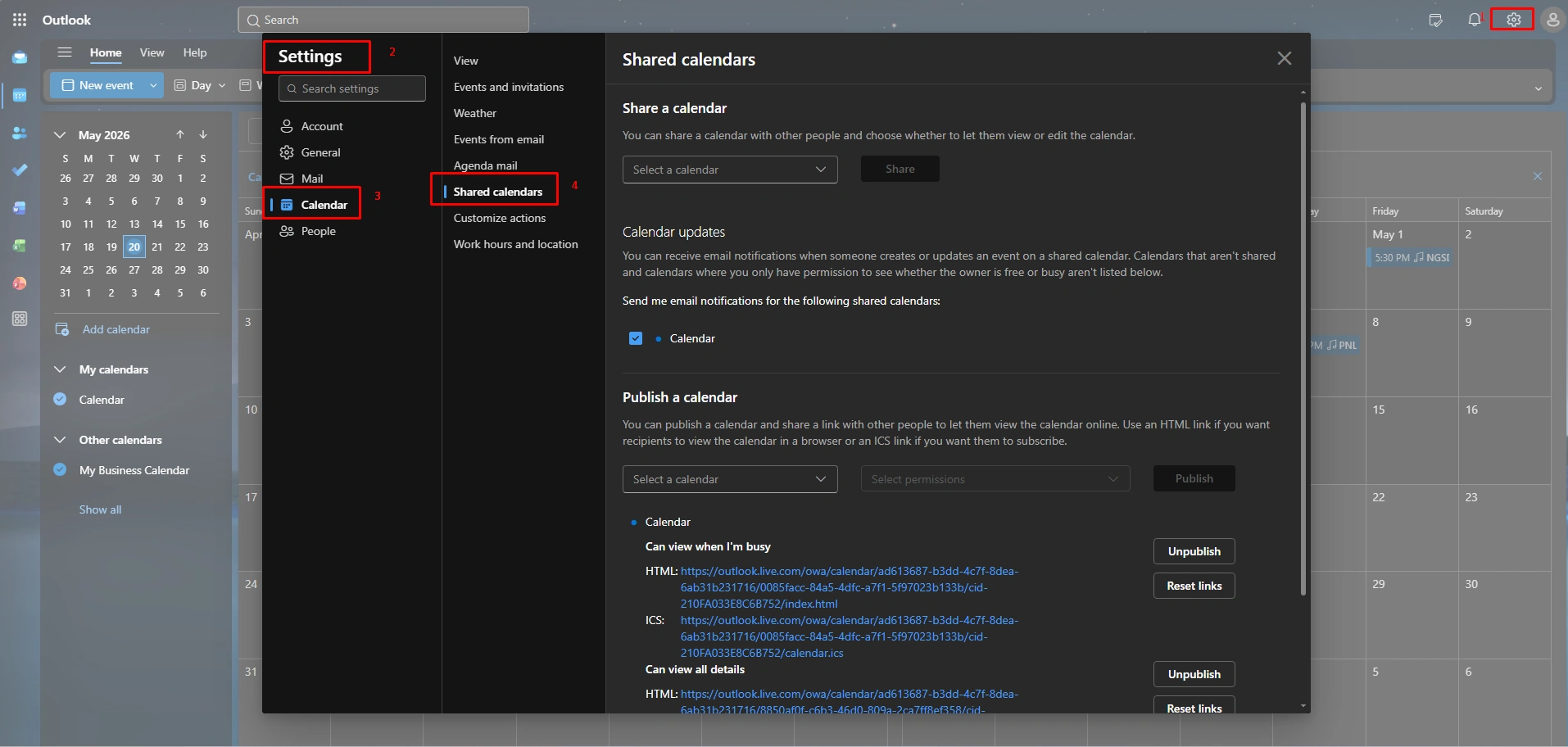
Step-2: Publish Your Calendar (Just scroll down to publish a calendar section).
- Select your calendar from the first dropdown menu.
- Choose “Can view all details” in the second dropdown.
- Finally, click to “Publish.”
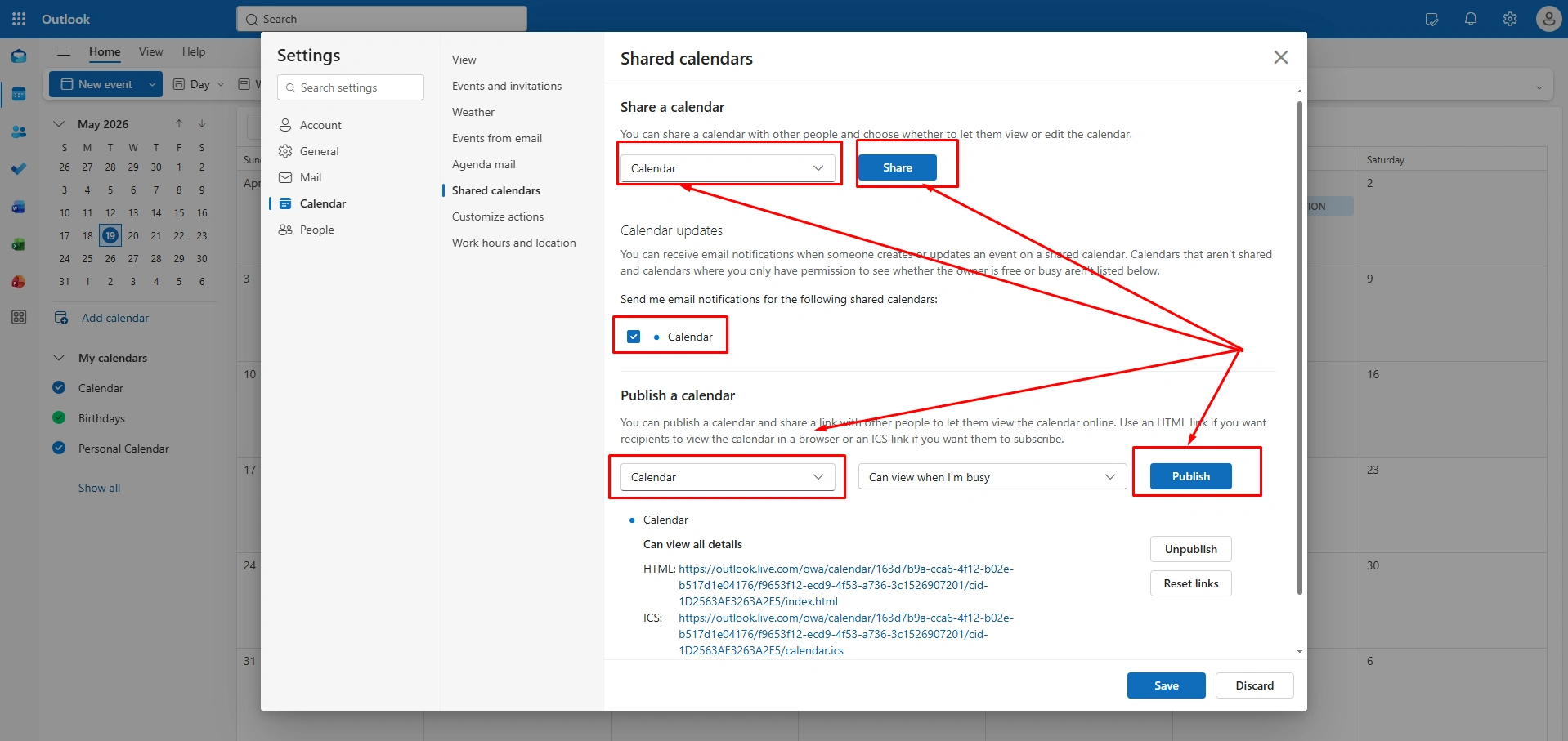
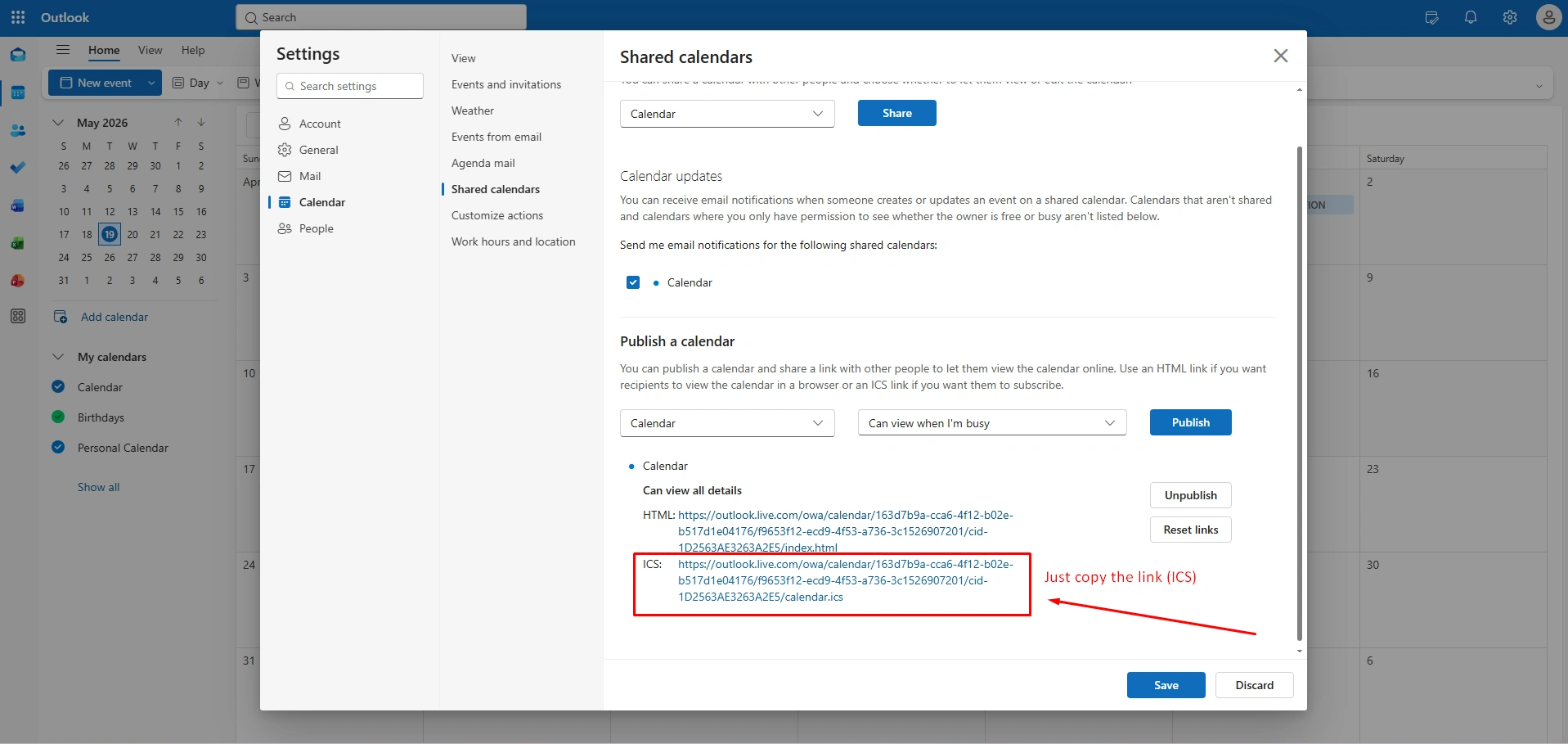
Step-3: Copy the Link: Two web links will appear on your screen.
- Just right-click on the bottom link labeled ICS and select the copy link.
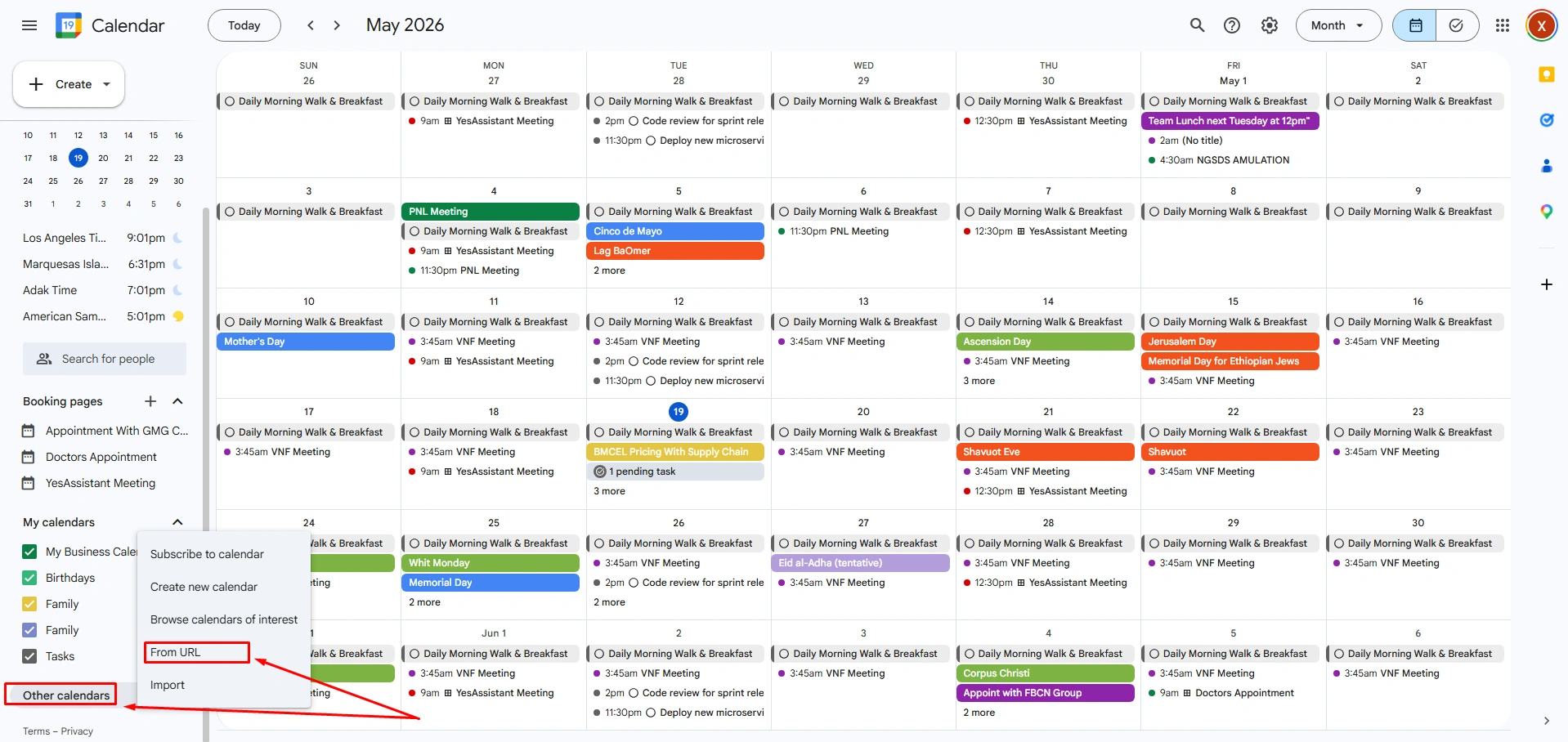
Step-4: In this step, go to the Google Calendar
- Switch back over to your Google Calendar tab in your Web browser.
- Now, scroll down in the left sidebar to the “Others calendars” section
- Click the plus sign (+), and select From URL.
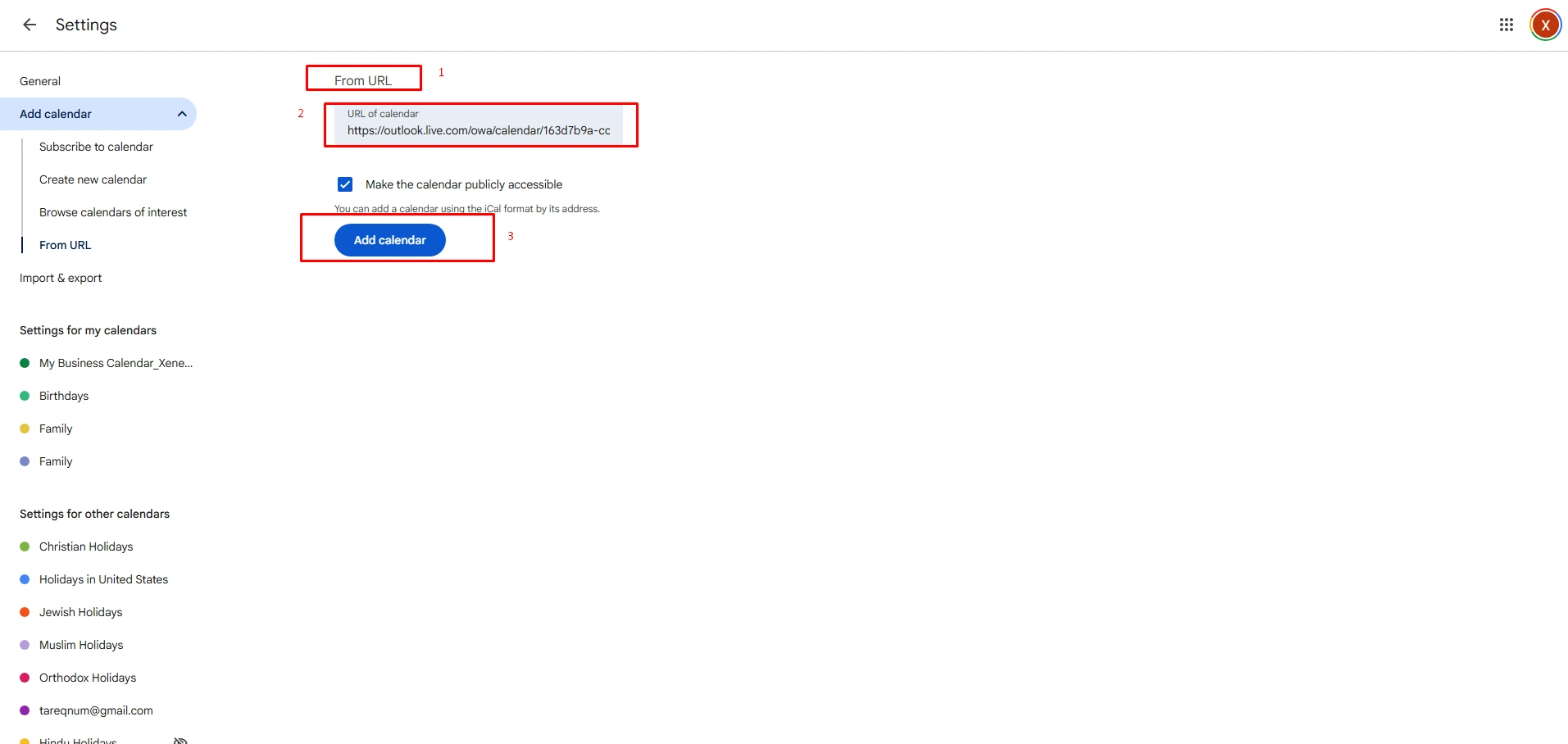
Step-5: Finally, Paste and Link
- Just right-click inside the URL of the calendar field.
- Select paste (to insert your copied Outlook link).
- Now, click the “Add calendar” button.
Common Google Calendar and Outlook Sync Problems
Fix your calendar sync issues. First, figure out how your accounts are connected. Check if you use native integrations, ICS feeds, and third-party apps. The most common issues generally happen from authorization drops, incorrect time zone alignment, or looping sync tools.
Events Not Updating
Google Calendar limits the update interval for subscribed ICS links (added by URL) to roughly 12 to 24 hours to reduce server load. Again, your phone’s battery saver or background data limits might stop your Calendar app from syncing with Google’s cloud in due time.
To fix these issues
- If you use the ICS feed, you can force a manual pull by adding to the end of the URL in your Google Subscription settings.
- For mobile app users, like Outlook on phone, sync your calendar is toggled on, and remove battery restrictions. Besides, use the Outlook Mobile Support page to fix issues.
Duplicate Calendar Entries
Duplicate calendar entries usually happen when you sync an account across multiple methods. For example, using native account syncing alongside a third-party app or an internet calendar subscription creates duplicates.
Additionally, a syncing loop in Outlook or Google Calendar can mistakenly interpret event updates as brand-new events.
To fix these issues
- Check your account settings to ensure the calendar is not added twice.
- If removing the duplicate calendar view does not resolve the issue, you must delete the individual duplicate events.
- Following the Microsoft Support guide for duplicate items, switch your Outlook view to “List” to easily see, select, and bulk-delete the duplicate items
Time Zone Issues
A mismatch between two systems, like your Google Calendar time zone and the Exchange Server’s time zone settings for your Outlook mailbox.
To fix these issues
- Confirm that your Outlook Settings time zone exactly matches the time zone to manage multiple time zones with Google Calendar effectively.
- For shared calendars, ensure the owner’s mailbox and the viewer’s calendar are properly aligned.
- Then recreate any shared ICS subscriptions in Google. So, it can pull the updated time zone metadata.
Conclusion
Syncing Google Calendar with Outlook instantly focuses on your effective presence on both platforms. This also significantly helps you to avoid double-bookings and improve cross-platform collaboration without leaving your preferred apps. Besides, both Google Calendar and Outlook Calendar are used by top-rated businesses.
Moreover, sync between two platforms reduces manual data entry, copy-pasting, and mental burnout to check and cross-reference between multiple tabs. Therefore, both platforms syncing guarantees that updated and rescheduled appointments are instantly available across connected desktop and mobile devices.
FAQ
Can Google Calendar sync automatically with Outlook?
Yes, Google Calendar can sync automatically with Outlook. This depends on which way you want to sync, like one-way (read-only view) or two-way (edit and update both) sync.
Why is my Outlook Calendar not syncing with Google?
This happens when Google Calendars may fail to sync due to broken iCal (ICS) subscription links, two-way limitations, or outdated credentials.
Can I edit Google Calendar events in Outlook?
Yes, you can edit Google Calendar events in Outlook if your Google account is fully synced with Outlook Calendar.