
How to Prevent Double Booking in Google and Outlook Calendar: A Complete Guide
You prepared a program. When you along with team-mates attended at the meeting room, you became overwhelmed as another party attended there. Double-booking confronts both parties as two events have similar urgency.
Find the causes of the unexpected situation and execute the right steps to fix those issues effectively.
What Causes Double Booking in Digital Calendars
When the calendar booking manager mistakenly added two similar events, bookings or schedules caused double booking. It happens when using manual, unsynchronized, or multiple calendars at a time.
Common Causes
Double booking causes for some cases when you are unable to take precautions by using these steps, like followings:
- Using Multiple Calendars: You may use multiple calendars for business requirements or client demands. But still, there is no synchronization between calendars, causing duplicate schedules or bookings.
- Multiple Persons’ Entry: When you enter your booking information, the system may take some time to update. Also, causes due to rules applied for multiple bookings.
- Out-of-Date Bookings: Your teammates may book a schedule that was earlier booked by another person but is still not deactivated. This causes double booking.
In a business setting, business owners and directors mainly focus on strategies and business growth. It’s really a burnout for them to concentrate on calendar management rather than appoint a virtual assistant to access the calendar remotely. Your assistant can set bookings and travel management that gives you the opportunity to focus on the widescreen.
How to Prevent Double Booking in Google Calendar
Significantly, managing Google Calendar schedule can smooth your workflow, and no departments will not miss schedule or find gaps. If you want to avoid double booking, you can apply techniques to enable automation conflicts, use appointment scheduling, and rules to prevent duplicate bookings.
Enable Automatic Conflict Detection
In a free personal Google Calendar, you can use built-in tools to stop double booking. A personal and business calendar setup do not have the same “Auto-accept” features and versions. You can use the “Find a time” and “Appointment Schedule” features to achieve the same goal.
These tools’ visibility highlights conflicts to facilitate your not booking the same events again.
How to Use Conflict Detection (Free Account)
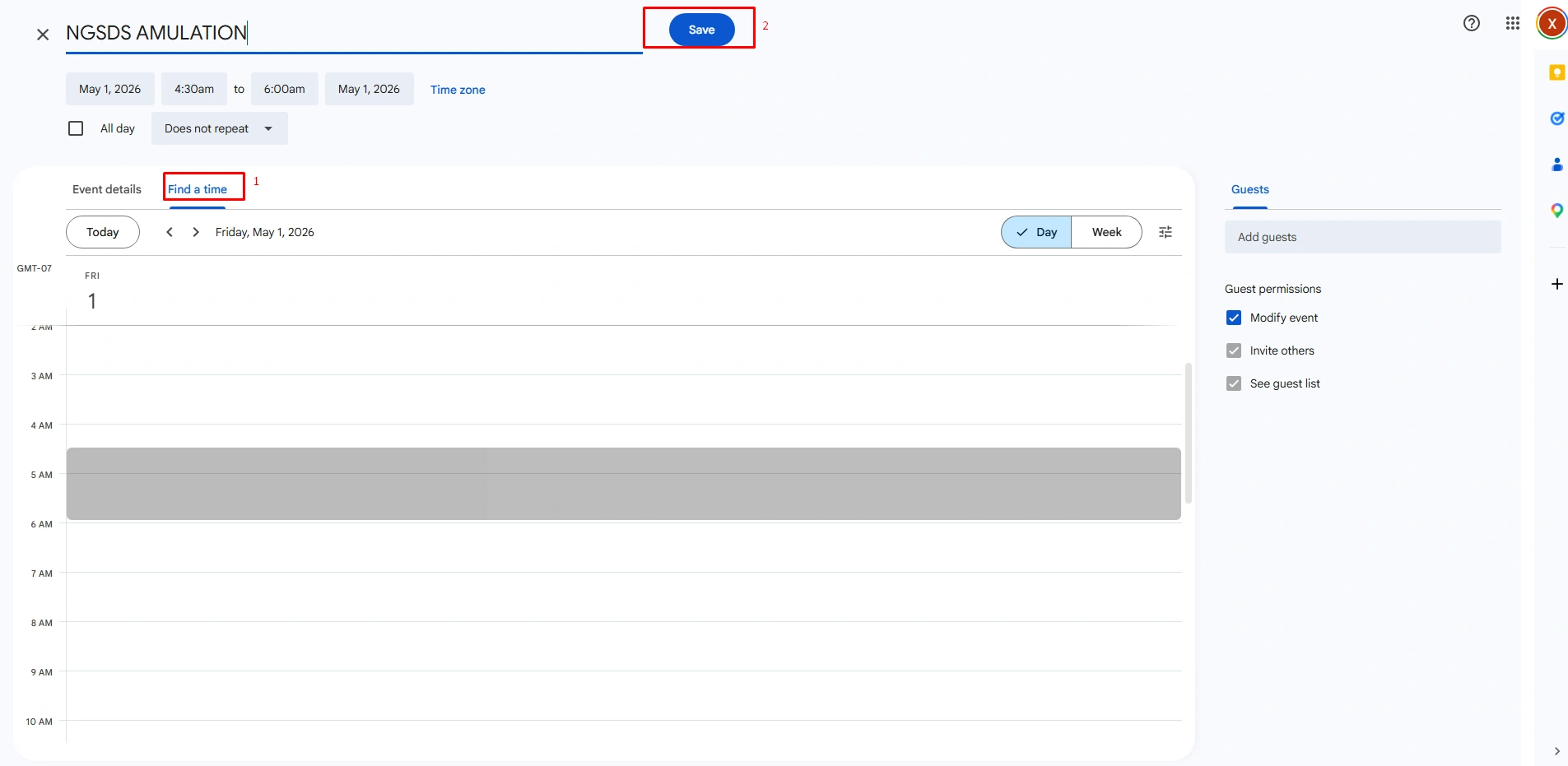
1. Access the “Find a Time” Option: To avoid conflicts, apply automation. At the beginning, click to Create (+) and select the event, and before saving, click to “More options.” In the Full-screen view, click the Find a time tab next to “Event details.”
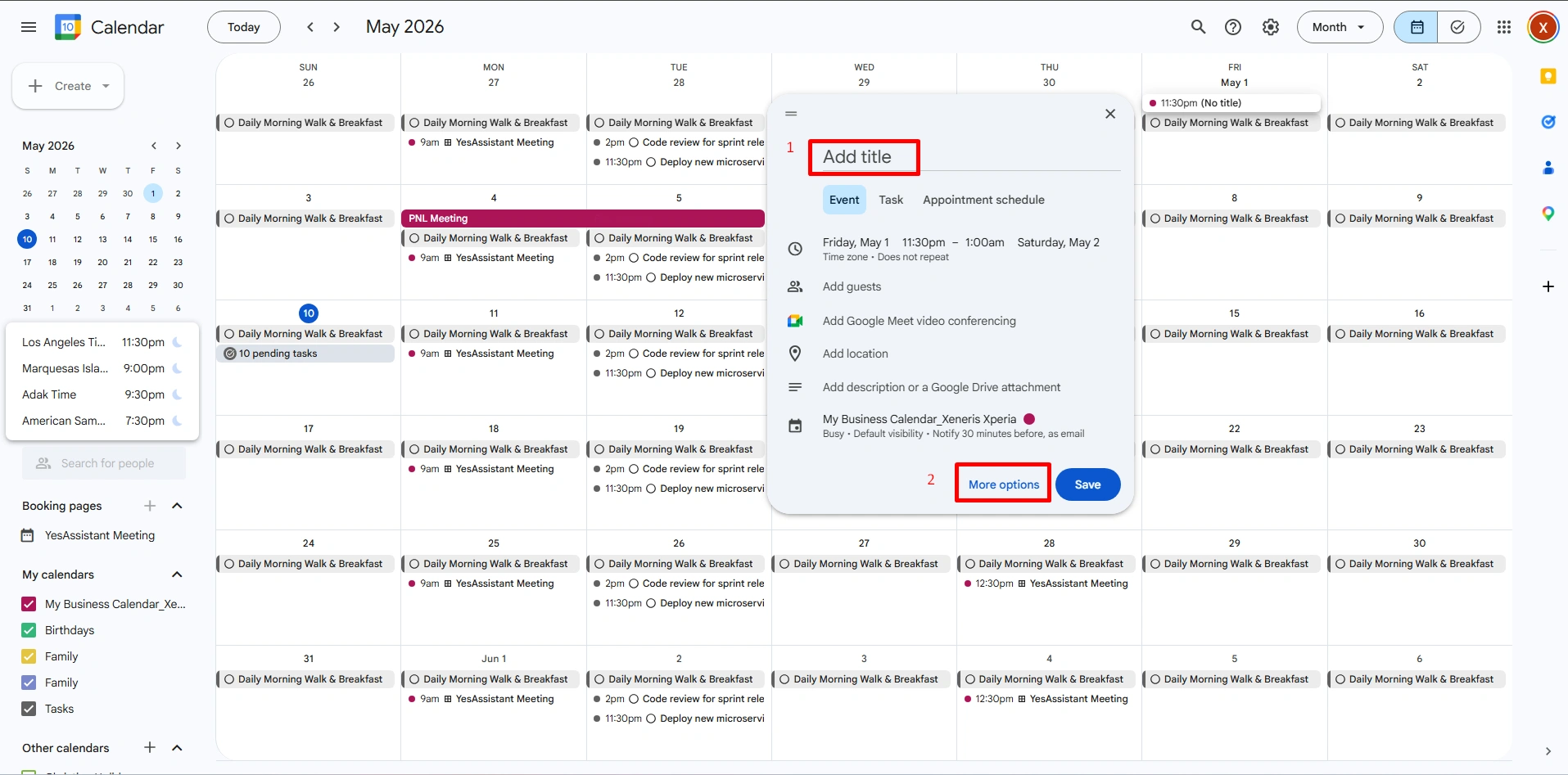
2. Identify and Resolve Overlaps: Look for any colored blocks that clash with your new (blue) event block. If you see an overlap, simply click and drag your new event to an empty white space on the calendar grid.
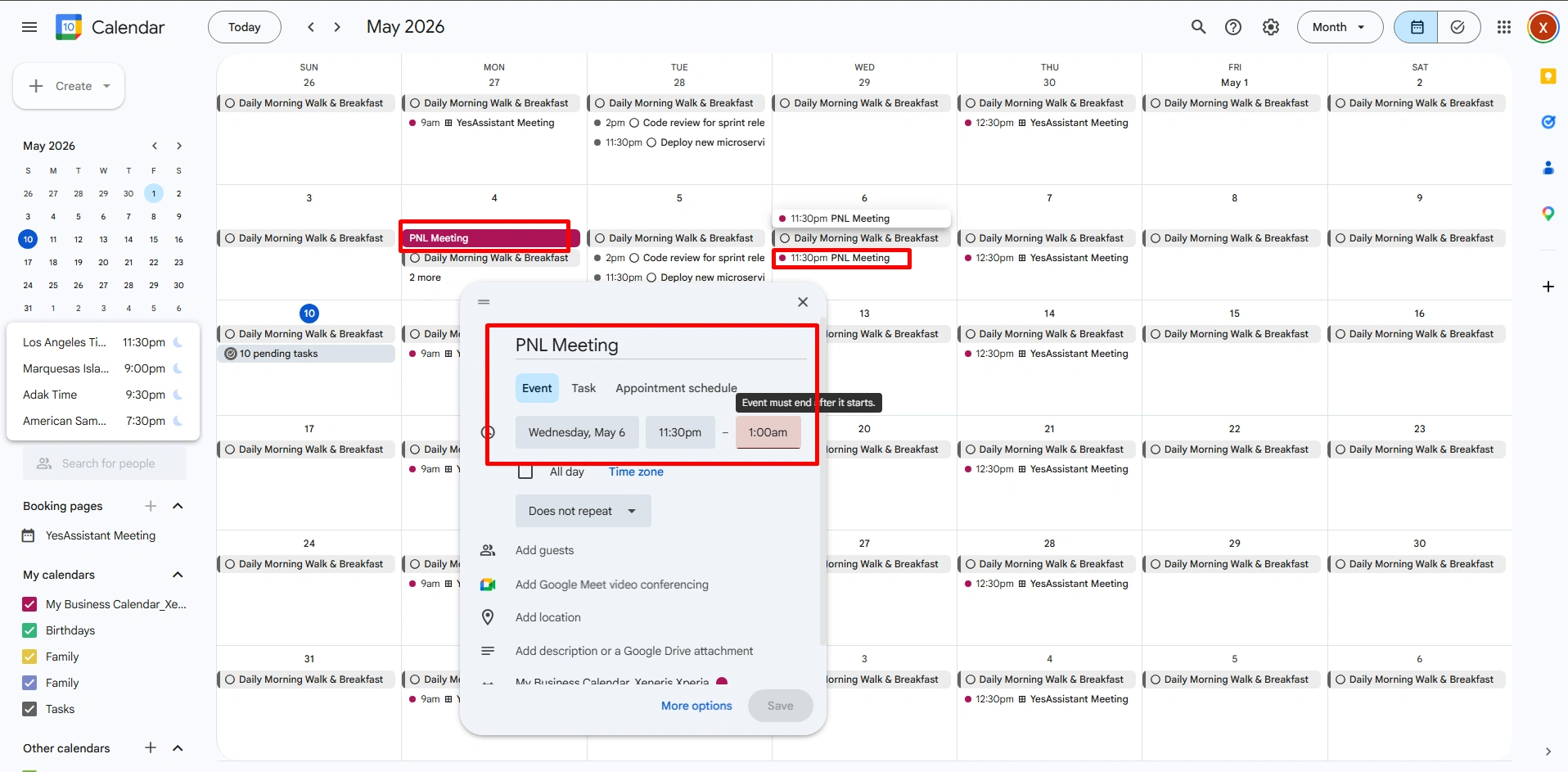
3. Sync Availability: Ensure that “Check calendars for availability” is switched on. This magic step on your booking link automatically hides any time slots that conflict with existing events on your free calendar.
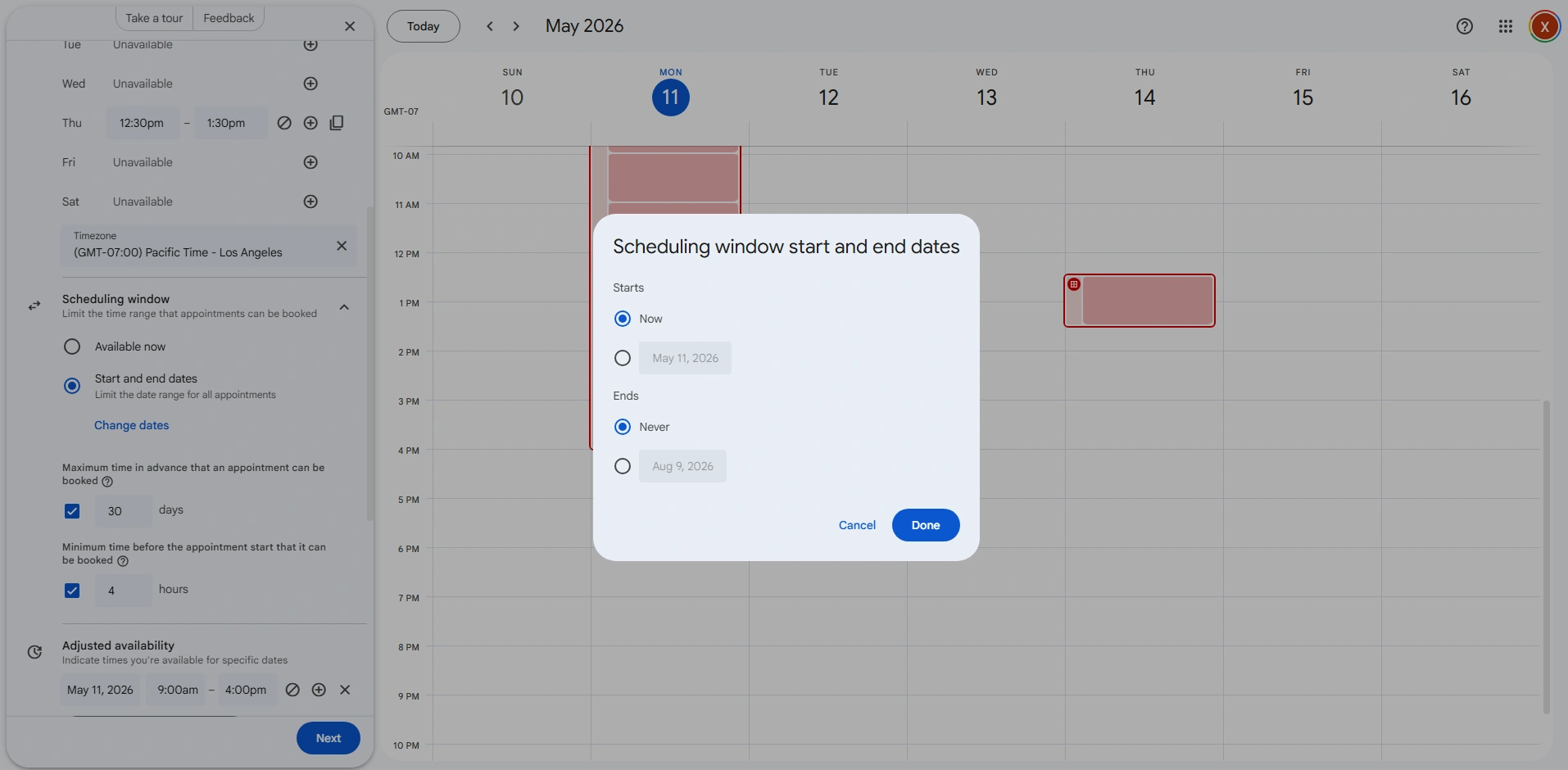
Use Appointment Scheduling
Activate your appointment setting schedules and see if any available hours are already booked or not. This is best to unhide anything already you have booked.
Steps to use appointment scheduling
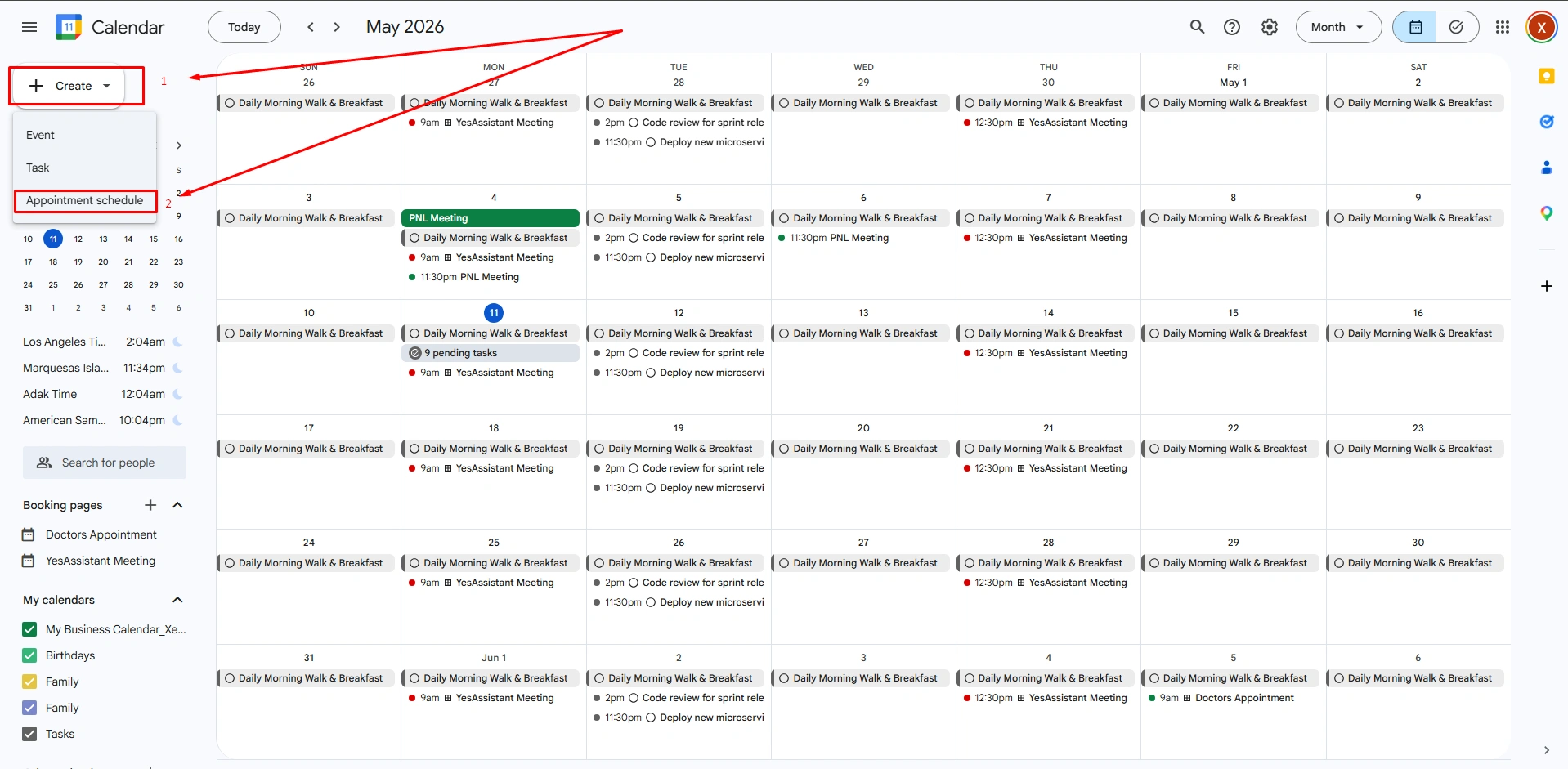
Using an appointment scheduling system following the steps:
- Click to “Create (+) and from the dropdown menu click to “Appointment schedule.”
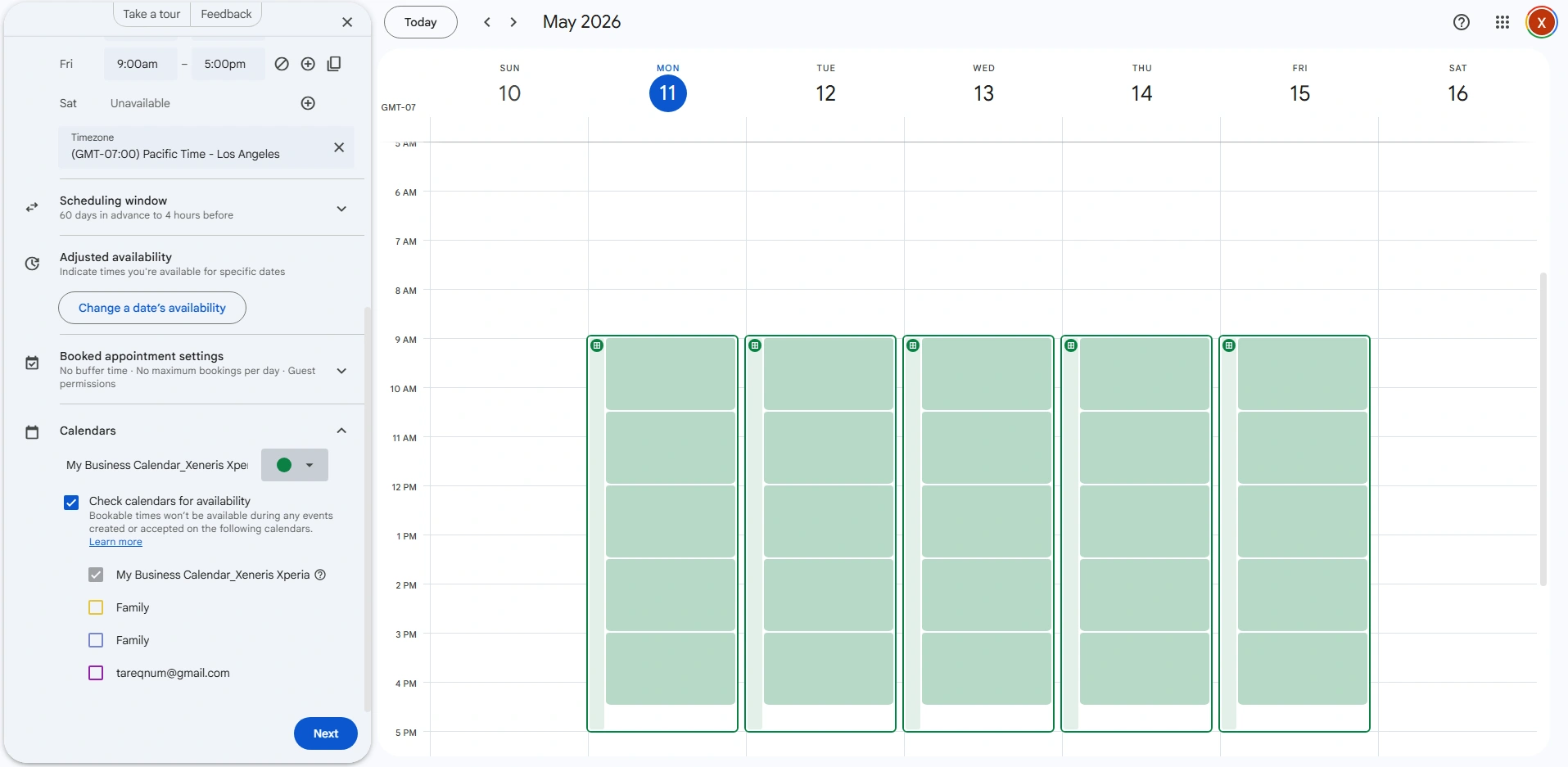
- Set your hours and, most importantly, switch to “Check calendars for availability.”
This will ensure your public booking link automatically hides any time slots where you’re already “Busy.”
Manage Multiple Calendars Properly
Calendar booking on multiple devices sometimes becomes worse when you are unable to integrate those systems.
1. Check for Conflicts Manually. Best for internal invites.
When you create a new event, you need to click “Find a Time.” This pulls up your daily schedule side-by-side with the new event. If the blocks overlap, drag your new event to a clear white space before hitting ‘Save.”
2. Enable ‘Speedy Meetings’ to build automatic buffers.
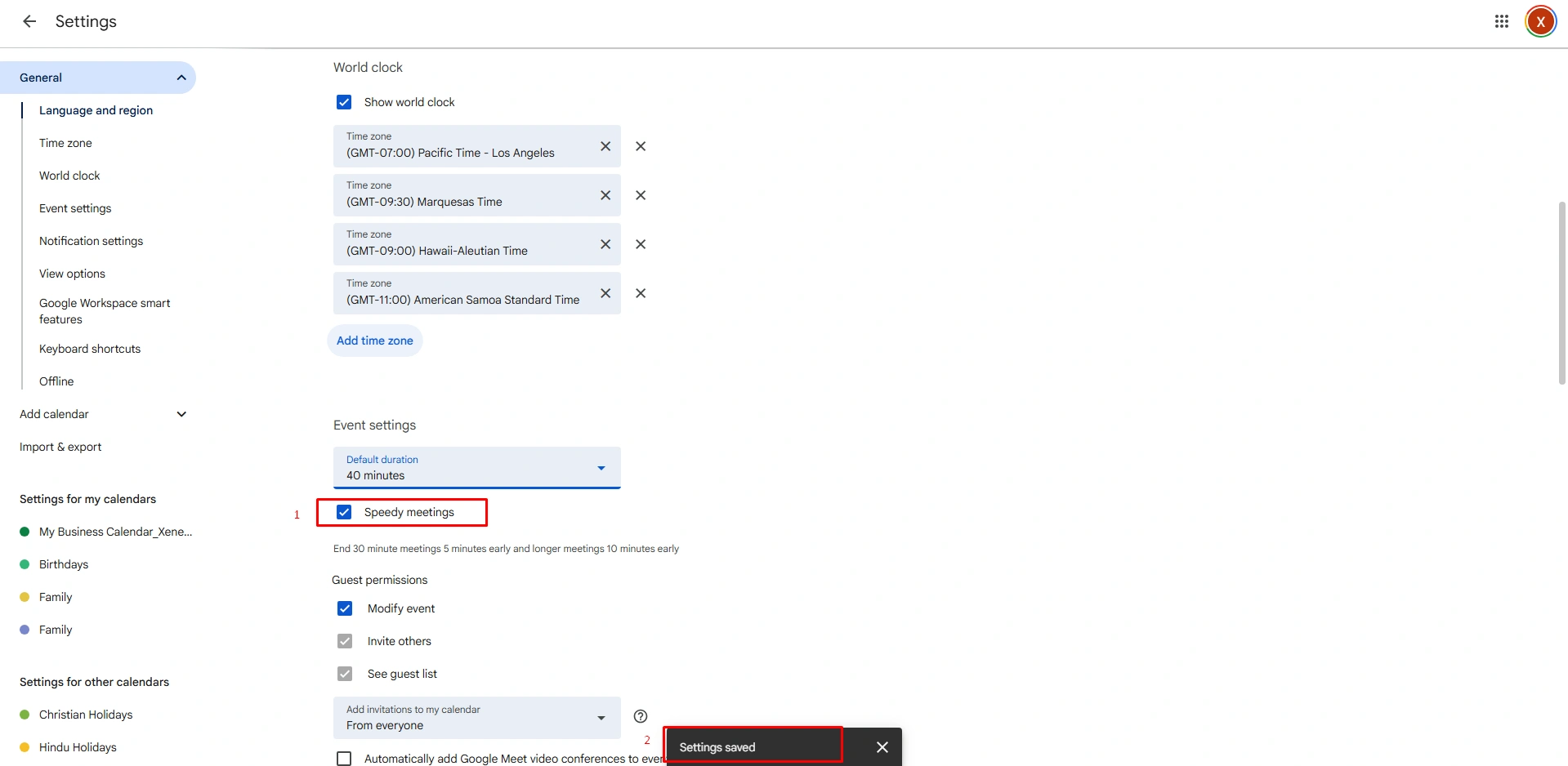
To activate this option, go to the “Settings” gear icon. Check ‘Speedy meetings.
You will automatically end a 30-minute meeting 5 minutes early, prevent back-to-back schedule overlaps, and give you a mandatory “reset” period.
3. Set Up Your Booking Page, which is Best for external requests.
In this step, click to “Create (+), go to the dropdown list,
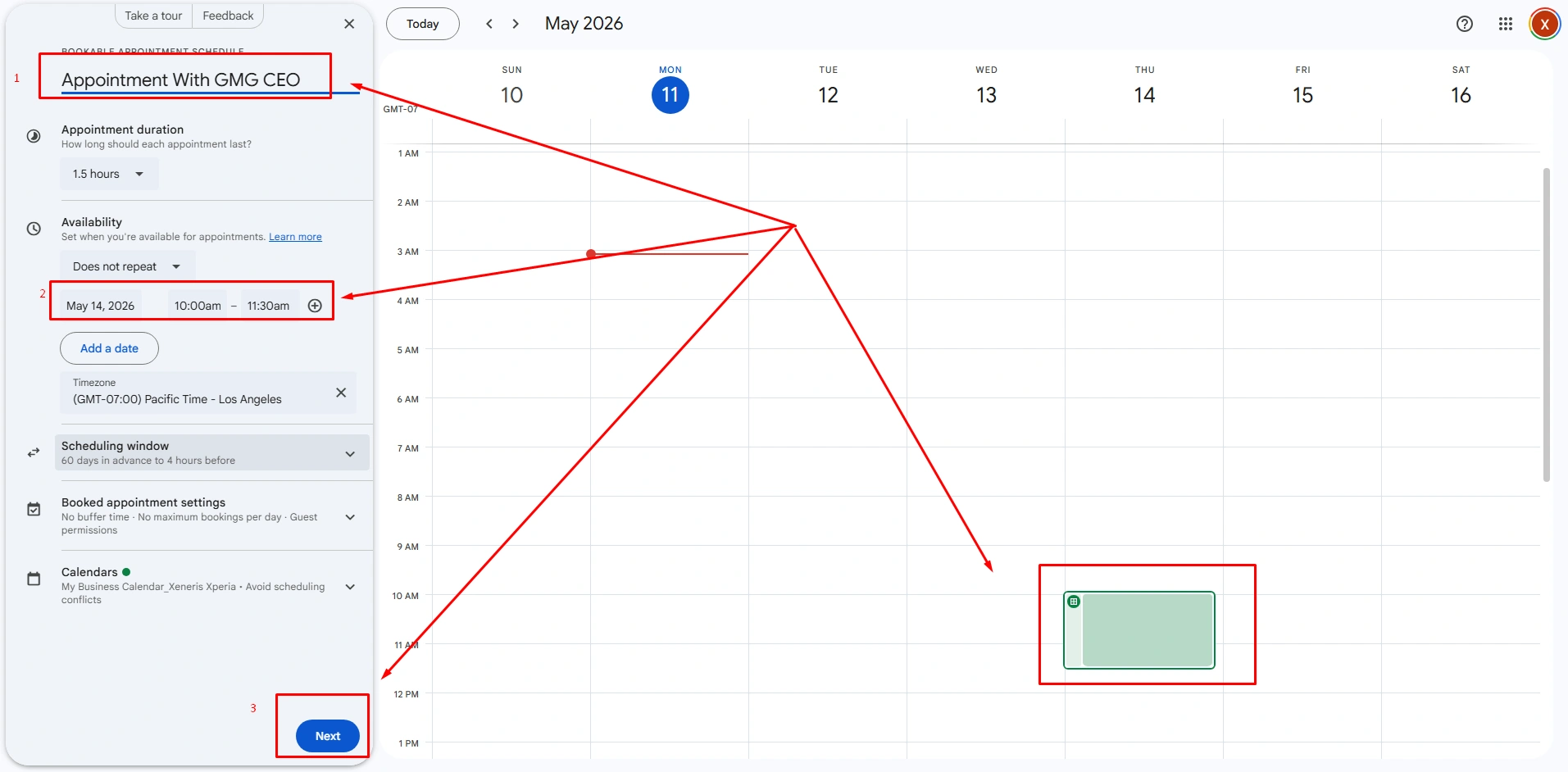
- Then, click on “Appointment schedule.” On a free account, you can create one active booking page.
- Set your open hours, and the system will automatically block out any times where you already have a “Busy event.”
Set Default Event Buffers
Google Calendar doesn’t automatically add gaps between meetings, which often leads to consecutive bookings that drain into one another. You can fix this by using Speedy Meetings. This setting automatically shortens your meeting, leaving a 5 to 10-minute buffer at the end.
Steps to proceed “default Event Buffers:
- At the beginning, go to Google Calendar on your desktop and click on the settings menu.
- Now, go to Settings >>> General >>> Event settings
- Check the box for “Speedy meetings.”
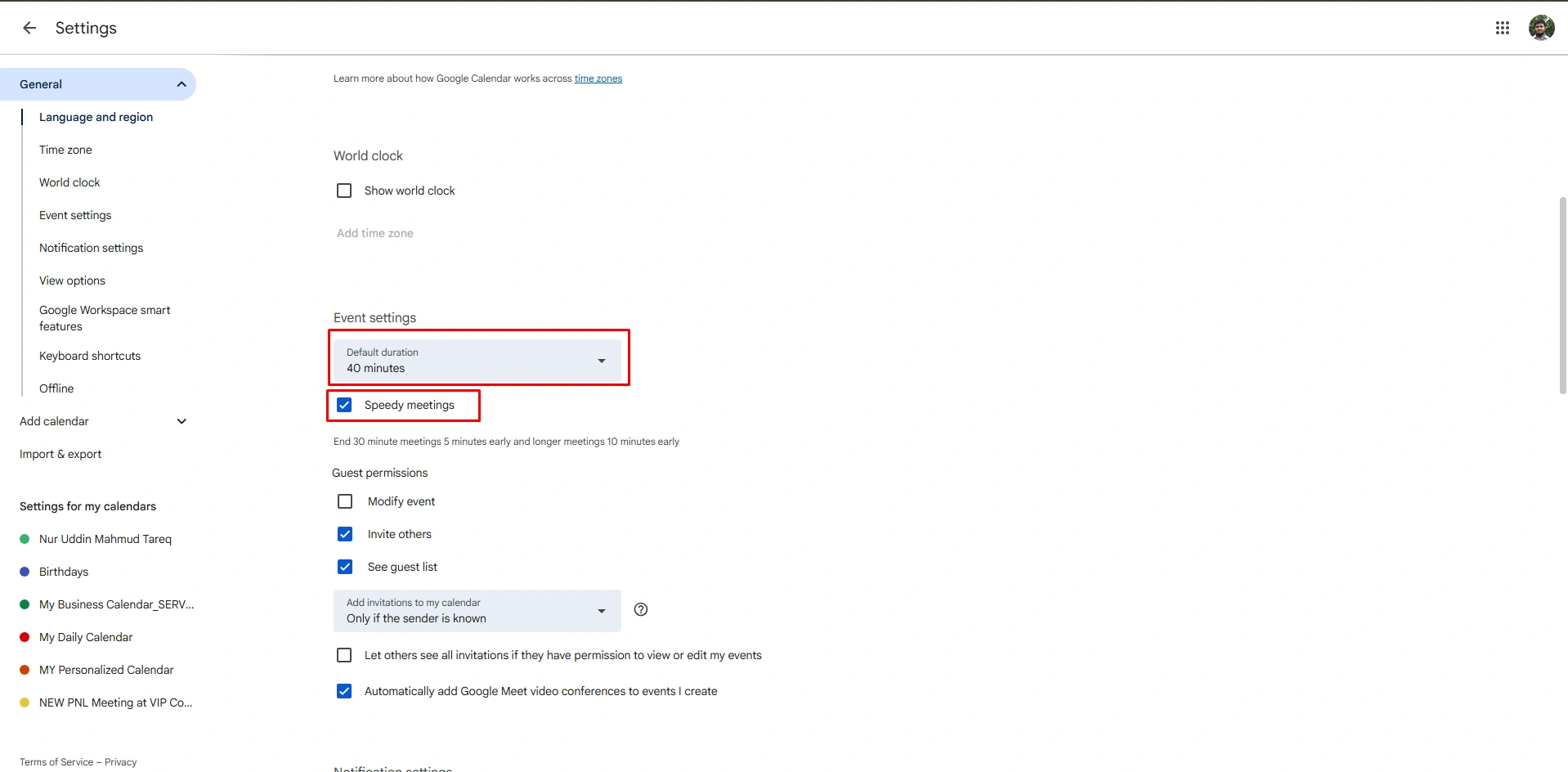
In the “Speedy meetings” setting, if the meeting length is 30-minutes, you’ll get a reminder 5 minutes early, and 60-minutes, you will get 10 minutes early.
Use Third-Party Scheduling Tools
If you share your calendar for external booking, Google’s native “Appointment slots” can often be limited. Integrate Google Calendar with other third-party tools to offer actual sync across multiple calendars. These include syncing your work and personal life, which is the most effective way to eliminate overlaps.
How to do the process:
- Connect third-party tools like Calendly, SavvyCal, or Motion with your Google Calendar.
- Configure the tools to “Check for conflicts” across all connected accounts.
- Set “Maximum events per day” or “Buffer time” within the third-party app.
Share your external booking link rather than manually suggested times, the software will automatically. Also, hide any slots where a busy event already exists on your Google Calendar.
How to Prevent Double Booking in Outlook Calendar
In a high-velocity work environment, manual oversight is the first point of failure. The following steps outline how to optimize Outlook’s internal architecture to ensure your time remains protected.
Enable Conflict Checking
Outlook has self-interactive rules like its proactive filter automatically scanning your schedule for setting reminder in Outlook. This is vital for professionals who receive a high volume of invites.
Besides, the Outlook system can check your email without manual effort; you can also program Outlook to defend your “Busy” blocks. This might immediately decline any request that attempts to occupy the same timeframe.
How to proceed:
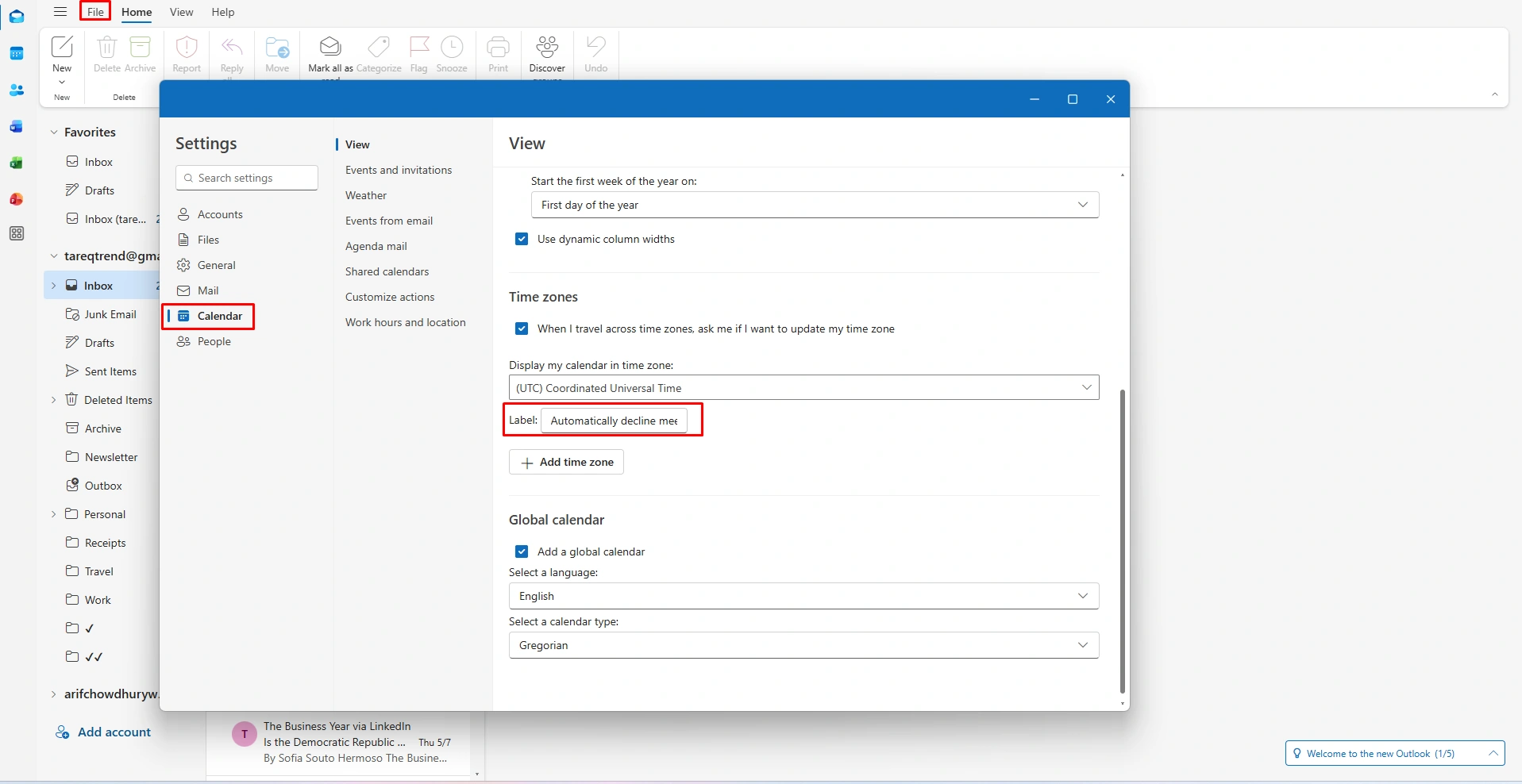
- Open the Outlook Desktop App and navigate to the File tab in the top-left corner.
- Select Options and then click on Calendar from the sidebar.
- Scroll down to the section labeled Automatic acceptance or decline.
- Click the Auto Accept/Decline button.
- Check the box: “Automatically decline meeting requests that conflict with an existing appointment or meeting.”
Use Scheduling Assistant
The schedule assistant acts as an unlimited tool for “Pre-emptive” conflict solution. This feature provides an actual heat map of your colleagues’ availability. It allows you to see exactly where a conflict would occur before you send the invite, and effectively stop double booking at the source.
Steps to use the Scheduling Assistant
- Create a New Meeting and add all necessary participants in the “To” field.
- Click the Scheduling Assistant button in the top ribbon.
- Observe the grid: Blue/Purple bars indicate busy times, while Striped bars indicate tentative ones.
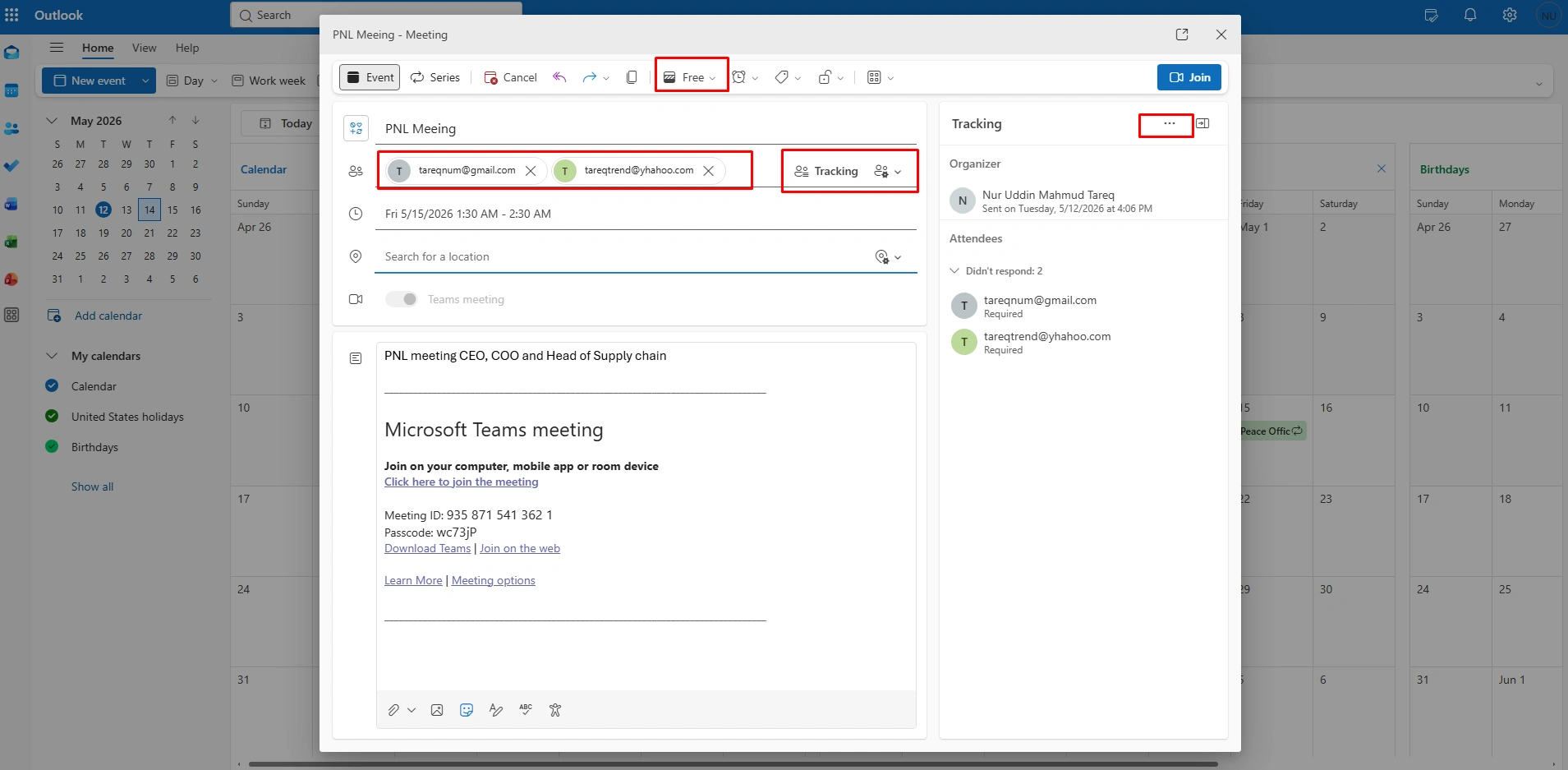
Look at the Suggested Times pane on the right side of the screen. Outlook will rank the best available slots based on when the most participants (and rooms) are free.
Set Working Hours and Availability
One of the most common causes of double booking is “Off-Hours Overlap,” where people book you during exchange, lunch, or after-hours. This is because your calendar appears blank. By defining your working hours, you signal to the Outlook ecosystem that you can access it anytime from anywhere.
Steps to Process Setting Working Hours and Availability
Go to the File Options.
- Click to Calendar
- Under the Work time section, set your specific “Start time” and “End Time” (Example, 9:00 AM to 5:00 PM).
- Select your specific Work Week (like, Sunday to Thursday, if you are in a region like the USA, Monday through Friday).
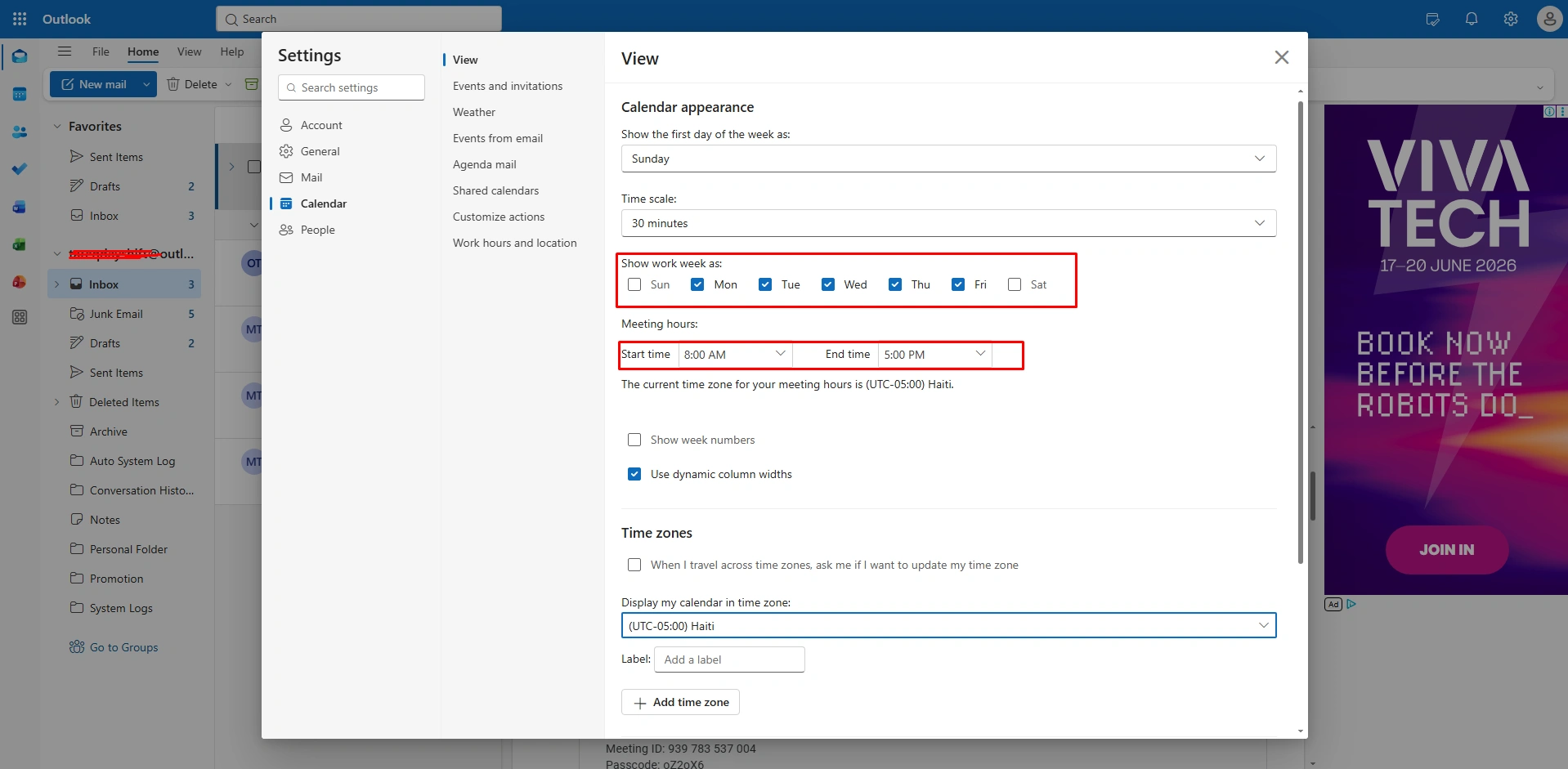
Note: This setting works with the “Find a Time” feature when colleagues try to book you. Outlook will highlight “Outside of Working Hours” as a warning, preventing them from accidentally double-booking your personal time.
Use Room and Resource Booking Controls
Double booking is not related to booking with the same resources. This often happens with conference rooms or shared company vehicles. If two teams book the same room, two teams will fall into a schedule jam.
Though setting up “Resource Calendars.” Outlook can act as an automated librarian, ensuring a resource is never assigned to two parties at once.
How to Use Room and Resource Booking Controls
When booking a meeting, use the room button to select a specific location
- If you are an admin setting up these resources, navigate to the Exchange Admin Center.
- Under Recipients > Resources, select the room and go to Booking Delegates.
- Set the option to “Accept or Decline booking request automatically.”
- Crucially, ensure “Allow Conflicts” is set to False.
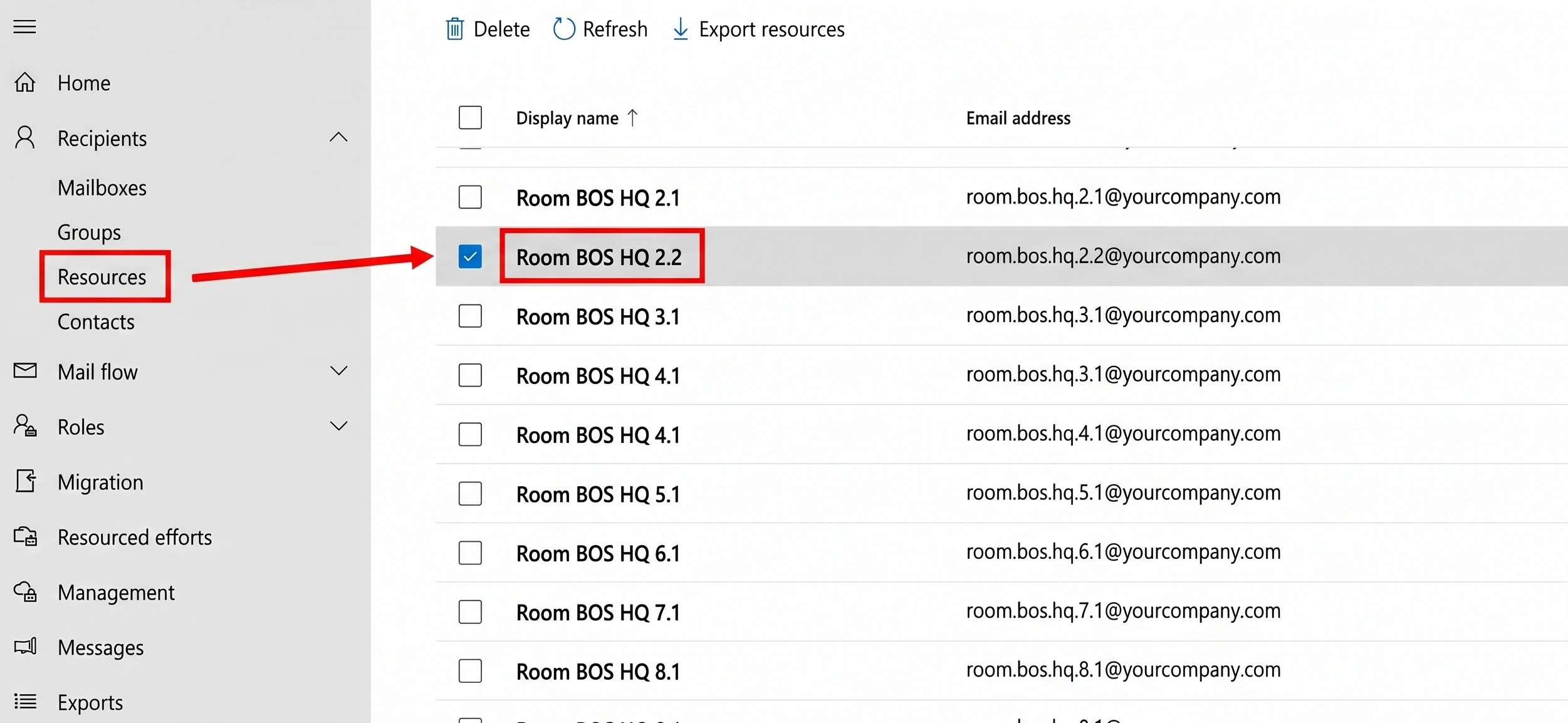
Now, if a second person tries to book the same conference room for the same day and same time slot, they receive an immediate automated rejection. This will force them to find an alternative and prevent a “room-clash” on the day of the event.
Advanced Tips to Avoid Double Booking
Effective calendar management involves some core essentials. Reducing double booking complexities is also included in effective calendar management. This will help you to be free from burnout. Here are some times to avoid double bookings:
Centralize Calendar Management
A centralized Calendar management system acts as the backbone of effective time management in any organization. By accumulating all scheduled activities into a single platform, businesses can eliminate the confusion of double-booking from multiple calendars.
- Consolidate Siloed Calendars: Use a master calendar that centralizes all other calendars under a unique view. Means you can view a single dashboard integrating Google, Outlook, and iCloud Calendar under “Calendar Bridge” or “ Don’t Double Book Me.” This unified view effectively helps you to avoid double-booking.
- Established a Primary Calendar: Designated your professional calendar as a primary calendar and kept your personal schedules synced as “Busy” slots.
- Automated Event Creation: Use your calendar automated tools, like Jotform’s calendar integration. This tool automated create, updating, and delete schedules from your Outlook calendar through two-way synchronization.
Enable Real-Time Sync Across Devices
Calendar synchronization became popular due to its management complexities in a unified way. This sync enables actual timing, working hours, and event management for the people who work from remote positions and focuses everything from a single view. An effective coordination tool not only manages your time but also consistently manages multiple calendars in one grid.
- Use ActiveSync or Push Notifications: Use ActiveSync on your mobile; therefore, the system will push important notifications to your device.
- Monitor Sync Delays: Some platforms took a long time to update systems, like iCloud. Check your platform update speed (maximum 1 minute). Therefore, when other team members book or schedule the same events in the same place, the system will detect and block it.
- Check Hidden Calendars: In Google Calendar, check all necessary calendars and onboard at main view to ensure nothing is hidden from your calendar view.
Schedule booking and personal shared calendars is consistently painstaking for the users.
- Use Scheduling Links: Use tools like Cal.com or Acuity Scheduling to share your booking pages that only show your free time, rather than sharing your full calendar. This also protects your privacy.
- Utilize “Busy” Only Permissions: When sharing calendars (like Google Calendar) with colleagues, set permissions to “Availability only” or “Limited details.” These show you are occupied without revealing the private details of your meeting.
- Set Up Booking Rules: Now configure your scheduling tools to prevent bookings on short notice.
Use Color Coding and Labels
Color-coding helps to detect different colors and helps you color-code your existing calendar and avoid booking twice for the same events.
- Visual Categorization: Assign different colors for categorization, like “Deep work, “Client meeting,” “Personal,” and “Travel.”
- Color-Code by Priority: Use high-contrast colors (like Red or orange) for high-priority meetings and cooler colors for tasks that need to be rescheduled if needed.
- Implement by “Layers”: Utilize calendar colors in applications, like Google Calendar or Outlook, to quickly switch between work, personal, and shared views for better workflow.
FAQs
Can Google Calendar automatically prevent double booking?
No, but it provides conflict warnings. Use Appointment Slots, Resource Scheduling, or third-party tools to prevent them.
How does Outlook handle scheduling conflicts?
It uses automated alerts, AI-driven management, and manual resolution tools.
What tools integrate with Google Calendar to avoid overlaps?
Automated booking platforms, AI assistants, and apps use two-way sync to block availability across calendars.
How to sync multiple Calendars without conflicts?
Consolidate to a single “source of truth,” use third-party tools for real-time bidirectional syncing, and use consistent management habits.
Conclusion
Preventing double booking saves your business, increases client satisfaction, and enhances your professional image. Proper scheduling and integration with tools can unify your multiple calendars. By using automation, you can organize appointment bookings event, and avoid conflicts.