
15 Most Advanced Google Calendar Hacks For Productivity
As a business owner, if you have no big budget for buying costly tools, Google Calendar can be your smart working partner. If you have a Gmail address, you can directly get access to Google Calendar to organize your business workflow.
Significantly, accessing between Google Calendar with Google Workspace, you can integrate all other Google tools that strengthen your important tasks.
Set Up Google Calendar for Maximum Efficiency
Spending more time with Google Calendar advances your efficiency. You can easily create events, duplicate tasks or events, and customize views and settings for better workflow.
Use Multiple Calendars for Better Organization
Users can set multiple calendars with personalization tasks and project-specific calendar settings using different time zones, color coding, and notifications.
- Create Separate Layers: Google Calendar setting options provide you customize functioning, like “Deep Work,” “Meetings” and “Tasks with Family Work”
- Color-Coding: Use different colors by separating your calendars, like, Green for “work” and Yellow for “Personalize tasks.
Optimize Calendar View Settings
Google Calendar another customized view option like, you can view your calendar based Daily/Weekly/Monthly basis.
- Hide Decline Events: From the setting option, hide your tasks that are no longer active as per your current schedules.
- Activate Busy Mode: While you’re engaging with other work, just activate busy mode to keep others busy until you’re available for the task.
There are 6 to 8 core categories available under Google Calendar. By using the category, your business can facilitate thousand tasks integrated with the Google Calendar, but you never do it alone. Smart entrepreneurs assign a remote assistant, who can set all tasks, notifications, and automate important reminders to business concerns.
15 Google Calendar Hacks to Save Time and Stay Organized
Most of the business owners depend on Google Calendar due to having easy access to essential hacks to ensure better productivity. Besides, Google Calendar has multiple access points that enhance your daily productivity and automate operations.
Before you drive to the keyword shortcut, you must turn into the master settings. Google Calendar has these disabled features for new users.
Steps to proceed to navigate quickly:
- Go to Google Calendar in your browser
- Click the “Settings” gear icon in the top right, then select the option.
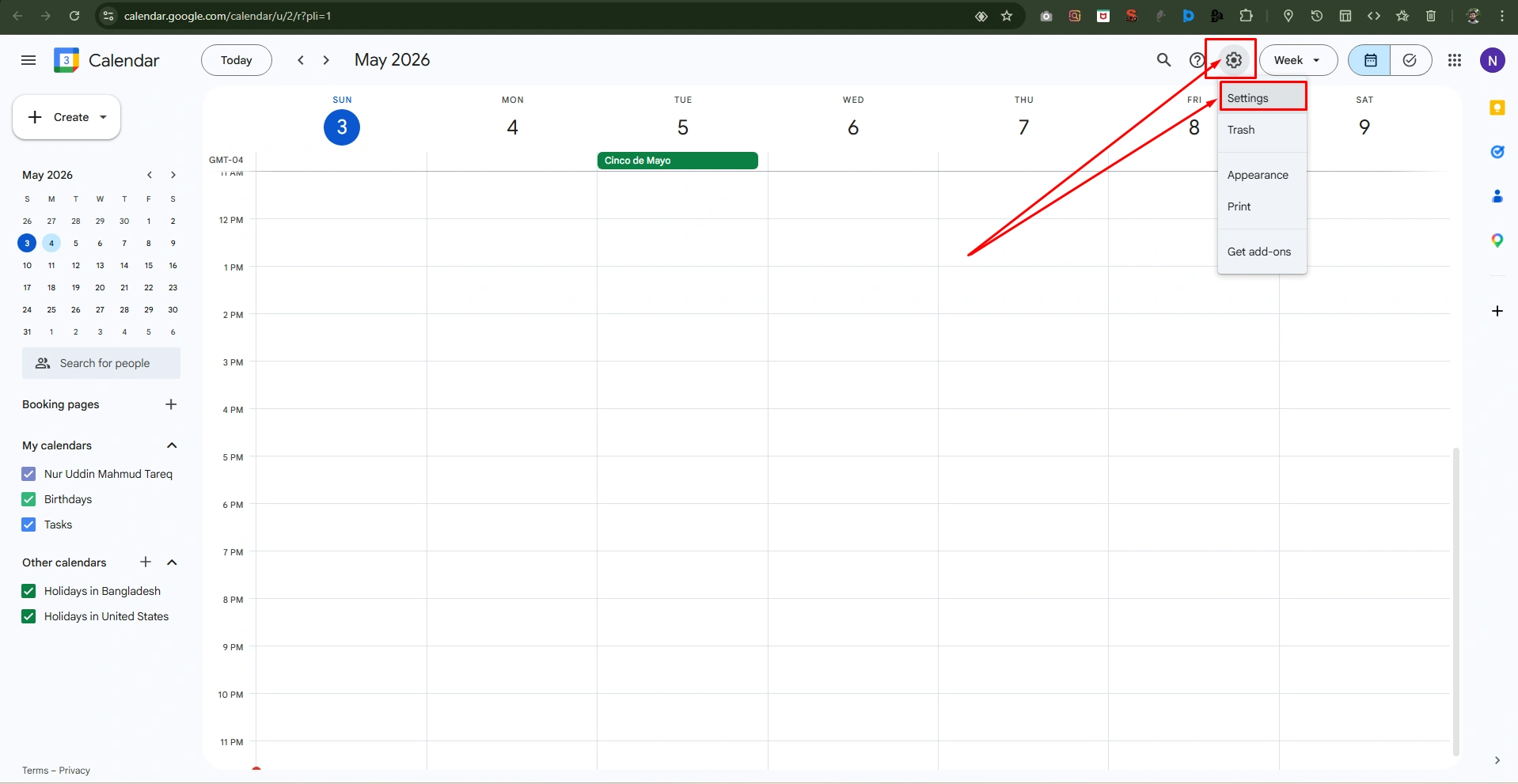
Now, the system will go to “setting featured” Steps with the following
- Go to the left-hand sidebar, click keyboard shortcuts. Ensure the box labeled “Enable Keyboard Shortcuts” is checked.
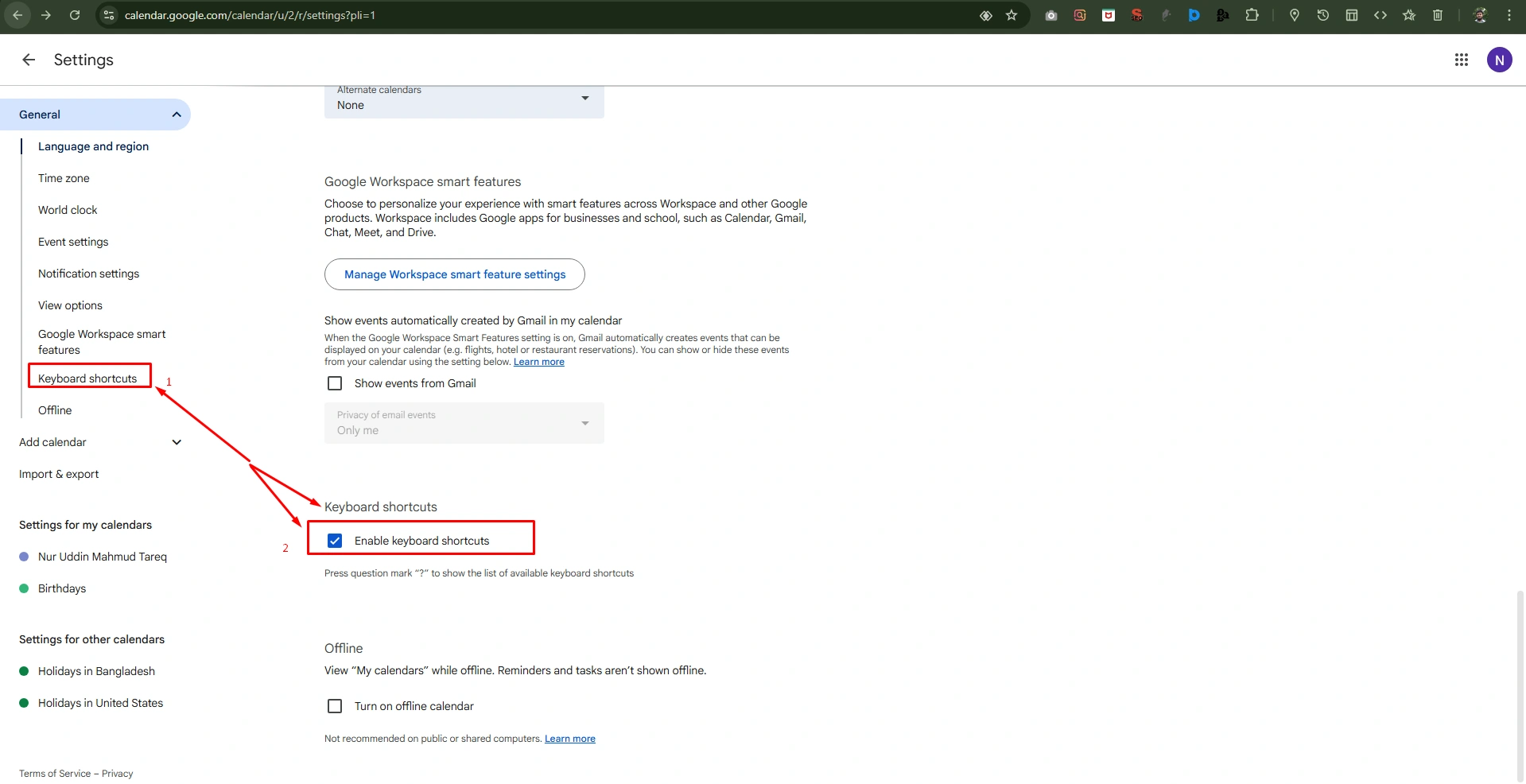
Note: You don’t need to hit “Save” as Google saves your preference automatically.
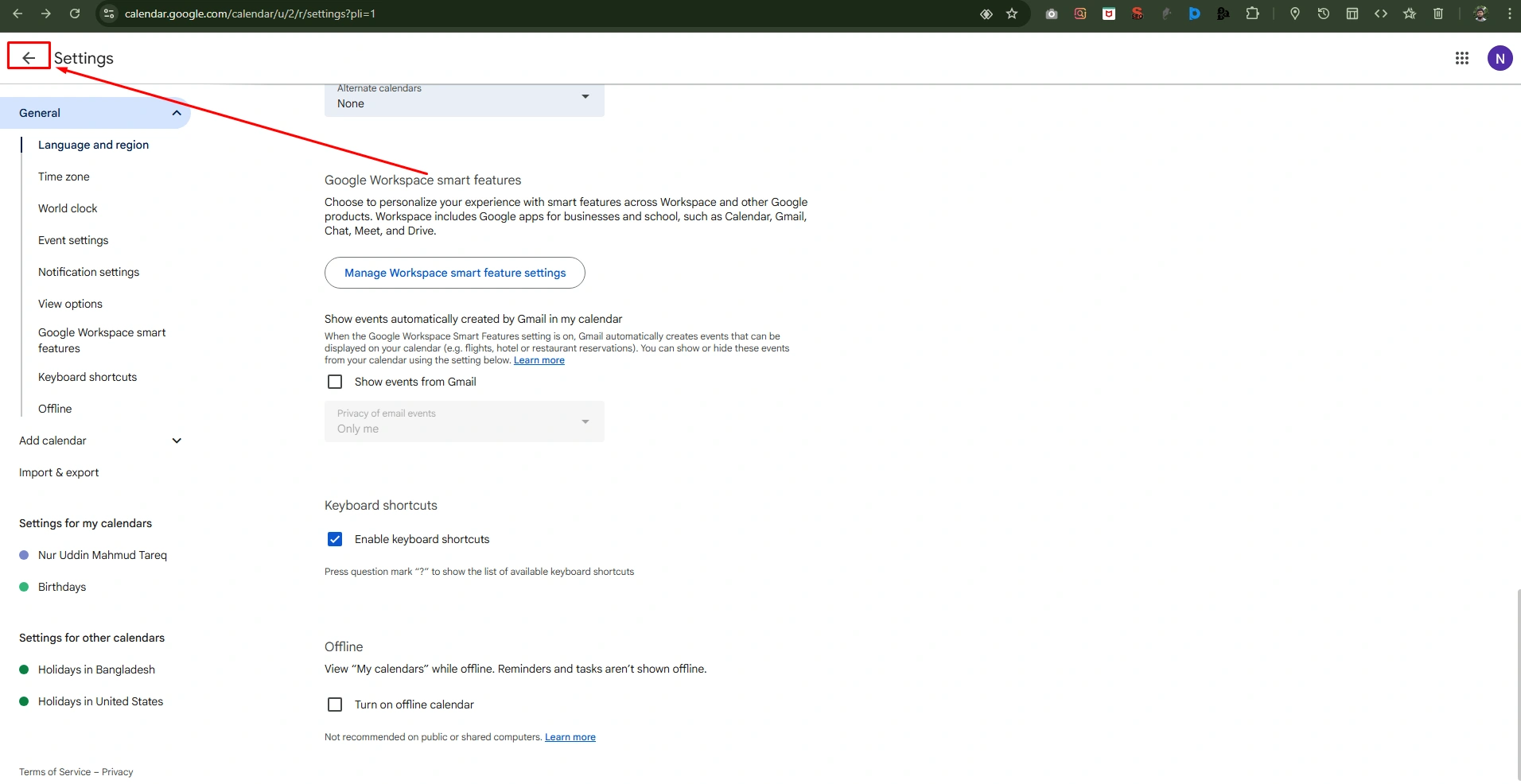
Now – Apply shortcuts with your Google Calendar,
Step- 1. Create Event
- Open your Google Calendar full-screen event creation window immediately
- Press “C” on your keyboard and open a new event
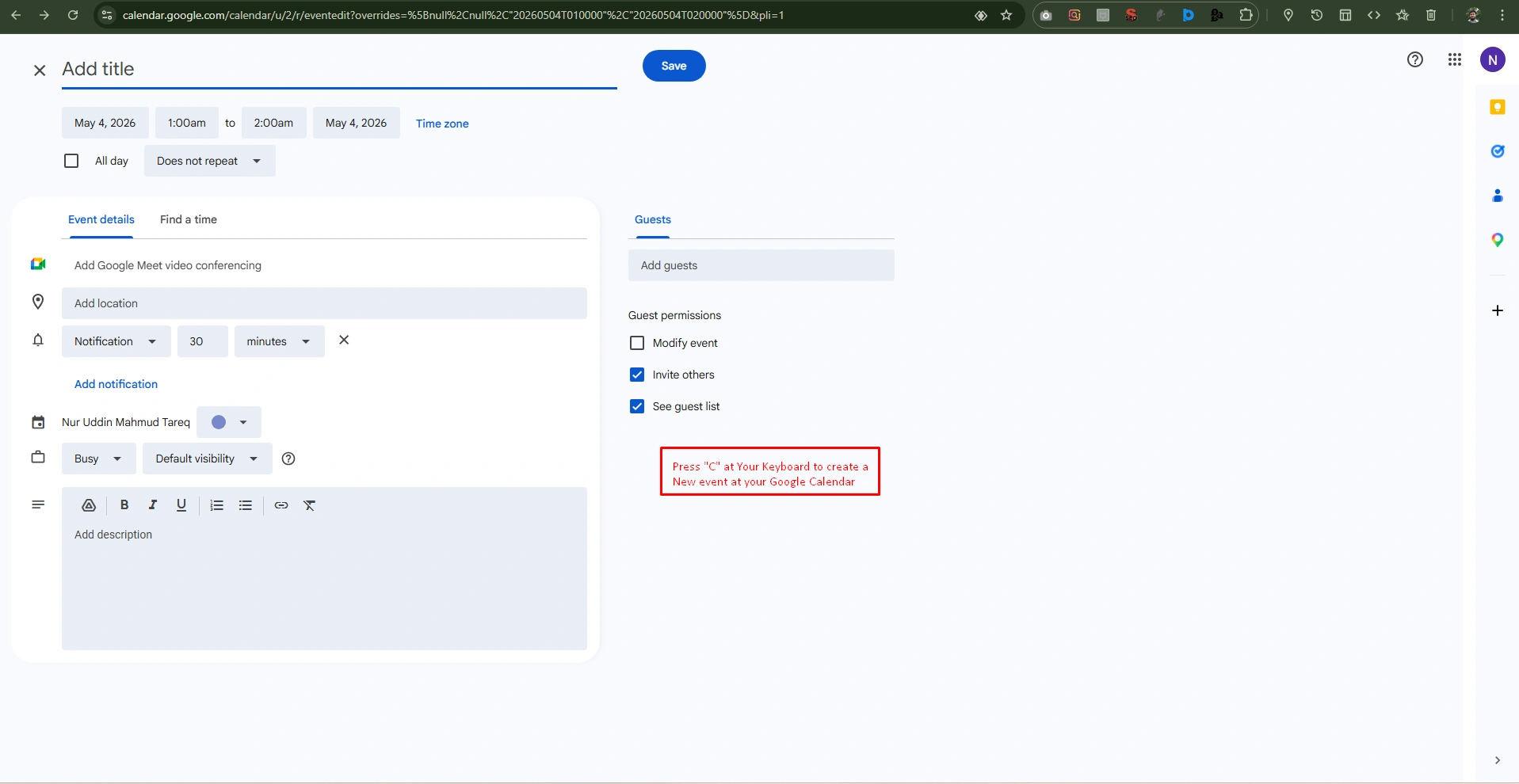
Step-2. Edit Event
- Select an event already created in your Google Calendar,
- Press “E” on your keyboard to edit the event details.
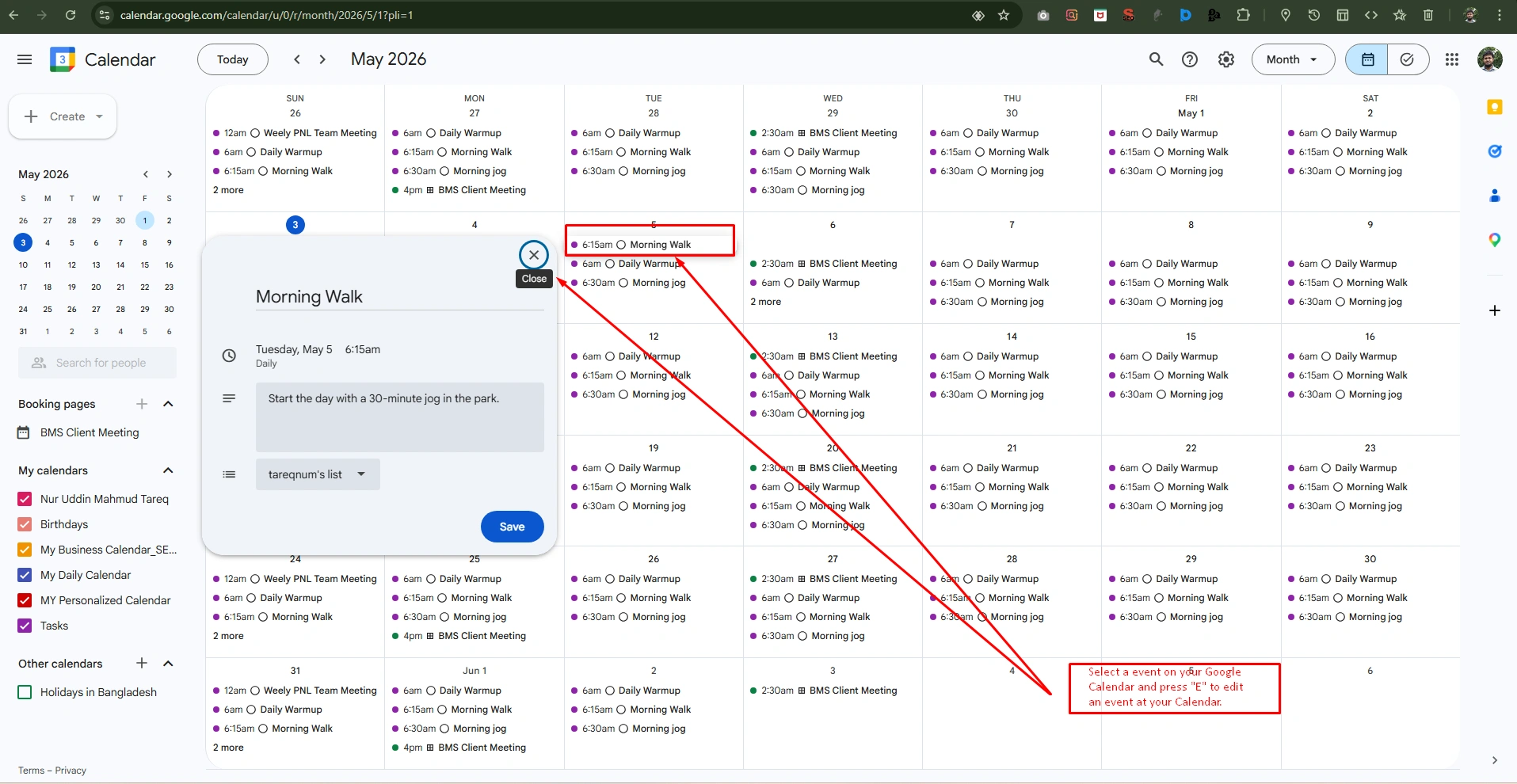
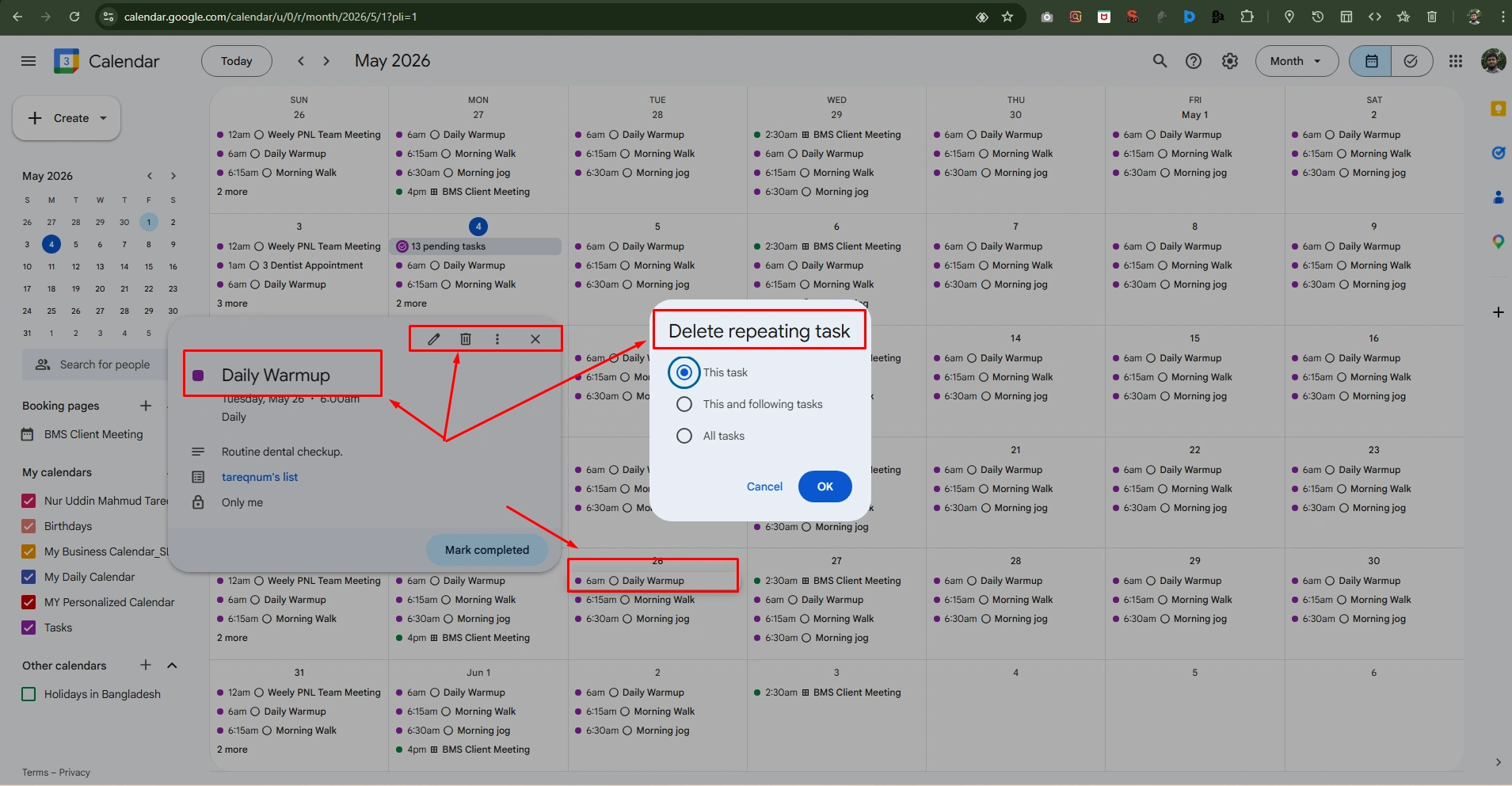
Step-3. To delete an event from your Google Calendar
- Select an event on your Google Calendar
- Press “Backspace/Delete” on your Keyboard.
- And press “Ok.”
2. Create Events With Natural Language
To speed up your scheduling, create an event with natural language in Google Calendar. This will help you to avoid manual forms and complex menus. Using the shortcut, you can also input specific dates and times to Google Calendar.
Step-1. Open the quick and add quick events:
- Press the “Q” key on your keyboard on Google Calendar (This will help you to avoid click to “+” at top-left corner and select event)
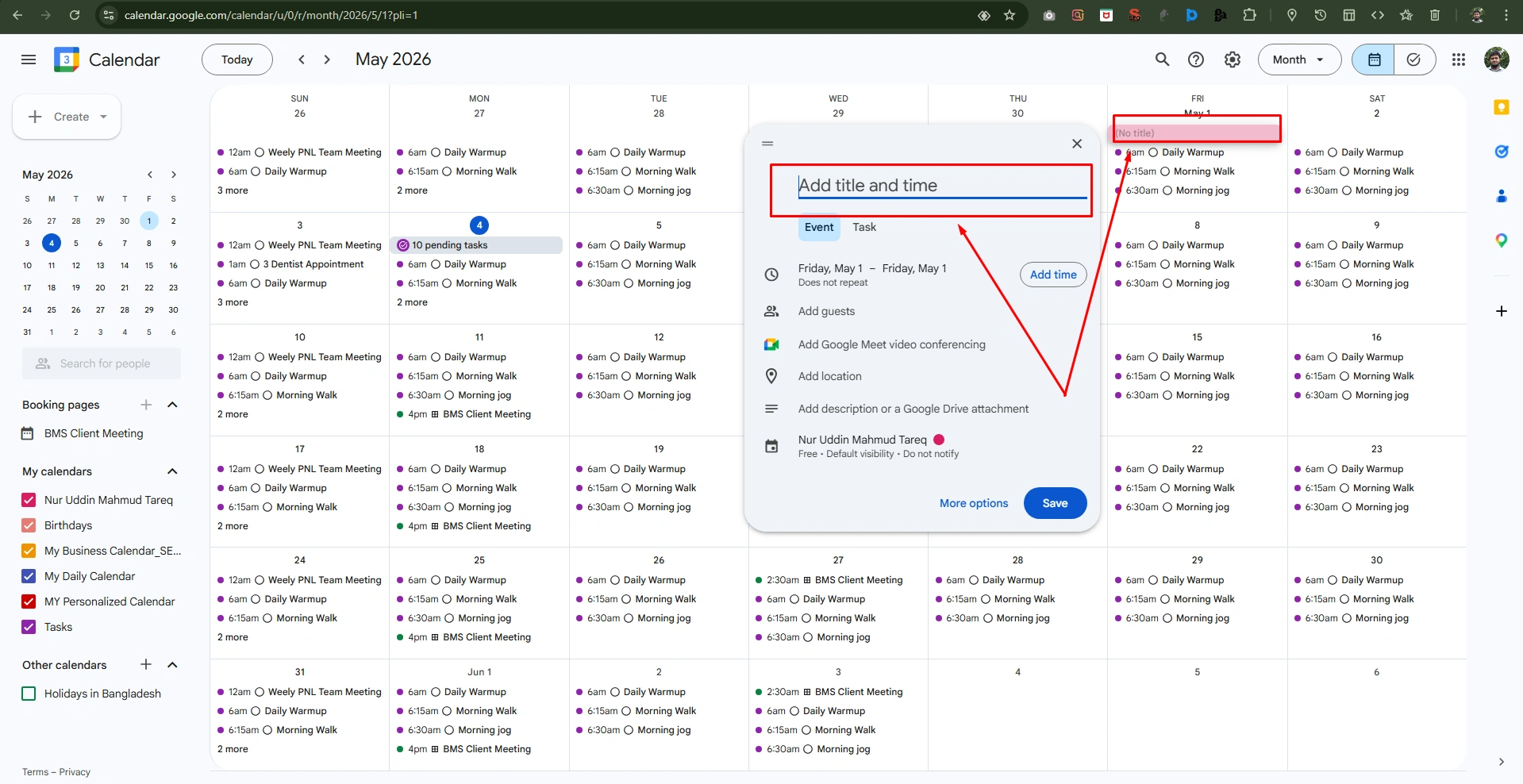
Step-2. Type Your Event Naturally
Now click on data and time at Google Calendar like “Team Lunch next Tuesday at 12 pm” and “Save.”
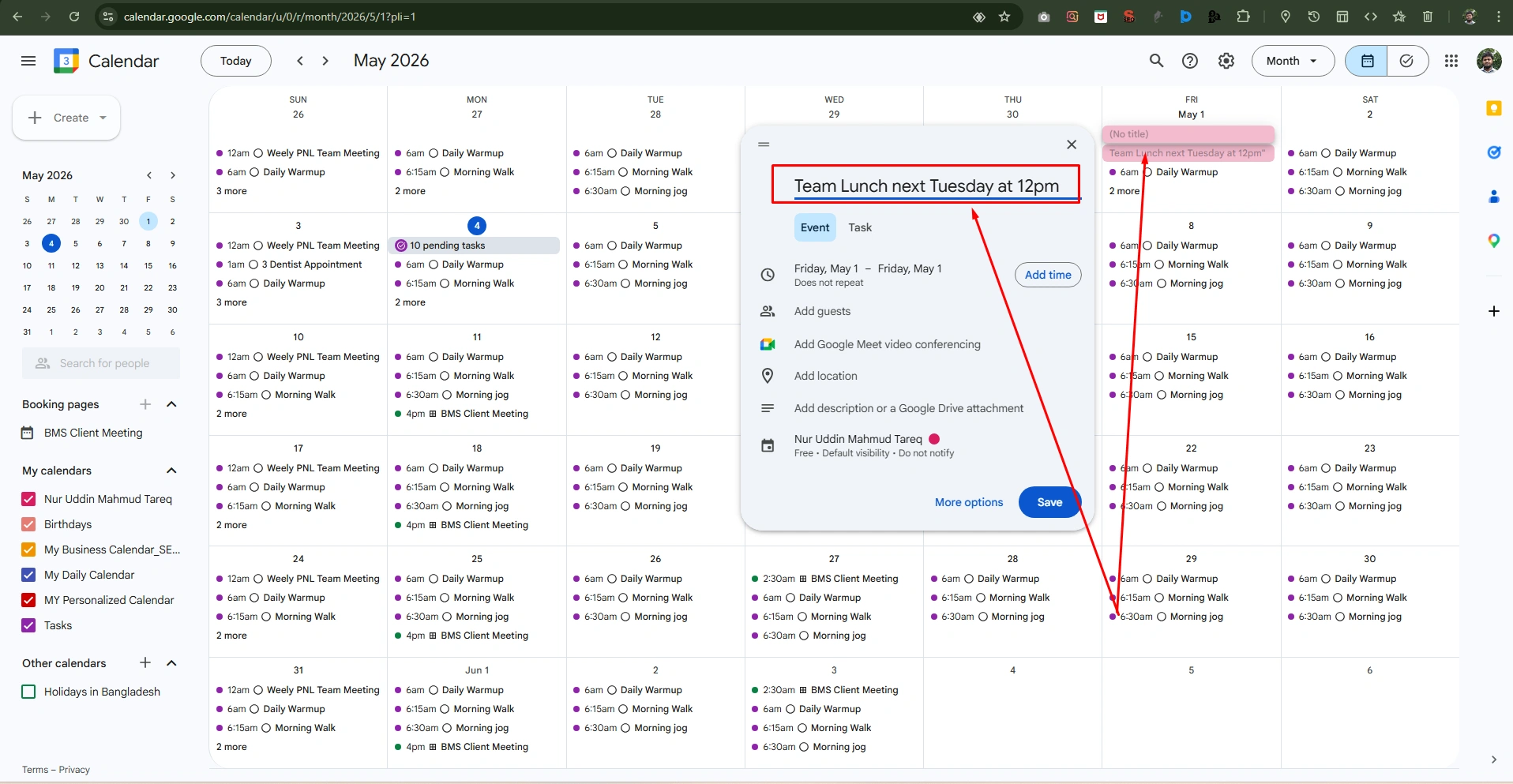
Step-3. Review and confirm
- Now, see Google Calendar automatically highlights the date and time from your text.
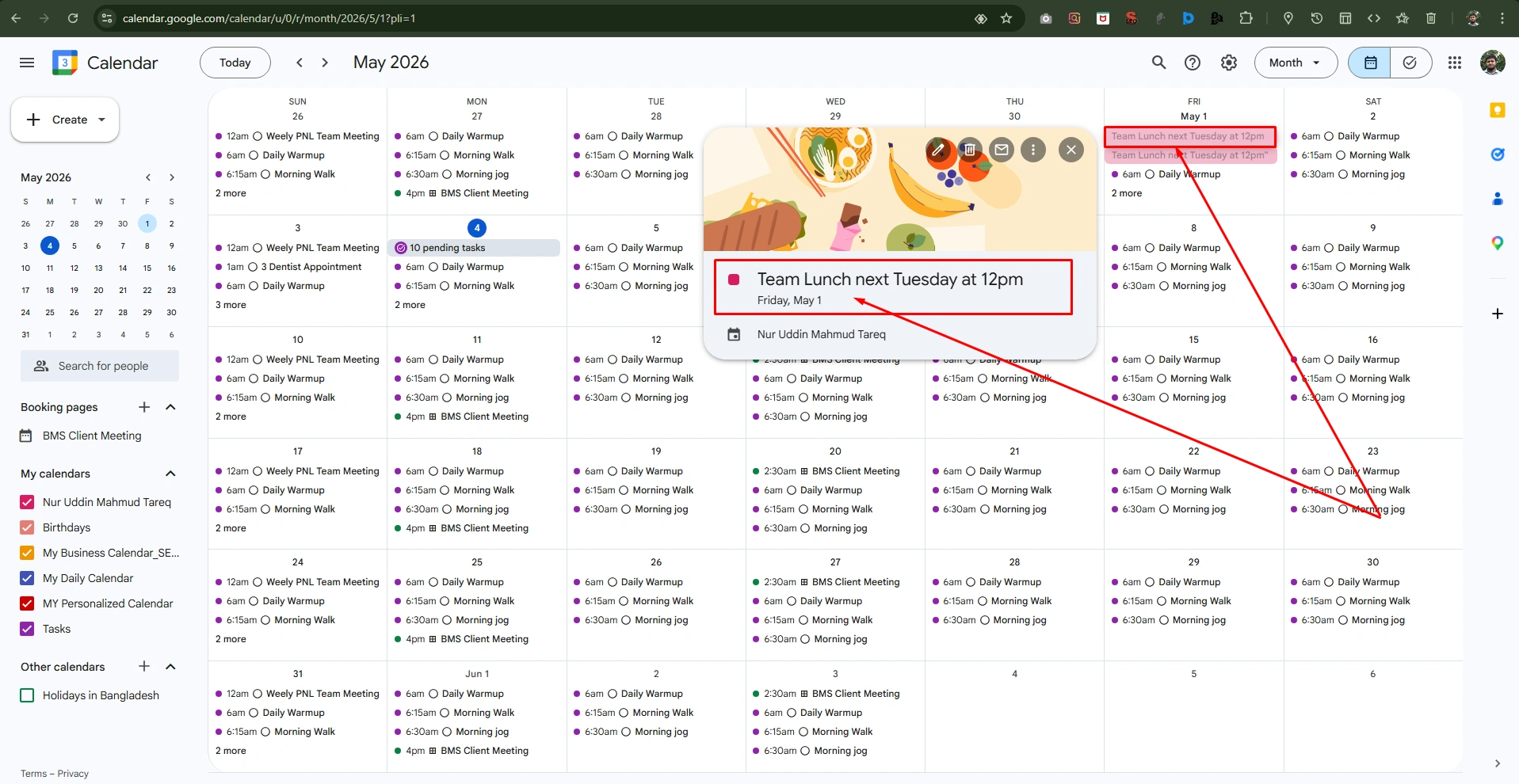
3. Color-Code Your Calendar Strategically
Color-coding specifies your busy calendar, organized and easy to manage tasks from a bunch of lists in your Google Calendar.
Step 1: Choose a Color for an Existing Event
- Just right-click on your calendar grid at the left corner.
- Use colors as you required, like, use blue for “Deep Work”, Red for “Urgent Tasks”)
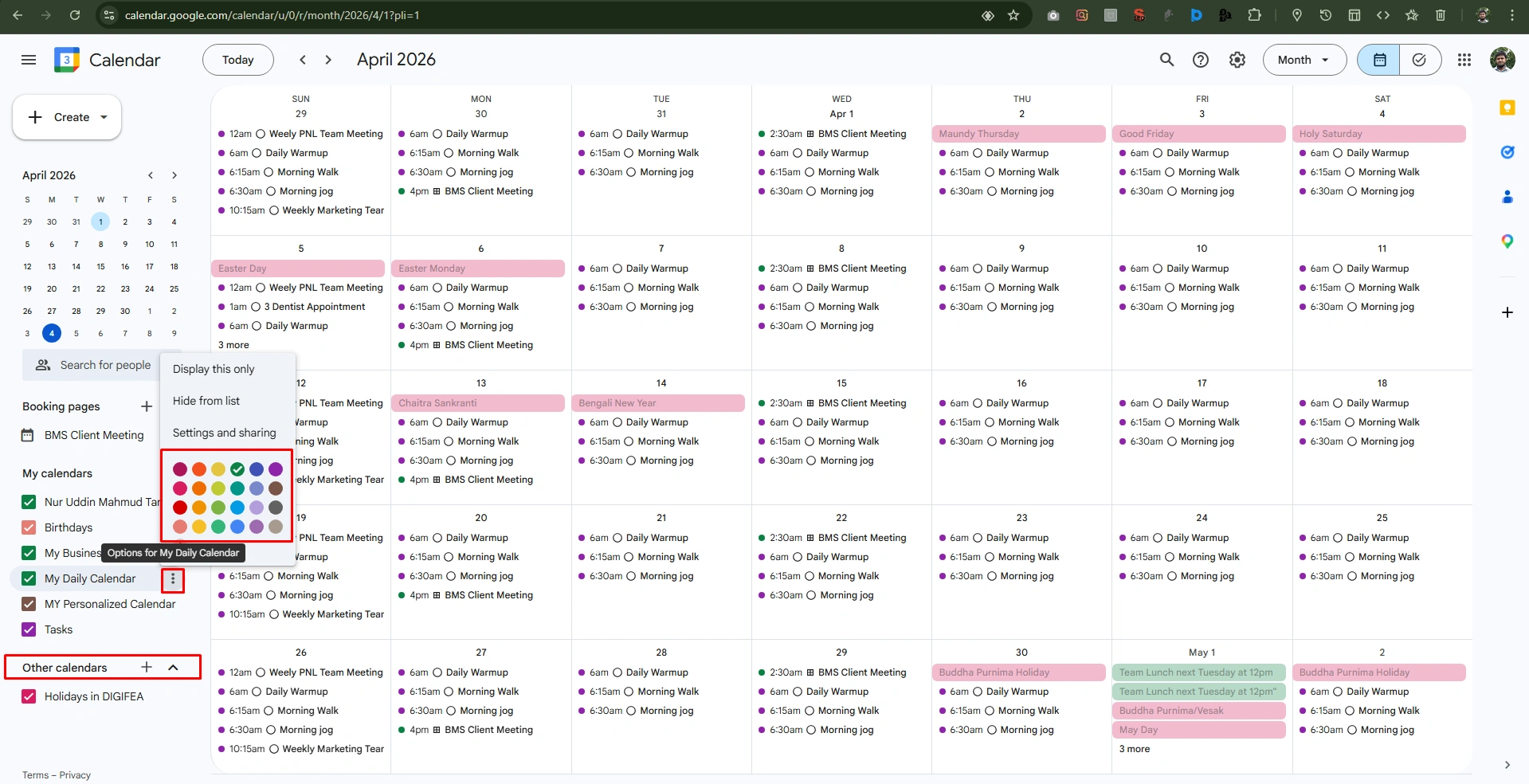
To edit the previous color-code:
- Click on the event in your Google Calendar
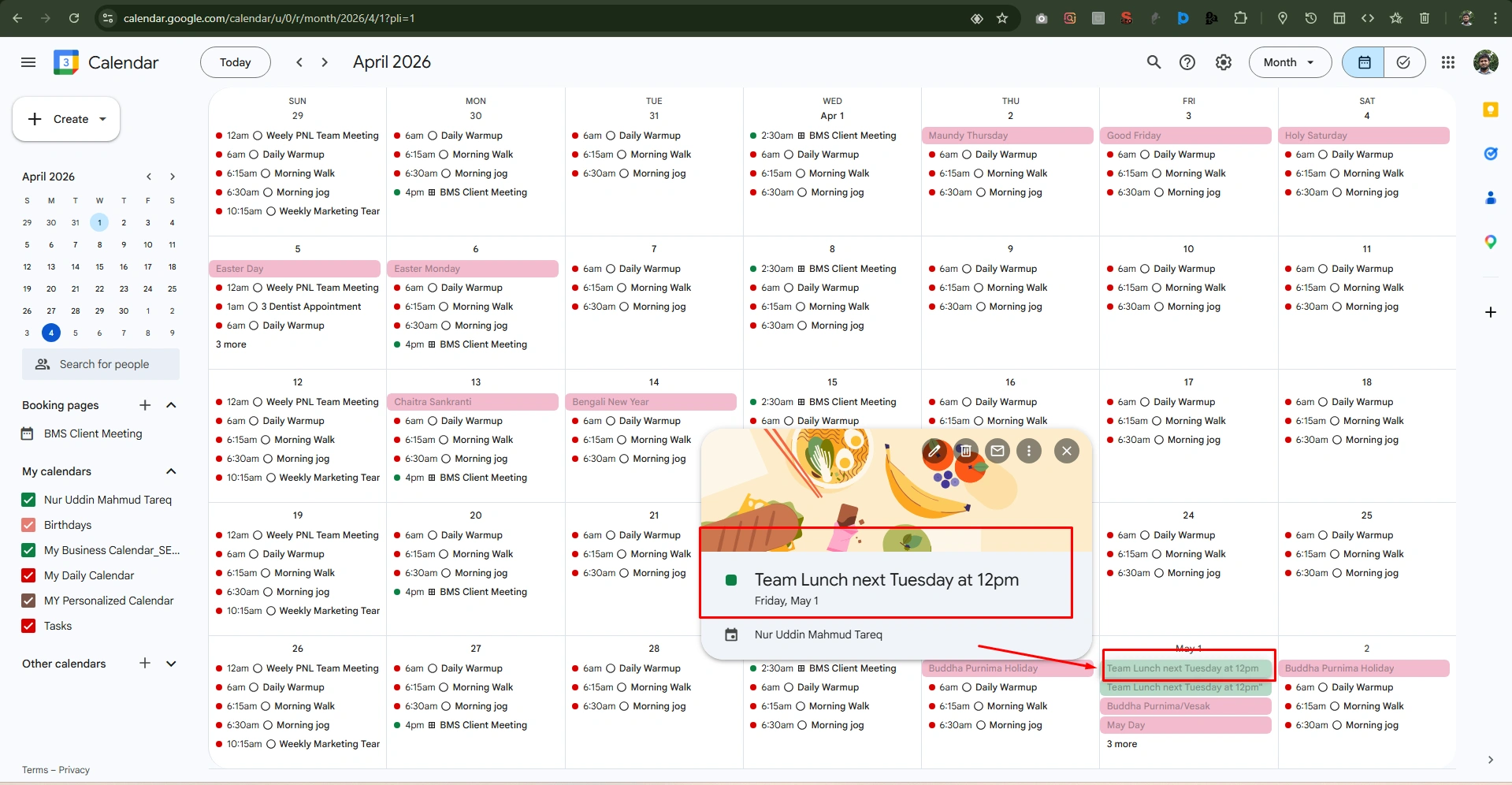
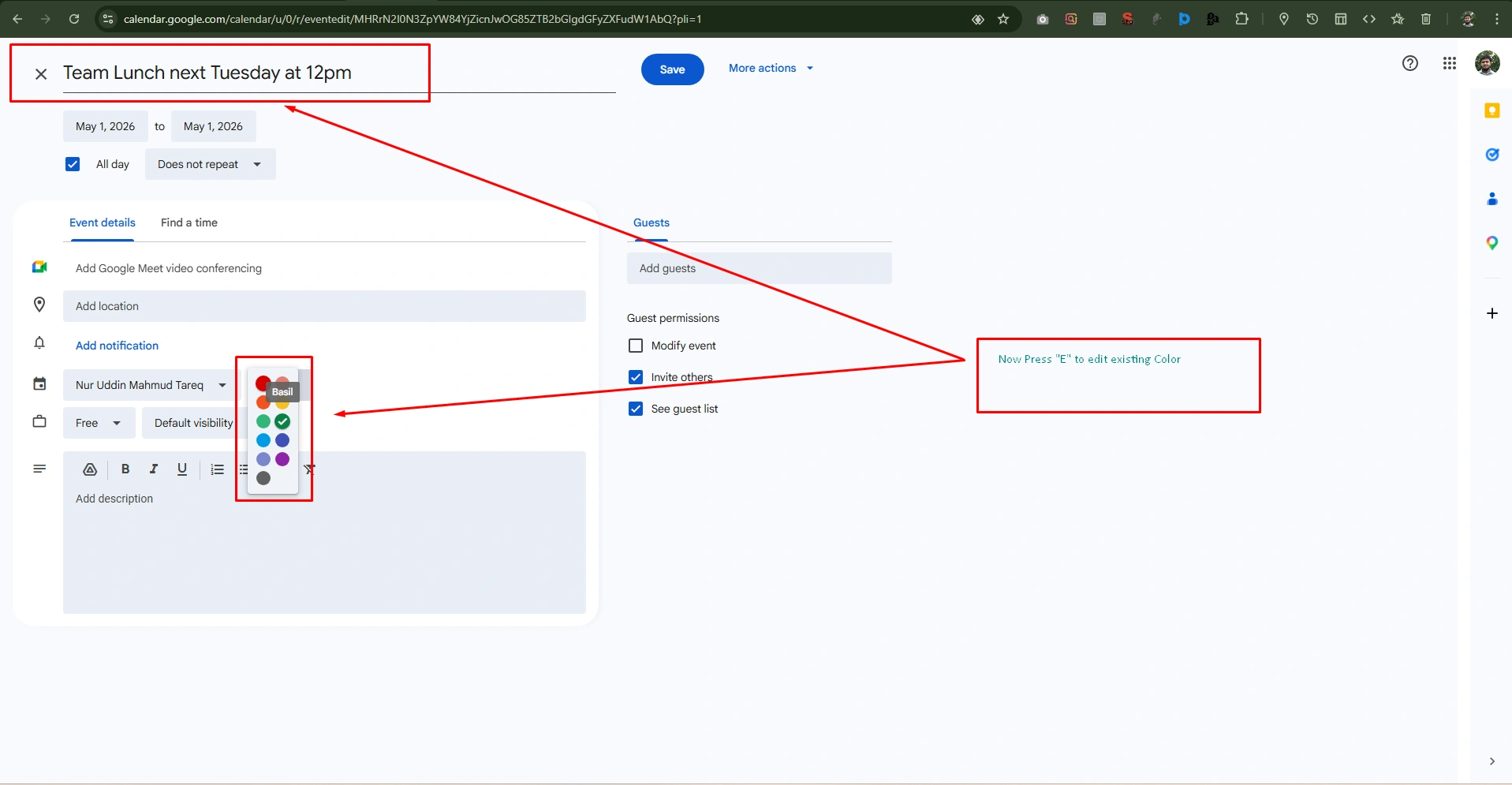
Now, press “E” to enter the edit screen. Where locate the color circle icon next to the Calendar name. Now, select your preferred color and click “Save” at the top.
Step 2: Colors to Different Calendars
Automate your Schedule with different events, appointments, and meetings to manage your personal and business calendar. This way, you set a calendar for “working” mode; besides, you can also create a new calendar to manage “Personal” schedules or “Health” related schedules.
Create a New Calendar
- On the left sidebar, click the “+” icon next to “Other calendars” and select “Create new calendar.”
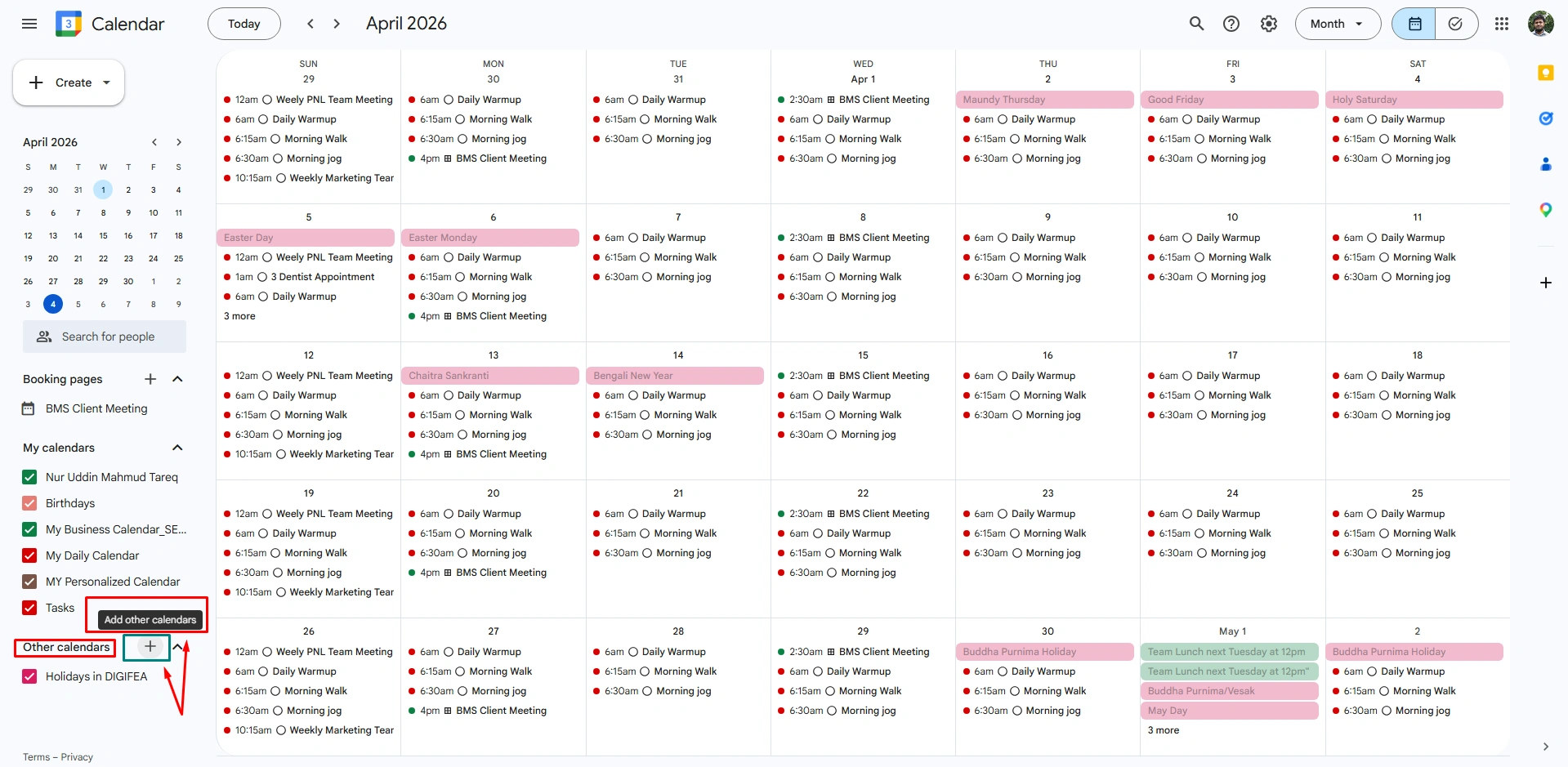
After creating a new calendar,
- Go to the newly created calendar in the left sidebar, click on the three vertical dots (Options), and pick a distinct color.
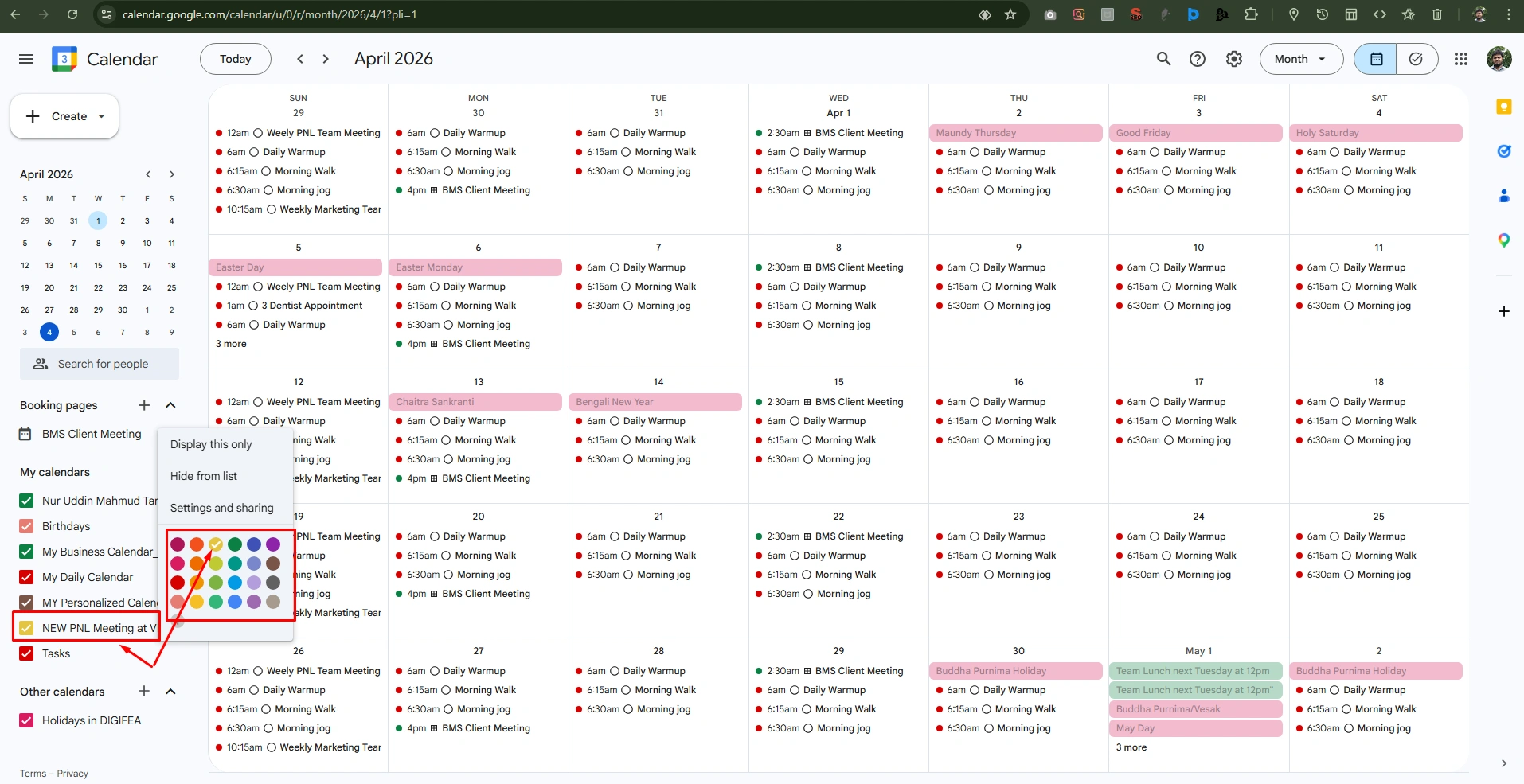
Note: Every events you create under the new calendar, you’ll see new color-coding automatically applied with every event you create.
4. Set Default Meeting Durations
Time duration setting is convenient for busy professionals. This will give you space to think about other tasks or schedules, reminding you earlier to be prepared for the meeting.
Step 1: Open Your Settings
Open your Google Calendar in your web browser. Click the Gear icon in the top right and select “settings.”
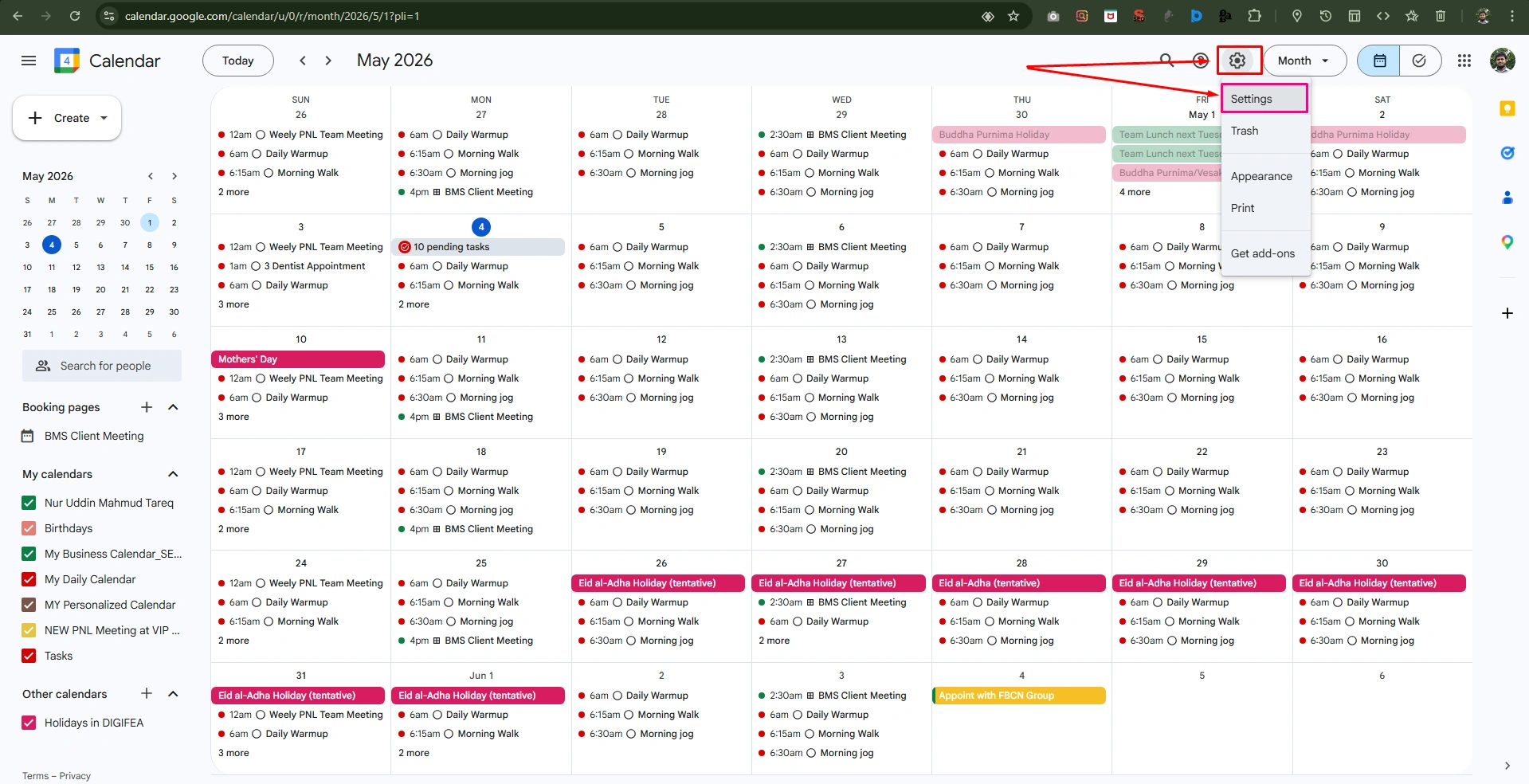
Step 2: Locate Event Settings
In the left-hand sidebar menu, click on “General” and then select “Event settings.”
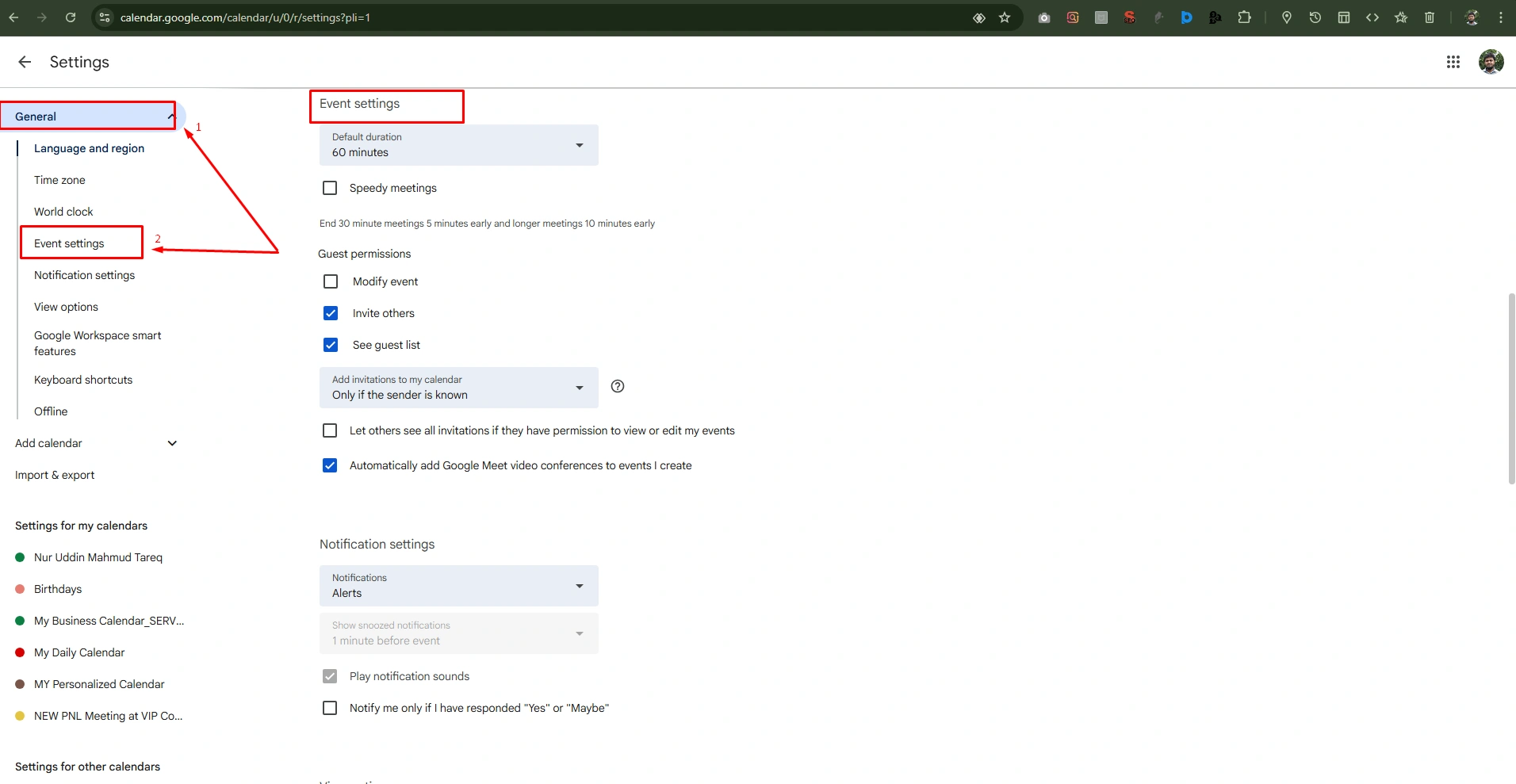
Note: You can simply scroll down the “General page” until you find the “Event settings” option.
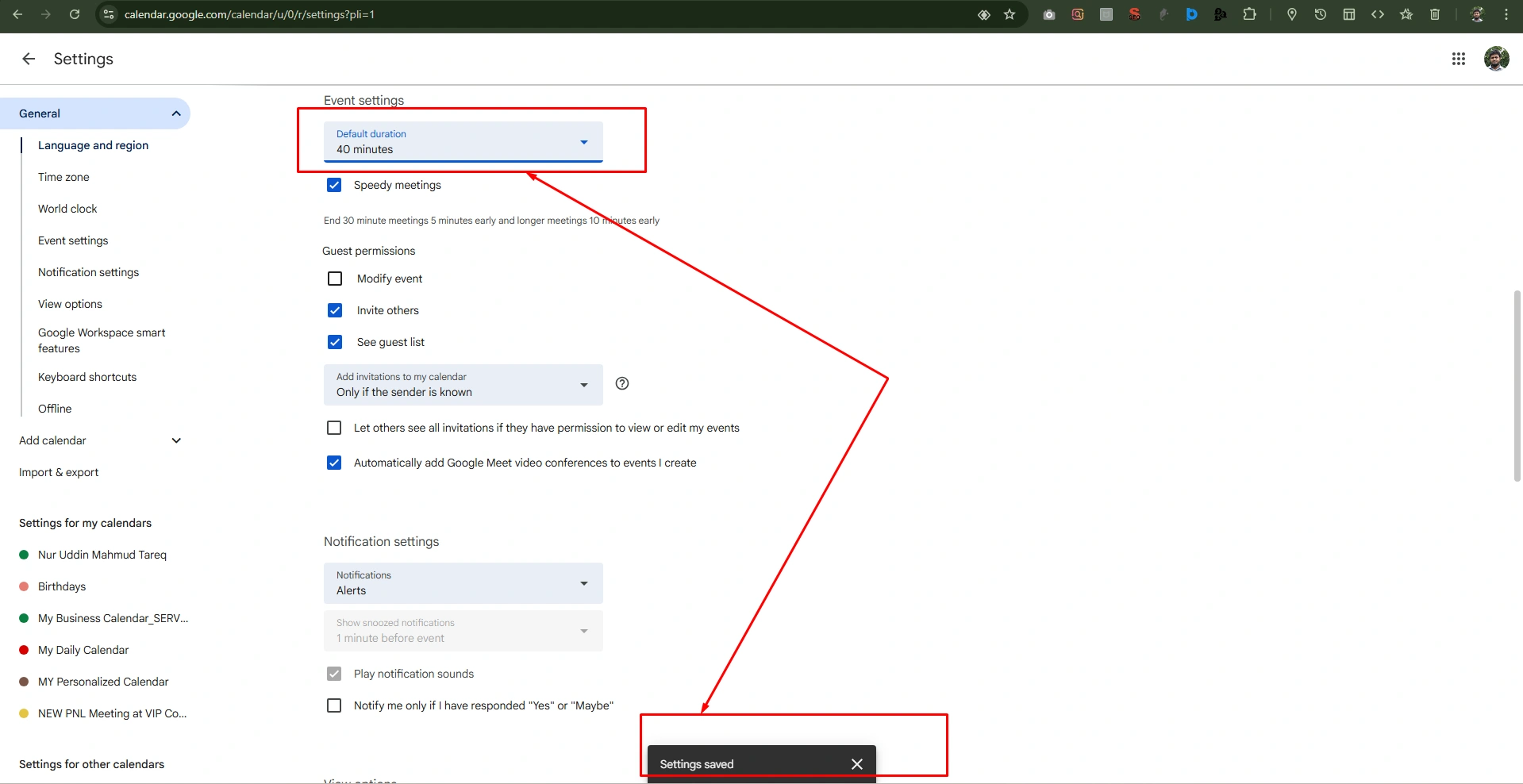
Step 3: Change the Default Duration
Now, see the dropdown menu labeled “Default duration.”
- Now choose your preference from the most common meeting length from the list (like, 15, 30, 60, 90, or 120 minutes).
- Once set, every time you click the “Create” button or press C.
- Then the event will automatically be set to this length.
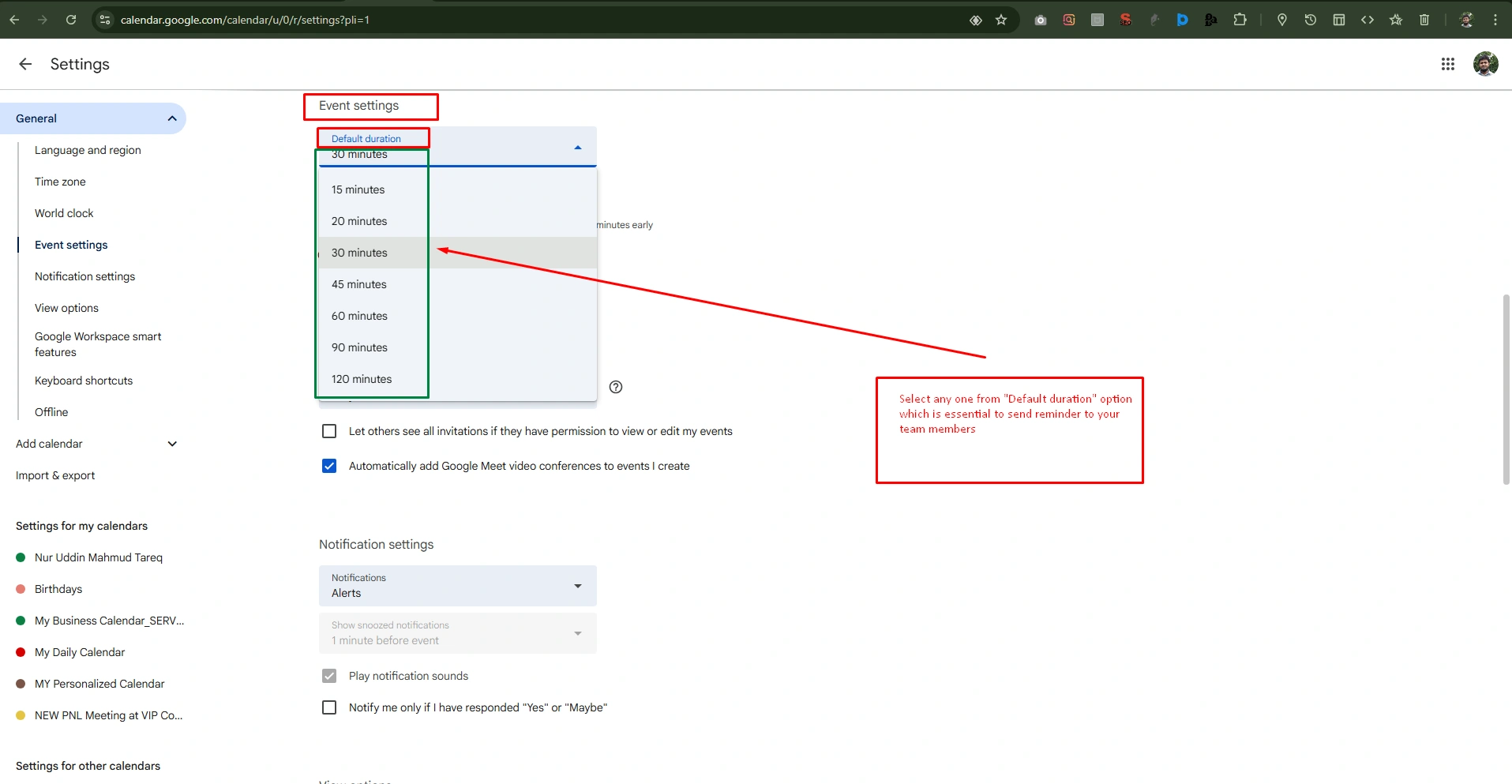
Step 4: Enable “Speedy Meetings” (Optional Pro-Tip)
If you want to ensure that you’ve few minutes between consecutive meetings:
- Check the box labeled with “Speedy meeting.”
- This will automatically shorten your meeting reminder by 5 minutes (for 30-minute settings).
- For longer meetings, you’ll be notified by 10 minutes in advance
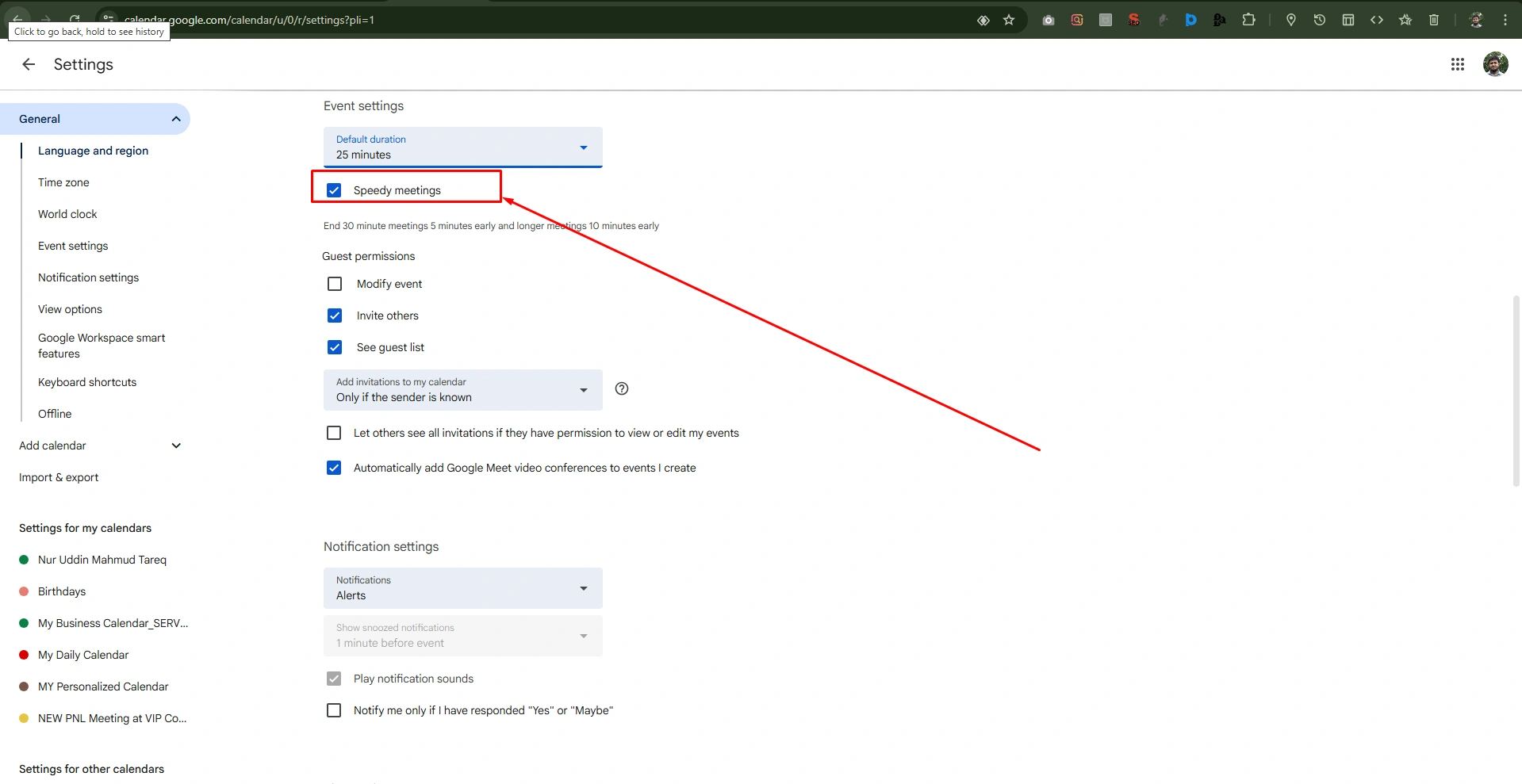
Note: These “Speedy meetings” give you a small buffer to take a break or prepare for the next tasks.
Step 5: Confirmation
After setting a customized meeting duration, the system will automatically save your timings. You’ll see a “Settings saved” notification at the bottom of your screen. Finally, click the back arrow at the top left corner to return to your calendar.
5. Add Multiple Calendars For Different Roles
When you need to add multiple calendars to segment your operations. You can add multiple calendars to manage your segmented work, personalize tasks or project-based. This will not interrupt or duplicate your workflows.
Step 1: Create a New Calendar for a Specific Role
Without putting everything on your primary calendar, create a dedicated one that focuses on different areas of focus
- On the left-hand sidebar, scroll down to the “Other calendars” section.
- Click the plus (+) icon and select “Create new calendar.
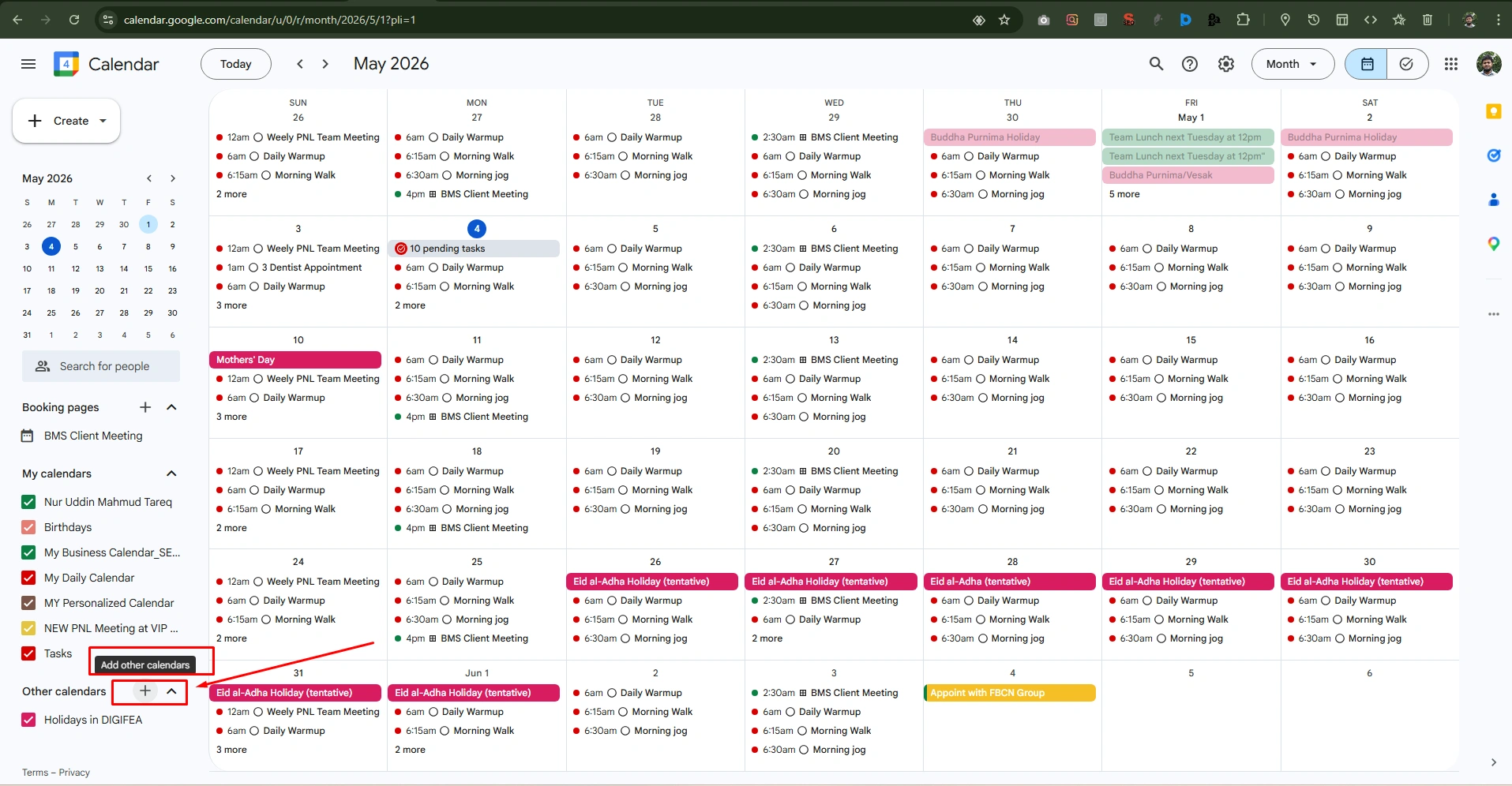
Note: You can create a new calendar with a clear name (like, “Work,” “Side Projects,” ar “Family”). Also, you can create new calendar based on adding a brief description to keep your roles organized.
Step 2: Assign a Unique Color
Separate your roles at a glance; thus, color each calendar as per role or name.
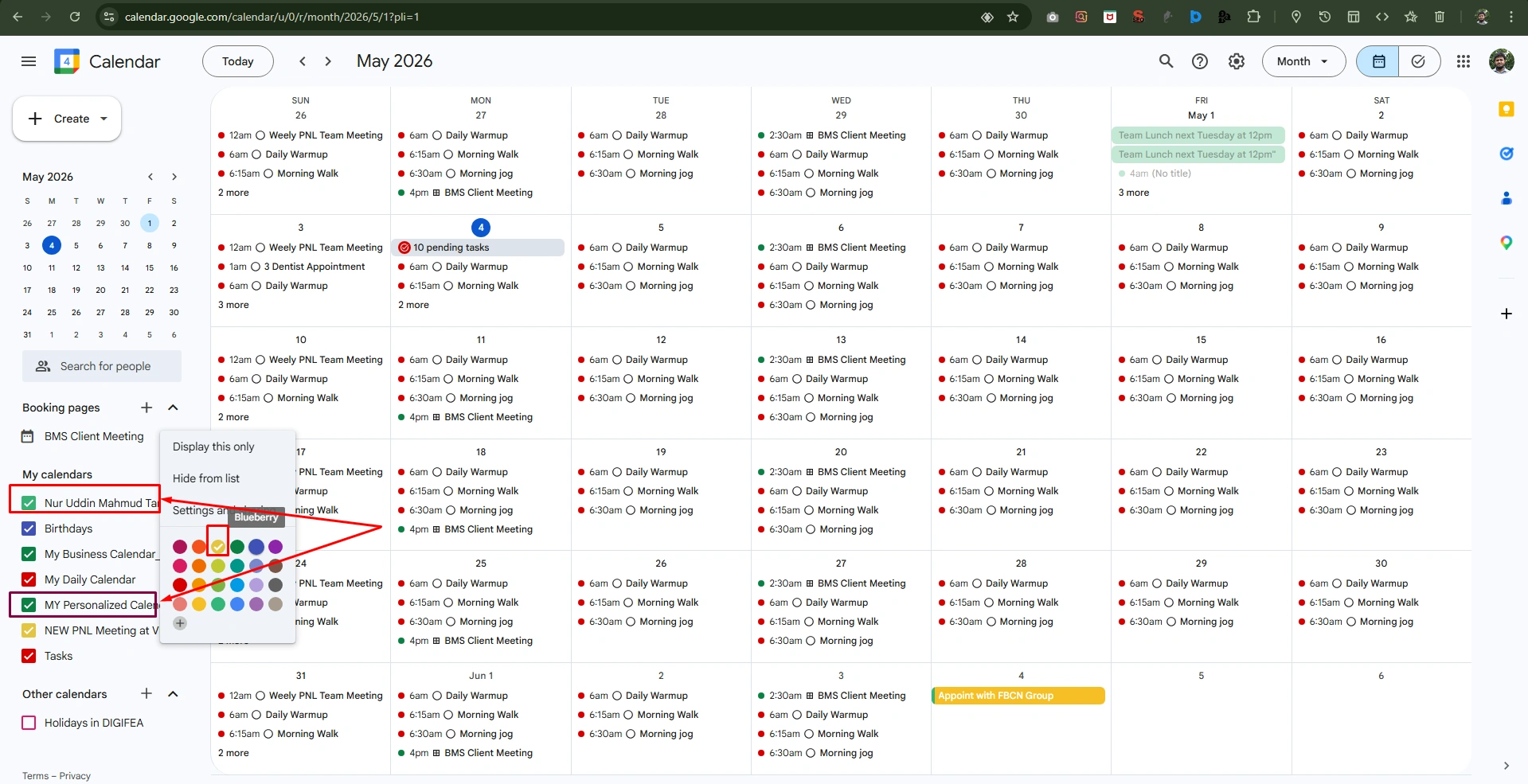
- Hover your cursor over the newly created calendar name in the left sidebar under the “My calendars” section.
- Choose unique colors from the palette (like, Blue for work, Green for personal)
Step 3: Switch to Visibility for Focus
The biggest benefit of this setup is the ability to hide “clutter” when you need to focus on a specific role.
For hiding Other Roles:
- Uncheck the small box next to the calendar in the left sidebar. Therefore, you’ll see only focused events or tasks in the calendar, and the rest of them become hidden viewpoints.
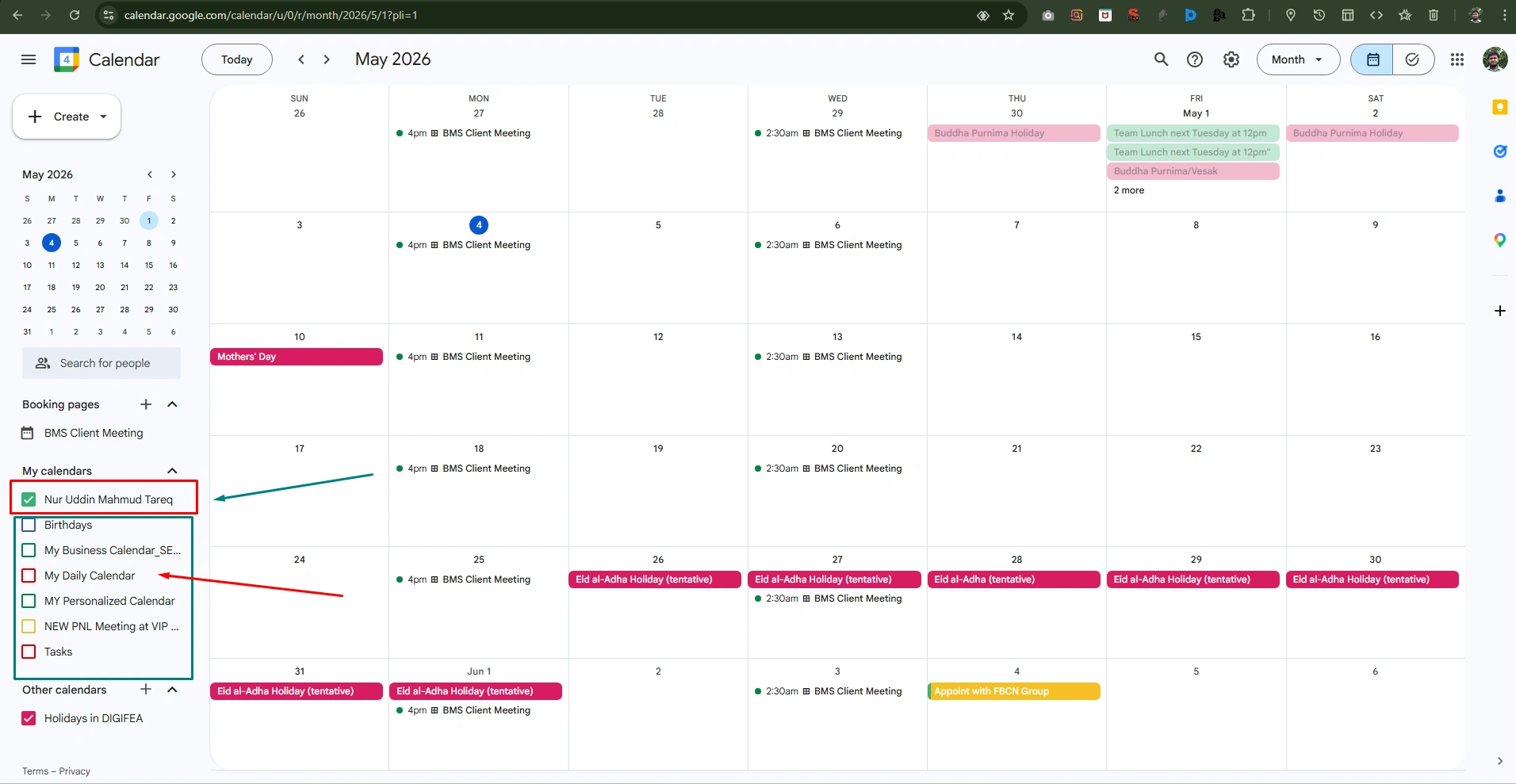
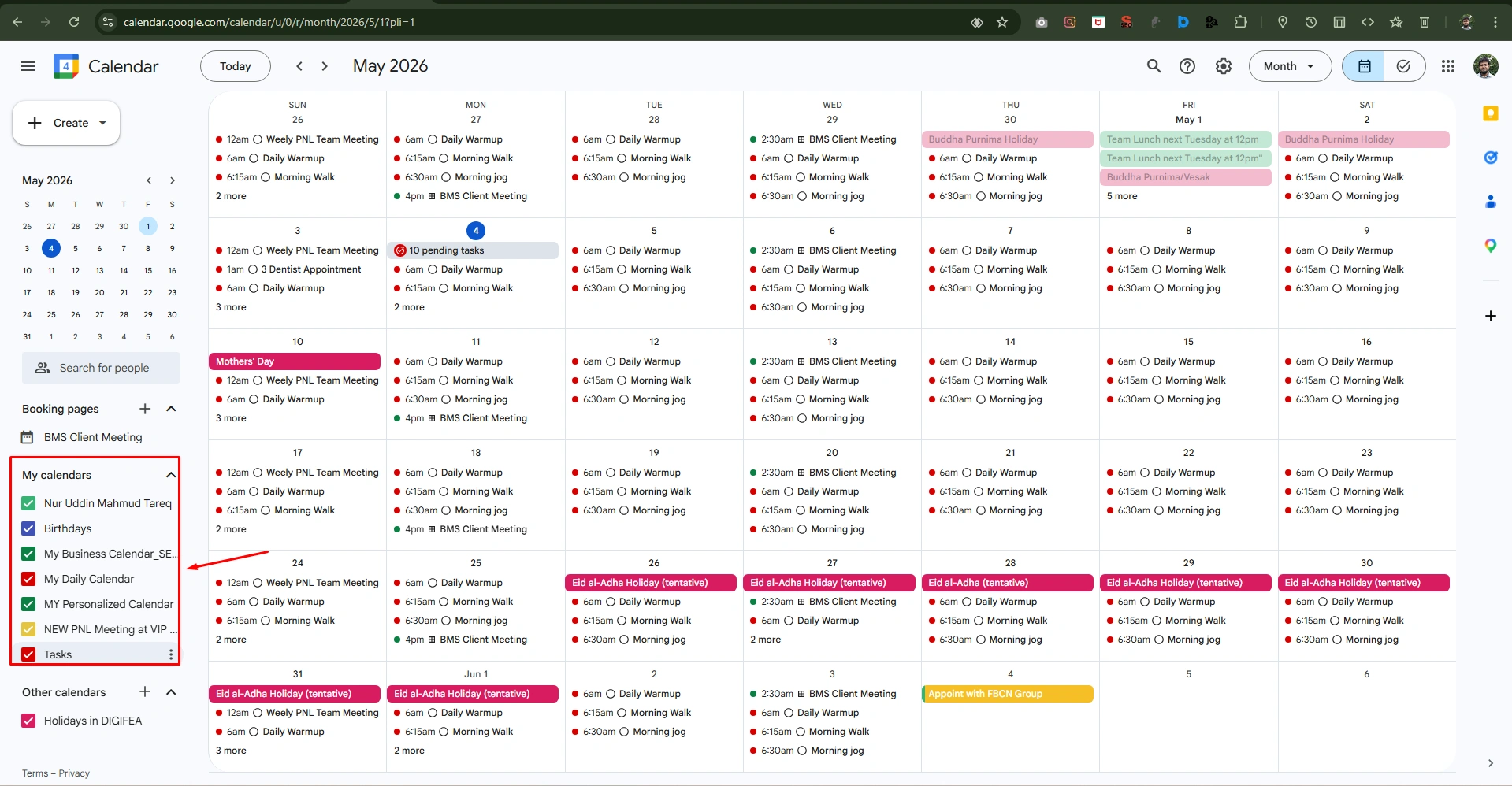
To show every task at a glance:
- Let re-check the box when we are ready to see these tasks again
To inform the same messages to your business regarding meetings or concerns, you need to share a calendar with other team members.
Step 1: Open Settings for the Target Calendar
If you need to provide access or permission to any specific person, just follow the directions below:
- Go to the left-hand sidebar and locate the calendar you want to share.
- Then, go to the calendar name (which you want to share) and click on the three vertical dots (options).
- Select “Settings and sharing.”
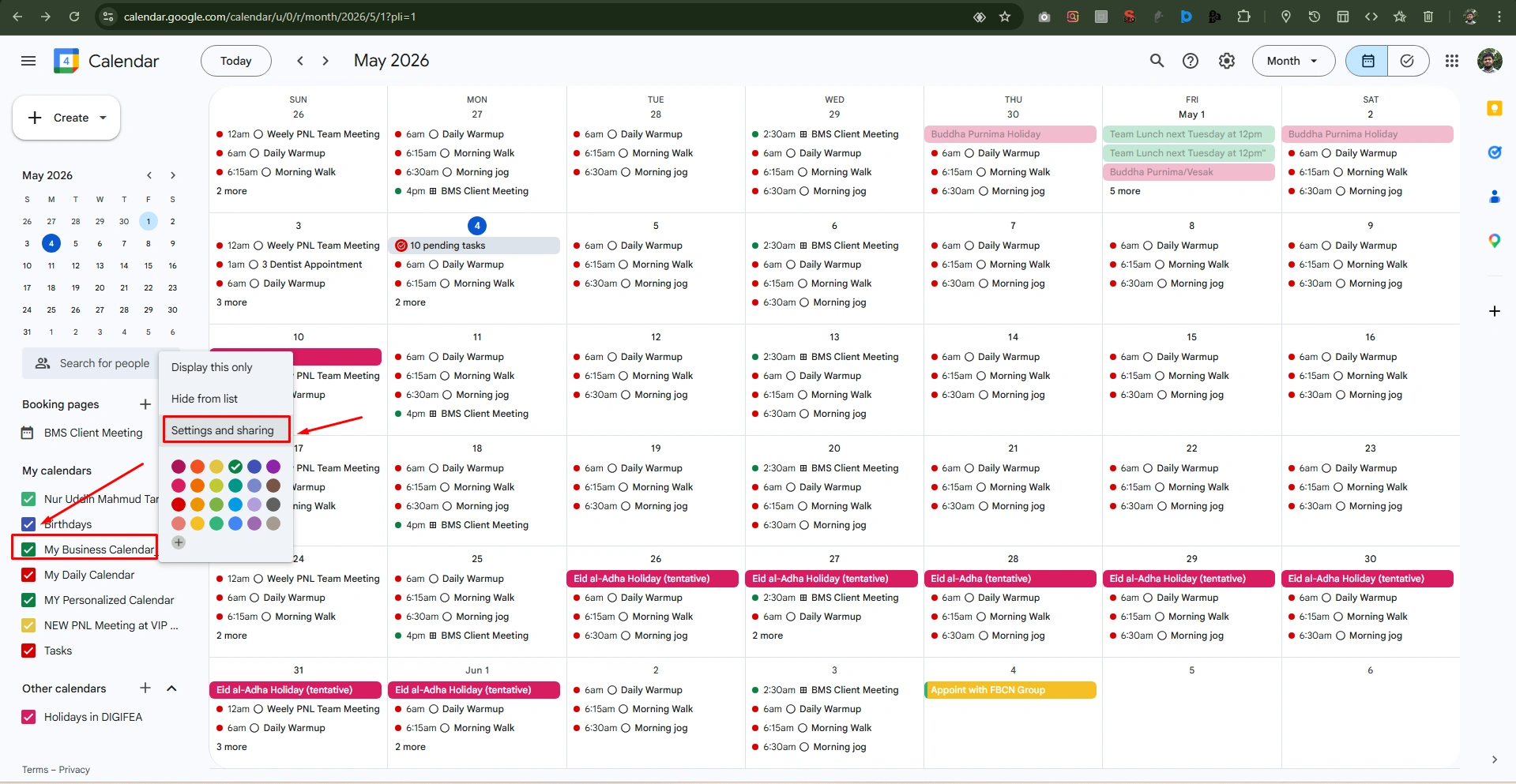
Step 2: Add People or Groups
To add more people or a group, scroll down to the option “Share with specific people or groups” option
- Go to “+Add people and groups.”
- Type the email address of the person or team you wish to provide access to and click send.
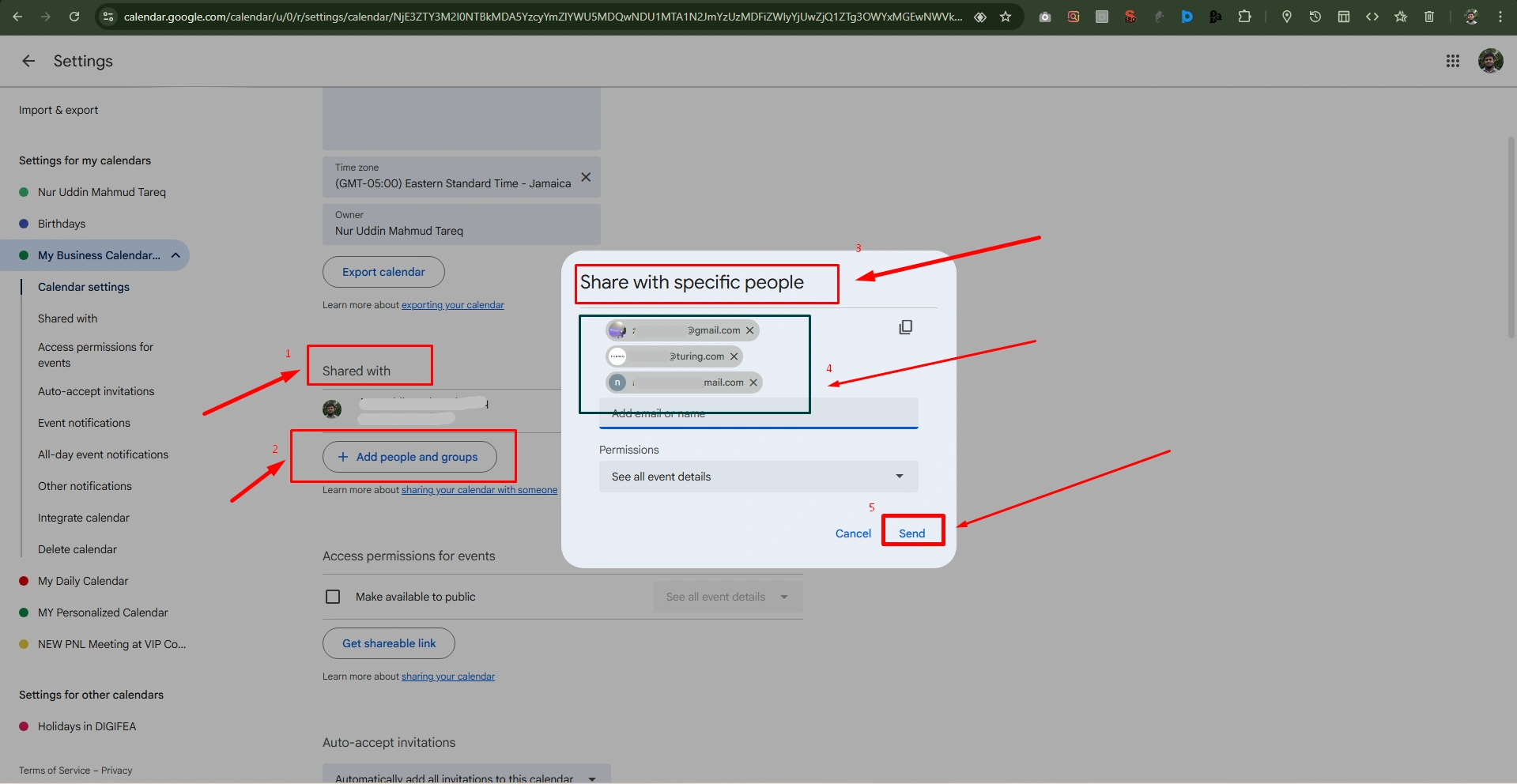
Step 3: Define Their Permissions
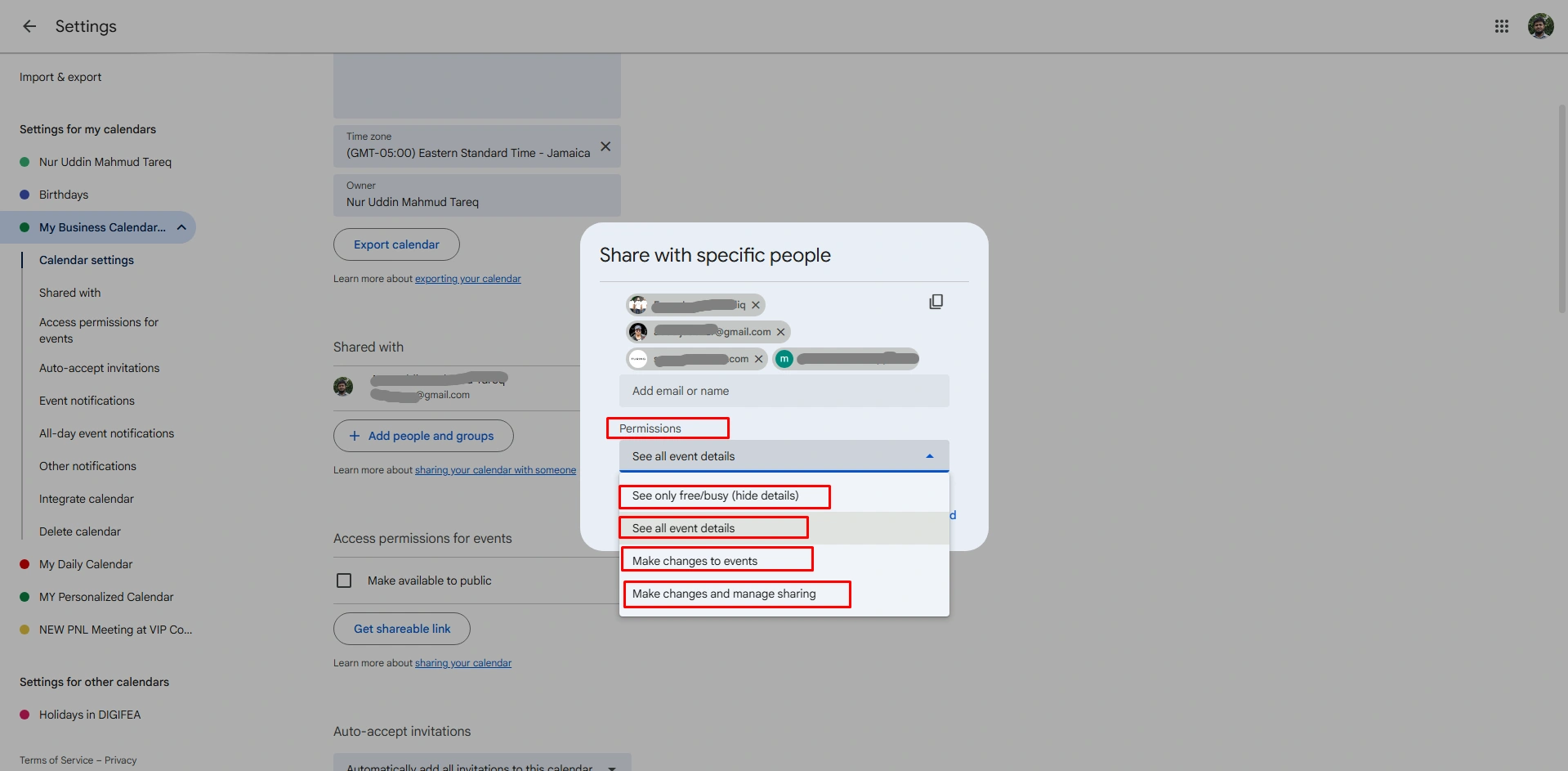
After additional emails or providing access to specific people, you can define permissions. Go to option “Permissions” and choose from the drop-down menu as follows:
- Choose “See only free/busy (hide details)” so they can see when you are “busy” without telling them about the events. This is ideal for general colleagues.
- OR you can choose “See all event details,” which permits all invited members to see everything in detail. This is best for the team members you work with daily.
- Choosing the option “Make changes to events” means invited members can edit, add, or delete events.
- Another option, “Make changes and manage sharing,” which grants all invited members the ability to add other people to the group.
Step 4: Managing Access
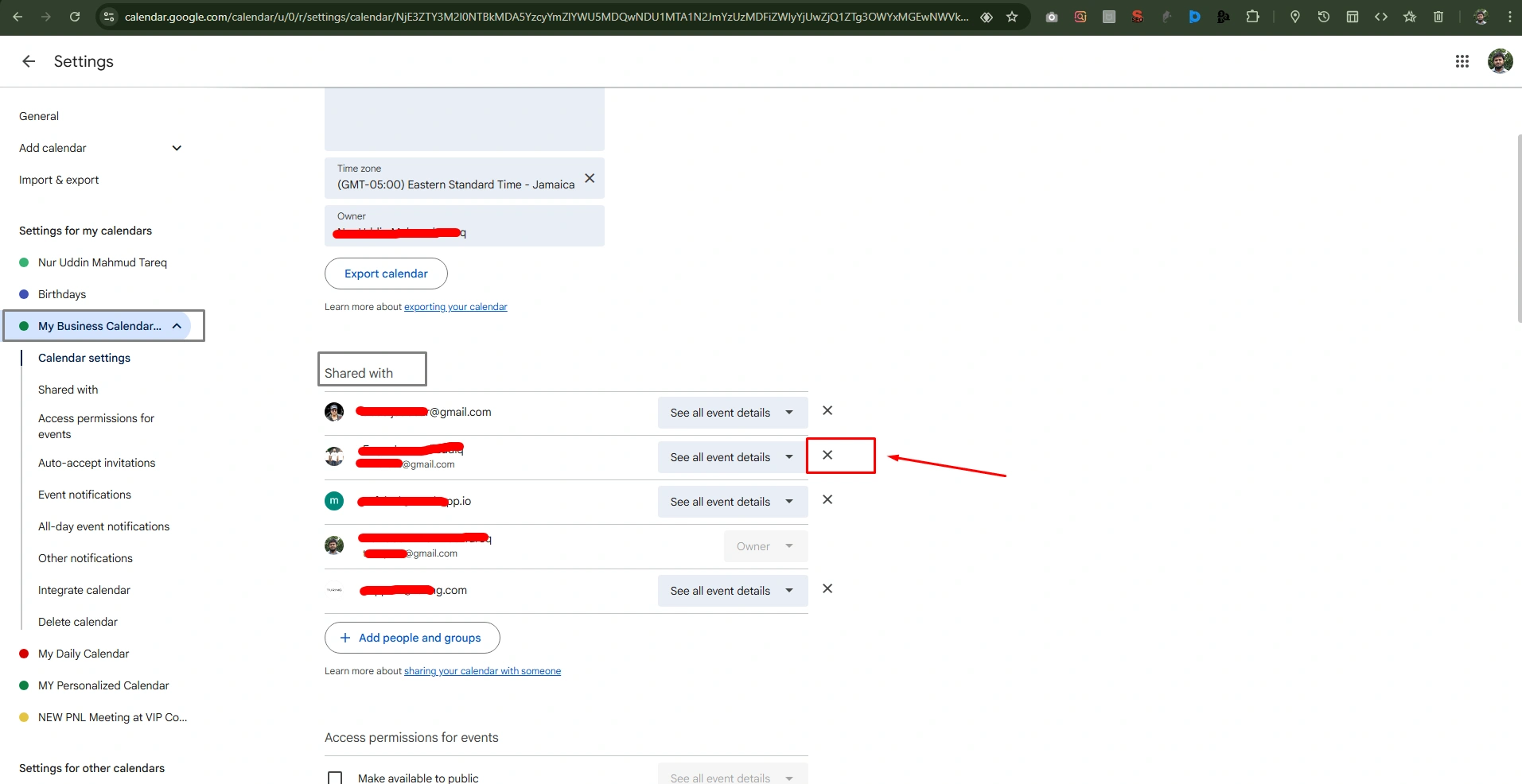
For any kind of uncertain or confidential issues, you can change someone’s access level immediately.
- Go to the “Settings and sharing” menu again for that calendar.
- Simply click on “X” for targeted people, and you can instantly remove access or permission for specific groups or people.
7. Enable Secondary Time Zones
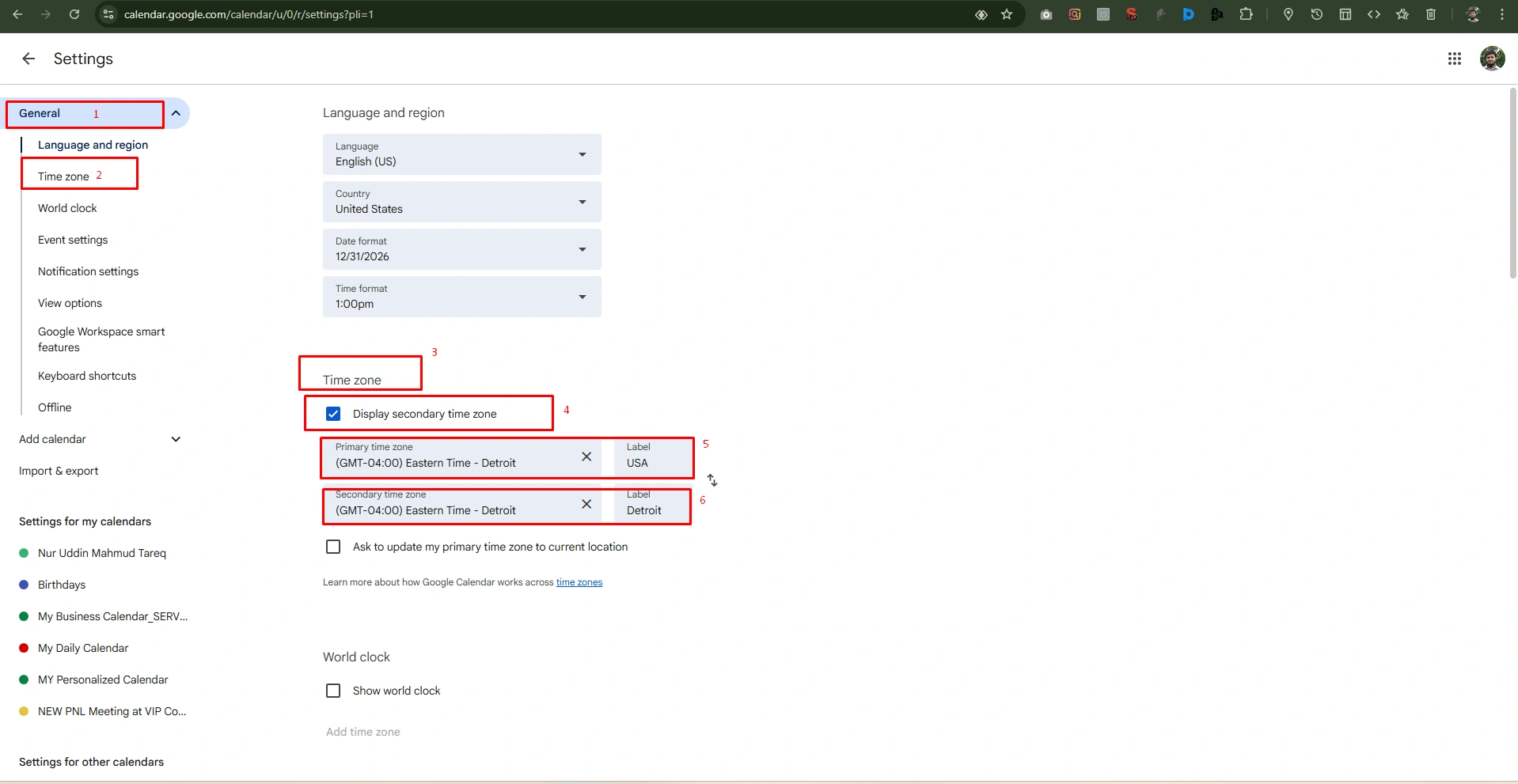
If you need to add secondary time zones to work more functionally, just follow step-by-step below:
- Go to the “General” tab under “Settings”
- Then, go to “Time zone”
- Under the “Time Zone,” set the secondary time and date
8. Duplicate Events Instead of Recreating Them
When you need to reuse time by reusing event structures like your recurring meeting or specific focus block, follow the steps below:
1. Select the Duplicate Command
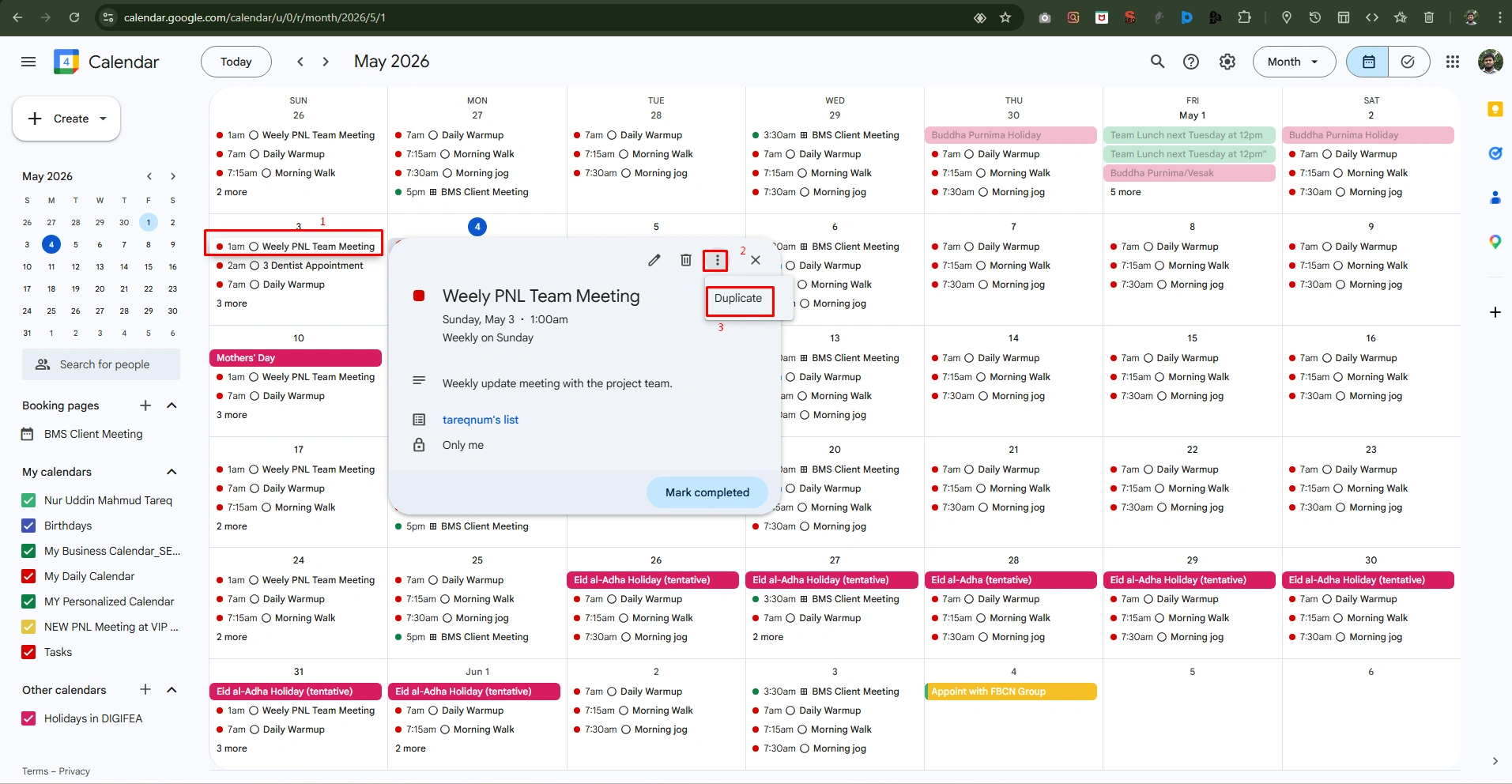
- Select an event you want to copy from the event lists on your calendar,
- Then click the options (three vertical dots) in the top right of the preview option.
- Now click the “Duplicate” option from the dropdown menu to open a new event window pre-filled with all the original details.
2. Adjust and Save Duplicate Event
- Now simply change the date or Time for the new entry while keeping the title, meeting location, and description the same as it is.
- Now click “Save” to duplicate the event.
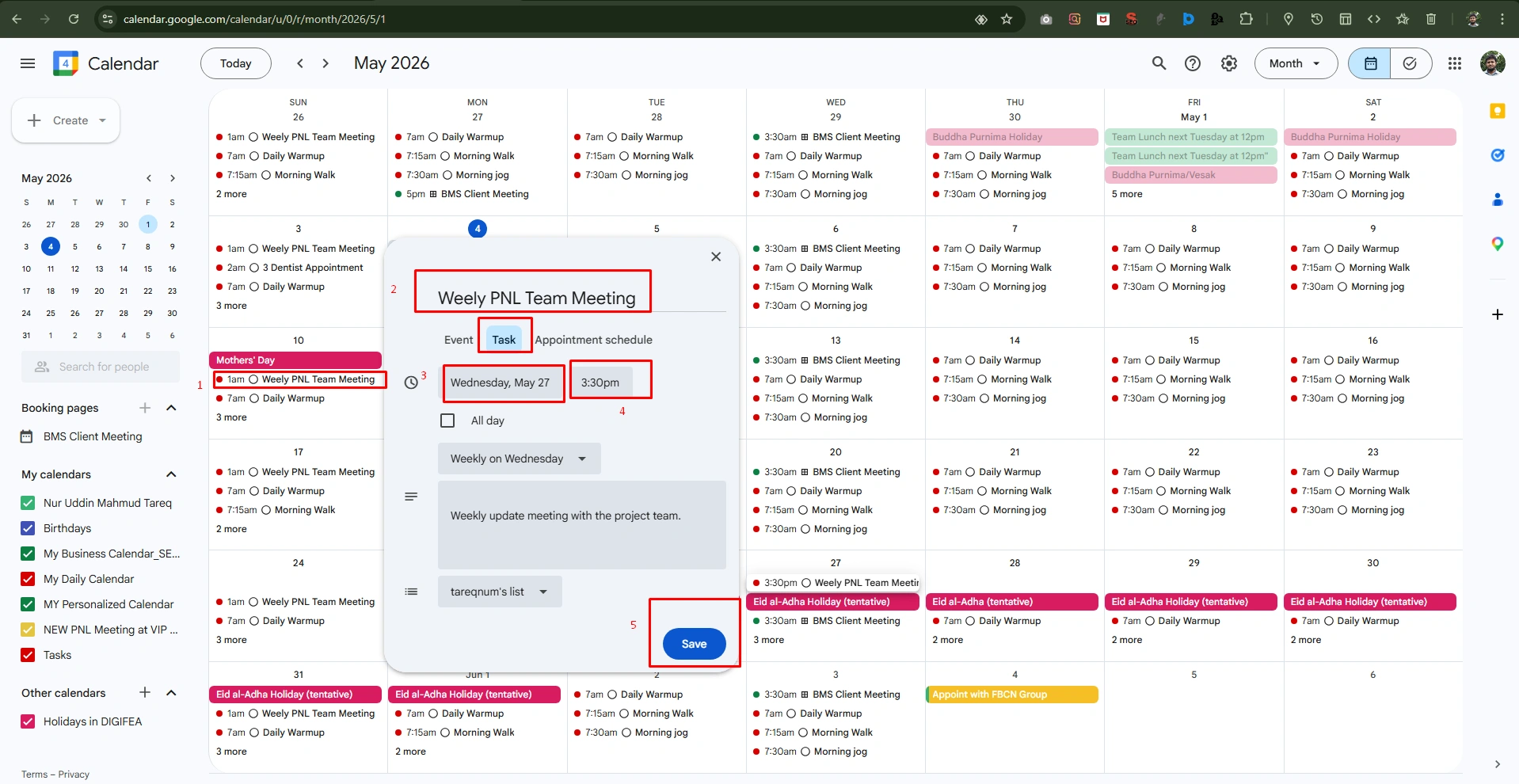
9. Use Appointment Scheduling Feature
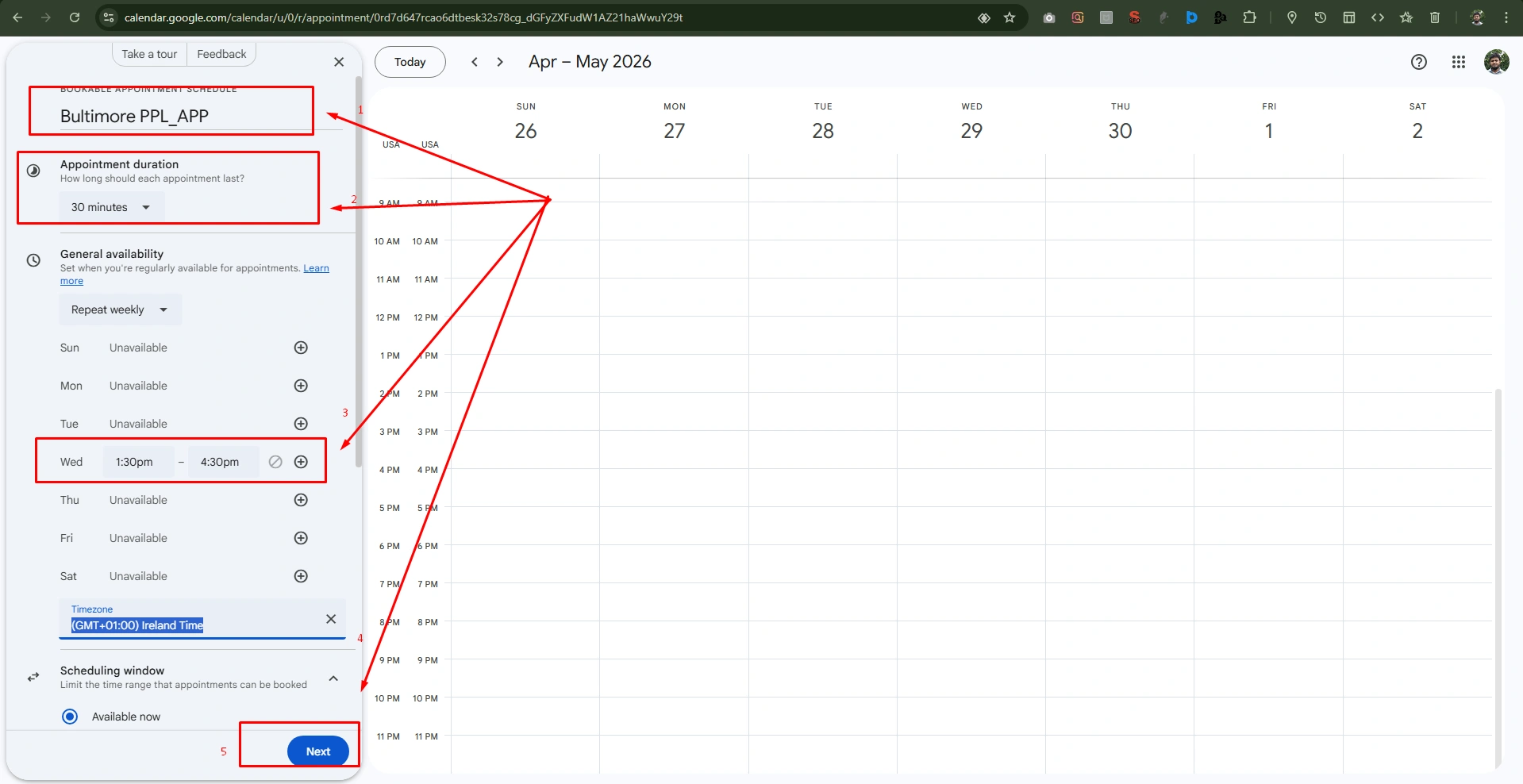
Schedule your appointment on the calendar to avoid complications with clients and allow other team members to book time directly on your schedule. Now see the steps:
1. Create Your Appointment Slot
To create a new appointment
- Click the “+ Create” option at the top-left corner and click the“Appointment” button.
- Set your availability, including days and times, and choose your meeting duration (like, 30 minutes). Give a title to the appointment slot.
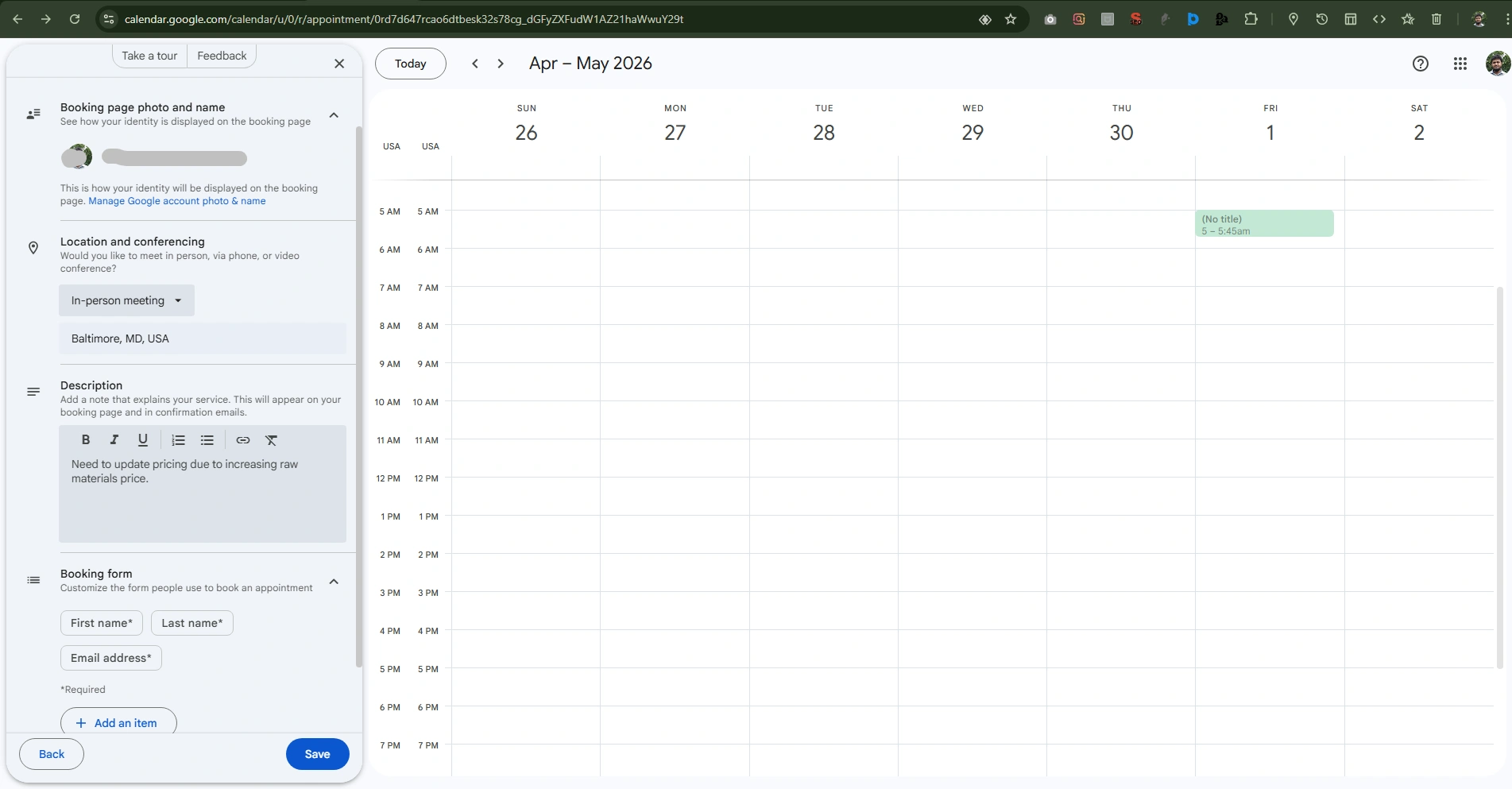
2. Share Your Booking Link
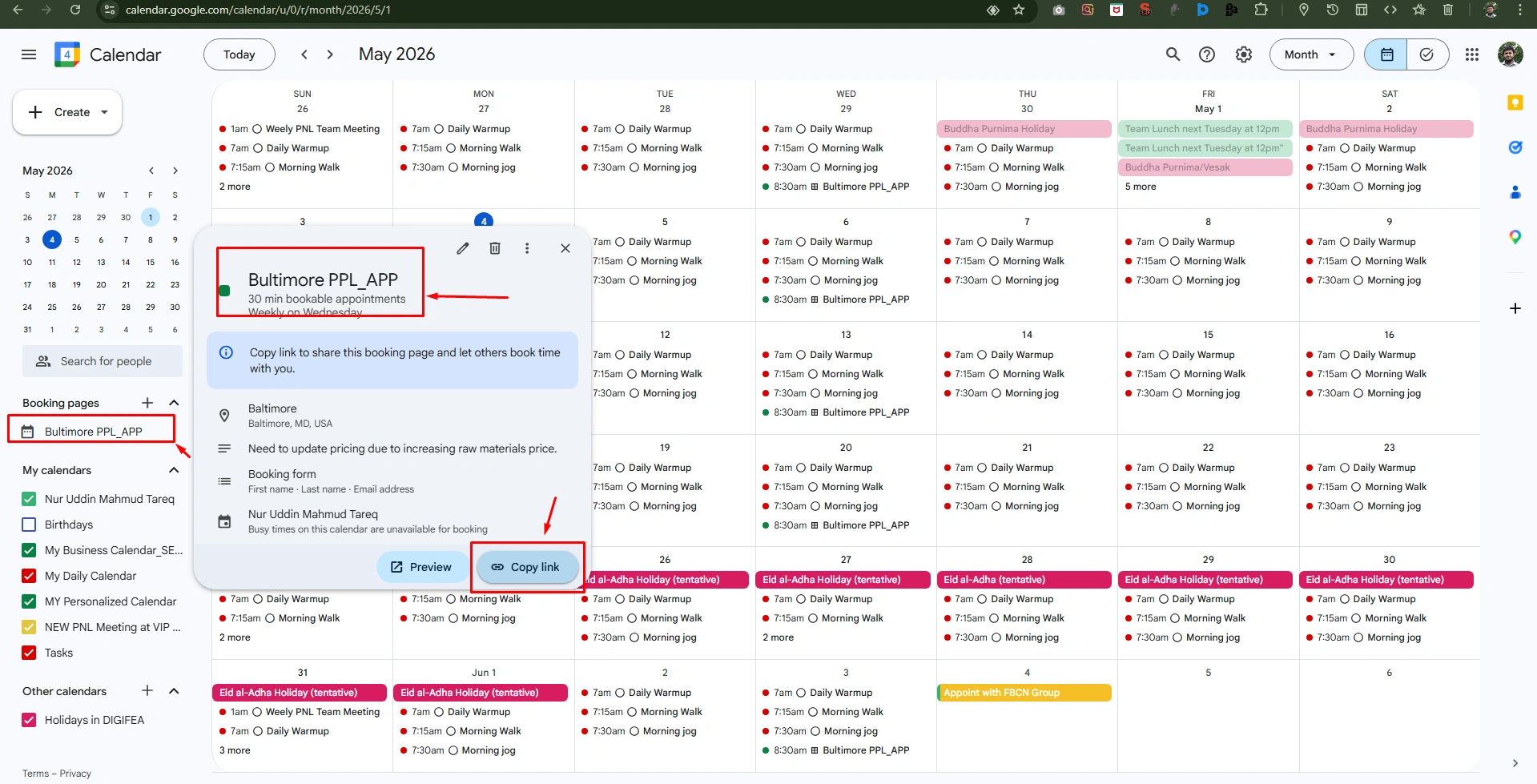
Now share your newly created calendar
- Click to new appointment, copy link, and share with concerns.
10. Methods to Recover Deleted Events
You can recover deleted events within 30 days by accessing the trash folder in your Google Calendar.
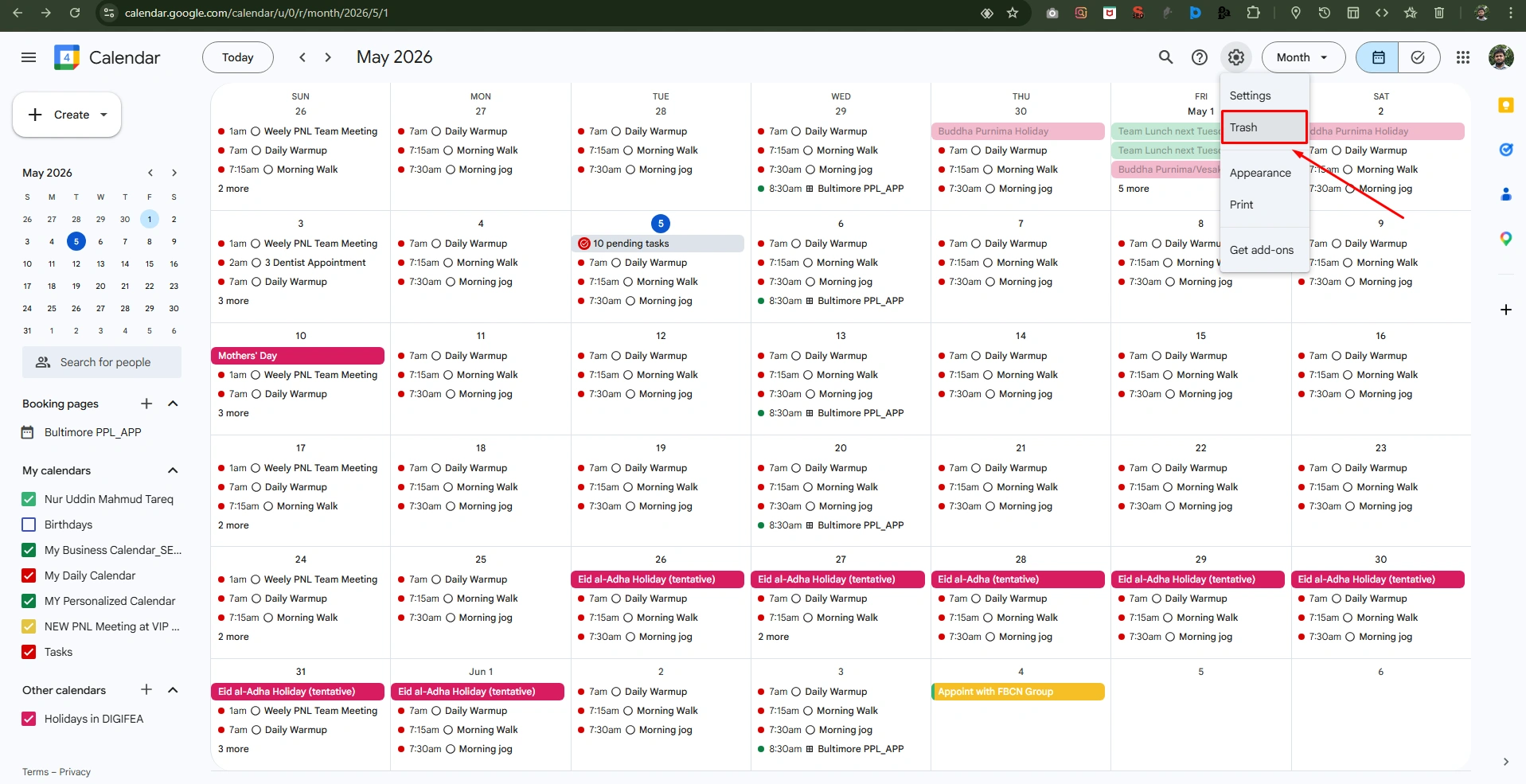
- Go to the top-right corner of your calendar and click “Setting” gear.
- Now go to the “Trash” option and click.
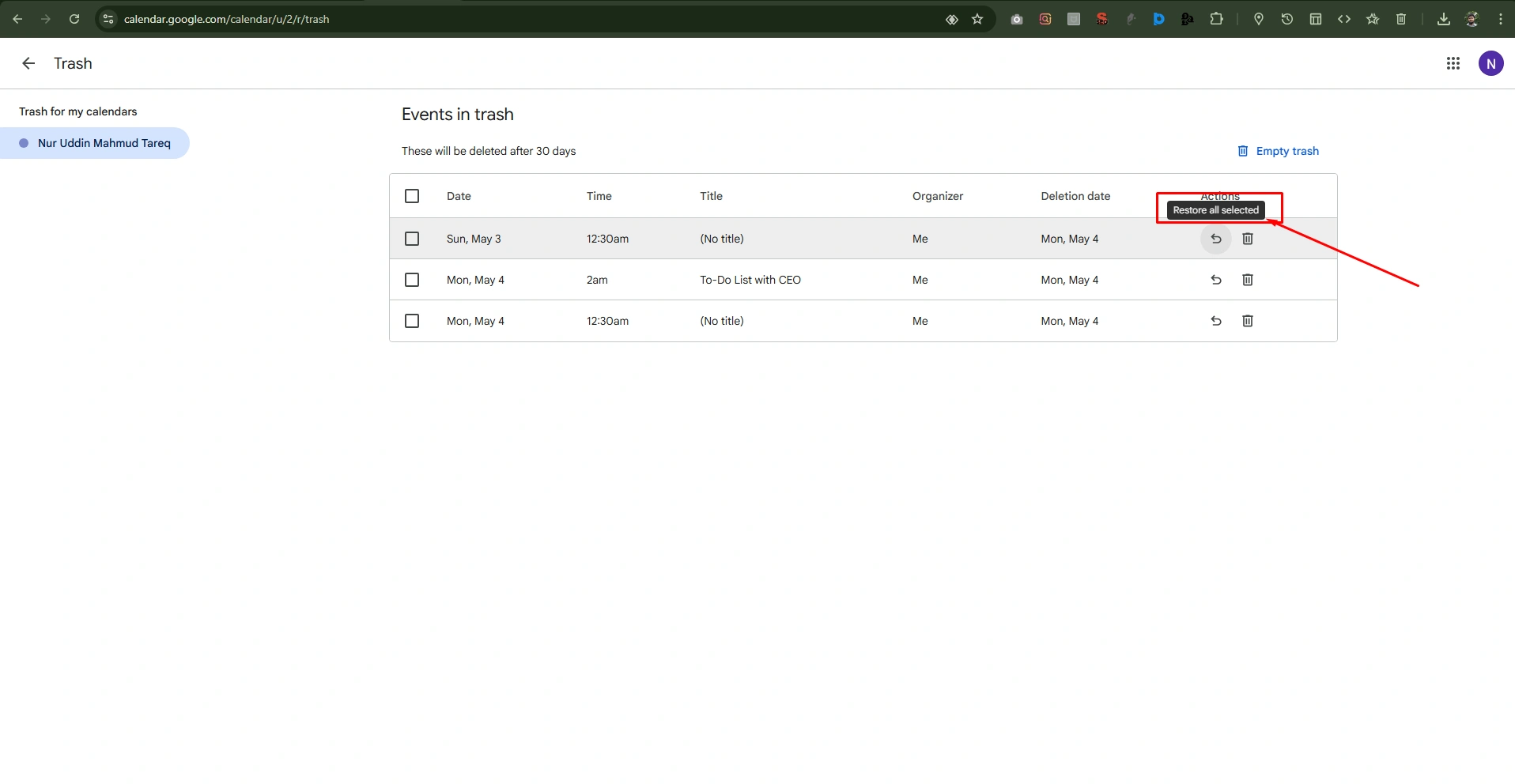
Now, see the deleted items in your calendar history, and hover your cursor over “Restore all selected.”
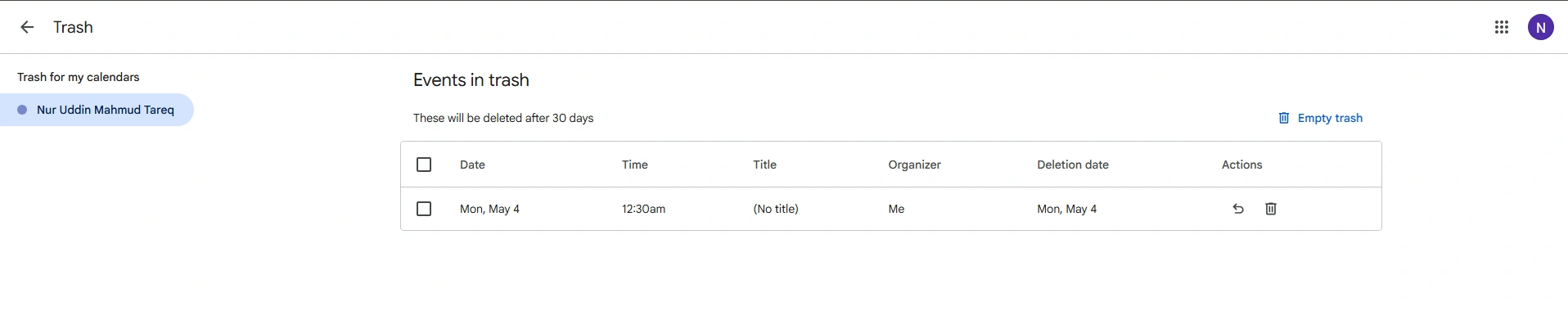
Next step, to see if the deleted events are now active and remove them from the “Trash” list
11. Use Private Events To Hide Details
You want to secure your sensitive information from the calendar due to confidential issues. So, follow the steps to mark your events as private.
Change the status of a new or Existing event into Private
When you’re busy at your chamber to be “Busy” to others, you need to hide specific details from unnecessary users (like, doctor’s appointment or a confidential meeting).
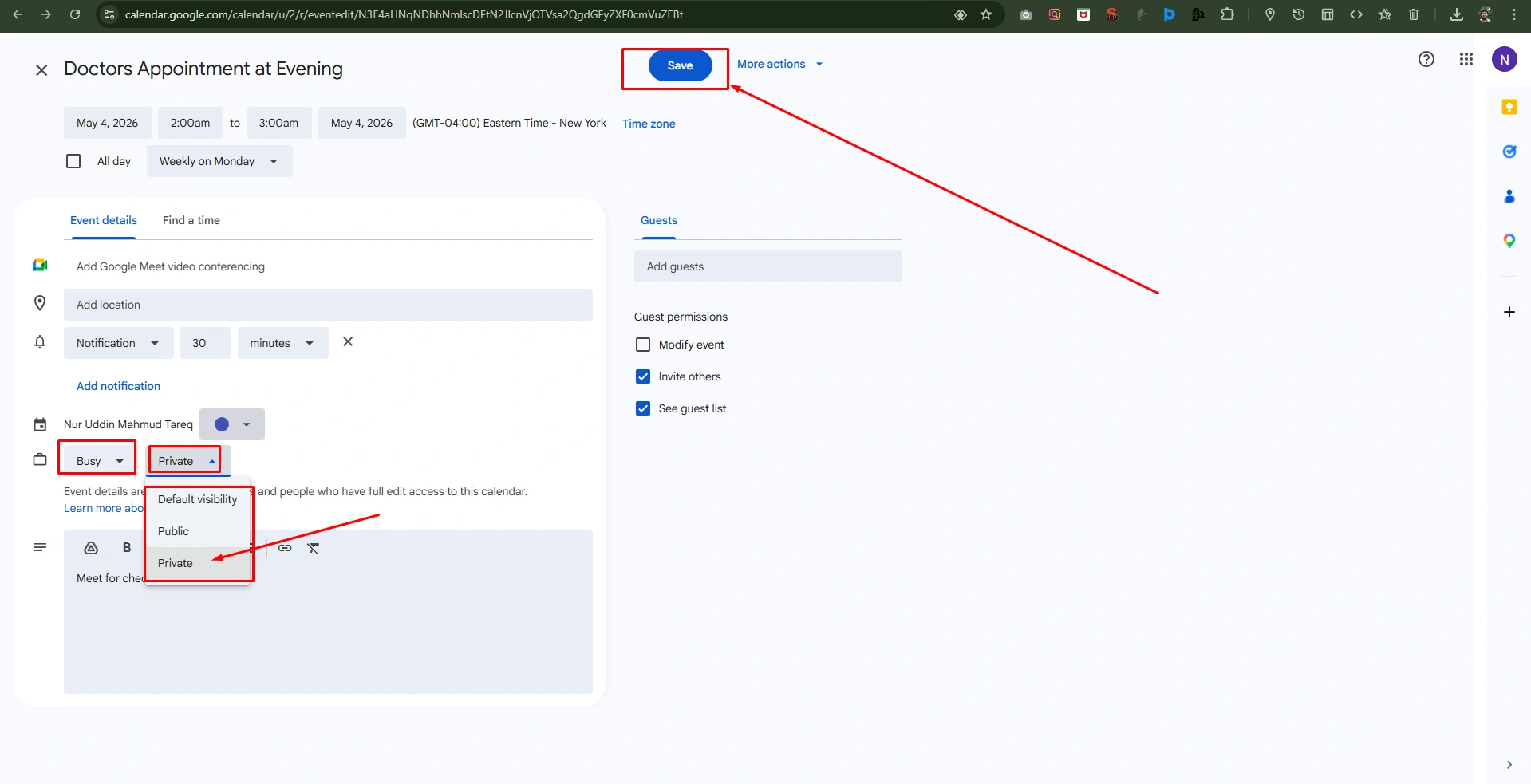
- Just press “E” at your keyboard button, to edit and adjust visibility.
- Go to option, next to “Busy” option and change “Default visibility” to “Private.”
- Now click to “Save” at top right (You’ve secured your details from public to private by hiding details).
12. Customize Notifications By Event Type
If you would like to ensure to be notified appropriately based on the priority of your schedule, follow the steps below. Customize your notification for specific event types.
Method 1: Customize Default Notifications for a Specific Role
This is best if you want to keep all events on a specific calendar (like, your “Work” or “Side Projects” calendars)
- Go to the Calendar Settings on the left sidebar, keep your cursor over the specific calendar name.
- Click the three vertical dots (Options) and select “Settings and sharing.”
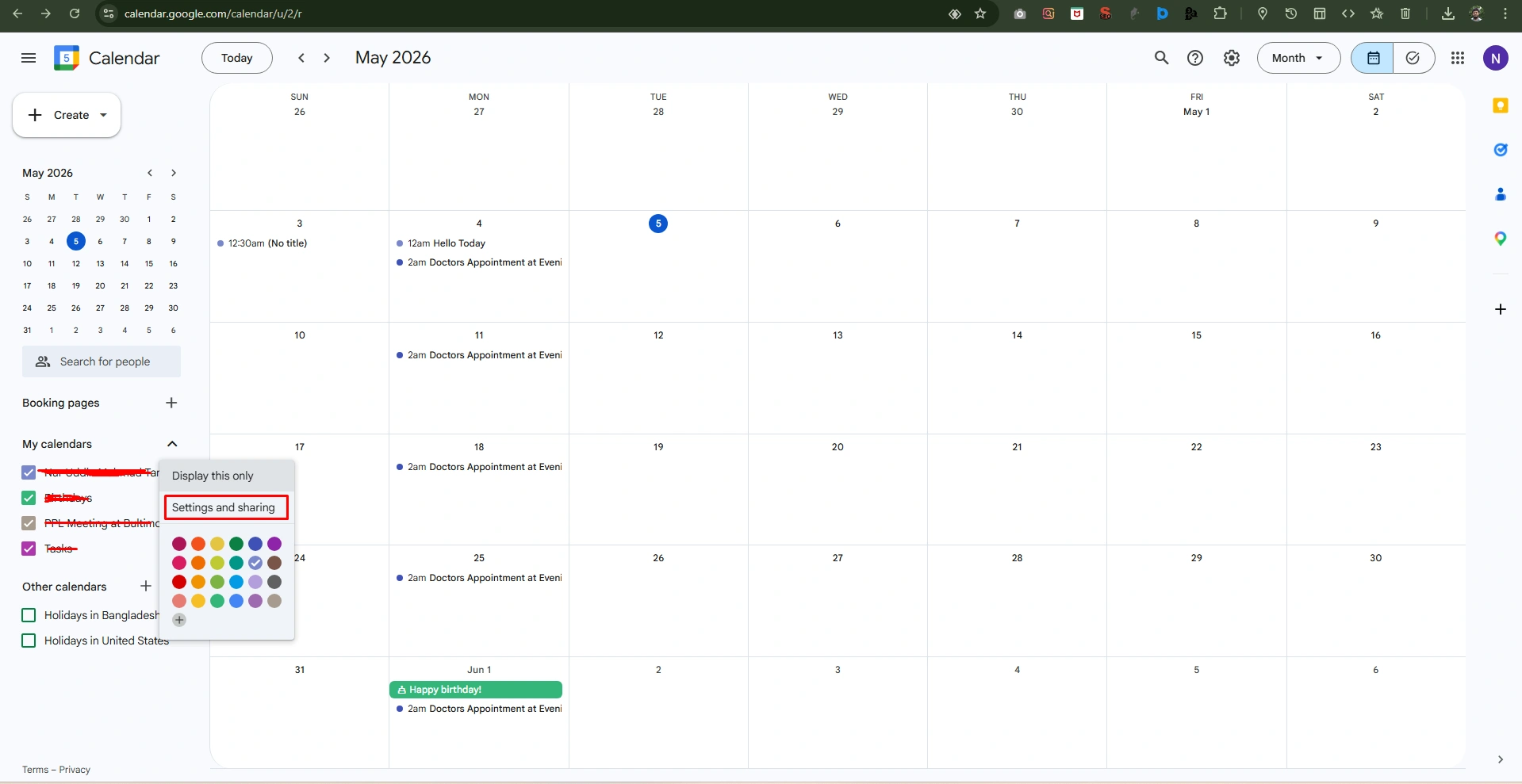
Again, adjust your event notification
- Scroll down to the “Event notifications” section. Here, you can add or remove default reminders as you want.
- Add a notification (push) for 10 minutes before and an email for 30 minutes before the meeting is held. This ensures you’ll miss it from the start.
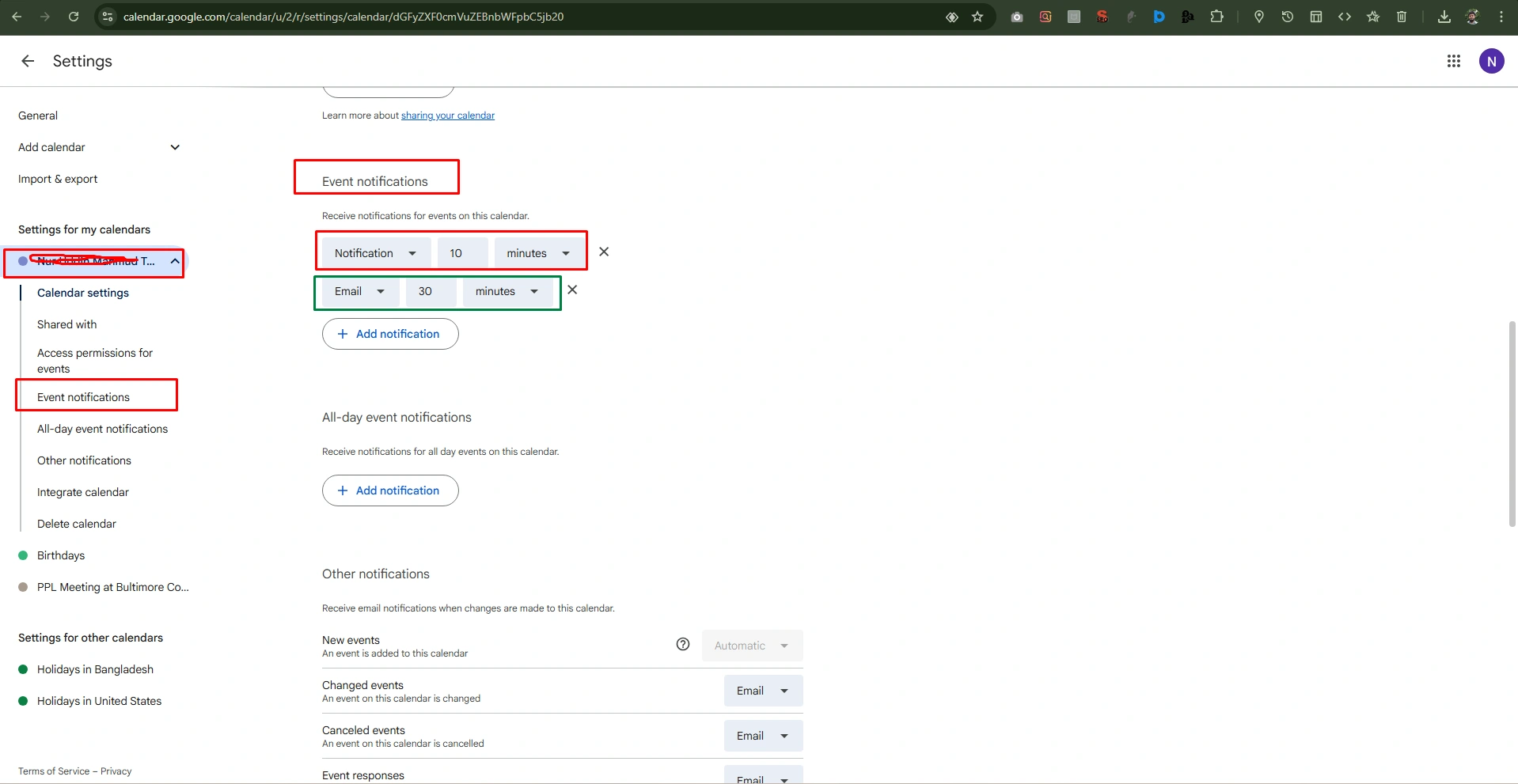
Method 2: Override Notifications for Individual Events
Use this method for special high-priority meetings or special technical writing deadlines that require extra time.
- Click on the specific event and press “E” on your keyboard to jump into details.
- Locate the notification area (represented by a bell icon)
- Click the “Add notification” button to create a second or third reminder.
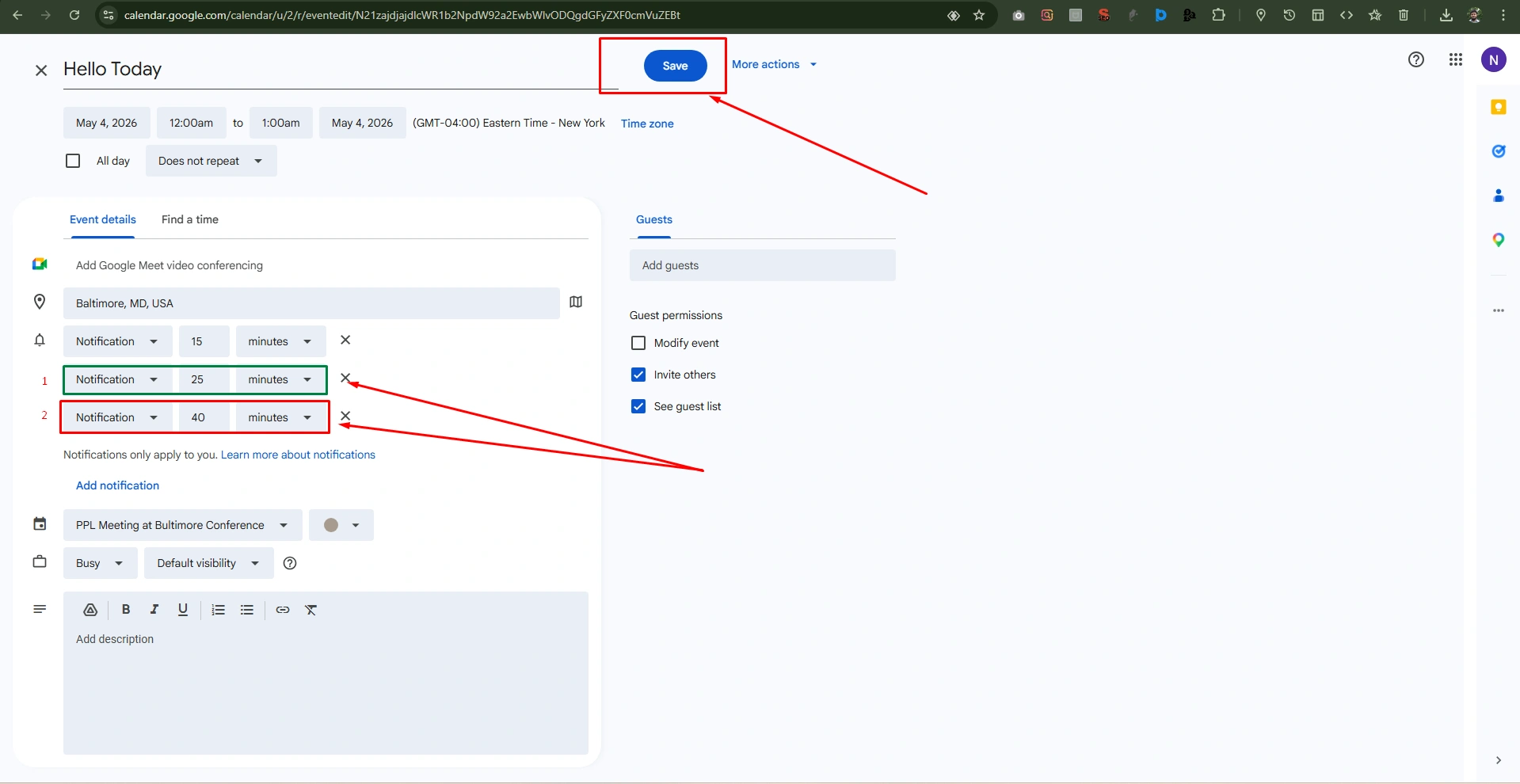
- Finally, click “Save” at the top to apply specific rules only to this event.
13. Use Offline Mode For Access Anywhere
Using offline mode is essential for maintaining your productivity while you’re travelling or in areas where the internet is not available. Follow these steps to ensure your schedule remains accessible at all times.
Step 1: Enable Offline Mode in Settings
This process must be done while you are currently connected to the internet to allow Google to cache your data.
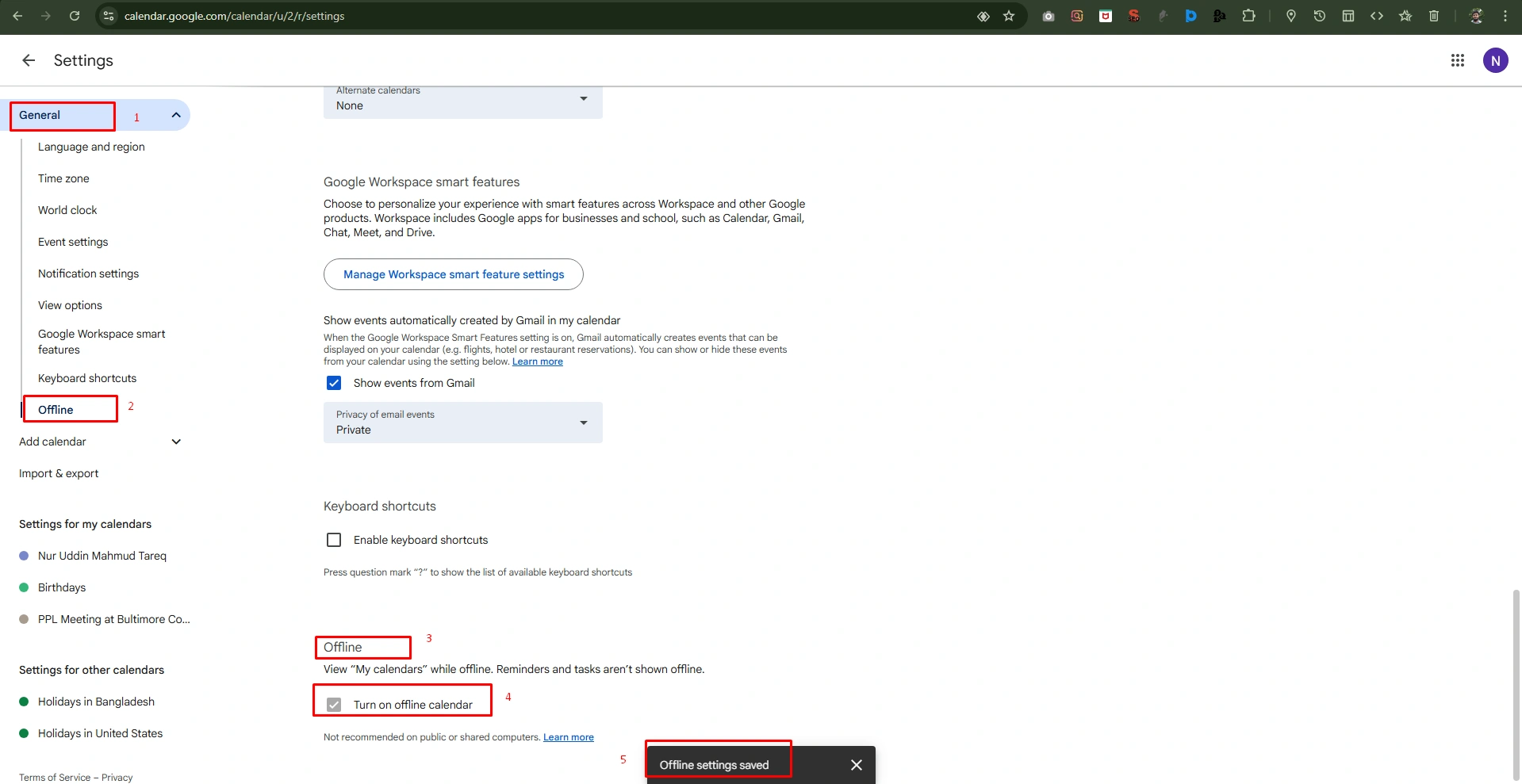
- Click the “Settings” in the top-right corner of Google Calendar and select the “Settings” option from the list.
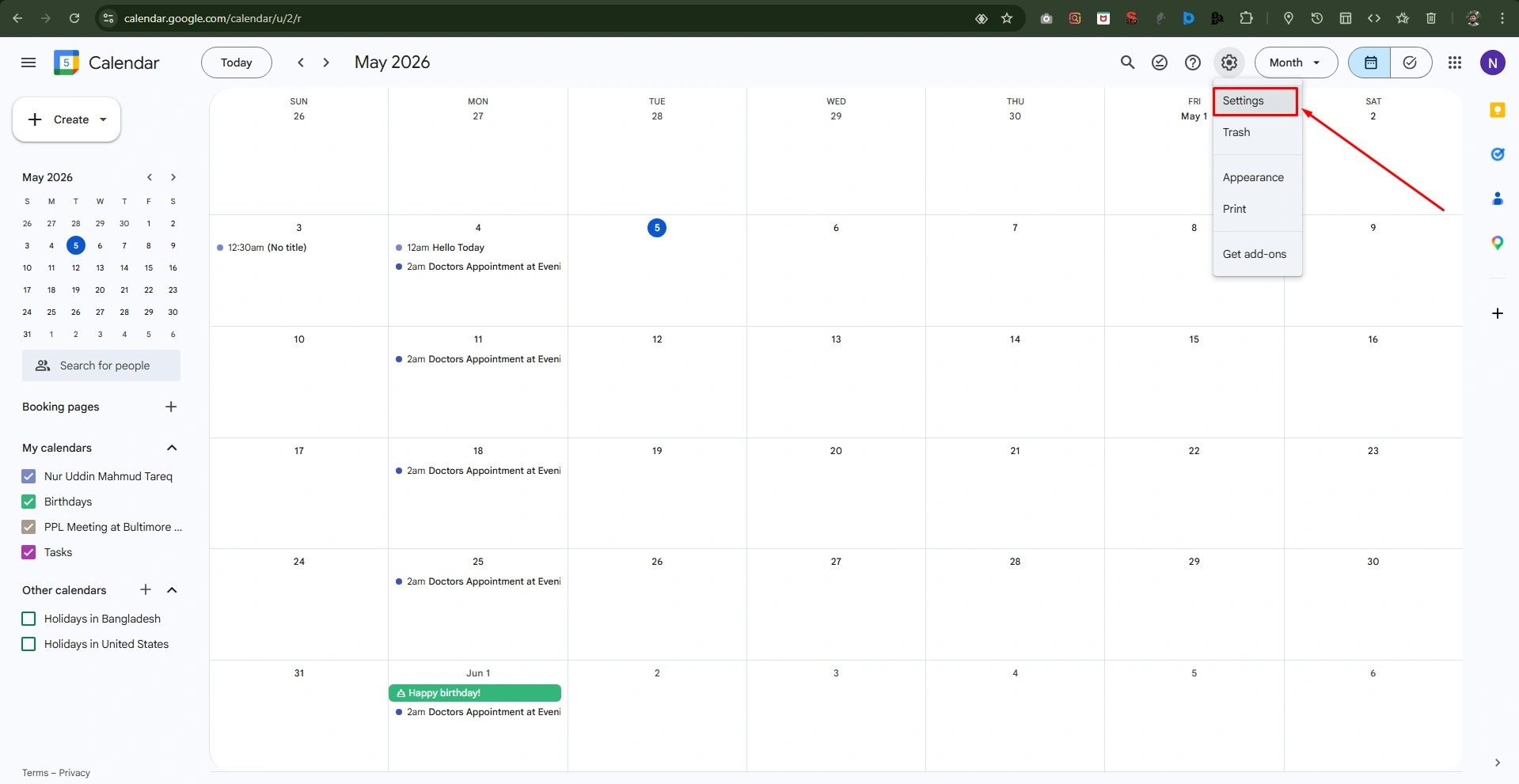
Now, on the left-hand sidebar, click on “General” and then select the “Offline” option.
- Here, from the “Offline” option, check the “Turn on offline calendar” option.
- After turning on, you’ll see an automatic appear at the top of your screen indicating that your calendar is “Syncing for offline use.”
- Don’t close your browser until you complete the process.
Step 2: Access Your Calendar Offline
Once you complete the initial sync, you can access your calendar schedule from anywhere without an internet connection.
- Just “Bookmark” your calendar on the Google Chrome browser.
- Now open from your “Bookmark” area; just simply click your bookmark or type the URL into the address bar.
- You can view all events, including make changes, or create new appointments.

14. Set Working Hours And Location
Set your working hours and location, which is essential to manage expectations and maintain your productivity. This is effective when you balance multiple roles, like content writing and sales operations. See the steps on how to implement these steps.
Step 1: Define Your Working Hours
Set your specific hours, and Google will automatically notify your teammates if they try to schedule a meeting with you outside of your professional time.
- Click the “Settings” gear icon in the top-right corner of Google Calendar and select “Settings.”
- On the left-hand sidebar, click the “General” option and then select “Working hours & location.”
- Click to check the box labeled “Enable working hours.”
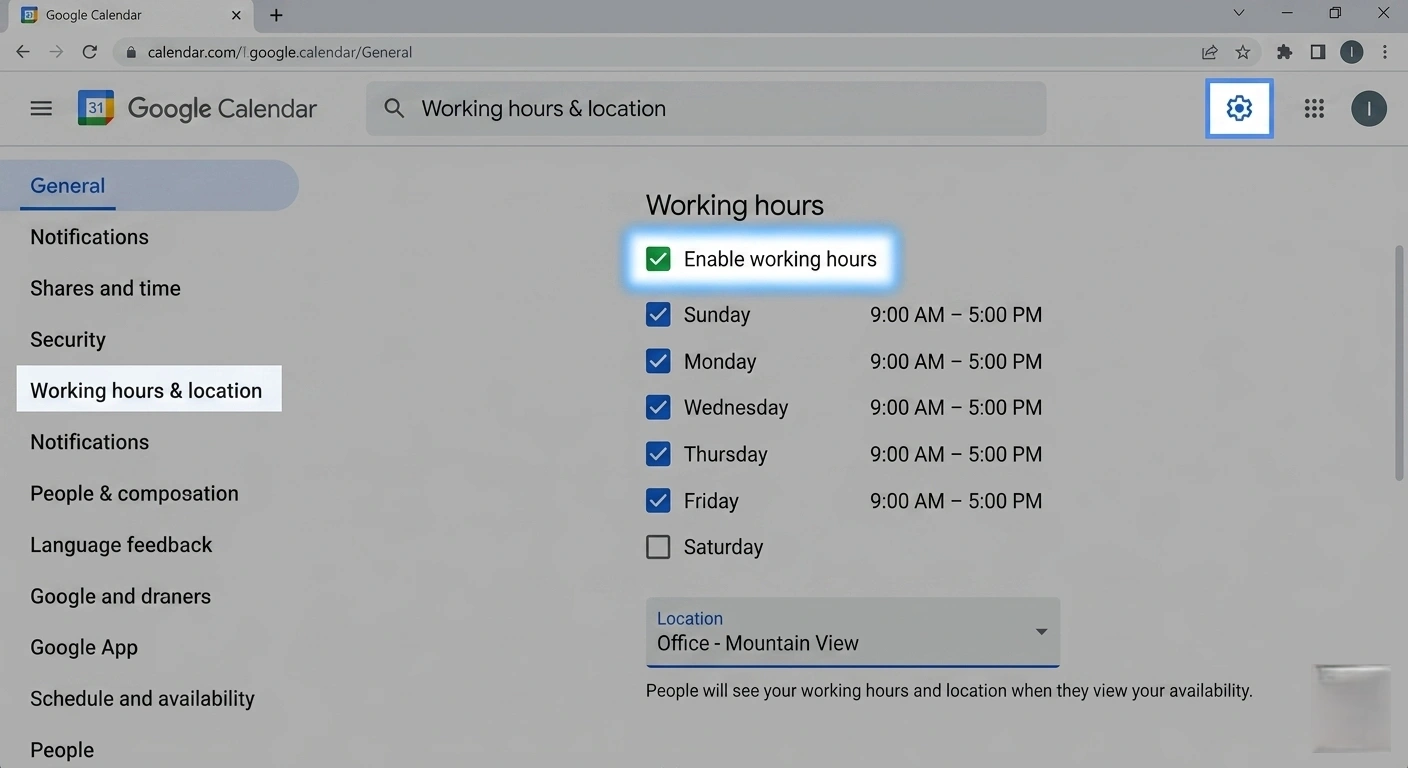
Note: If you have different roles on different days, you can adjust these individually to reflect your actual availability.
15. Integrate With Other Productivity Tools
Integrate Google Calendar with your productivity tool, like Slack, Notion, and Zapier, with your workflow. So, you can synchronize Google Calendar across different platforms.
1. Sync Google Calendar with Slack
Connecting to Slack with your Google Calendar to receive automated reminders and update your status based on your schedule.
- Open Slack on your Google Chrome browser
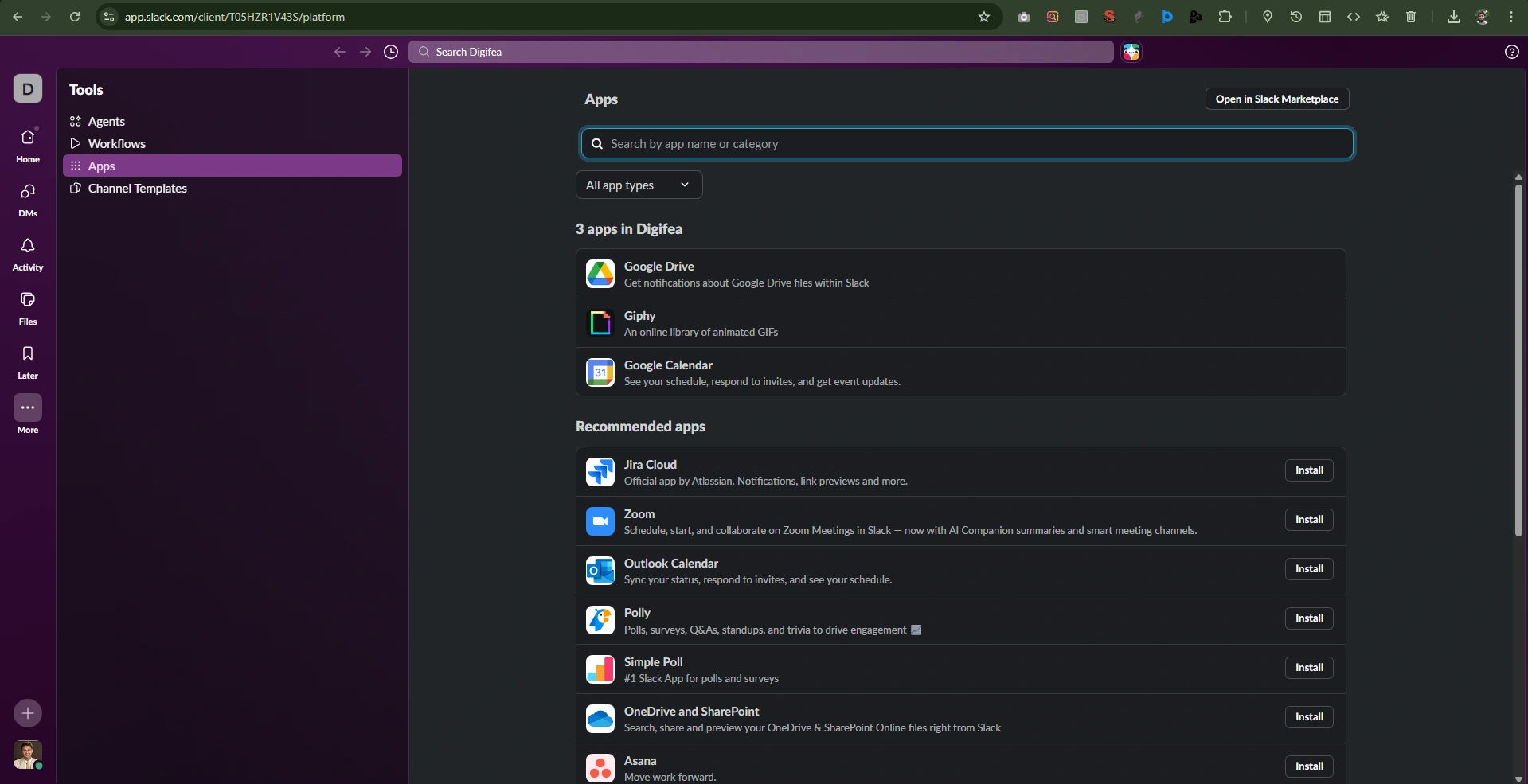
Now, navigate to “Apps” in Slack, search “Google Calendar,” and connect.
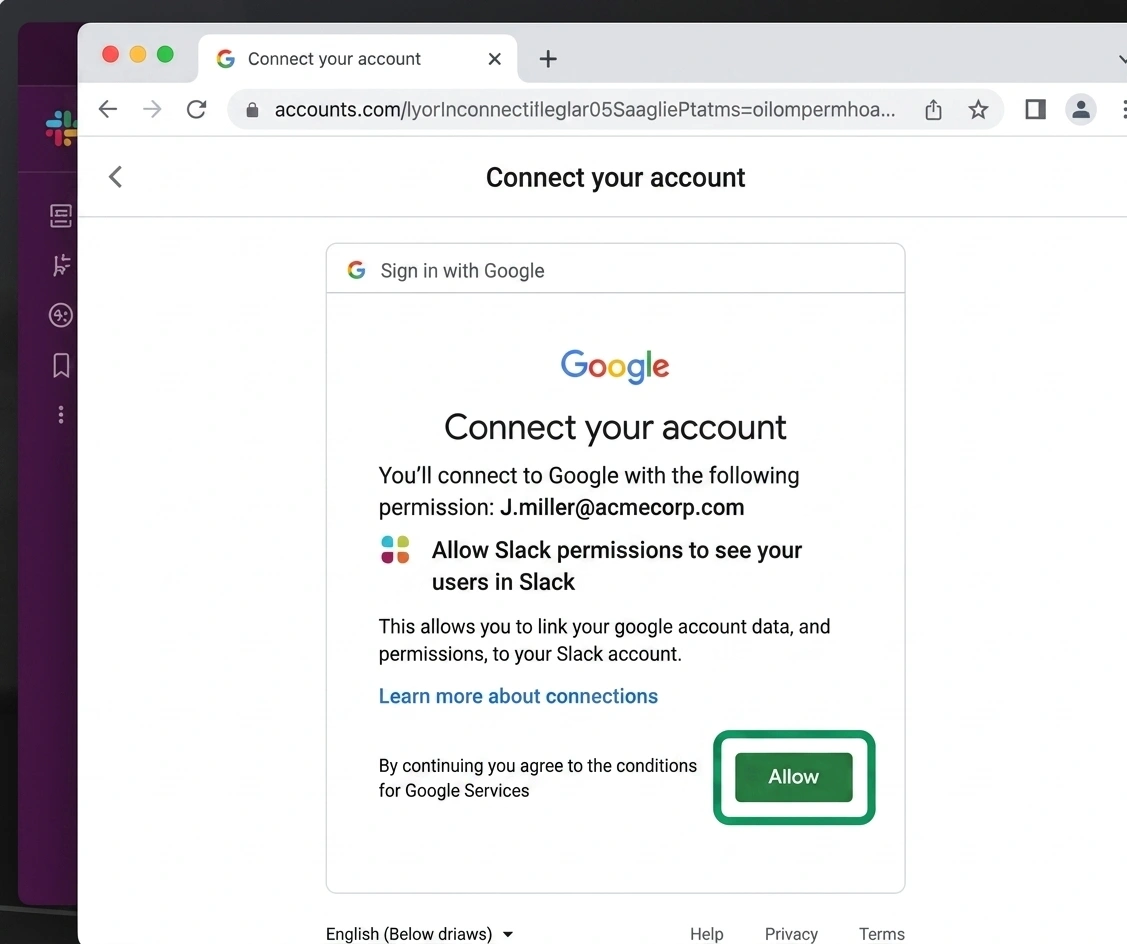
Then, click to “Allow” Slack with your Google calendar and connect with the “Google Calendar” account
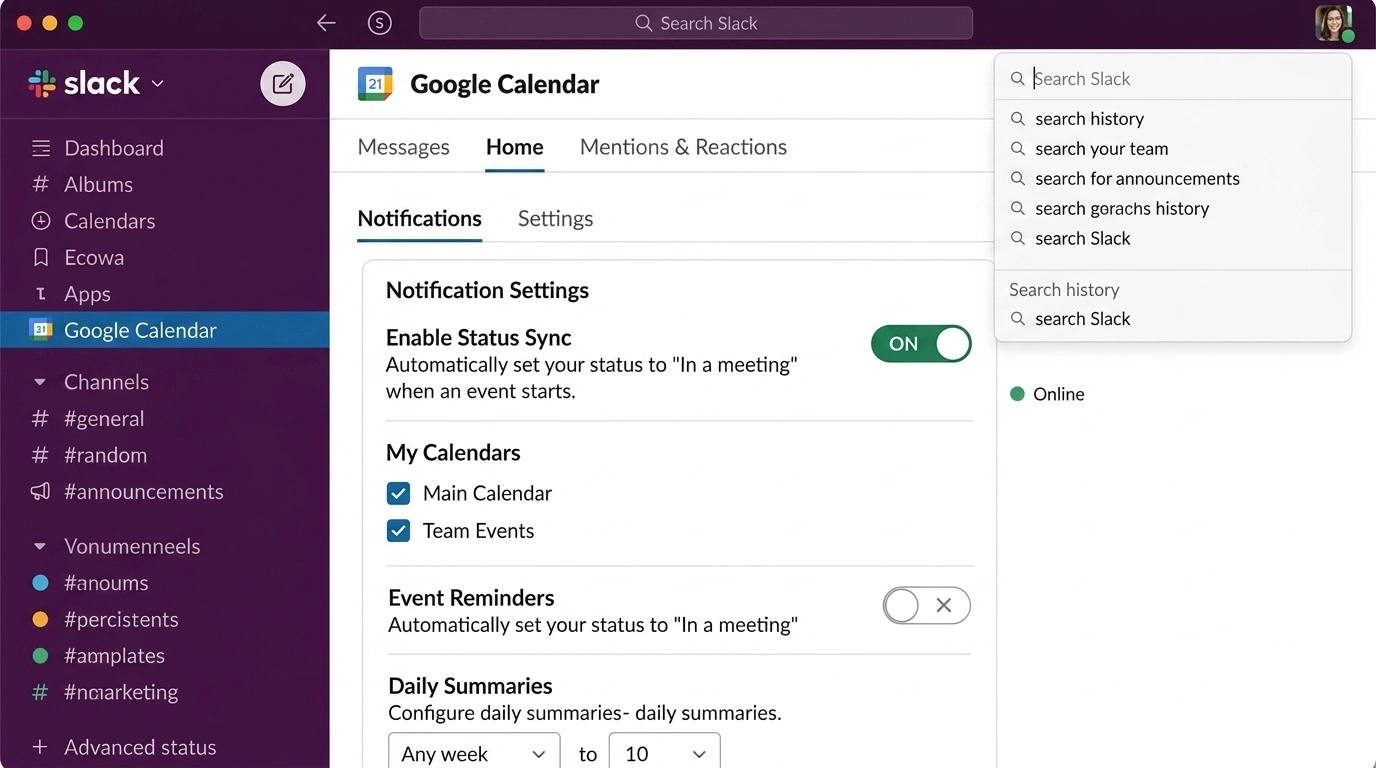
Finally, check “Enable Status Sync” and also check options for “Main Calendar” and “Team Events”.
2. Connect to Notion for Task Management
Add Notion calendar to boost your productivity at Google Calendar, with the following steps:
- Open “Notion Calendar” in your Google Chrome browser and sign in with your Google Account.
- See events directly alongside your Notion database.
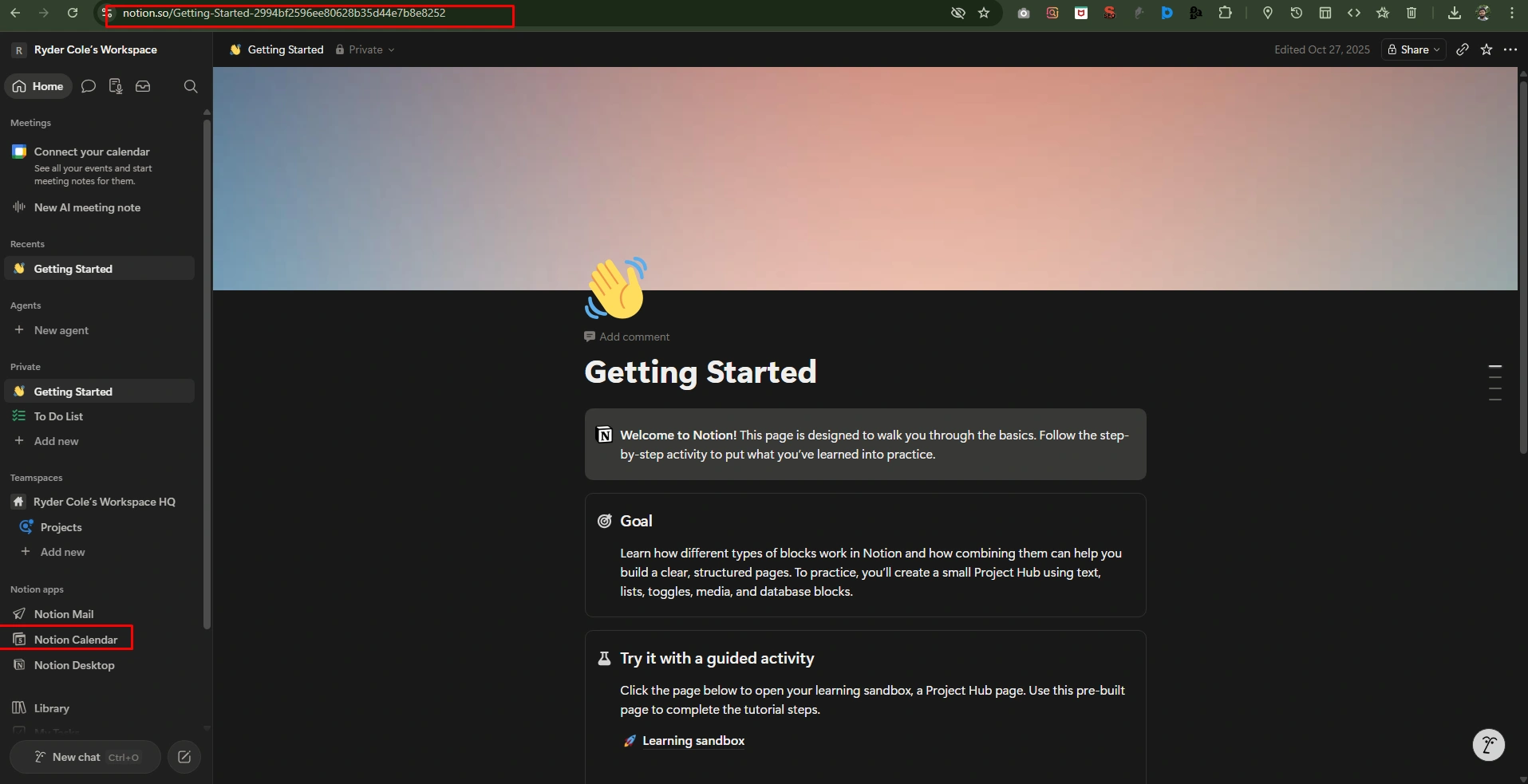
Now, provide “Permissions” or Access Notion calendar with your Google Calendar.
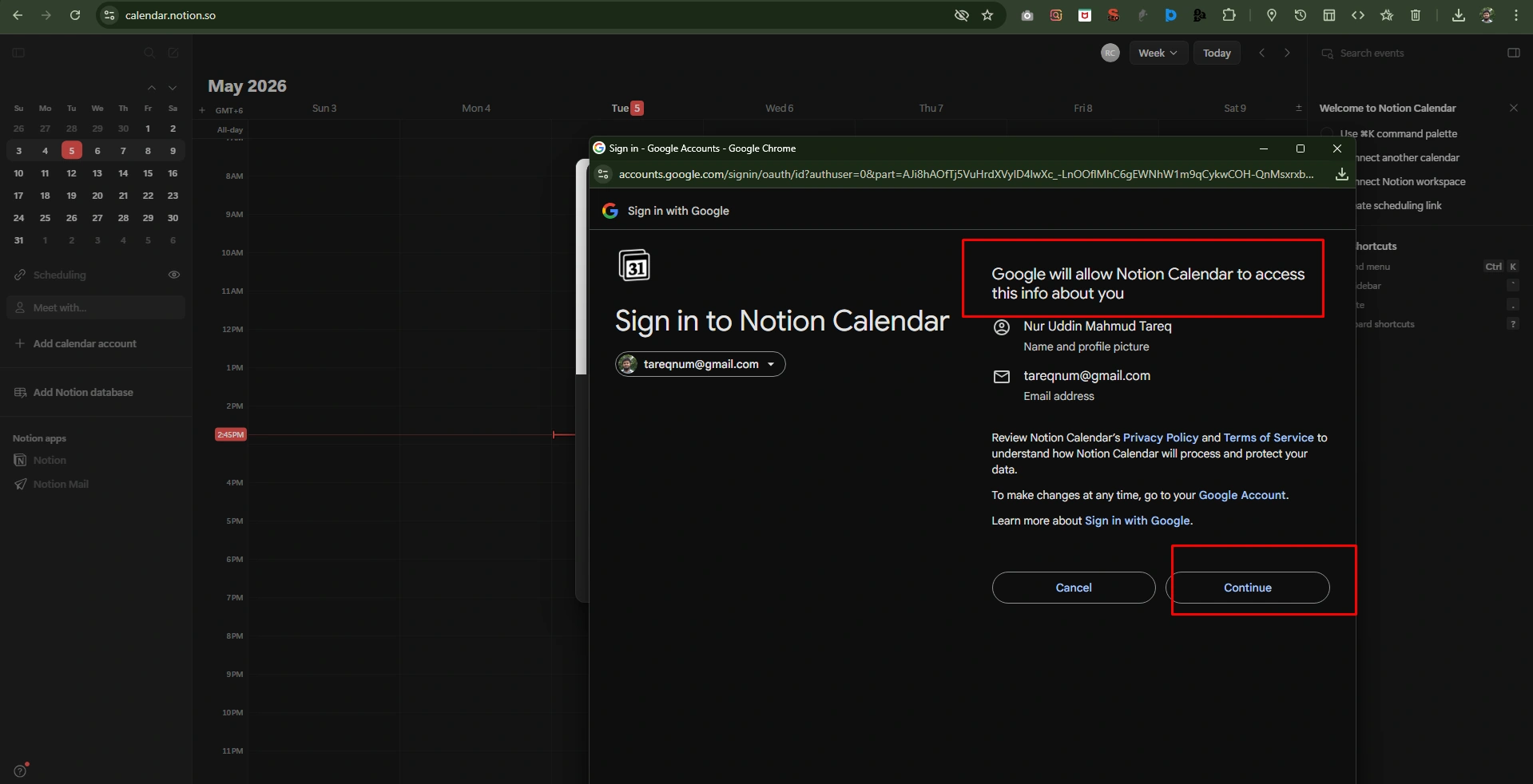
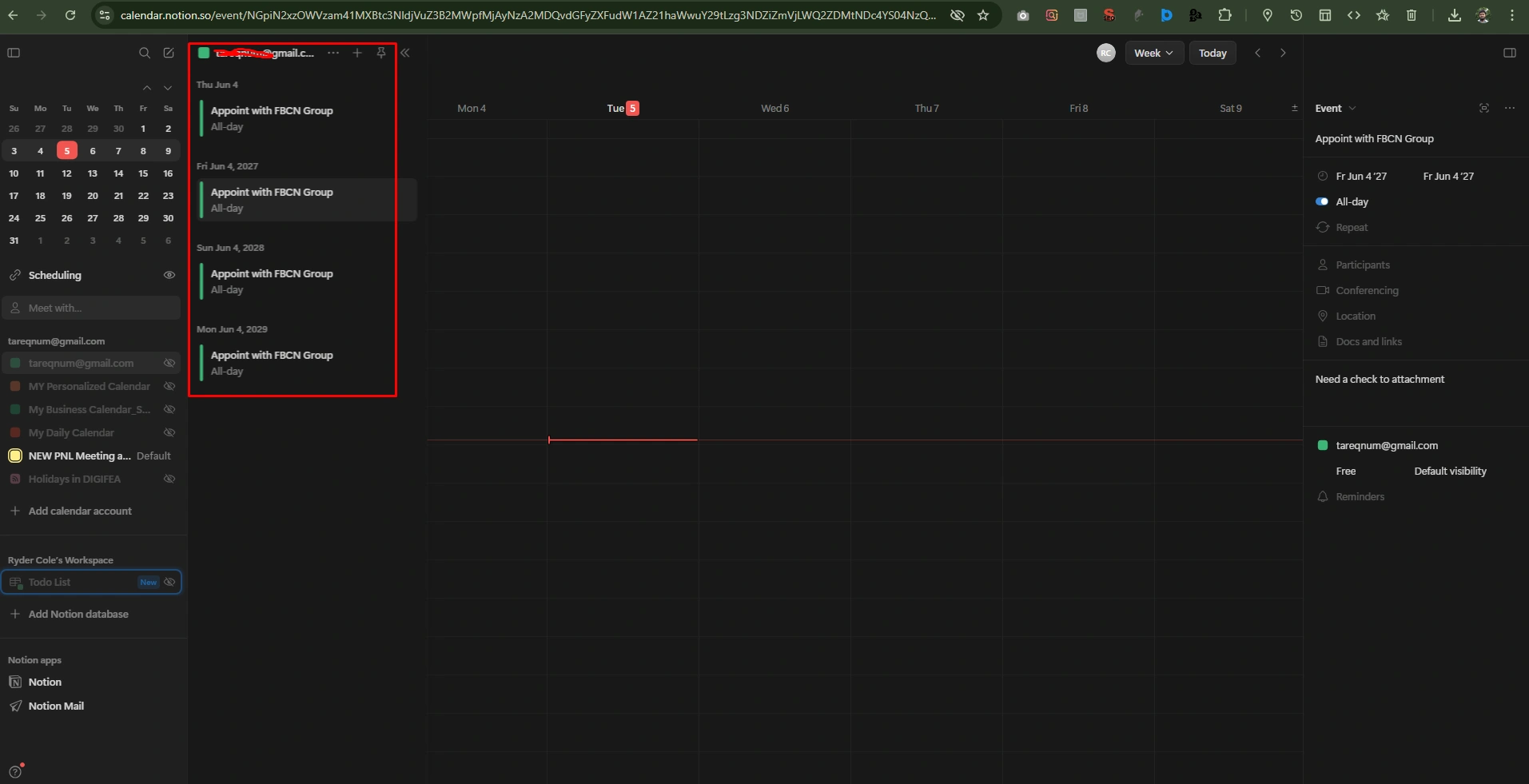
Next step: link or connect your Google Calendar with Notion Calendar, where you’ll see your tasks at databases.
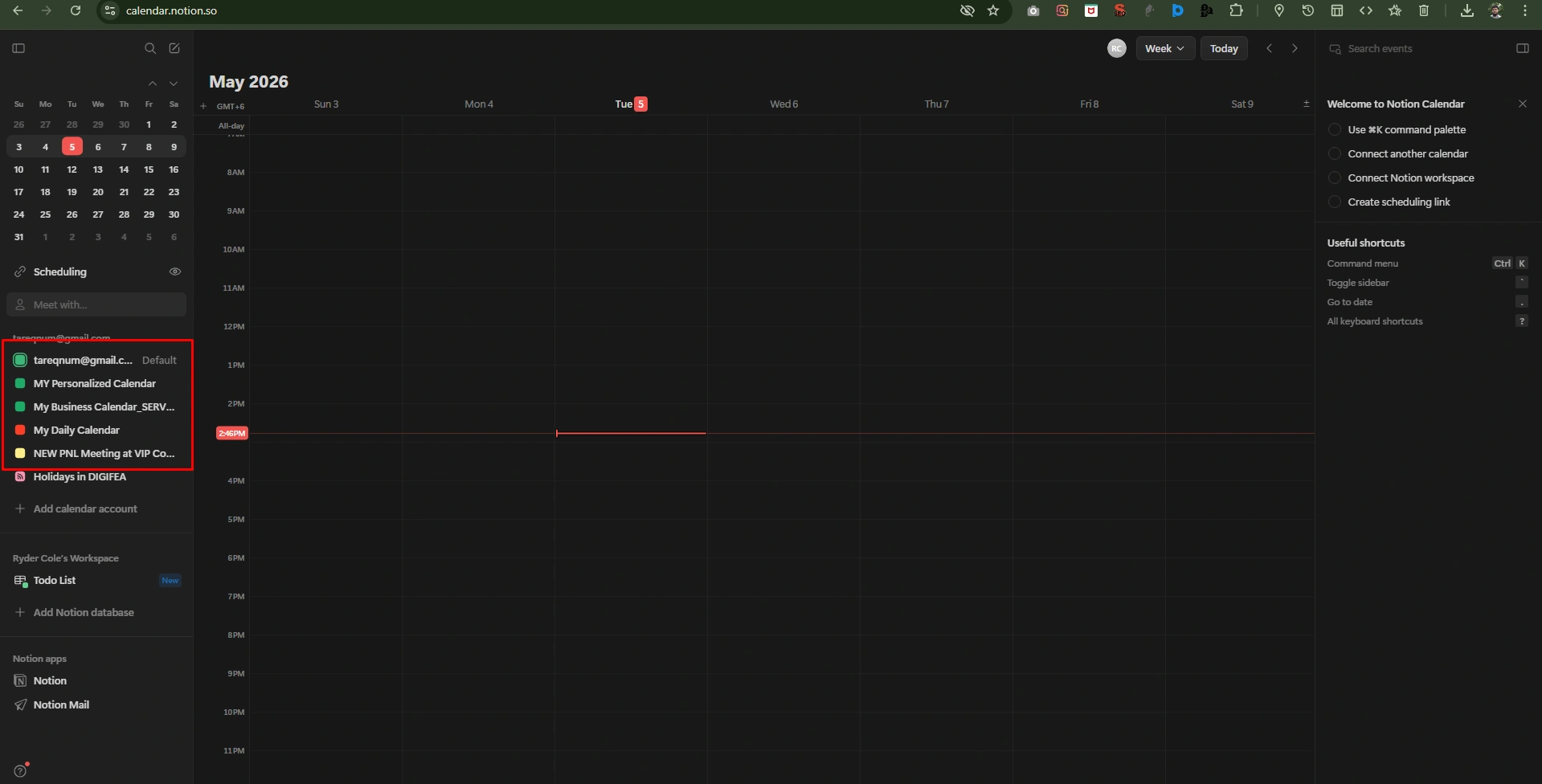
Get access to show Google Calendar synchronized with your Notion Calendar.
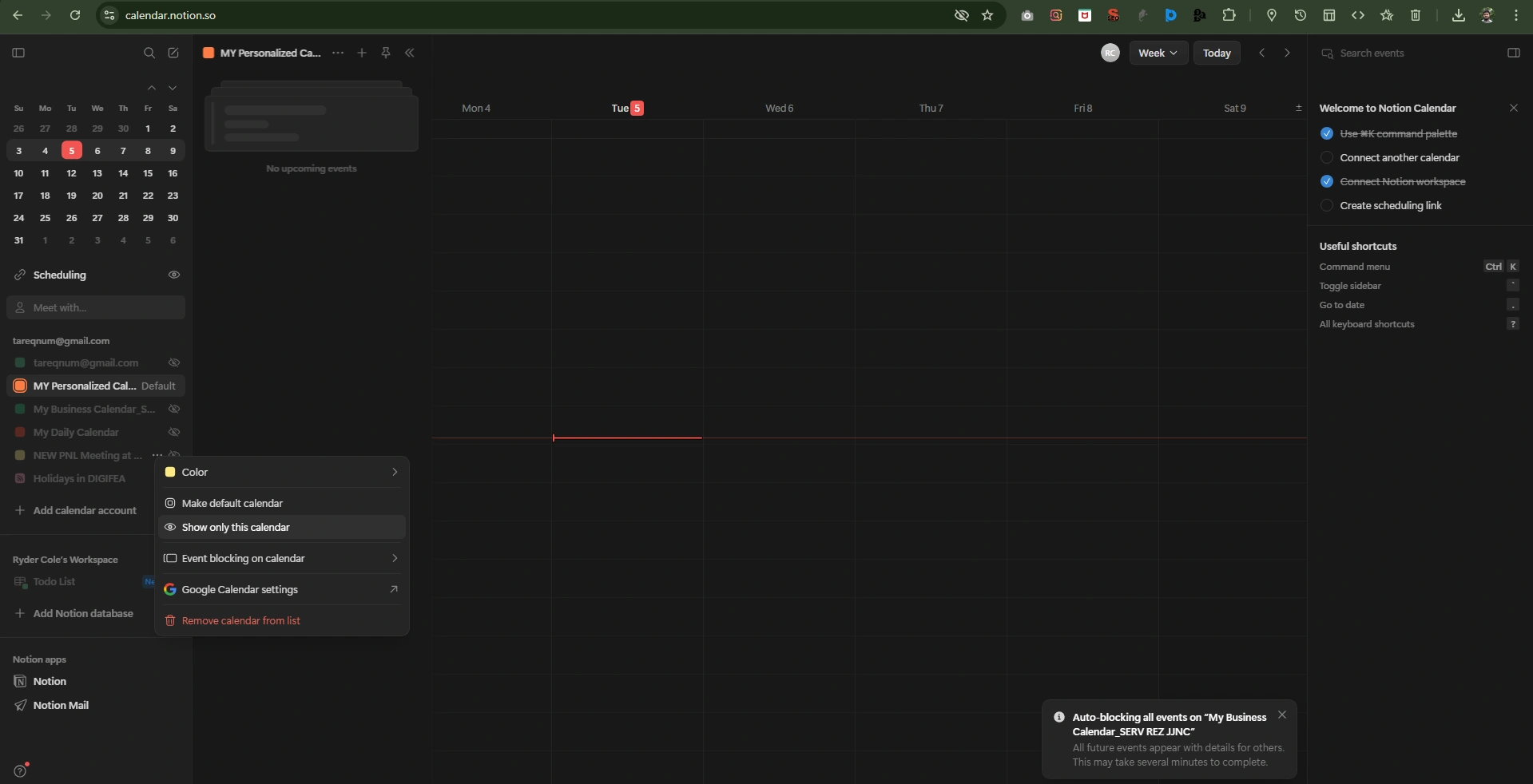
Finally, see the calendar access between “Notion Calendar” and “Google Calendar.”
Conclusion
Google Calendar hacks provide a lot of facilities for task setting, time blocking, and scheduling with setting reminders. From beginner to expert can integrate Google Calendar for a smart workflow that reduces stress increase efficiency. You can customize working hours, reminders, different time zones, and apply different roles based on work hours.