

Gmail Shortcuts That Save Hours Every Week and Boost Productivity
Mastering Gmail keyboard shortcuts allows you to navigate, archive, and respond to email without moving your hands from the keyboard. Significantly, keyboard shortcuts increase your efficiency and save you valuable time. By enabling shortcuts in settings, professionals can eliminate the time-killing in constant clicking, saving nearly one workday per month.
What You Need to Know About Gmail Keyboard Shortcuts
Most of the Gmail users usually open emails, click buttons, and scroll using the inbox the same way every day. Again, Gmail keyboard shortcuts allow you to navigate, compose, archive, and manage emails without moving your hands from the keyboard. Once you become accustomed to using keyboard shortcuts, you’ll later understand how it saves your essential moments.
Enabling Shortcuts
You must enable them manually. Keyboard shortcuts are not automatically activated. Therefore, you must enable them manually with the following options.
- At first, click on the “Settings” gear in the top right corner.
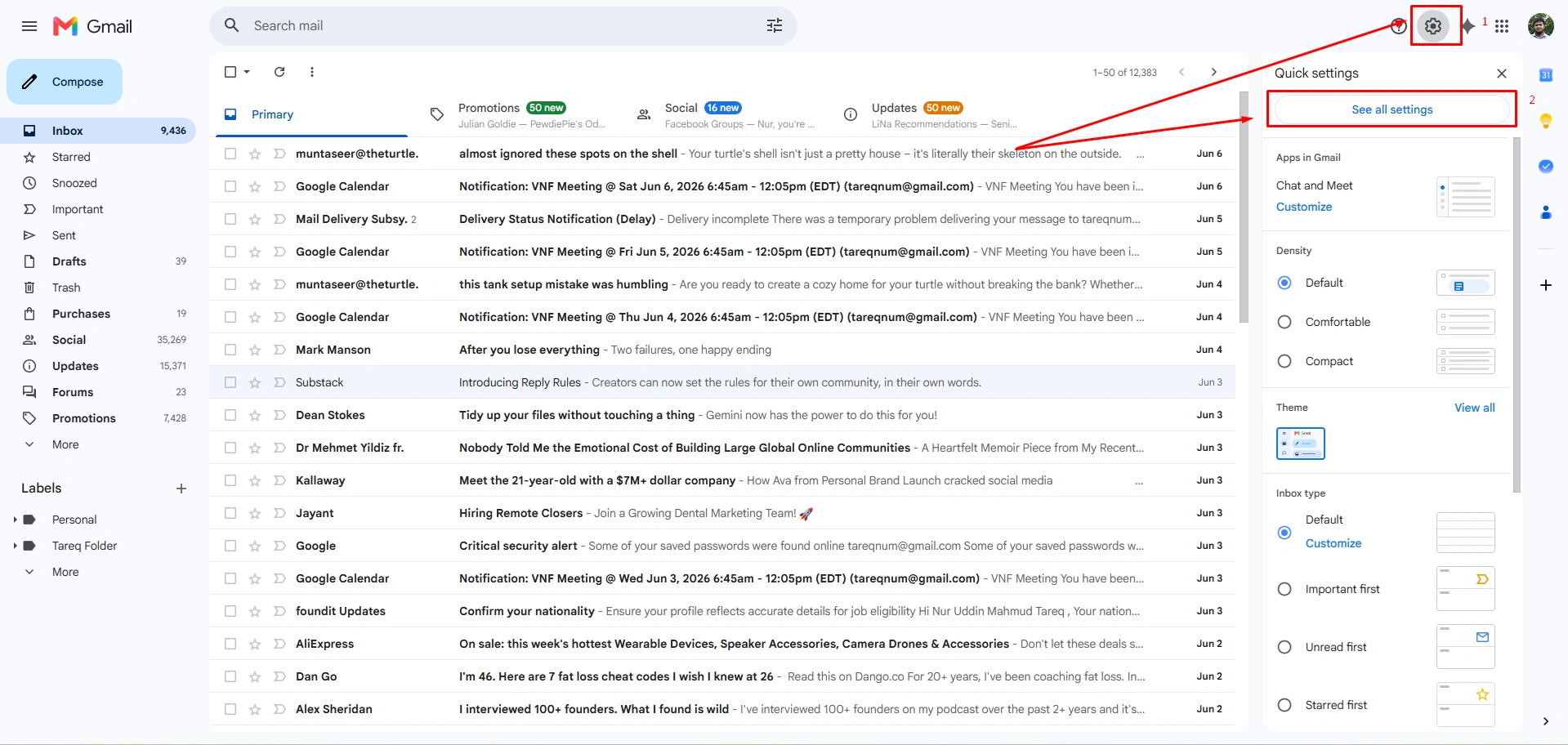
- Now, select “See all settings.”
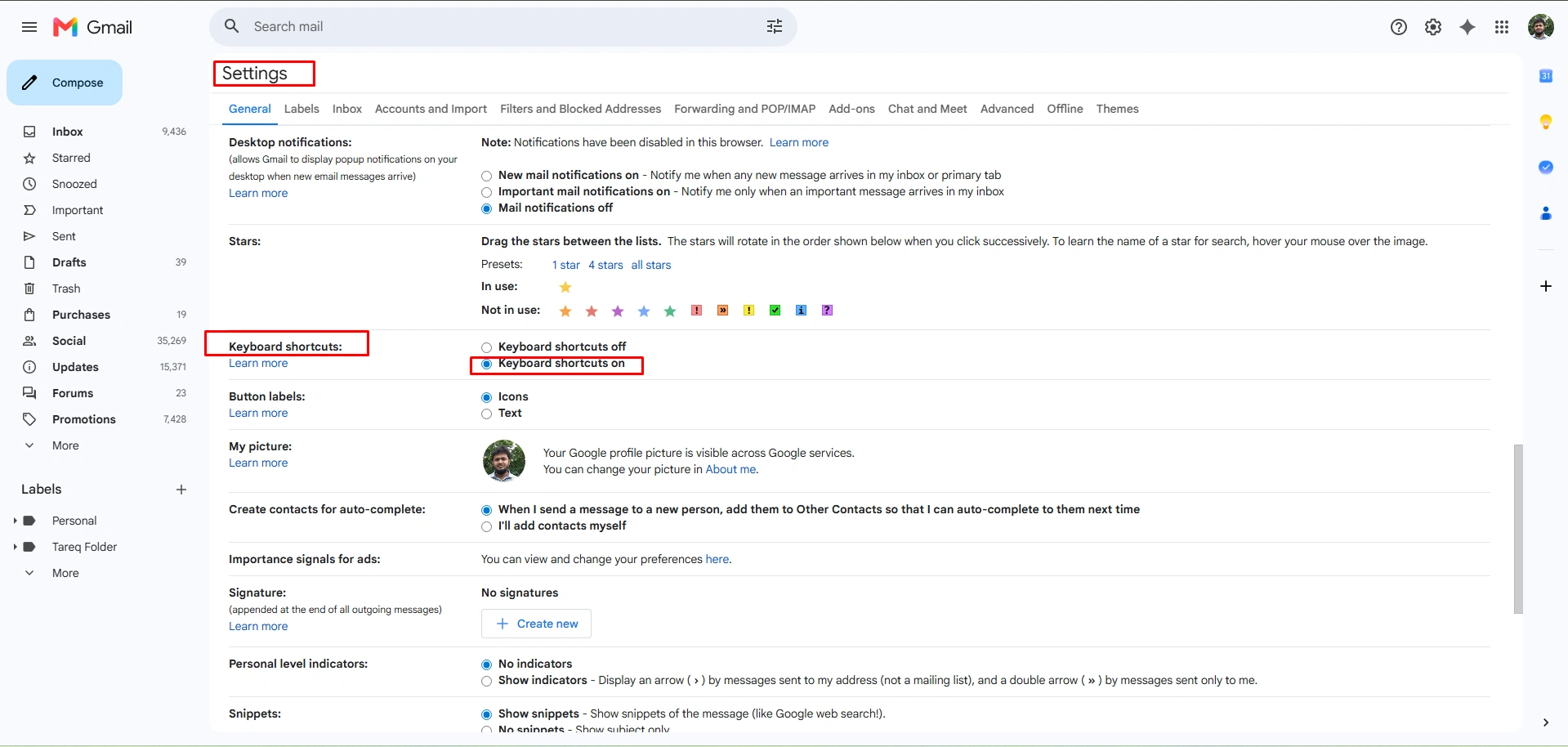
- Scroll down and click on “Keyboard shortcut section.”
- Select “keyboard shortcut on.”
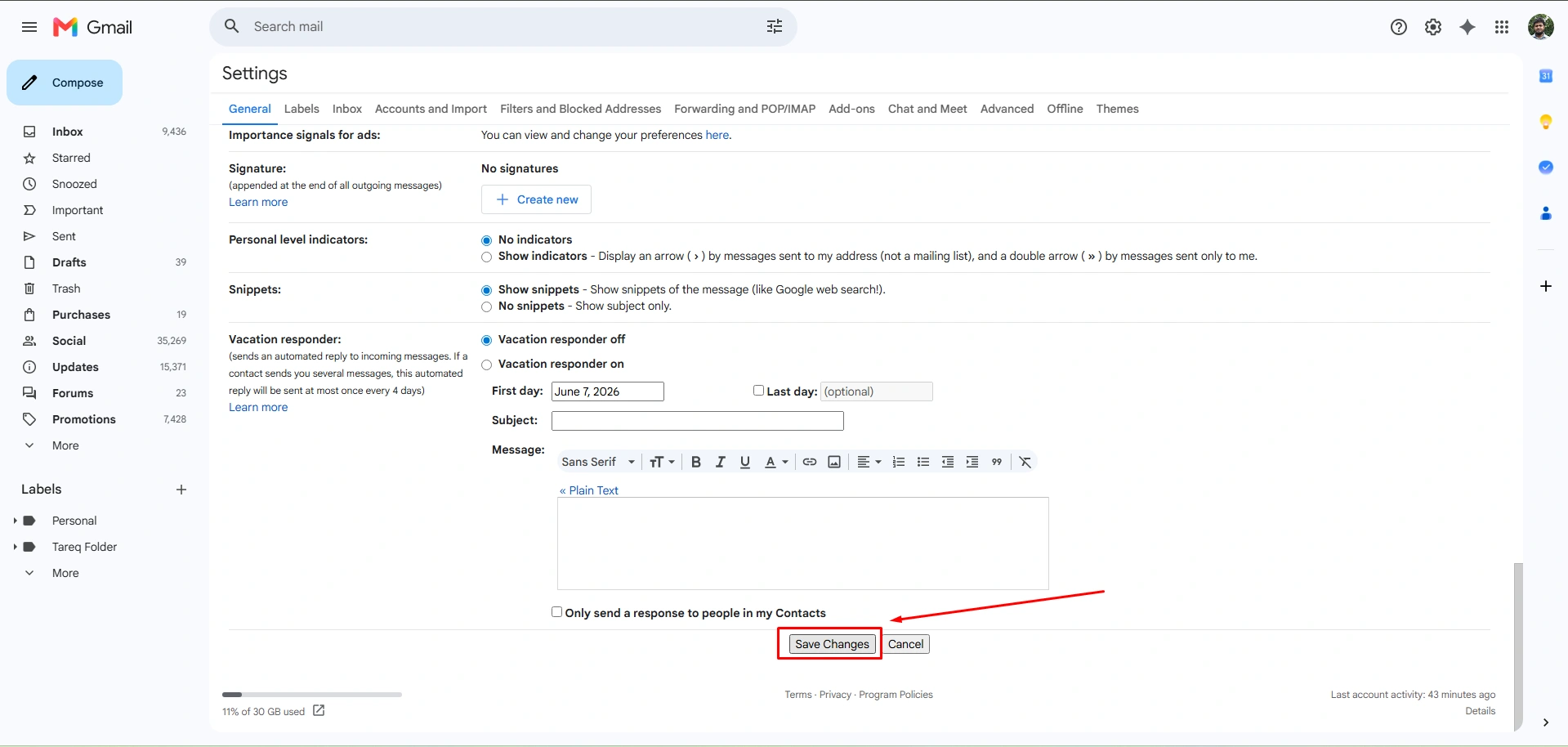
- Finally, “Save Changes” at the bottom of the page.
Essential Master Shortcuts
After enabling the Gmail keyboard shortcut, these two keys help you to learn and manage your shortcuts.
- Open the complete keyboard shortcut cheat sheet on your screen.
- Closes open dialog boxes, pop-ups, and menus.
Applying keyboard shortcuts requires time to plan, learn, and which requires much time to organize bulk emails. In many cases, business owners assign a virtual assistant to perform the job without burnout. Therefore, you’ll get free space to prepare strategic goals setup vision.
How to Save Hours Weekly Using Gmail Keyboard Shortcuts
Keyboard shortcuts allow you to take actions without moving your hand from the keyboard.
1. The Hook: The Cost of Clicking
Use the keyboard shortcut within the standard command. Without moving aimlessly through using a mouse or unnecessary clicking, this shortcut can save you time.
- What is the Problem: Most of the professionals waste 2 to 3 seconds every time they move a mouse to click “Reply,” “Archive,” or “Next” options. If any user checks 100 emails per day, it adds up to hours of wasted cognitive energy every week.
- The Actual Comparison: Compare with inbox chaos managed by using a mouse. If your hand moves every time to check email or take email actions, it will cut into your full day.
- Keyboard Shortcut Effectiveness: Learn necessary shortcuts and determine to keep your hands on the keyboard. You can turn your email management into rapid action, a consistent workflow, and cut your inbox time in half.
2. The Core Guide of Using Shortcuts
Group the shortcuts by intent so the reader can memorize them in logical clusters.
Navigation and Selection Shortcuts
Now, move through your inbox quickly using a single-key command.
- Use keyboard character “j”: This helps you move your cursor to the previous conversation.
- Press another keyboard character “k”: Using the character, you can move to the next newer conversation.
- Select character “x”: This keyboard shortcut helps you to select or deselect the current conversation.
- Another essential character “o”: Using the shortcut, you can open the selected conversation.
Action: Processing Emails Instantly
Once an email is open, these keys handle the execution.
- Use the powerful shortcut “e”: Archive the email. (The single most powerful shortcut for deleting and reaching your inbox to zero).
- To reply using a shortcut, press “r”: Reply to the sender.
- Another powerful shortcut “a”: Reply all to everyone in the thread.
- To forward a message, use “f”: This shortcut forwards your message to the expected user.
- To delete an email completely from the inbox, press “#(Shift + 3)”. This email will go to the trash directly.
Composition: Creating & Sending
For email composing, creating, and sending, use the following shortcut to save your valuable hours.
- Press “c”: For composing a brand-new email canvas.
- Also, press “Ctrl + Enter or Cmd + Enter” to send the message immediately.
3. The Action Plan: Build the Habit
To get the maximum result of using keyboard shortcuts, organize your shortcut tips and use them to complete your workflows. This shortcut facilitates data-entry work. See the three specific 3-step grouping loops to handle massive incoming messages.
- Start with the top email. Open it with “o”.
- Read it. Act instantly. Press “r” to reply, type your note, and hit “Ctrl + Enter” to send.
- Don’t go back to the inbox. Hit “e” to archive the current thread, and Gmail will instantly drop you into the next message.
Repeat this loop to slash through 50 emails in minutes.
How Much Time Can You Actually Save?
Email is wasting your workday. The average professional spends 13 hours every week, over 25% of the standard workweek, that is spent on finding an inbox. The actual problem is email numbers; the real problem is that email apps are too complicated to use.
Spend Extra Time Using the Mouse
Wherever you move your hand from keyboard to mouse, click a button, and then move back. Here, you lose approximately 1.75 seconds. 1.75 seconds sounds a little, but the compound is aggressive. Here is approximately calculation and the weekly loss of moving hands from the mouse to the keyboard.
| Metric | Calculation (Per Day) | Weekly Loss |
| Emails Received | 120 per day | |
| Actions per Email | 3 (Open, Read, Archive, or Reply) | |
| Mouse Tax | 5.25 seconds per email | 1.75 hours |
| Context Switching | 20 seconds lost refocusing per task | 3.5 hours |
| Total Weekly Waste | 5.25+ Hours |
Using keyboard shortcuts saves you a full workday every month. Besides, over a year, those 260 hours are equivalent to 6.5 hours per full work week. This is currently too loose to navigate, instead of doing your actual work.
Why Shortcuts Beat Speed: Calculate the Cognitive Cost
It’s not just about saving seconds; it’s about preserving your “flow state.”
- Eliminate Small Distractions: According to research from the University of California, Irvine, it takes an average of 23 minutes to regain your focus. Therefore, you can shift your mind to high-value tasks. Besides, switching your mouse is a micro-interruption that pulls you out of a creative, analytical mindset.
- Shortcut Commands: Shortcuts are not just pressing keys; they’re physical commands. Once you learn, your hands know the way. Your brain stays focused on the content of the email, not the mechanics of the software.
- The Magical Touch: When you watch a high-level operator navigate Gmail, they move to a rhythm. It’s not working anymore; it’s an effective workflow. You stop being a visitor in your inbox and become its master.
The Verdict: You aren’t just learning shortcuts to save time. You are reclaiming the ability to stay focused on high-value tasks. Stop letting the “Mouse Tax” steal 6 weeks of your life every year.
Conclusion
Using a mouse for email checking is harder than using a keyboard shortcut. A professional spends 5.75 per email and checks 120 emails daily (as per study). Therefore, it wastes your valuable working hours.
Learn the most useful keyboard shortcut directions daily to save your email checking time. Better to learn once you’re doing hardships, later your fingers will naturally adapt to complete finger shortcuts.
FAQ
1. Do Gmail keyboard shortcuts work on all browsers?
Yes, Gmail keyboard shortcuts are allowed and work on all browsers. The most popular browsers, Google Chrome, Microsoft Edge, Mozilla Firefox, and Safari, allow users to perform keyboard shortcuts. Most essential shortcuts perform the exact same tasks regardless of your browser.
2. How do I know if Gmail shortcuts are already enabled on my account?
To know if Gmail shortcuts are already enabled on your account, click “Shift + /” to view the overall shortcuts already enabled on your account.
3. Can I use Gmail shortcuts on mobile or only on desktop?
Definitely, you can use Gmail’s shortcuts on your mobile phone or at your desktop, whatever you choose.
4. Can I customize or create my own Gmail keyboard shortcuts?
Yes, the system will allow you to customize Gmail keyboard shortcuts. Moreover, Gmail has built-in features that modify your shortcut key from the desktop keyboard.
5. Are Gmail shortcuts the same for Google Workspace and personal Gmail?
Yes, both Google Workspace and your personal Gmail shortcuts are the same. Just use identical keyboard shortcuts.