

How to Build a Back Office Workflow (7-Steps Framework)
Key Takeaways
- Back office workflow is a sequence of activities performed to complete back office tasks.
- The process of building a back office workflow includes choosing one process, mapping the current process, identifying operational bottlenecks, and documenting the workflow as an SOP and other key steps.
- Cycle time, error rate, cost per transaction and exception rate are some key performance metrics used to measure back office workflow performance.
- Some of the key mistakes businesses make while building back office workflows include starting without mapping the existing process, adding unnecessary steps and using unclear task ownership.
There are some activities that don’t require direct interaction with a customer, which are known as back office work. Some examples of these types of activities include data entry, HR administration, order processing, etc. A business can achieve consistent outcomes by building a back office workflow. In this blog, we discuss how to create a step-by-step workflow for back office tasks and useful techniques to improve it.
What Is a Back Office Workflow?
Back office workflow is a sequence of steps used to complete a back office task. A business can have several teams and staff for handling specific tasks. They can produce different results when handling a task. A business can create a structured sequence for the tasks it frequently performs with multiple teams. This can be very useful for onboarding new members to handle a process or outsourcing it to back office services.
How to Build a Back Office Workflow in 7 Steps
Here is a framework you can use to build a back office workflow for your business:
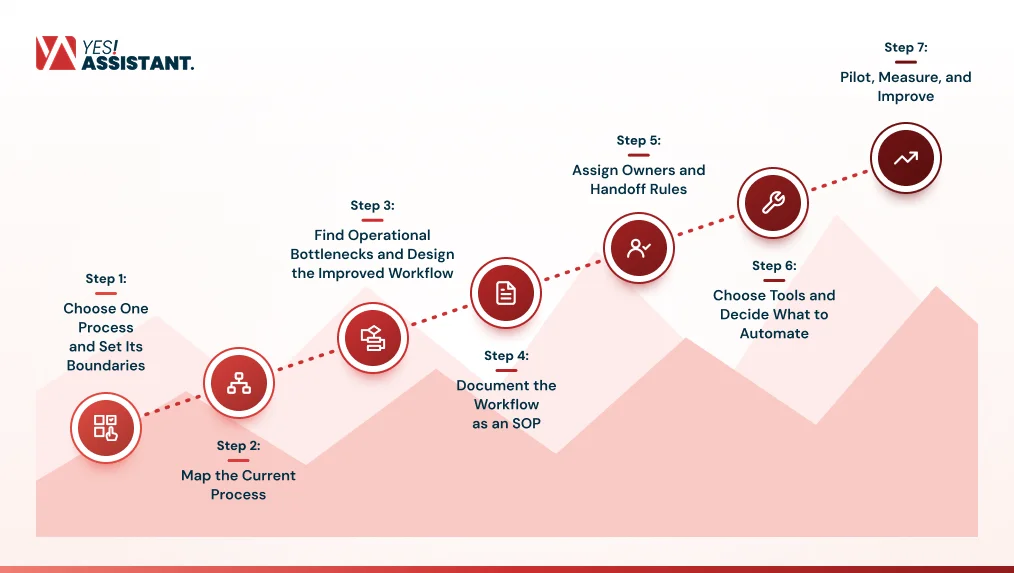
Step 1: Choose One Process and Set Its Boundaries
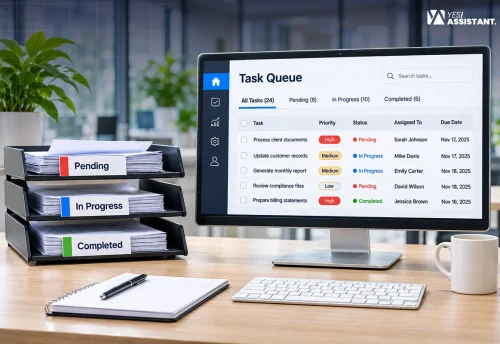
A business can handle some back office activities without a specific workflow. Documenting their workflows all at once can be overwhelming. This is why you should select a task that your back office staff regularly perform in a specific sequence.
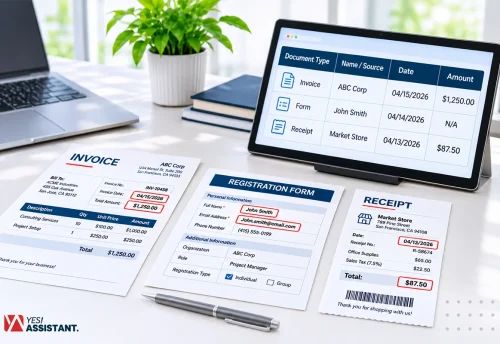
Let’s consider a data entry workflow as an example. In this process, the data entry assistants capture data from websites, emails or documents. They validate it against specific rules and upload the data to a company database. It is possible to create a data entry workflow from this sequence.
However, before creating a workflow, you need to define what type of activities you need to include and exclude from it. This is called setting process boundaries.
Step 2: Map the Current Process
Map your existing process to create the workflow for your back office tasks. This means documenting the entire task life cycle from start to finish. Some of the key details in a process map should include:
- Start and end point: This includes the triggers that start the activities and complete them.
- Input and output: Input can be data, files or resources necessary to start a process and the output is the final result.
- Roles: These can be defined functions of different team members, software or any other tools used to perform a task.
- Exception path: A task can reach a state in the workflow where taking the next step may not be appropriate or possible. For example, invoices with inaccurate product details shouldn’t be routed for approval.
- Steps: The stage that can include multiple tasks or actions to perform within a workflow.
- Results: A final output that is produced from the workflow execution, which can be a product, service or achieved outcome.
Sometimes, you may need business process mapping to visualize your existing process before building a back office workflow. Teams and staff can often follow a workflow more easily when it is visualized.
Step 3: Find Operational Bottlenecks and Design the Improved Workflow
The existing workflow you have may cause operational bottlenecks sometimes. It is necessary to identify the steps in which those bottlenecks happen before you build a new workflow. It will help your team to work without process disruption and reduce the risk of getting inconsistent outcomes from a back-office operation.
Step 4: Document the Workflow as an SOP
SOP is a documented set of instructions that can help a team or worker perform a task in a systematic process. This type of document can significantly reduce quality or performance issues in a workflow. So, after designing an improved workflow, you can document it as an SOP.
Using a template can help you create an SOP first. While creating an SOP, you should include the necessary documents or resources with it, which may include screenshots, videos, business policies, etc. The resources can help your workers if they need guidance on executing a step and managing exceptions.
Step 5: Assign Owners and Handoff Rules
The steps and tasks in a workflow should have clear ownership and handoffs. This establishes clear accountability among teams and workers. When a task or step has no specific owners, different teams can easily start pointing fingers at each other.
Step 6: Choose Tools and Decide What to Automate
A business can lose productive hours by handling many back-office tasks that can be automated. A report shows that 51% of workers in a business spend at least two hours daily on repetitive tasks that can be automated. This is why you should consider automating the tasks and steps in a back office workflow if possible. There are many tools and technologies available that can help you automate the entire workflow of a process.
Step 7: Pilot, Measure and Improve
A back office workflow should be tested before you start using it in practical application. You can run a primary test to measure the performance of your workflow, then review its performance. It will help you to identify the issues in executing it and understand whether it is efficient enough to meet your specific business goals. You can adjust your workflow based on the pilot test and schedule regular reviews to improve it further.
Which KPIs Should You Track for a Back Office Workflow?
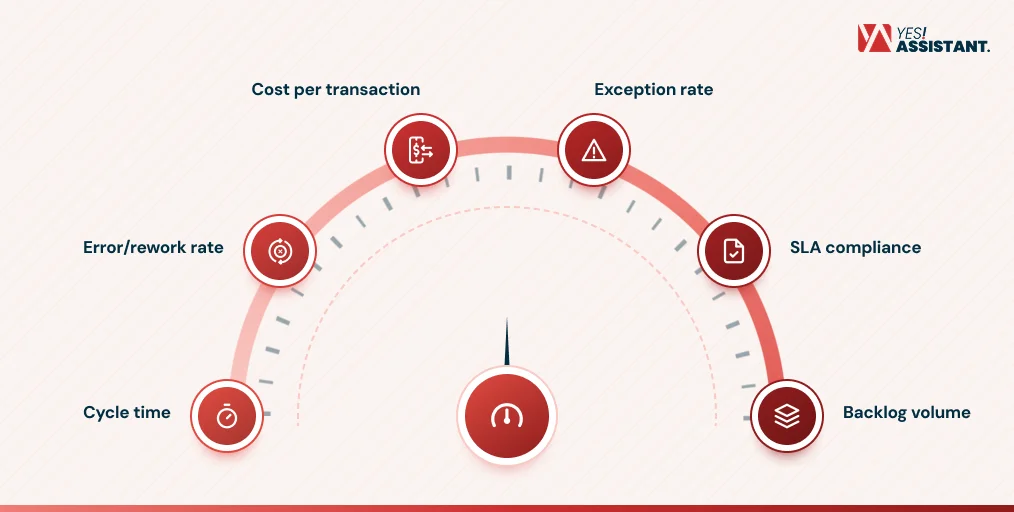
Workflow reviews shouldn’t only consider whether it can successfully execute a task. It is also important to evaluate how efficiently it executes a process. Here are some key performance indicators (KPIs) you can use for that:
| KPI | What It Measures | Why It Matters |
| Cycle time | The time it takes to complete a workflow from start to finish. | It helps you to find out whether the workflow is taking more than the average time required to complete a task. |
| Error/rework rate | The percentage of work that contains errors or needs to be corrected or processed again. | It shows in which step of a back-office workflow errors occur frequently. |
| Cost per transaction | The average cost of completing one transaction or unit of work. | It helps identify opportunities for reducing the cost of back-office work. |
| Exception rate | The percentage of items that require human review or handling outside the standard workflow. | It shows how often work deviates from the defined process and where additional rules, automation or process changes may be needed. |
| SLA compliance | The percentage of work completed within the required service level or deadline. | It shows whether the workflow consistently meets internal or client service requirements. |
| Backlog volume | The amount of work waiting to be processed at a given time. | It helps identify workflow bottlenecks, capacity issues and delays that may affect overall performance. |
Back Office Workflow Example: Invoice Approval (Before and After)
Let’s look at an example of how building a workflow can help you handle back office tasks more efficiently. We will consider invoice approval for a business in this workflow.
Before
A small business has several staff in its accounts payable team. They have no documented workflow for invoice approval. However, their usual sequence of invoice processing looks like this:
- Capturing invoice data: Receive invoices from the vendor and capture their data.
- Matching and validation: AP staff responsible for invoice processing match the invoice data against their vendor list and purchase order.
- Exception handling and routing for approval: The invoice that passed validation is sent to the appropriate role or department for approval.
- Payment scheduling: The AP team schedules payments after receiving payment authorization of an invoice.
- Recording details: The AP team updates their ledger and records the necessary details after completing the workflow.
They ask an operations manager what to do with the invoices that they couldn’t process after processing the validated invoices. They send some invoices back to vendors for correction or ask them for clarification based on the manager’s instructions. Once the issues are resolved, they start processing them. This often causes payment delays and invoice backlogs.
After
The above workflow lacks well-defined rules for decision-making, ownership and exception handling. Here is how the business can build a new workflow to clear the invoice backlogs.
- Receiving and capturing invoice data: The AP team receives invoices through defined channels such as email or an invoice portal. They check for any discrepancies in the invoices.
- Matching and validation: The AP team matches the invoice against the purchase order and vendor record.
- Routing invoices for approval: Route the validated invoice automatically or manually based on predefined rules, such as department, purchase type or invoice amount.
- Handling exceptions: Invoices that can’t be validated due to common issues such as outdated vendor information, missing data or duplicate invoices are handled by defined rules. So the AP team knows which issues can be resolved internally and what type of issues need vendor reconciliation or further escalation.
- Payment scheduling: The AP team schedules payment after receiving authorization from the appropriate role, following the agreed payment terms and methods.
- Recording and closing: The AP team sends the payment and marks the invoice as successfully processed. They update the ledger and record the necessary processing details.
This example shows how a business can improve back office operations by defining rules for handling exceptions and improving the flow of actions. The business can also automate invoice processing to eliminate some manual steps from its workflow.
Common Mistakes When Building Back Office Workflows
Businesses can make some key mistakes while building a workflow. A process may not deliver expected results when such mistakes happen. Here are some of them:
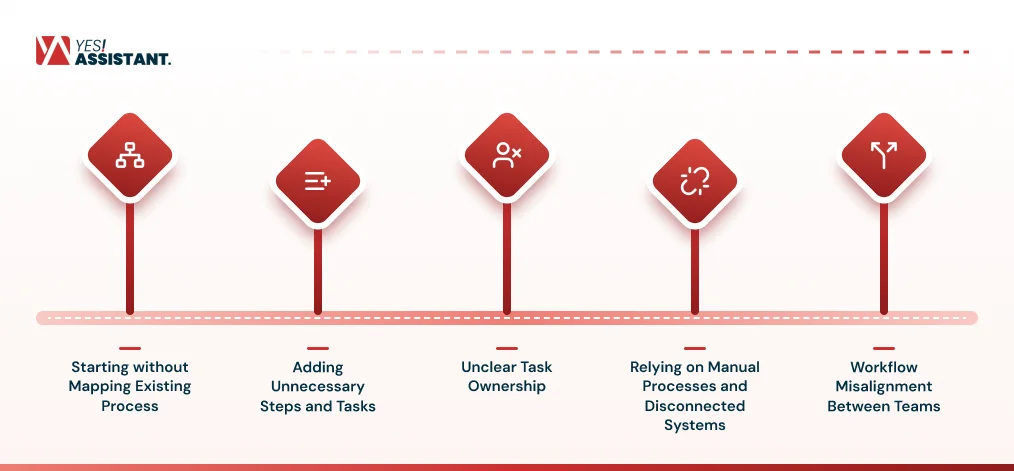
Starting without Mapping Existing Process
Sometimes those who are responsible for building a workflow can start working from scratch using a template. They don’t map the existing workflow to find the weaknesses in it. If you do the same, then the inefficiencies in your current process can remain in the new workflow. Another problem is that an entirely new workflow can be difficult to follow sometimes. The worker may need retraining to get accustomed to it. This can slow down the cycle time of a process.
Adding Unnecessary Steps and Tasks
The steps and actions you include in a workflow should be meaningful enough. Adding unnecessary tasks in a workflow causes operational waste and increases cycle time. So you should be careful about creating tasks that can be eliminated.
The steps in your workflow should be created whenever you need to create new handoffs, decision points or manage a task separately. Don’t create new handoffs and steps when a single worker can perform multiple tasks in a sequence within an existing step. Don’t include a step that should be part of a separate workflow.
Unclear Task Ownership
Sometimes, a business workflow may include steps, input and output but may not clearly define the roles and responsibilities of each individual. This can create accountability issues during task execution. Teams or staff members can start pointing fingers at each other. A workflow should clearly define the role of each team and staff member in every step.
Relying on Manual Processes and Disconnected Systems
Performing tasks manually and using disconnected systems can often add additional steps and actions in your work process. Like, let’s say in your invoice processing workflow the AP staff capture data manually from PDFs, images and documents. They match each invoice separately with a purchase order and vendor list. This task can increase the risk of error and take longer than an automated workflow. This is because in an automated invoice processing workflow, you can capture the data from different invoice formats using OCR and AI. Then, automatically perform the matching and validation of invoices by using invoice processing software.
Workflow Misalignment Between Teams
Businesses can have multiple teams working on a process using the same workflow. A common mistake businesses make when building such a workflow is not focusing on alignment. This can create several problems, including:
- The same information being recorded by multiple teams.
- Teams have different metrics to review the performance of similar tasks.
- Decisions get delayed as the leaders don’t know which team report to follow.
- Teams are performing tasks that another team has already done.
- Frequent communication breakdowns and disputes between the teams.
The business should set clear boundaries for each to reduce workflow misalignment. They should also create shared policies for communication, handoffs and performance measurement for teams using the same workflow.
FAQs
What is the first step in building a back office workflow?
The first step in building a back office workflow is choosing a process and setting its scope or boundaries. That includes defining what type of activities are part of the workflow and what are not.
What’s the difference between a workflow and an SOP?
A workflow is a sequence of steps in which a business performs tasks, which includes triggers, input, output and roles. SOP is a document that includes step-by-step instructions for performing a task.
How long does it take to build a back office workflow?
There are multiple steps in building a back office workflow, which usually include choosing a process, mapping its existing process, assigning ownership, testing and review. The time it may take depends on how long it will take to complete each step.
Is it possible to automate a back office workflow?
Yes, it is possible to automate a back-office workflow by using technology tools to complete different steps and tasks.