


How to Automate Document Processing: A Step by Step Guide
Document processing automation transforms your manual document processing into effective AI-driven workflows. Use intelligent software to capture data, classify and extract from various sources. This can significantly reduce human error, accelerate turnaround times and achieve greater operational scalability.
Key Takeaways
- Learn about the primary idea of automating document processing and how it works for your business.
- Follow the nine-step strategy to automate your document processing from capturing data to monitoring, reviewing, and finalizing information.
- Improve your document processing work using advanced document processing with OCR, Natural Language Processing (NLP), customize AI model and data validation.
- Track and measure your document processing automation ROI following three steps. These are tracking baseline metrics, calculating automation ROI and measuring cost savings.
What is Document Processing Automation?
Document processing automation uses smart software and AI tools to handle files automatically. These tools route data from different types of documents, including PDFs, emails, scanned forms and invoices without human intervention.
Document automation replaces manual document processing tasks. These workflows make data entry, document review and file sorting more accurate and scalable.
How to Automate Document Processing?
Automating document tasks improves your daily operations. Follow these nine steps to build a reliable and fast workflow.
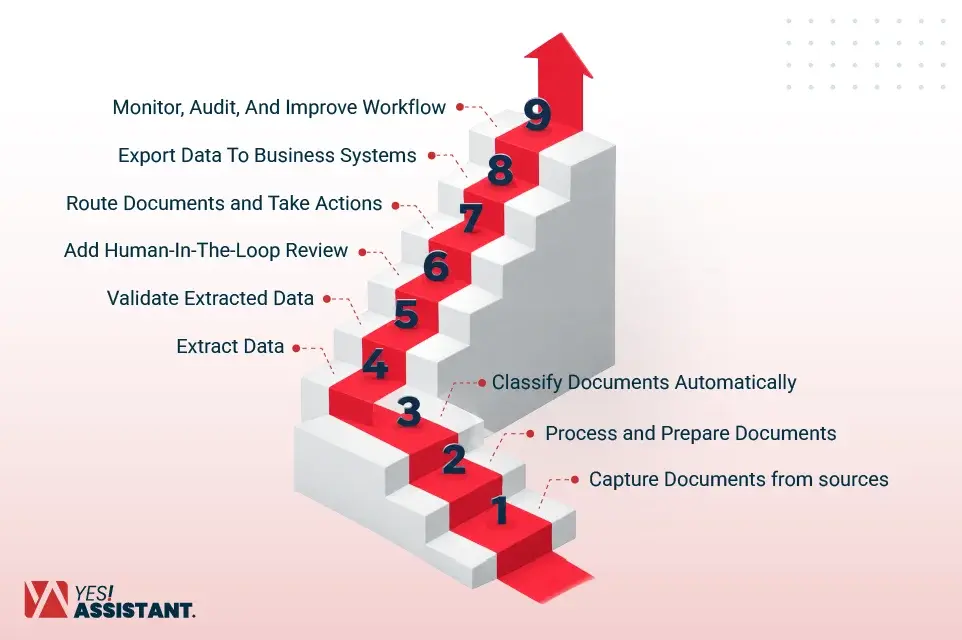
Step 1: Capture Documents From Every Input Source
Collect files from all incoming channels to capture documents from every source. An automated data collection process makes your initial data collection workflow smooth and organized. Integrate an automatic data connector to pull documents from email, cloud storage (Google Drive, OneDrive), SFTF servers and API endpoints.
- Collect emails and attachments automatically.
- Scan physical paper forms into digital formats.
- Sync files from cloud storage folders immediately.
- Integrate mobile scanners with SDKs for physical mail and paper receipts.
Step 2: Preprocess and Prepare Documents
Prepare your files by optimizing contrast and adjusting layout for your AI model. Thorough data cleaning ensures your files remain clear and structured. This significantly improves your machine reading capability through the following steps:
- Remove dark edges and remove background noise for clear recognition.
- Straighten crooked scans for better character identification.
- Convert various file types into standard PDFs.
- Transform unorganized formats into a unique format.
Step 3: Classify Documents Automatically
Use machine learning document classifiers to automatically group files into categories like invoices, utility bills and IDs. Businesses use data mining processes to identify document patterns and relations in large datasets to make decisions based on accurate data.
- Identify document types that help you to prepare a purchase order directly.
- Route your files to the correct processing folders.
- Apply single tags to speed up your document retrieval.
Step 4: Extract Data From Documents
Advanced data extraction tools pull text from images and PDF files instantly, transforming raw inputs into structured, valuable digital information. Use OCR and ICR technologies to capture details from these documents, a core capability area tracked in Gartner’s Market Guide for intelligent document processing solutions.
- Locate names, dates, and amounts automatically.
- Capture data from tables and form fields.
- Both OCR and ICR can read handwritten text in advance.
- Output results in clean and structured formats.
Step 5: Validate Extracted Data
Storing accurate information is essential for maintaining high data quality standards. System checks verify that all extracted information is error-free. Operators then inspect flagged data side-by-side with the original document to make corrections and finalize the data.
- Compare extracted total data against the master data files.
- Check dates for correct formatting and logic
- Identify potential data errors before final storage.
- The final steps need human checks to confirm 100% accuracy.
Step 6: Add Human-in-the-loop Review
Automated tools cannot always ensure total accuracy, meaning some files require manual verification. Partnering with a dedicated back office support team ensures your most complex data streams receive expert human review when confidence scores drop.
- Review files with low confidence scores manually.
- Fix minor errors in the validation interface.
- Verify sensitive or critical financial information.
- Human checks ensure finalization of your information.
Step 7: Route Documents and Trigger Actions
Automate your task assignments to keep your business operations moving forward seamlessly. Setting up automated CRM data entry ensures that your team members receive critical information extracted directly from emails, online chats, phone calls, or forms without manual delay.
- Send approvals to the concerned department head without delay.
- Notify team members via email and mobile alerts when a new task arrives.
- Activate workflows based on document content types.
- Alert external team via email or Slack when a document needs an update.
Step 8: Export Data to Business Systems
Transfer final data consistently into your existing software infrastructure. For instance, integrating specialized accounts payable services ensures that all your automated financial data reaches your ledgers without manual intervention.
- Send data directly to accounting software tools.
- Update existing records in your master database.
- Store final documents in secure cloud archives.
- Push verified information directly into your existing system.
Step 9: Monitor, Audit, and Improve the Workflow
Regularly review your system performance to maintain top efficiency. Tracking your metrics helps identify current bottlenecks and highlights immediate opportunities for workflow improvements. If you want to standardize your current speed against an optimized system, a free data entry trial can show you exactly how much time and money you can save.
- Track processing times for better resource planning.
- Monitor error rates to refine automated rules.
- Generate reports to ensure ongoing compliance.
- Make corrections during the human-in-the-loop review.
How to Improve Document Processing Accuracy
To build your document processing efficiency, use AI for effective document processing. Set up document processing with advanced tools that increase document accuracy and enhance your team’s capacity.
Advance Document Processing With OCR
Use optical character recognition (OCR) to process your documents efficiently. This tool can extract data from other formats and route it to the right department or person.
- Use an advanced OCR tool which is integrated AI to read diverse documents, especially human handwritten text.
- This tool specializes in deep learning and computer vision, identifies sloppy images and adjusts image resolution.
- Multi-level OCR is valid and effective for processing a document at different stages to improve data accuracy and validate extracted data.
Use Natural Language Processing
Implementing NLP allows systems to interpret the true meaning of text within your files, eliminating manual sorting errors. This technology heavily facilitates advanced invoice processing setups by deploying Named Entity Recognition (NER) to instantly capture critical data points.
- NLP enables Named Entity Recognition (NER); such AI perfectly identifies names, dates, and other information from images.
- Named Entity Recognition (NER) to Stanford NLP’s Named Entity Recognizer documentation.
- This also uses semantic understanding, which interprets text in contrast with traditional systems such as “date of birth, “ or “date of invoicing.”
- Using multilingual NLP, it converts the same documents into different languages while maintaining data accuracy.
Use Custom AI Models
Adjust your AI model according to your document types and industry requirements to achieve higher accuracy. Custom models learn from your unique data, ensuring the system recognizes domain-specific language and structure that general models might not do.
- Train your models on your specific datasets to handle unique document layouts, like specialized industry forms or non-standard invoices.
- Refine parameters to improve extraction accuracy for relevant data fields relevant to your operations.
- You can stop using non-customizable templates as your business grows and your document needs change.
Implement Data Validation
Incorporate validation checks to ensure all extracted data maintains high standards of integrity and accuracy. Automate system rules to compare extracted information with main data records to flag discrepancies for review.
- Cross-check the extracted information to make sure everything is accurate and safe.
- Set up automatic alerts when your data limit exceeds expected bounds. Implementing these guardrails helps you avoid common data entry mistakes before pushing files to other systems.
- Connect your data validation to historical records. This helps you identify mistakes and keep database information consistent.
How to Measure Document Processing Automation ROI
Calculating your return on investment (ROI) to McKinsey’s The value of robotic process automation. Comparing manual costs of operations to automation savings justifies your investment and highlights areas to optimize.
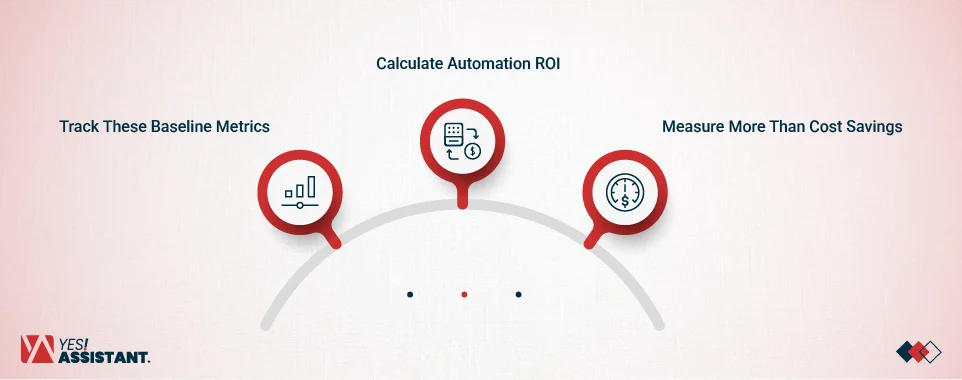
Track These Baseline Metrics
Before you see improvement, you need to know where you’re starting from. Use these simple metrics to understand your current manual workload:
- Time Spent: Monitor how many times your team takes to process a single document by hand.
- Labor Costs: Multiply the time by your staff’s hourly wage to see the exact cost of manual work.
- Mistakes: Write down how often errors are found from manual entry and the exact cost of fixing those errors.
- Document Volume: Keep records of your team’s total number of documents handled on a weekly or monthly basis.
Calculate Automation ROI
Once you have data, you can simply calculate ROI. It helps you see if the money you spent on software is paying off in savings and efficiency.
- The Formula: Take your total financial benefits. Subtract the total cost of the tool, divide by the cost of the tool, and multiply by 100 to get your ROI percentage.
- Total Savings: Add up all the money you saved from having fewer manual hours and fewer expensive errors.
- Total Costs: Record everything you already spend. These are like software fees, setup costs, staff training and ongoing maintenance.
Measure More Than Cost Savings
Automation benefits your team members and reduces repetitive task burnout. Transform your daily operations by replacing manual work with automation, which ensures long-term business success.
- Faster Speed: Look at how quickly your documents move from the moment they arrive.
- Happier Team: Automation helps your team members to get relief from manual work. So, they seem happy and concentrate on bigger priorities.
- Better Service: Check if faster turnaround times result in more satisfied customers and partners.
- Easy Growth: Monitor if your team can handle sudden increases in the volume of tasks without needing to hire more people.
Conclusion
Document Automation is a vital strategy for advancing your operations. By adopting AI-power workflow, organizations can replace manual labor costs with consistent, and high-accuracy processing. This cuts your daily operational costs and reduces significant errors and creates a foundation for data-driven scalable growth.
FAQs
What is the best way to automate document processing?
Follow the above step-by-step strategy lifecycle to automate your document processing. These involve data capture, process, classify exactly, extract data, validate, review, route, export and monitor outputs.
How do you automate document processing?
Integrate AI tools with your existing file processing from email, cloud or scanners and use machine learning for data extraction and push verified data to your business systems.
What technology is used to automate documents?
The core technology includes OCR or ICR which effectively works for text recognition, Natural Language Processing (NLP) for context and custom Machine Learning (ML) models for data classification.
What is the difference between OCR and document automation?
OCR is the tool that directly reads text from images. Again, Document Automation is the entire system that uses OCR along with classification, validation and routing processes for files.
What is the difference between OCR and IDP?
OCR works, reads your file and converts your scans to text. While Intelligent Document Processing (IDP) works as the brain to combine OCR, AI and logic to understand and manage your document flow.
Can AI read and process PDF documents?
Yes, modern AI is specifically optimized to parse, extract, and structure data from complex PDFs automatically.