
How to Forward Emails Automatically in Gmail: Easy Step-by-Step Setup Guide
When you separate your Gmail accounts for multiple needs, you’ll be stressed, often leading to missed messages and wasting your time. Automatic mail forwarding in Gmail simplifies your digital workflow by centralizing multiple email accounts into a single and organized inbox.
However, optimize your automatic email forwarding rule to improve your productivity. This also reduces inbox clutter and ensures you never miss important updates.
What is Automatic Email Forwarding in Gmail?
Automatic email forwarding in Gmail is a feature to send or forward your inbox email to another address without any manual effort. You can choose a specific email to forward or filter to forward emails to another email destination.
When your email forwarding option is active, Gmail sends or forwards emails except spam. It works like a digital forwarding engine, automatically sending your messages to a secondary inbox.
Why You Might Need to Auto-Forward Gmail Emails
Professional management of their tasks, personal messages, or other projects works on Gmail emails. Thereupon, they need to create multiple email accounts to manage a separate inbox. Email forwarding organizes several inboxes into one place to create a unified view for your operational convenience.

This process happens automatically. You can manage your Gmail email without manual effort. Wherever an email arrives, the system will automatically send every email or customized email to your targeted destination.
- Integrated Multiple Accounts: If you manage several email addresses for different purposes, applying auto-forward enables you to manage all emails in a single inbox. You don’t need to sign in with five emails; rather, use a single account only.
- Shifting Between Providers: Businesses create role-specific email addresses, like [email protected] or [email protected]. When an email lands in those emails, automatically forwarded to the concerned users’ emails. The customer sees the specific role-based email, but the assigned person in the company sees the actual email.
- Protect Your Privacy: You may use email forwarding services for “Newsletter” or “Online Promotions.” By this time, Gmail effectively protects your Gmail, handling spam email effectively.
- Access Emails From Anywhere: Gmail has easy integration with Web browsers or mobile app systems. Therefore, you can access your important emails from any location.
Benefits of Automatically Forwarding Emails
Busy professionals or business owners have limited time to check emails. Automatically forwarding emails allows you to send messages from multiple accounts to one single inbox. It saves your time and avoids missing important messages, and automatically organized emails in the digital workspace.
Centralize Multiple Accounts
You don’t need to check different websites. The forwarding email facility brings all your messages from work, personalized or project accounts, into one place. This helps you to catch the urgent messages within actual time.
- Facilitates Daily Workflows: Helps to sign in from one tab, avoiding switching multiple tabs. This reduces digital distractions and increases productivity.
- Simplifies Data Searching: You can archive email properly, and the system allows you to search through all historical emails with a single keyword.
- Mobile Management: Integrates multiple email notifications into one mobile application, saving your devices’ battery life and storage space.
Convenience and Better Organization
Using automated email forwarding, you can log in to one inbox with one password to remember. You only need to check one app on your phone. This will easily sort your email the same way.
- Unifies Labeling Systems: Apply within a single, consistent folder or tag structure across all domains, which reduce to contradict with each other.
- Reduces Security Conflict: You don’t need to remember multiple passwords; just store only one password in your memory. Therefore, you can simply log in with a single password to view multiple emails from outside the office.
- Accelerates Maintenance Habits: This process speeds up archiving, deleting, and clearing junk or spam emails. Because you only clean your one digital space.
Email Filtering
You can set rules to send specific emails directly to the designated folder. For example, you set rules with your inbox to pull all bills into the “Money” folder. You can also send a newsletter to a “Read Later” folder, which keeps your main screen clean.
- Prevents Decision Fatigue: Set specific rules to automate the beginning process, which allows you to focus immediately on high-priority items without manual effort.
- Secures Critical Deadlines: Highlight your time-specific notifications, such as payments and project updates, which isolates you from general inbox chaos.
- Customizes Reading Tempos: Separates less important content like newsletters, ensuring informational reading happens only when you intentionally open those specific folders.
Reduce Inbox clutter
Your primary inbox will not show the email as necessary for you. Even you’ll not see spam emails or junk messages in your primary view. The system will safely remove or block clutter in the system.
- Protects Daily Focus: Keep the unnecessary emails out of sight, ensure your primary inbox view contains necessary items.
- Lowers Cognitive Stress: Auto-forwarding reduce email overload from massive unread messages. Means you’ll find anything not essential for you.
- Speeds Up Processing: Accelerates your decision-making due to scanning a highly curated list of critical notifications quickly.
Back up Important Communication
Email forwarding is like a digital copy of your mail. If you lose access to your old account, message forwarding will remain safe in your main inbox. Thus, you’ll never lose your history.
- Protects Against Deactivation: Secure your historical conversations or business dealings even after permanently deleting your previous account.
- Mitigates Outage Risks: Email Forwarding provides a reliable secondary archive, ensuring continuous access to your critical records. Even if your provider suffers a downtime problem.
- Simplifies Legal Trails: Keeps an uninterrupted, sequential timeline of official agreements and financial receipts for a long time.
Quick Access to Important Information
You have multiple accounts, and an important message waiting for a reply. But you don’t need to switch to the specific account to find messages. Just search from the main inbox to find important messages within seconds.
- Directly Find the Messages: Save your valuable time by searching your targeted email from the primary inbox instead of finding a historical profile.
- Speeds Up On-the-Go Retrieval: Pinpointing your mobile boarding passes, entry tickets, or reservation confirmation instantly while standing in fast-moving lines.
- Optimize Advanced Search: Utilize one set of search inboxes to filter by sender, date, or keyword across your entire multi-account history.
Businesses have multiple Gmail accounts to separate operational loads, but business owners become busy setting up forwarding with customized rules. Most of the business assign a virtual assistant to handle email forwarding effectively. Therefore, businesses will not miss important messages and will provide you space to focus on developing a strategy and ensuring growth.
How to Set Up Email Forwarding Automatically in Gmail
To automatically forward your emails, add a designated email address within your settings, send access requests, and provide permissions. Just select your email addresses and set a primary inbox where your email can land.
Here is the step-by-step process on how to forward emails automatically in Gmail.
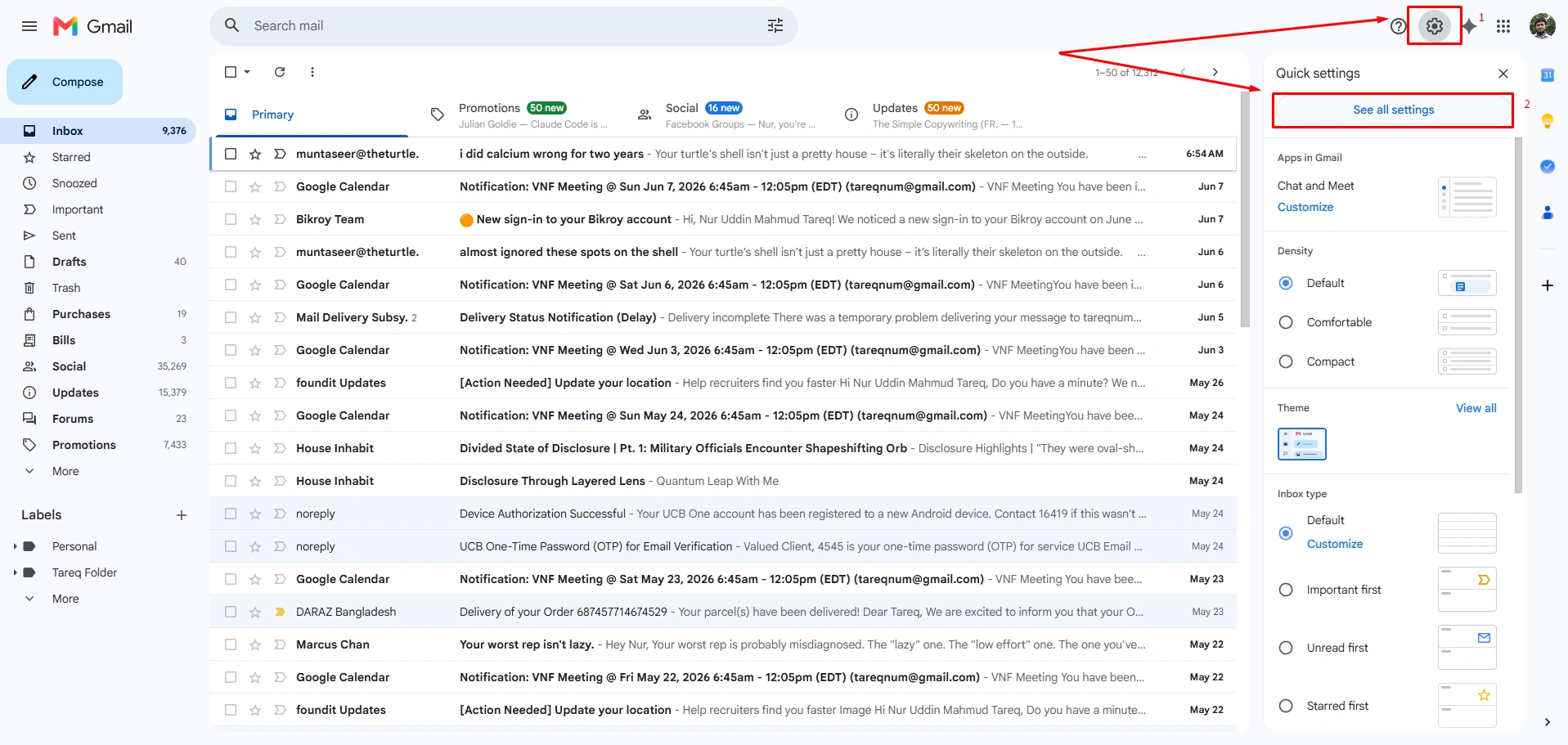
Step-1: At the beginning, go to the “Settings” gear icon in the right-top corner. Select “See all settings” for next steps.
Step-2: In this step, just go to the “Forwarding and POP/IMAP” option.
- Now, click on the “Forwarding” option.
- Click to “Add a forwarding address”.
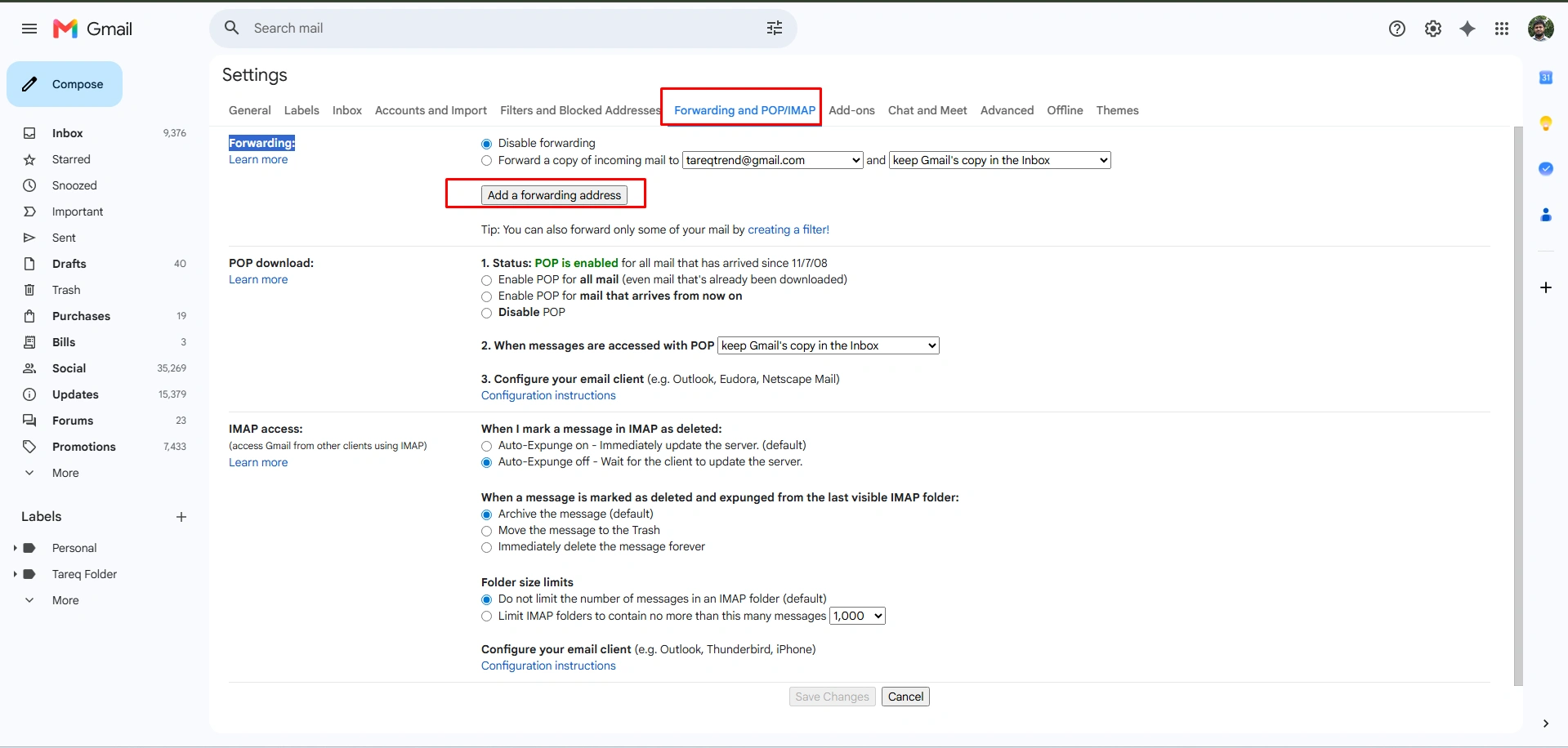
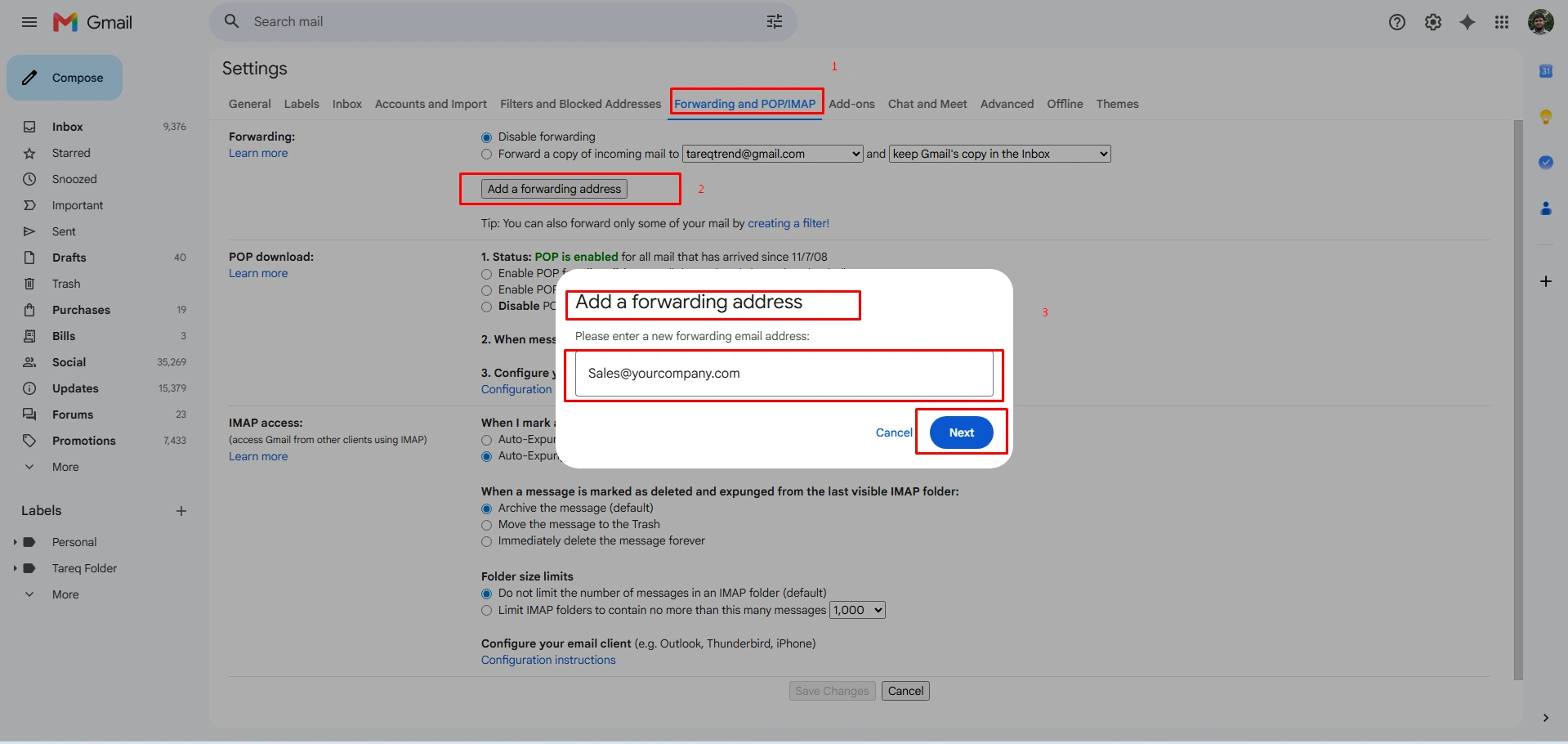
Step-3: Click “Add new forwarding address”.
- You can type your desired email address in the boxes and click on the “Next” step.
- Now click on “Next” for further processing.
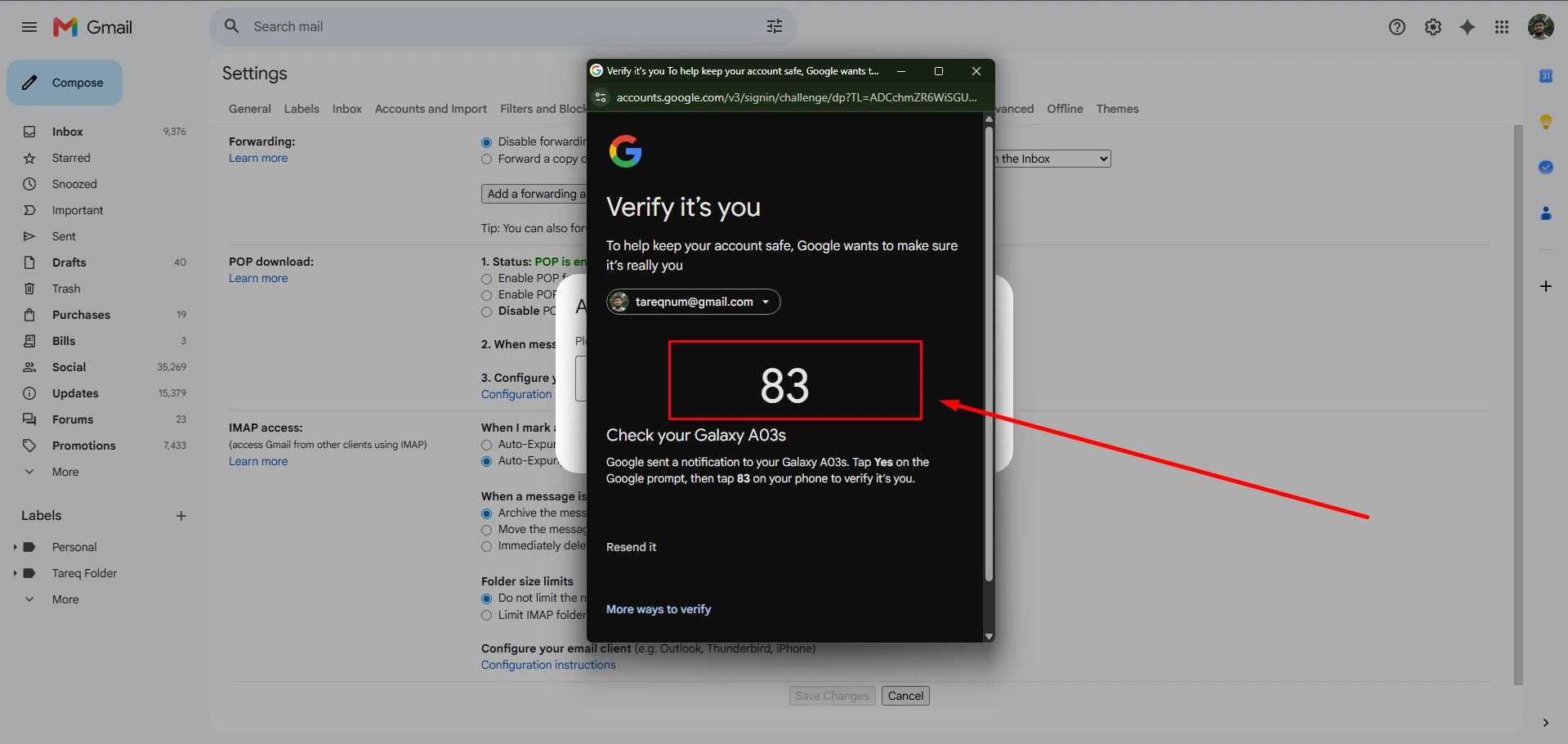
Step-4: If your email has device access, press ‘Yes. “It’s me” and press again to the exact number shown in the browser access request.
Step-5: In this stage, click on “Proceed” for the final process.
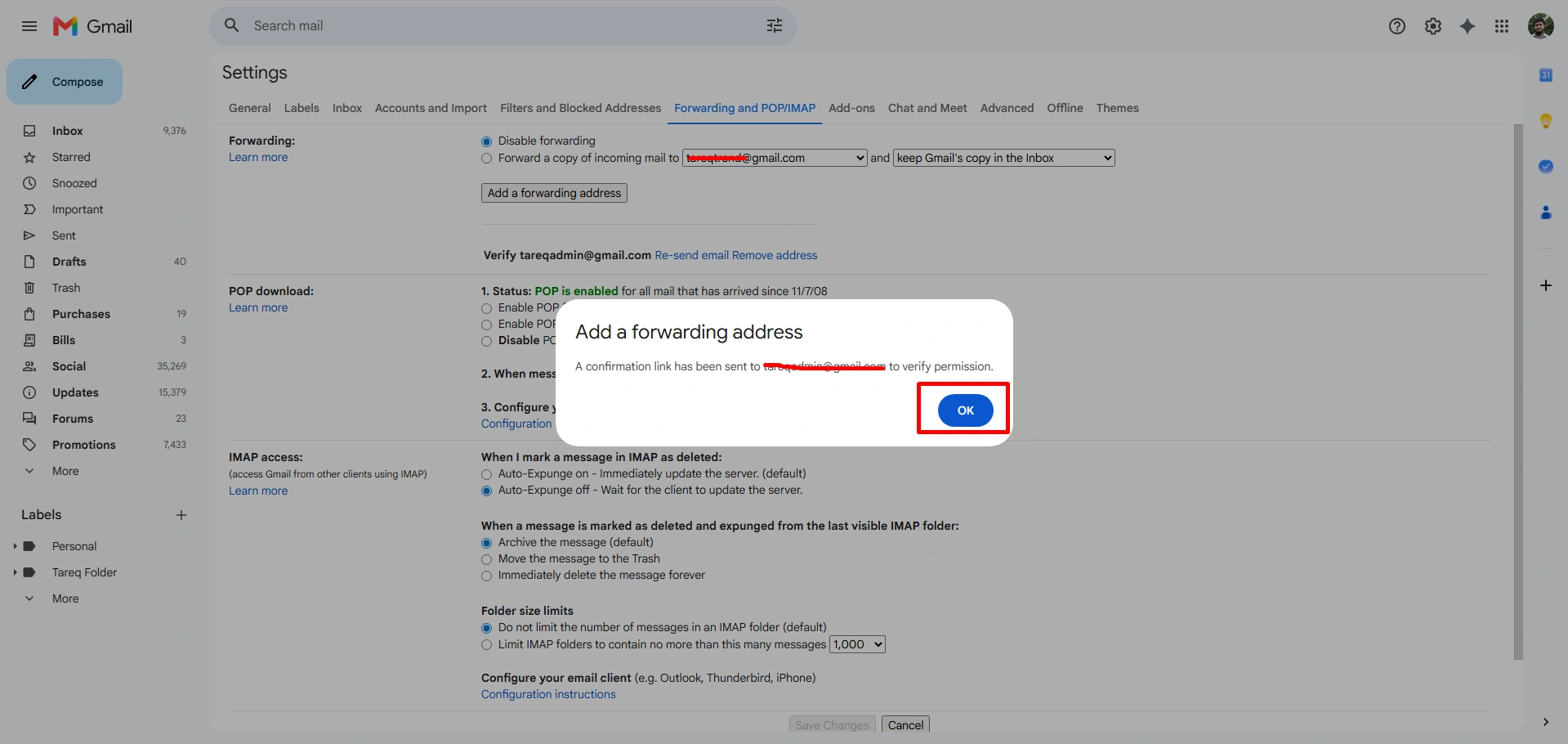
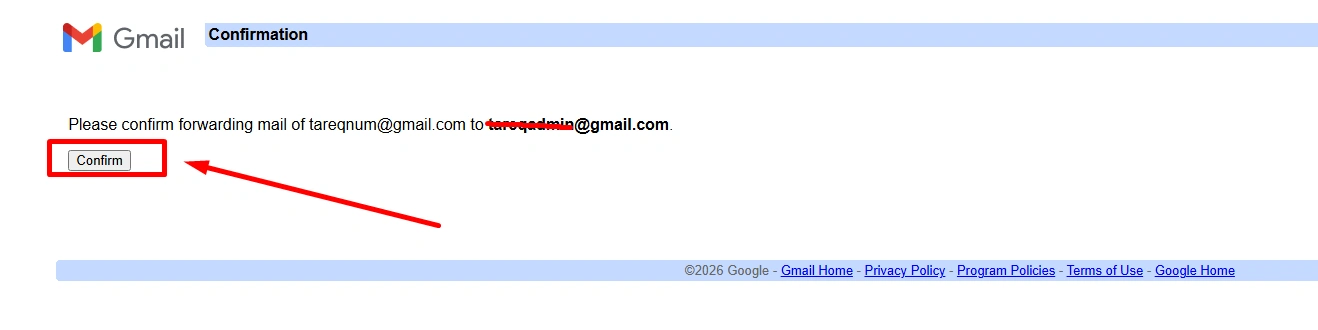
Step-6: Finally, go to the email that you want to forward and click “proceed” to finish the process.
Common Auto Forwarding in Gmail Problems and Fixes
To master Gmail’s auto-forwarding rules, you need to know the rules and their limits. See the most common auto-forwarding problems, why these problems happen, and exactly how to fix the issues to flow your emails smoothly.
Forwarding address not verified
After setting a rule, no emails come from forwarded emails. This happened because Google needs to ensure that your receiving emails are not spammed or suspected.
How to fix the problem:
- Check the Spam, Junk, or promotional folder of your receiving email for a confirmation message from Google.
- Open the email you would like to forward and click on the verification link.
- Go back to your sending Gmail account and check your settings. Ensure the verified address is actually selected in the drop-down menu.
Forwarded emails are going to spam
Your forwarded emails land in the spam folder of your designated inbox. This is happening due to the inbox thinking the emails were misleading.
How to fix the problem:
- Just create a filter rule in the designated inbox that clearly states emails from your original sender address are “Never send to Spam.”
- Again, if emails are forwarded to an outside domain (like Yahoo or a work email), ensure the SPF and DKIM authentication records are set properly. This will prove you’re a trusted sender.
Duplicate messages
You are receiving two or three copies of the same forwarded email. This usually happens when you have overlapping filters set up in your rules (like one rule forwarding everything, and another rule forwarding a specific tag).
How to fix the problem:
- Open your Gmail, click on “Settings” at the top right corner, and select the “See all settings” option.
- Now, scroll and go to the “Filters and Blocked Addresses” tab.
- Let’s review your rules and delete or edit any filter that you need to overlap and forward the same emails multiple times.
Gmail daily forwarding limits
Google limits the number of email can be forwarded daily to prevent spam email bots and junk email. However, if your Gmail account forwards over 100 to 500 emails per day is usually too much. This may suddenly stop your email forwarding process.
How to fix the problem:
- When you run a business and need high-volume forwarding, just update your account with Google Workspace. This offer will change your email forwarding volume, and you can send bulk numbers of emails to your targeted account.
- If system administration stops your email forwarding, just call support to withdraw the restriction. In this case, you have to wait 24 hours for the limit to reset your account automatically.
Conclusion
Auto-forwarding emails saves your time and energy. You can receive emails from different accounts in one view. Therefore, you can avoid burnout and missing appointments or urgent messages.
When you’re handling email forwarding with manual effort, it can be boring. Therefore, automatic Gmail forwarding into a single account stays focused on your core jobs.
FAQs
1. Can I forward emails to multiple addresses in Gmail?
Definitely, you can forward emails to multiple addresses in Gmail, but you must use filters instead of the native forward setting.
2. If I forward an email, can the original sender see it?
No, the original sender never sees it if you forward their email to another account.
3. Can I forward old emails automatically?
No, standard automatic forwarding rules are applicable for moving existing, old emails. Auto-forwarding tools only apply to newly received messages.
4. Does Gmail forward spam and junk emails?
No, Gmail auto-forwarding rules stop spam and junk Emails.