

Effective Outlook Rules for Productivity Setup: A Step-by-Step Guide
Outlook rules mean managing incoming or outgoing messages through your systematic directions. These rules manage your inbox and keep consistency in your workflow. Outlook rules are required for email management in the inbox through setting rules for sorting, filtering, spam-blocking, separate newsletter, or promotional emails.
10 Best Outlook Rules for Productivity Setup
Effective email management can increase your productivity and automate everything, like saving 5 hours a week. See the 10 following rules are effective to save your inevitable time and give you space to deeply connect on big screens. Therefore, set up dedicated remote assistant services to ensure effective use of business emails and you’ll miss no opportunities.
Rule #1 – Move Newsletters to a Separate Folder
Managing your inbox is constant daily burnout. Throw your unnecessary emails into the Outlook folder to keep your inbox clean for a better workflow.
Steps to Move Newsletters to a Folder
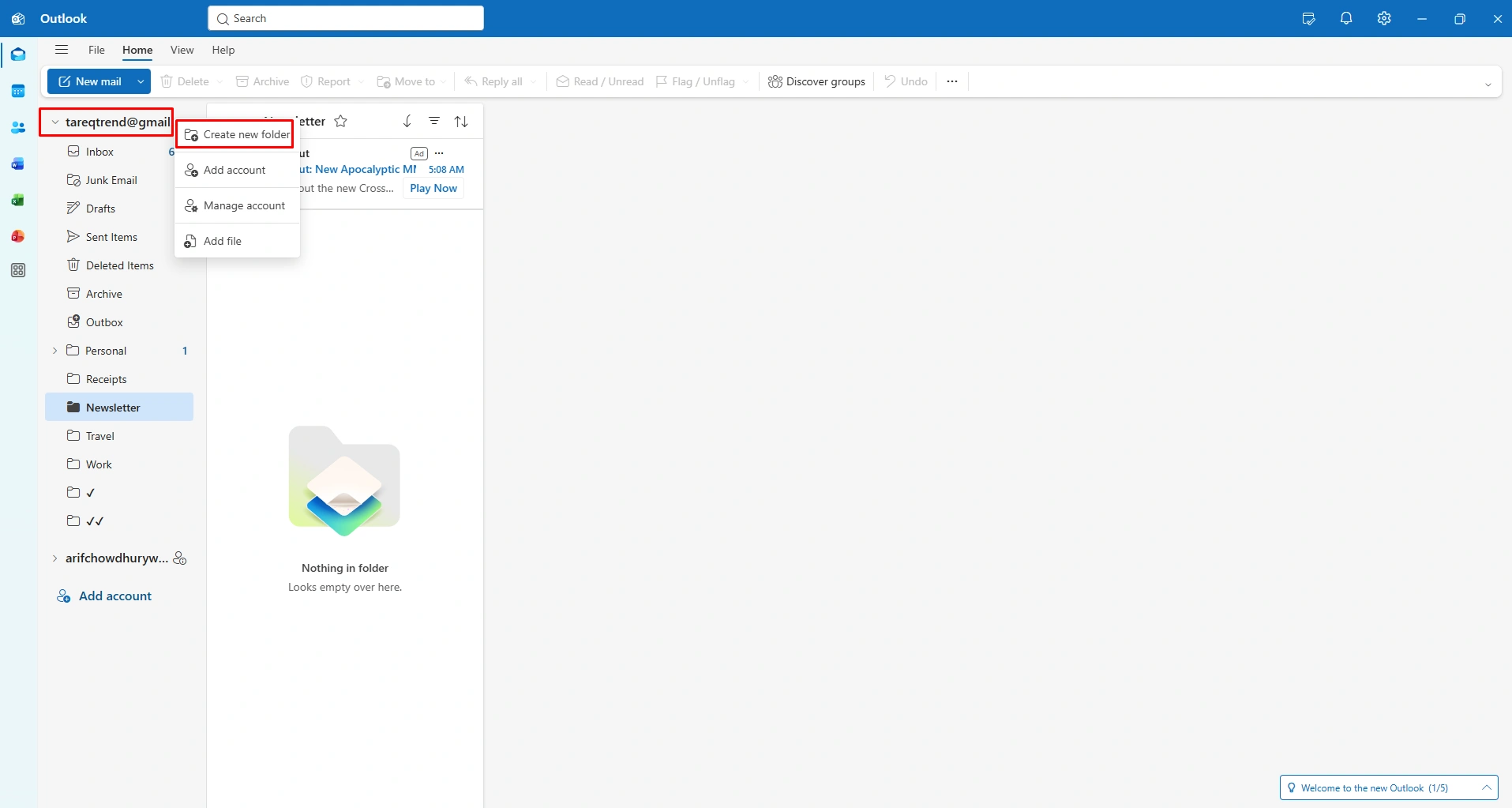
Step 1 (Create your destination folder):
- Right-click on your inbox or folder header in the left sidebar. Select “New Folder”, name it “Newsletters” or “Read Later” and press Enter.
Step 2 (Apply Rules To Newsletter Folder):
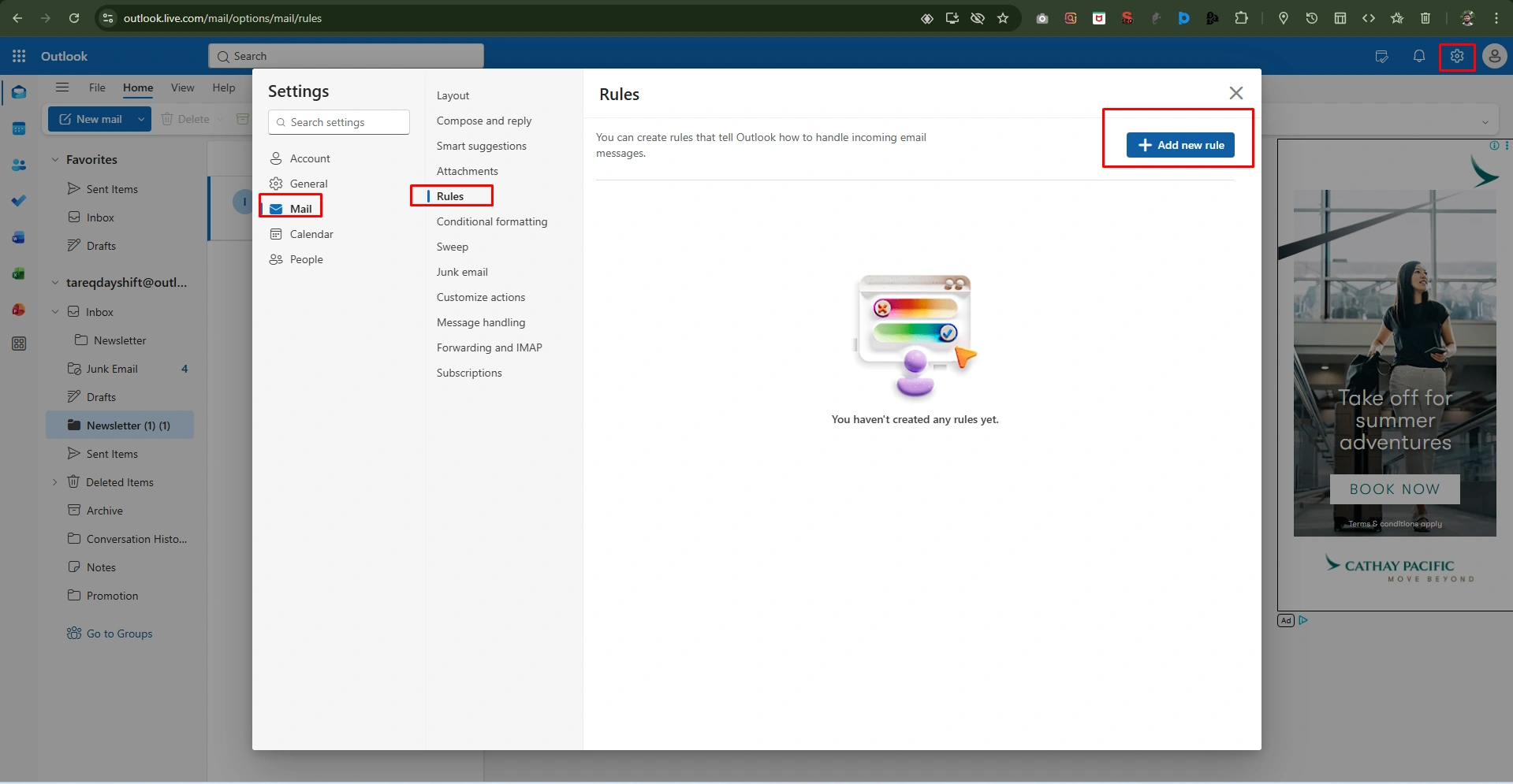
- Go to the Settings at the top right corner.
- Then click “Mail’ and “Rules,” and “Add new rules”
Step 3 (Define the trigger):
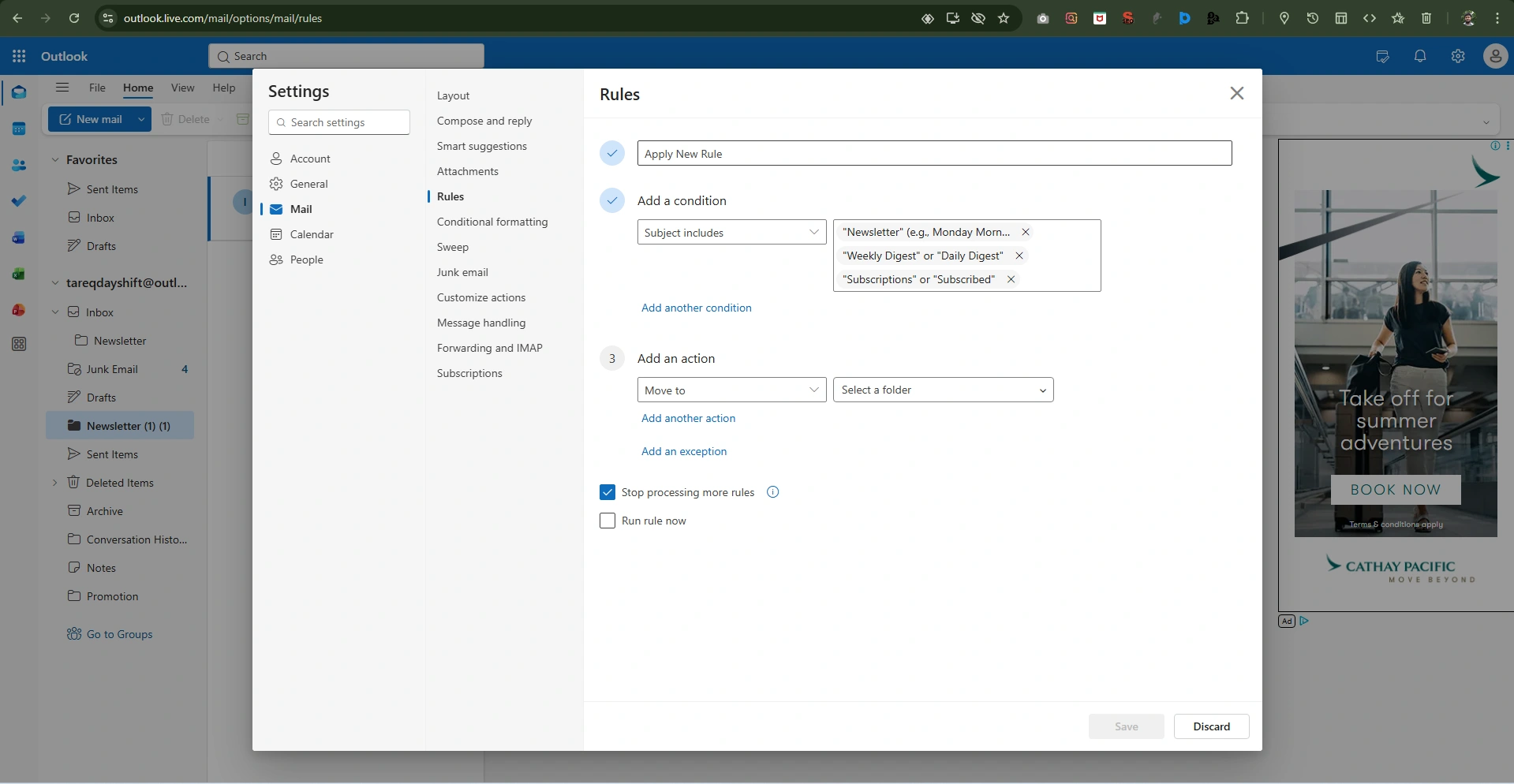
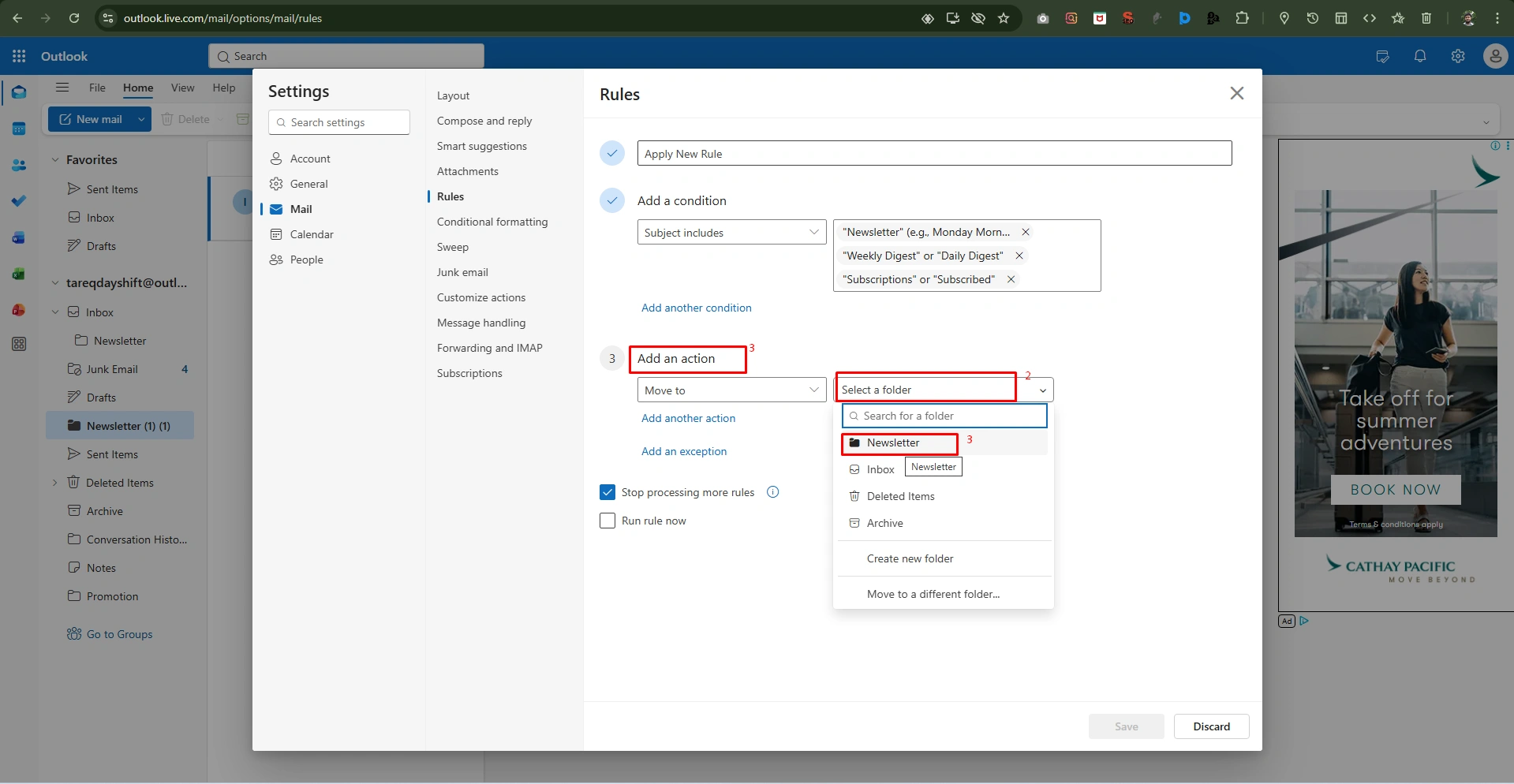
- In the “Create Rule” window, check the box for “Subject contains.”
- Enter common newsletter keywords like “Newsletter,” “Update,” or the specific name of the publication.
Step 4 (Set the action):
- Check the box for “Move the item folder” and click “Select Folder.”
- Choose your newly created “Newsletters” folder and click “OK.”
Step 5 (Run and confirm):
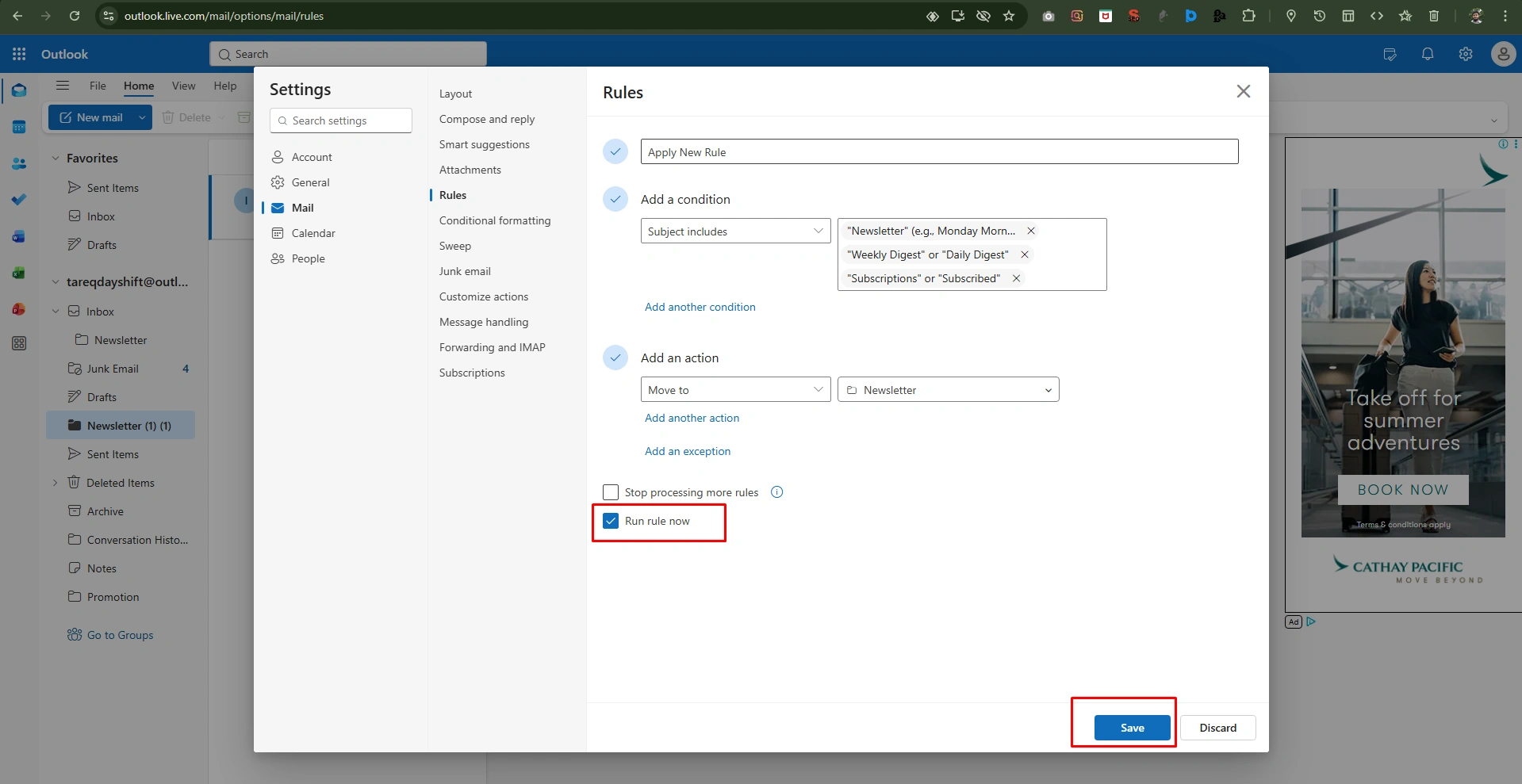
- Click on “OK” on the main window.
- When the “Success” prompt appears, check the box for “Run this rule now on messages already in the current folder” to clean all your existing inbox immediately.
Rule #2 – Flag Emails From Your Manager Automatically
The New Outlook interface included several settings in a more interactive menu. These rules ensure that messages coming from your boss are instantly tagged with a red flag. Just take it as most important with no missing opportunity in your daily scroll.
It’s the simple way to prioritize your manager’s call without manual search or scanning new notifications.
How to Auto-Flag Manager Emails (New Outlook)
Step 1 (Open Settings)
At the first step,
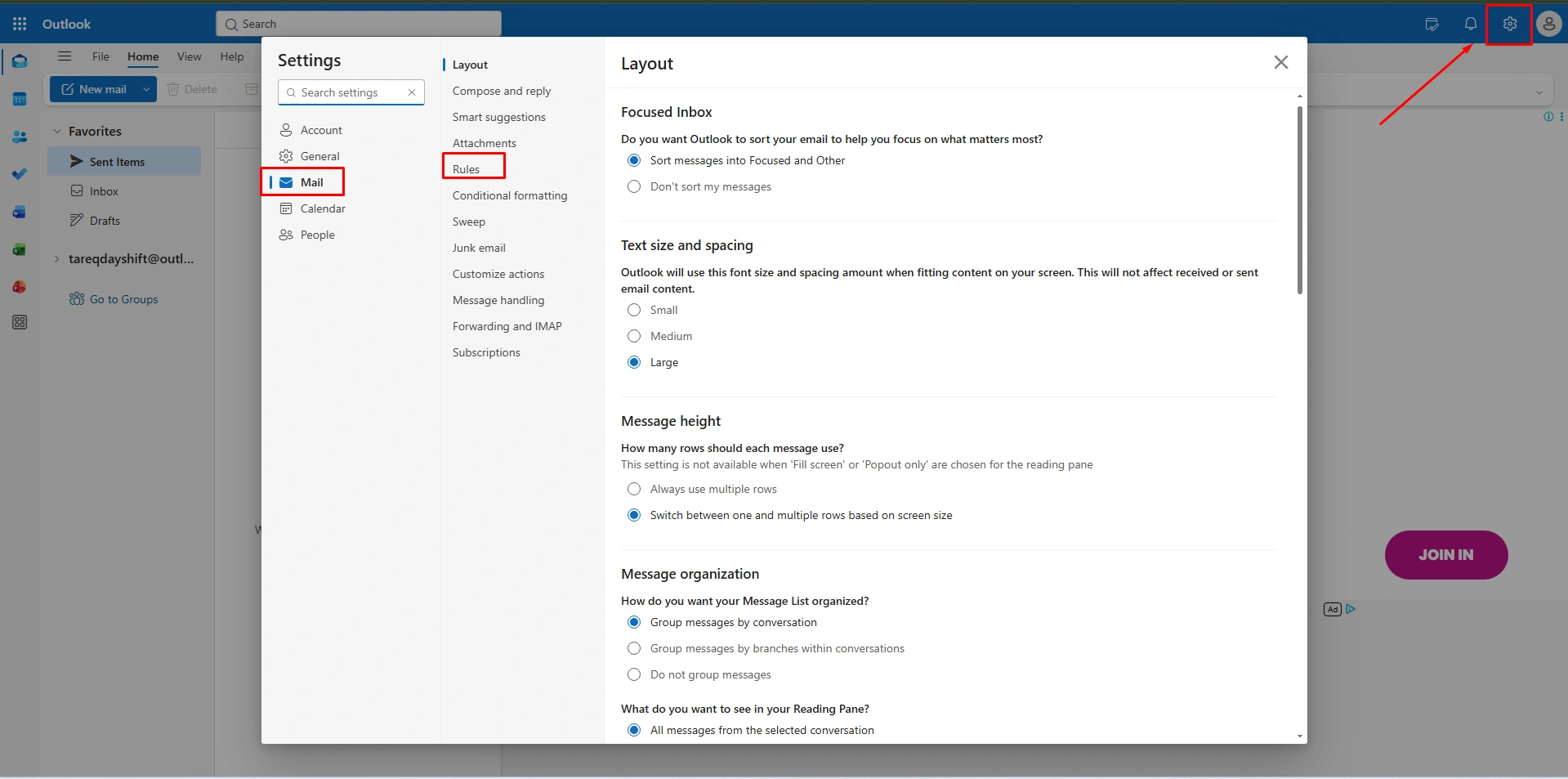
- Click the icon named “Settings” option at the top right in your Outlook.
Step 2 (Navigate to Rules)
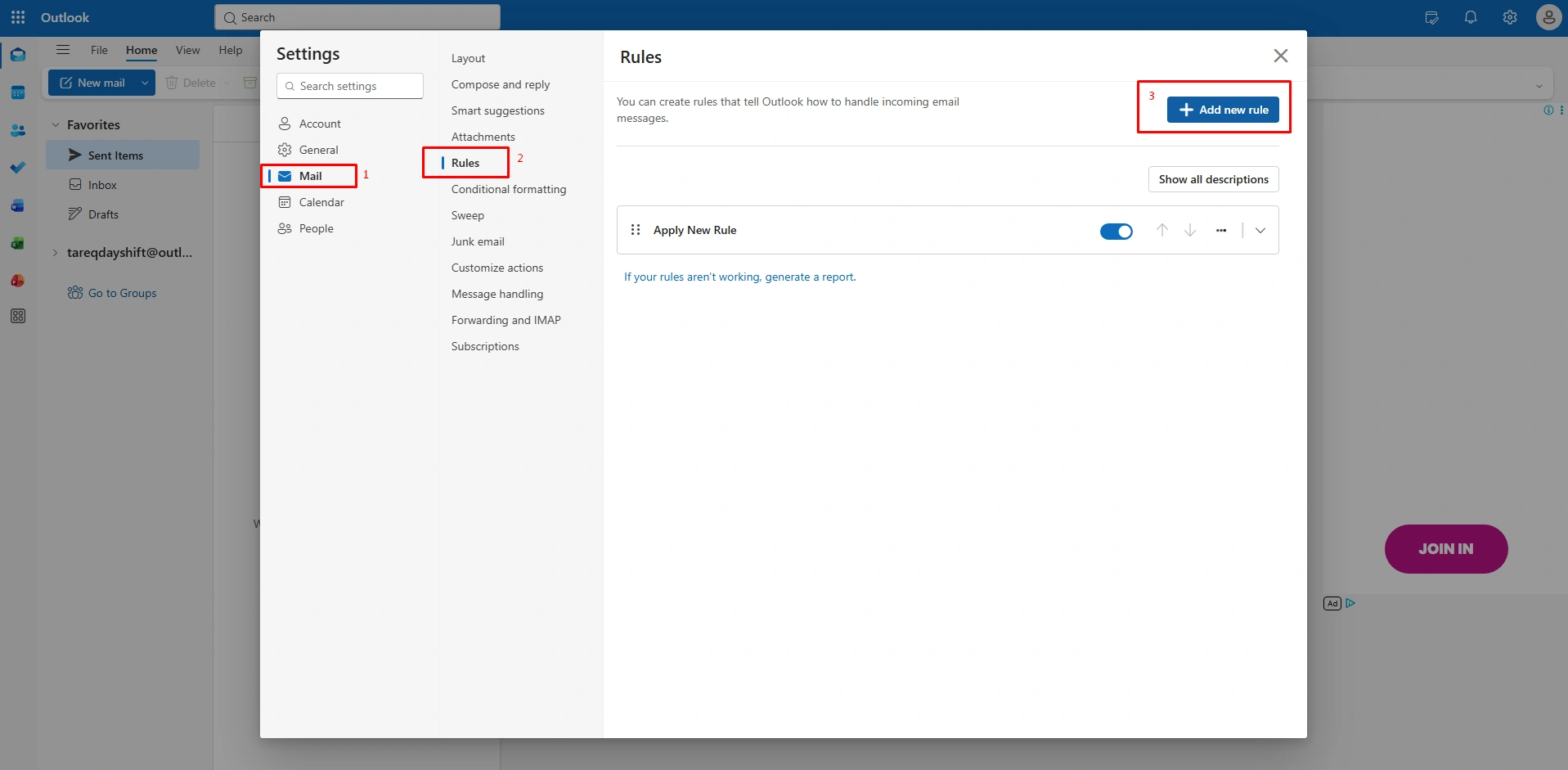
- Now, Just Go to Mail in the left sidebar, then select Rules and click the “+Add new rule button.”
Step 3 (Name and Set Condition)
In this step, just do the following:
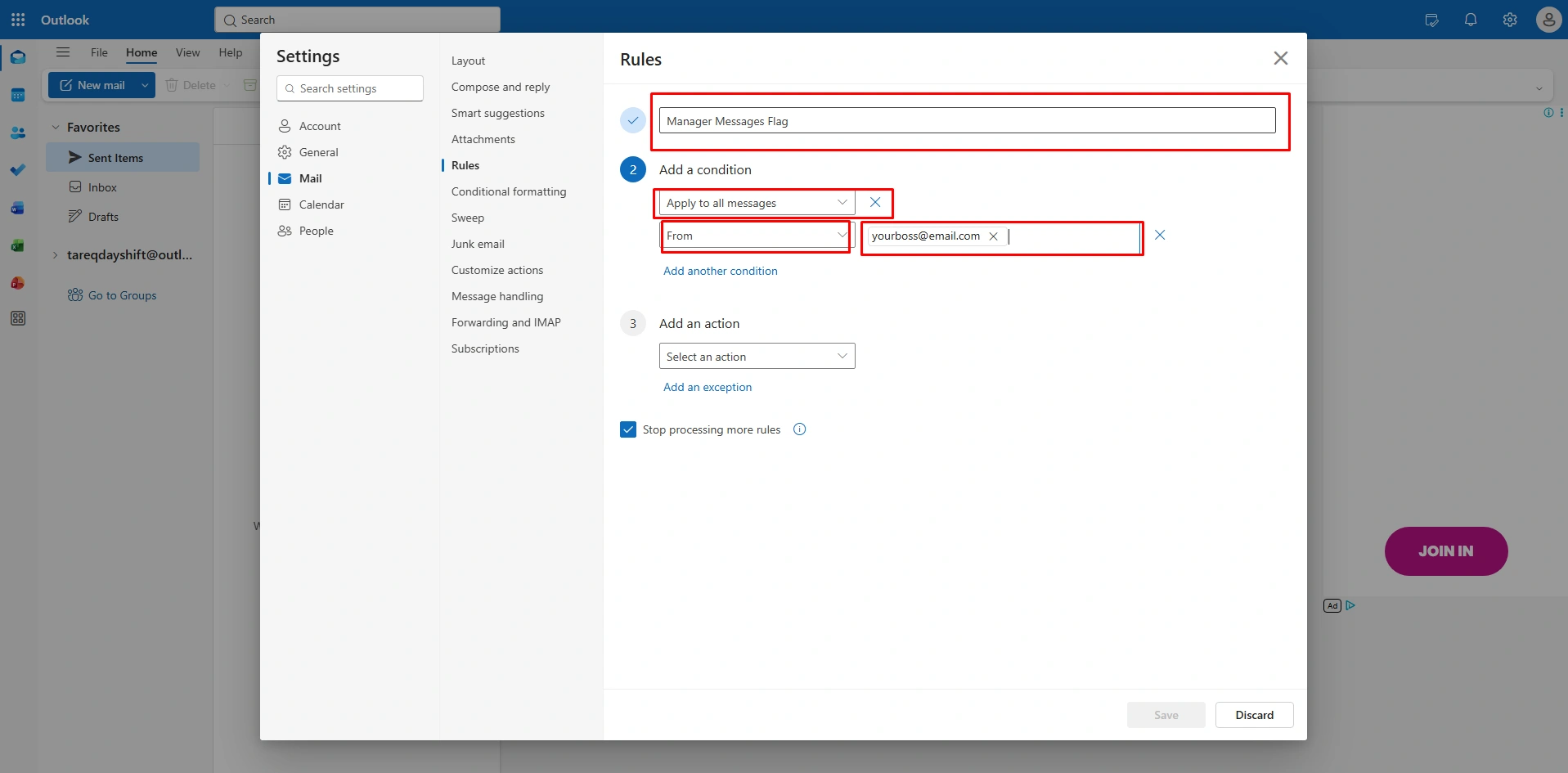
- Name your rules, like “Manager Message Flag”.
- Under this option, “Add a condition.”
- This condition applies to all messages; type your manager’s email address.
Step 4 (Select the Action)
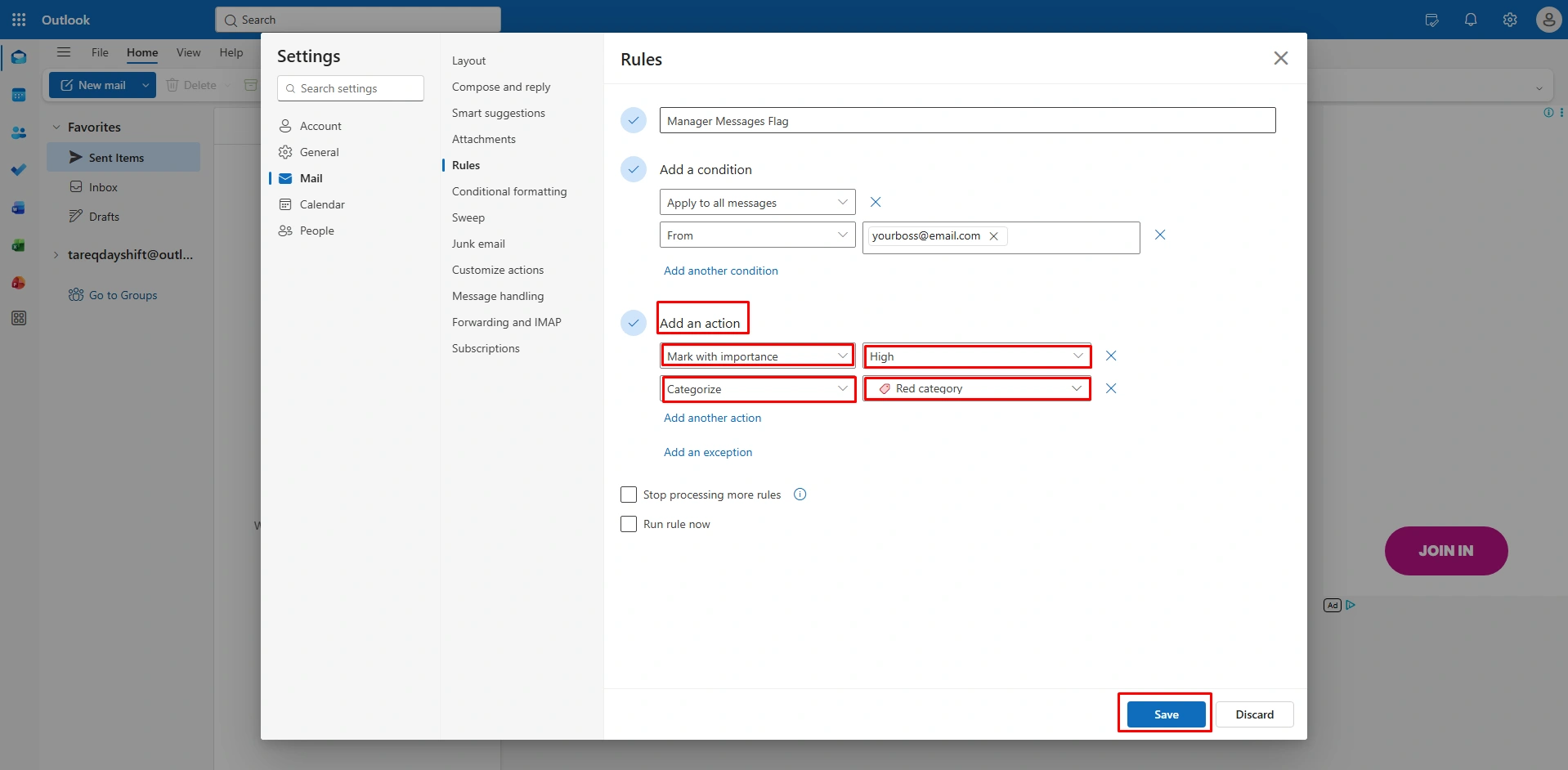
Now set actions,
- Select Flag from the dropdown menu.
- This will apply the standard red flag to every incoming message from the sender.
Step 5 (Save and Clean Up)
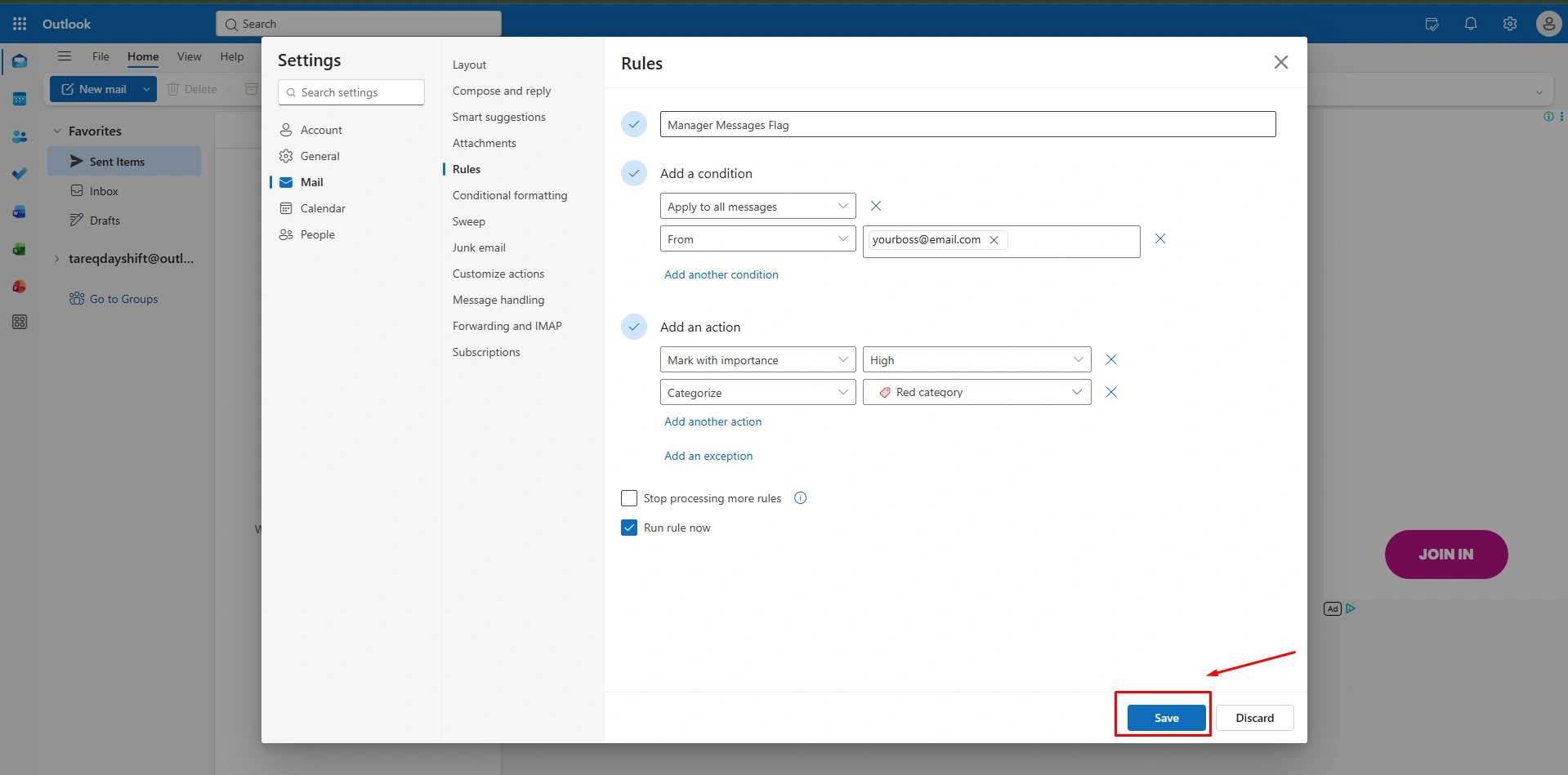
Finally, to save at the bottom.
- To apply “Flag” to all of your manager’s emails, click the “Run rule now” Icon.
- And click “Save” to apply to your manager’s email.
Rule #3 – Auto-Forward Important Requests to Team Members
According to the New Outlook interface, it simplifies forwarding by integrating it directly into the web-based rules engine. This rule is a lifesaver for collaborative projects. It ensures that specialized requests, like billing inquiries or technical bugs, reach the right team members.
Besides, Auto-Forwarding significantly reduces email overload without human intervention and automates workflow. If you are away from your workplace, no worries, the system will do everything automatically.
How to Auto-Forward Emails (New Outlook)
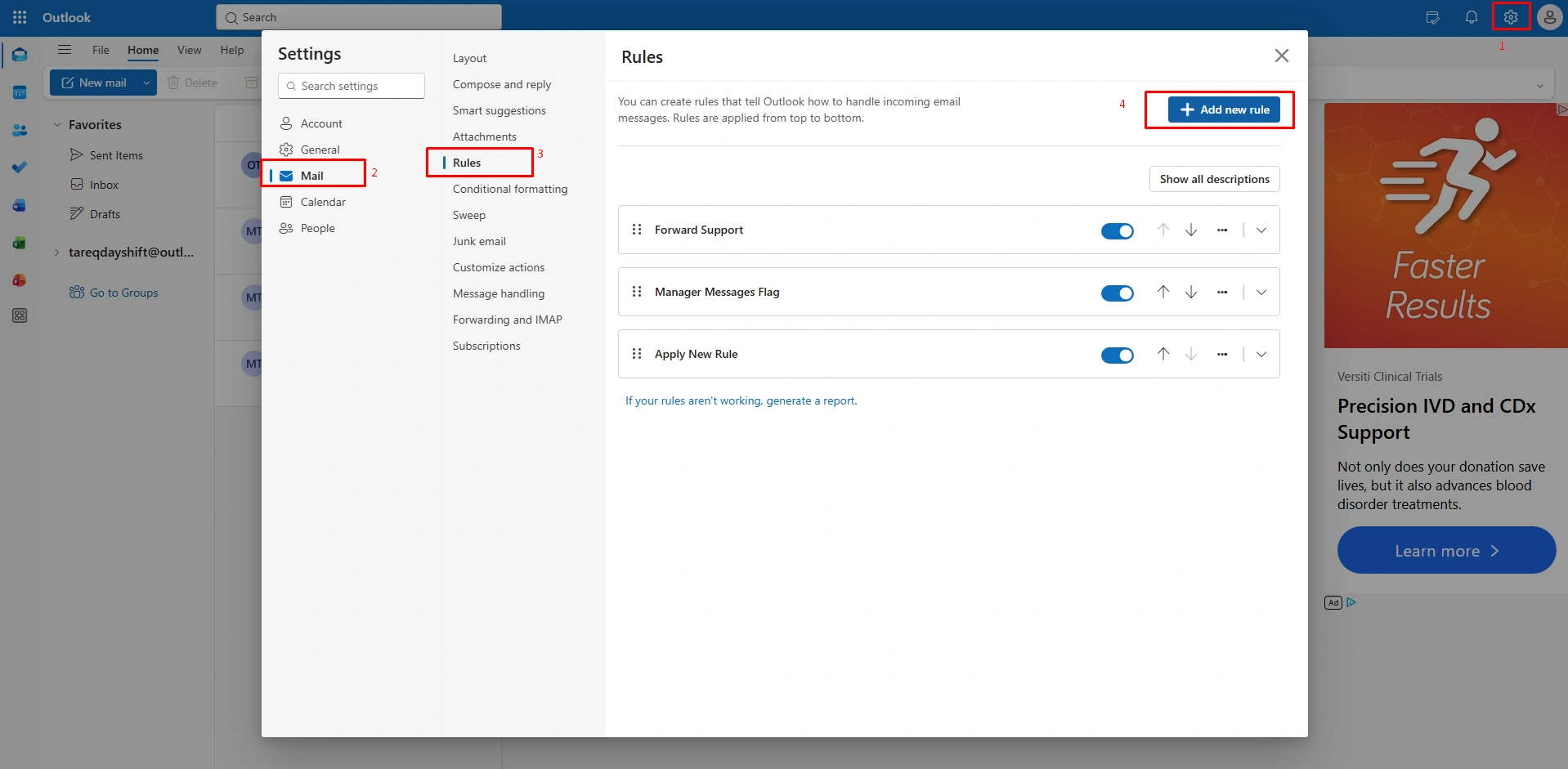
Step 1 (Access Rule Settings)
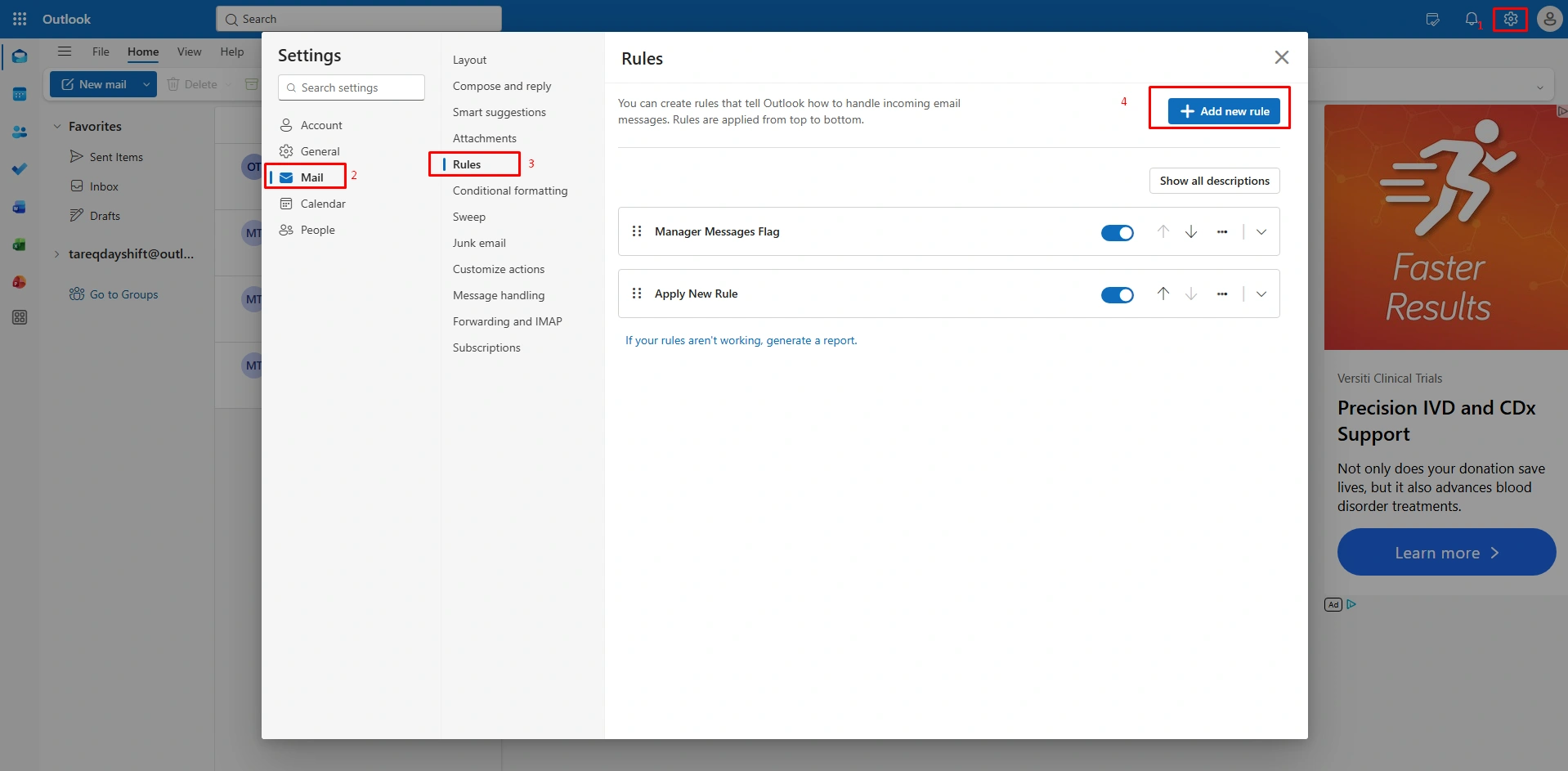
- Click on the “Settings” gear at the top-right corner.
- Select the “Mail” option from the sidebar.
- And then click on the “Rules”
- Now, click on “+Add new rule.”
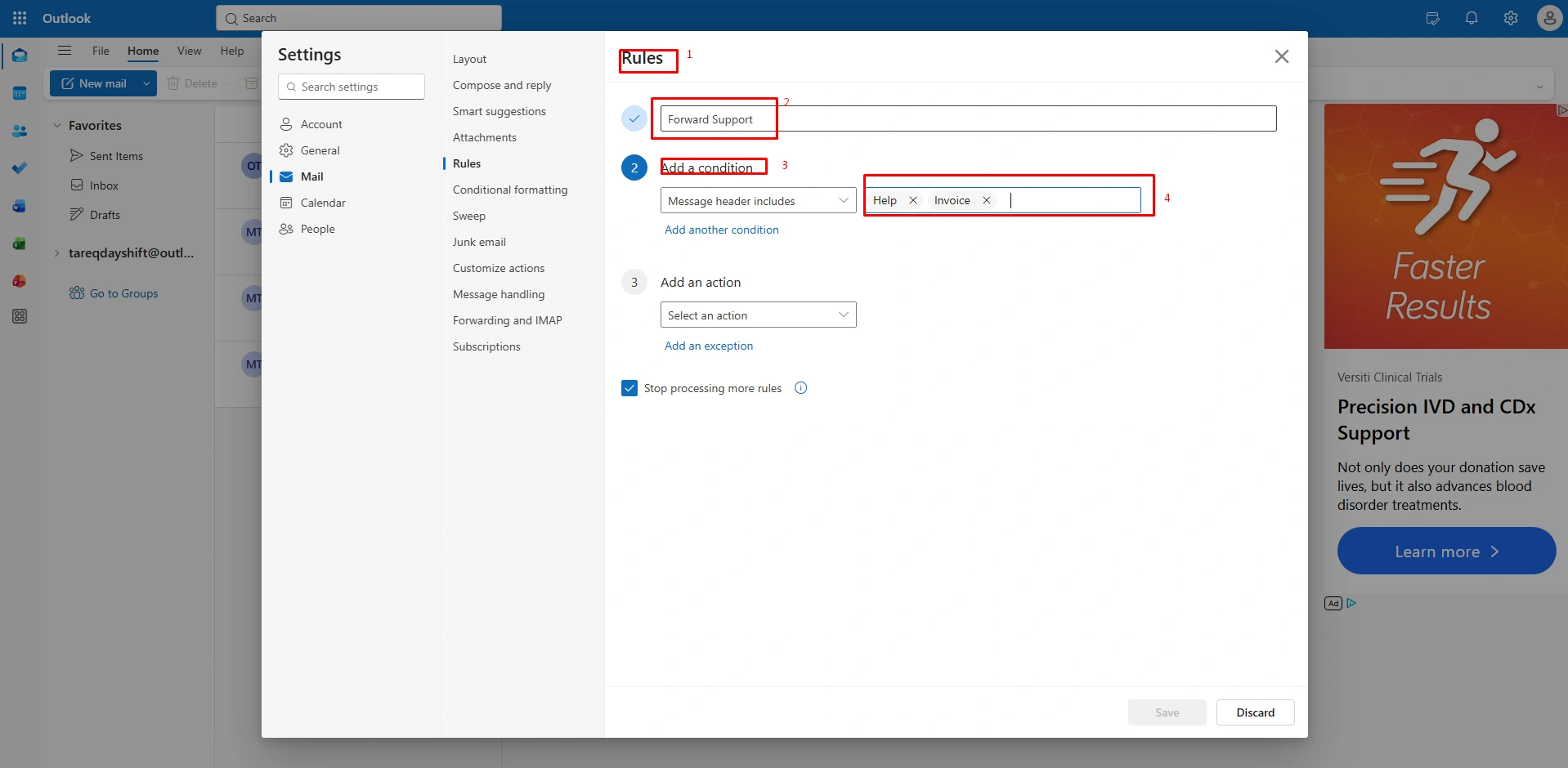
Step 2 (Define the Filter)
Now name your rules,
- Name your new rule’s subject as “Forward Support”
- Under Add a condition. Type the word that identifies the request, like “Help” or “Invoice”
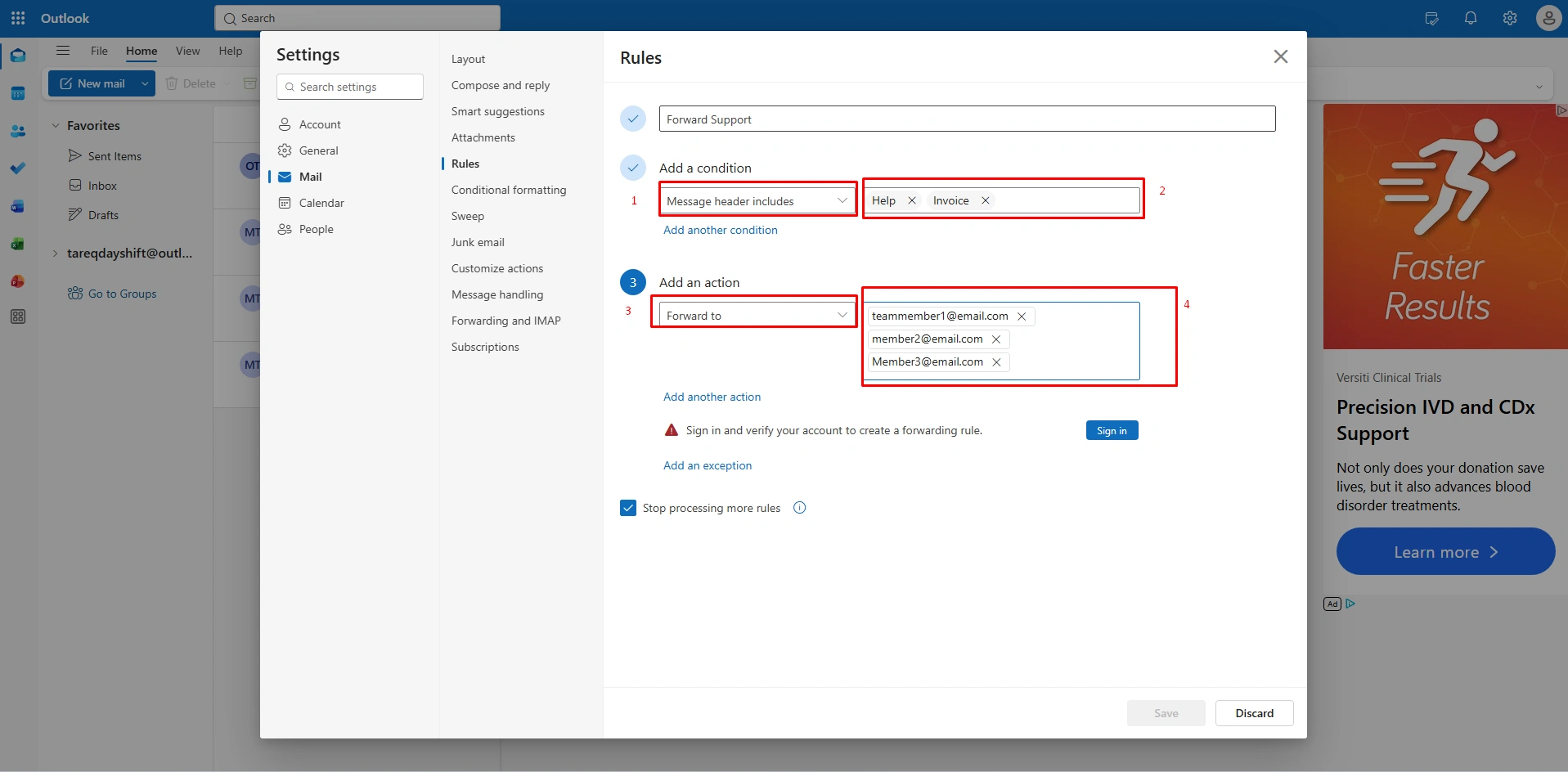
Step 3 (Select Forward Action)
Under Add an action,
- Now scroll down and select the option from the dropdown menu as “Forward to.”
- Now type the email addresses of your team members who should receive these messages.
Step 4 (Save the Rule)
Now, click on the “Save” option at the bottom of the window.
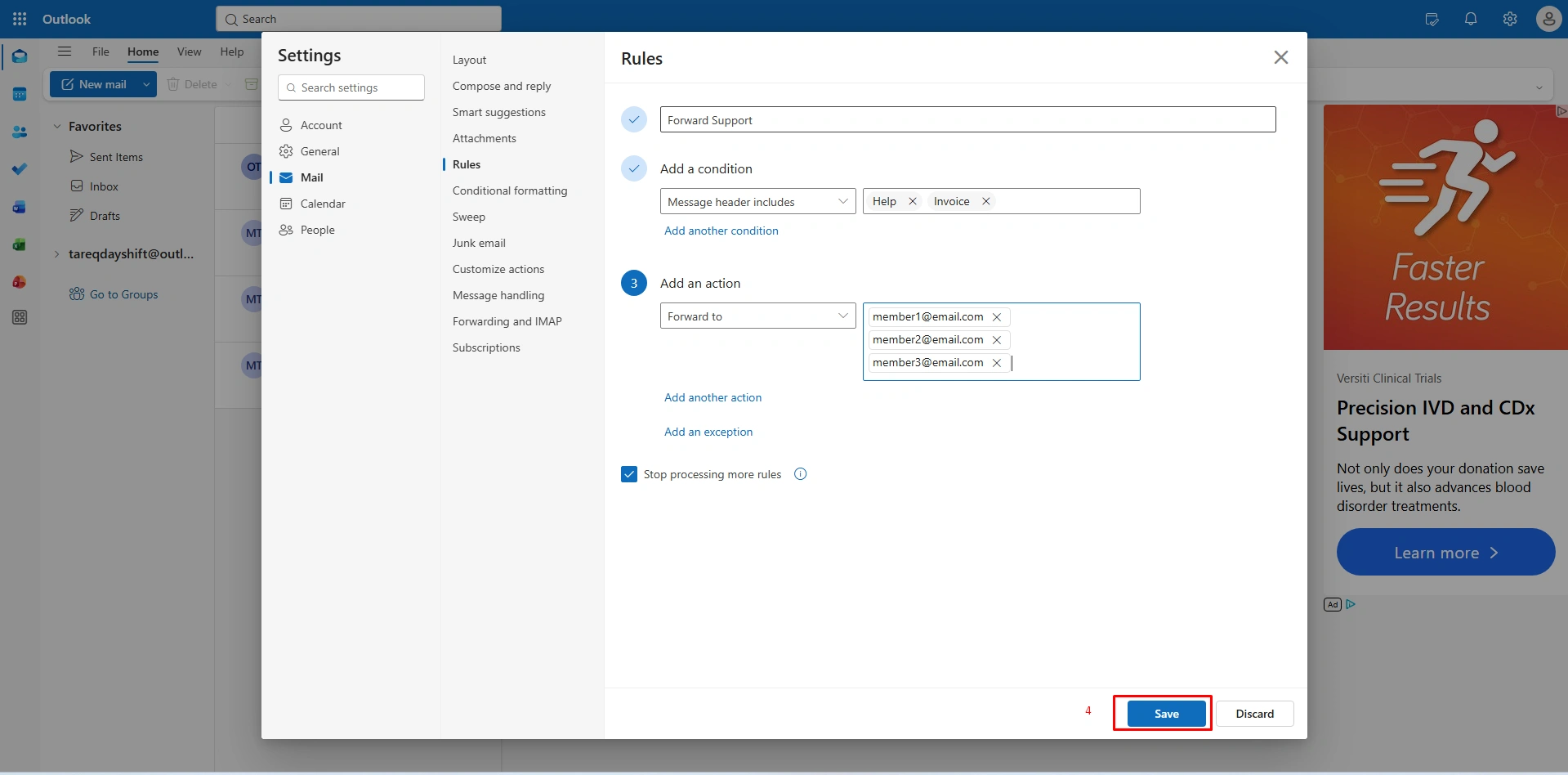
(Note: before saving the option, the system will ask you to verify your email address before forwarding the email; just click “Sign in. You’ll get a code and paste code to verify box.)
Rule #4 – Categorize Emails by Client or Department
You can categorize your inbox using a color code. New Outlook turns a wall of text into a scannable map. By automatically assigning categories to specific clients or departments, you can instantly identify which messages belong to the specific projects. This visual organization is essential to stay focused on one department at a time and ensure high-value clients never get lost in the shuffle.
How to Auto-Categorize Emails (New Outlook)
Step 1 (Open Rules Menu)
At the beginning, click on the ‘Settings” gear icon at the top right,
- Select “Mail” from the sidebar, and click on the “Rules” option
- Then click on “+ Add new rule.”
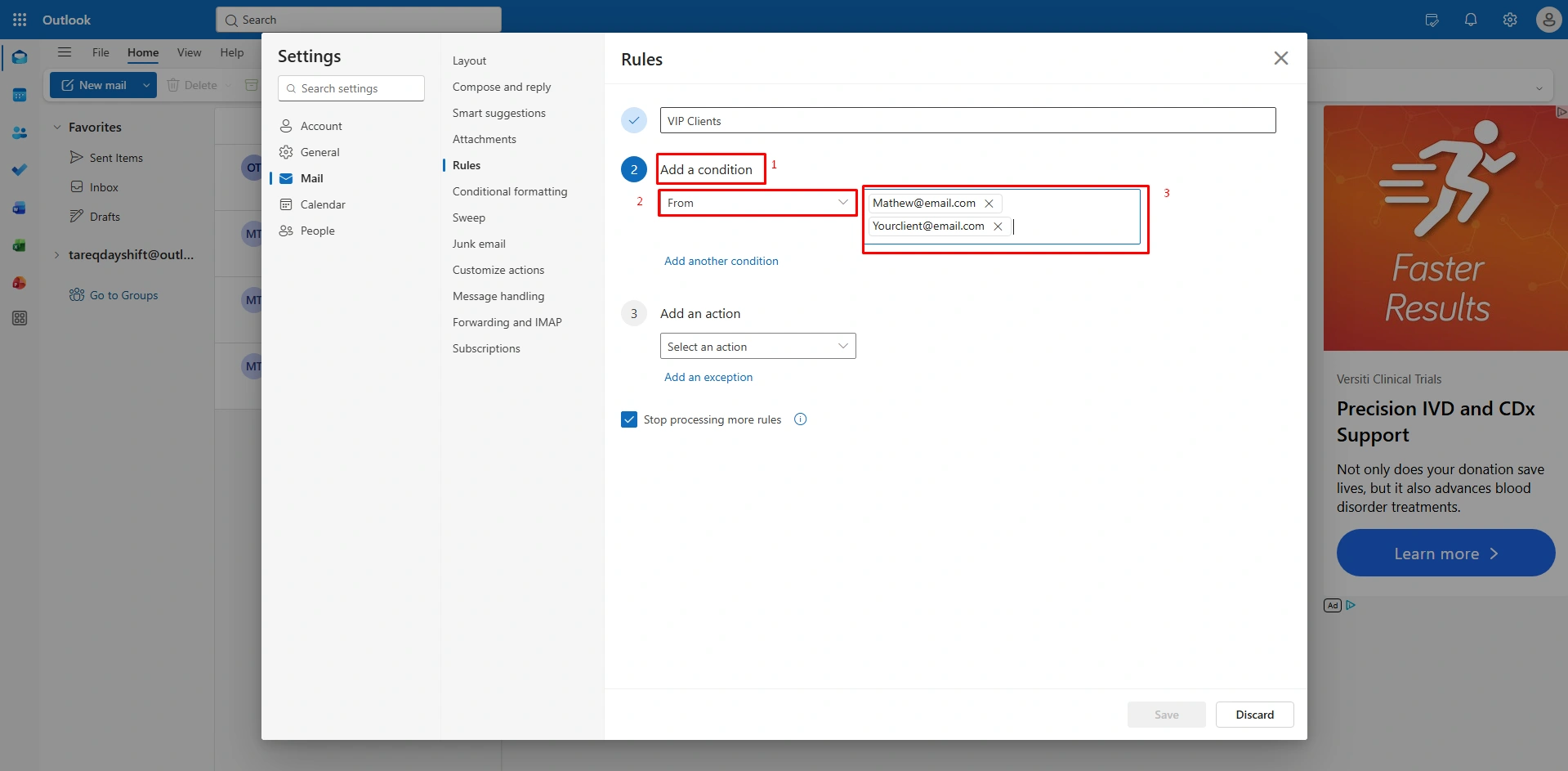
Step 2 (Set the Condition)
To the new rule condition,
- Give your rule name as “VIP Clients” or whatever you choose
- Select “From” and enter the client’s email address or department head’s name.
Step 3 (Select Category Action)
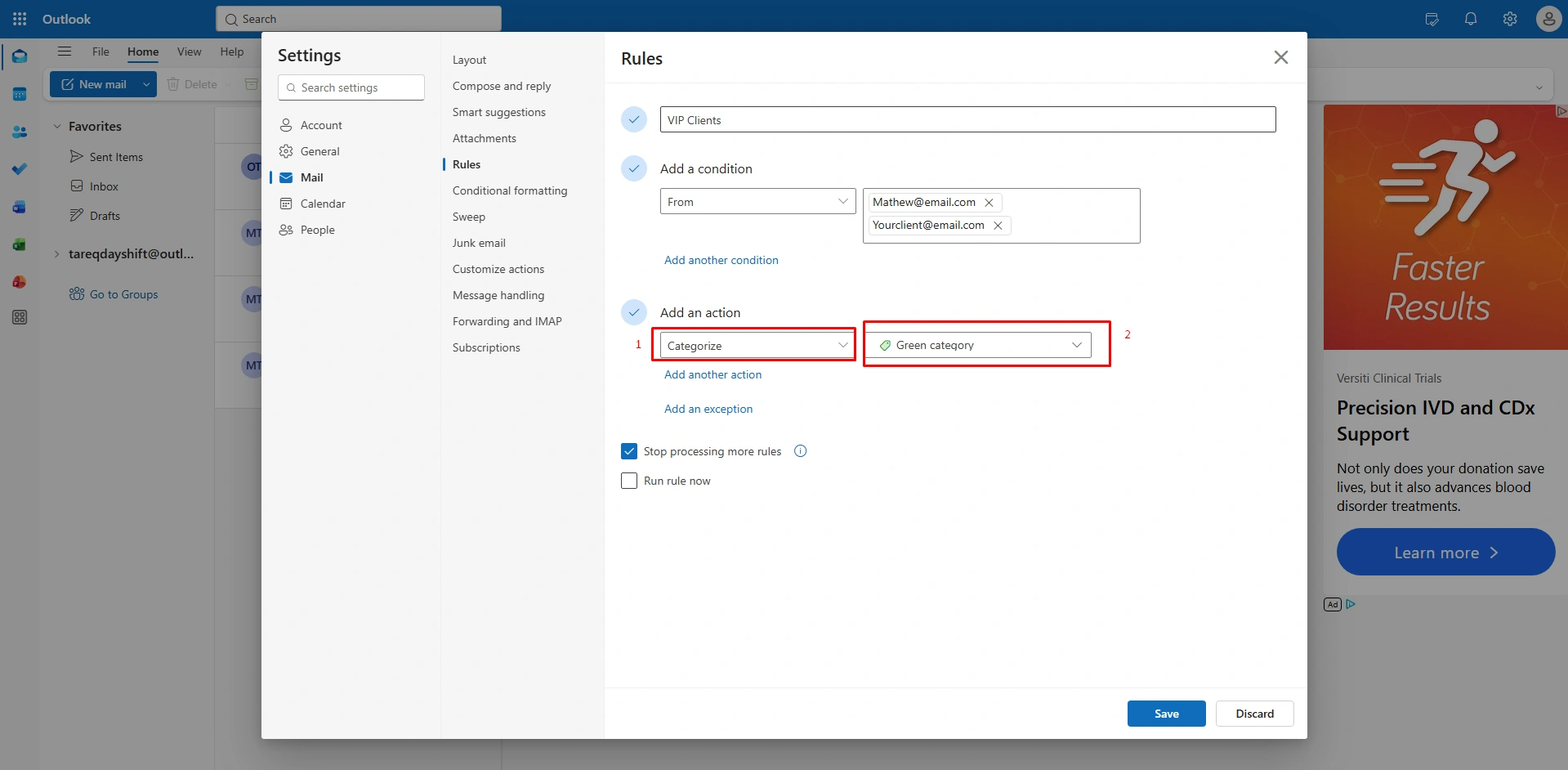
Under Add an action step, here you can create a color code using two options
- Select “Categorize” from the drop-down menu.
- You can choose an existing Color (like green) for a project.
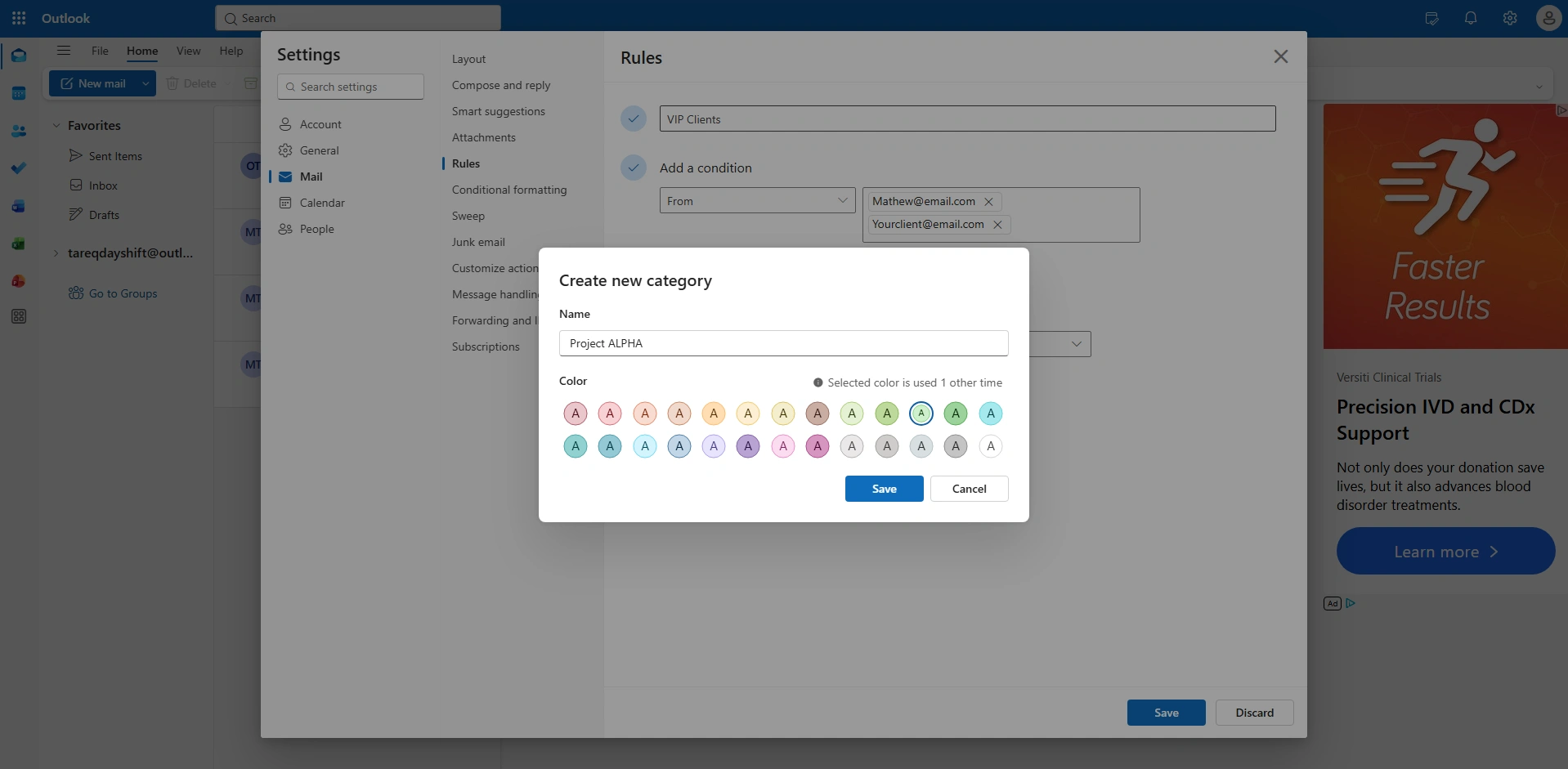
Or, you can choose by
- Click on the new category to create a custom label like “Project Alpha.”
Step 4 (Save and Apply)
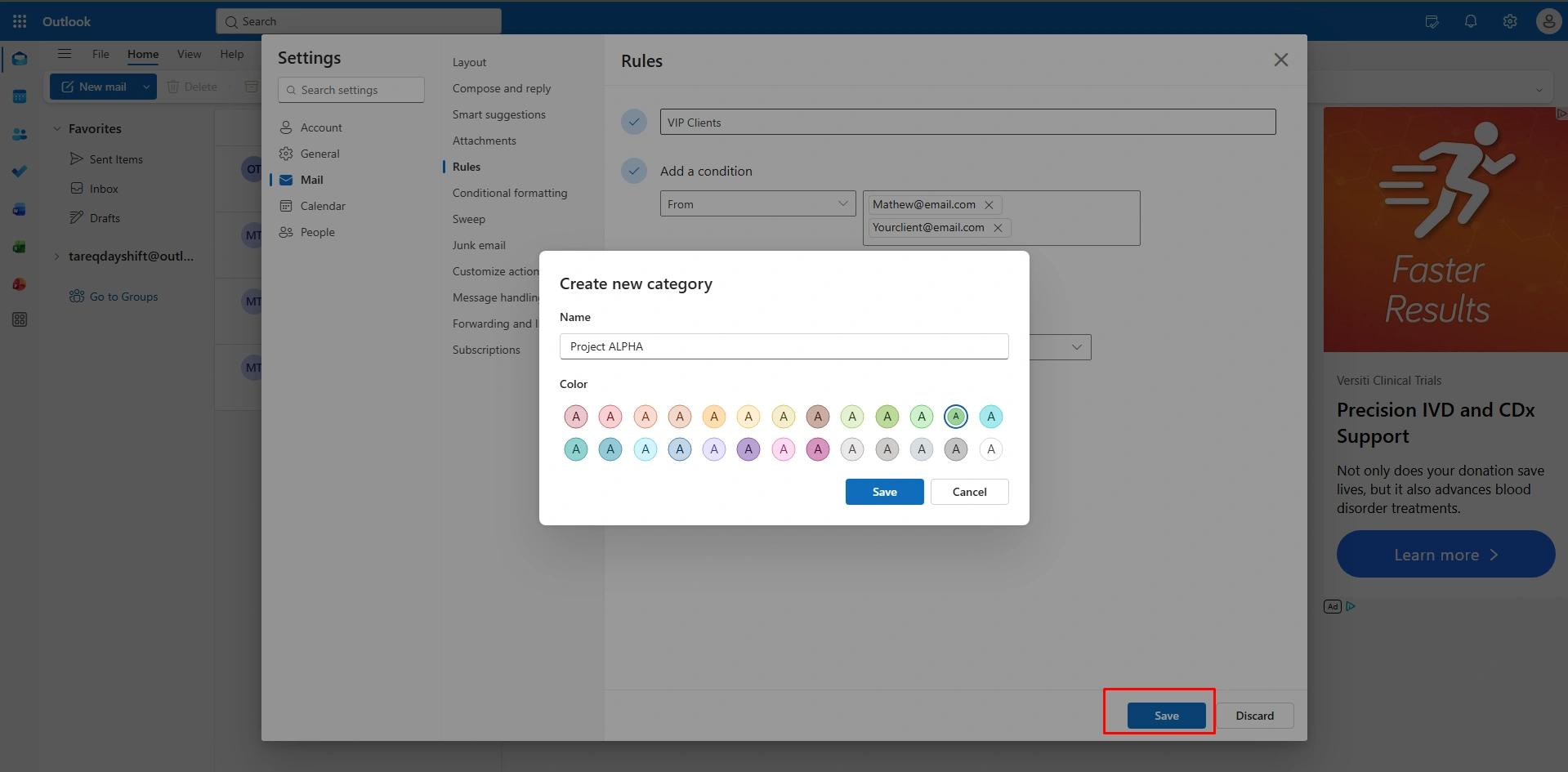
Finally, click to ‘Save.”
- To organize your current inbox immediately, click the “Play button” (Run Rule now) next to your new rule in the list.
Rule #5 – Send Meeting Invitations to a Dedicated Folder
In the New Outlook, meeting invites can quickly hide your standard messages. By setting up an automated rule to move these invitations to a dedicated folder, you can organize emails in Outlook within an active conversation. This ensures that every calendar request is safely stored in one spot, allowing you to process your schedule in batches rather than being interrupted by every new “Meeting Request” notification.
How to Move Invites to a Folder (New Outlook)
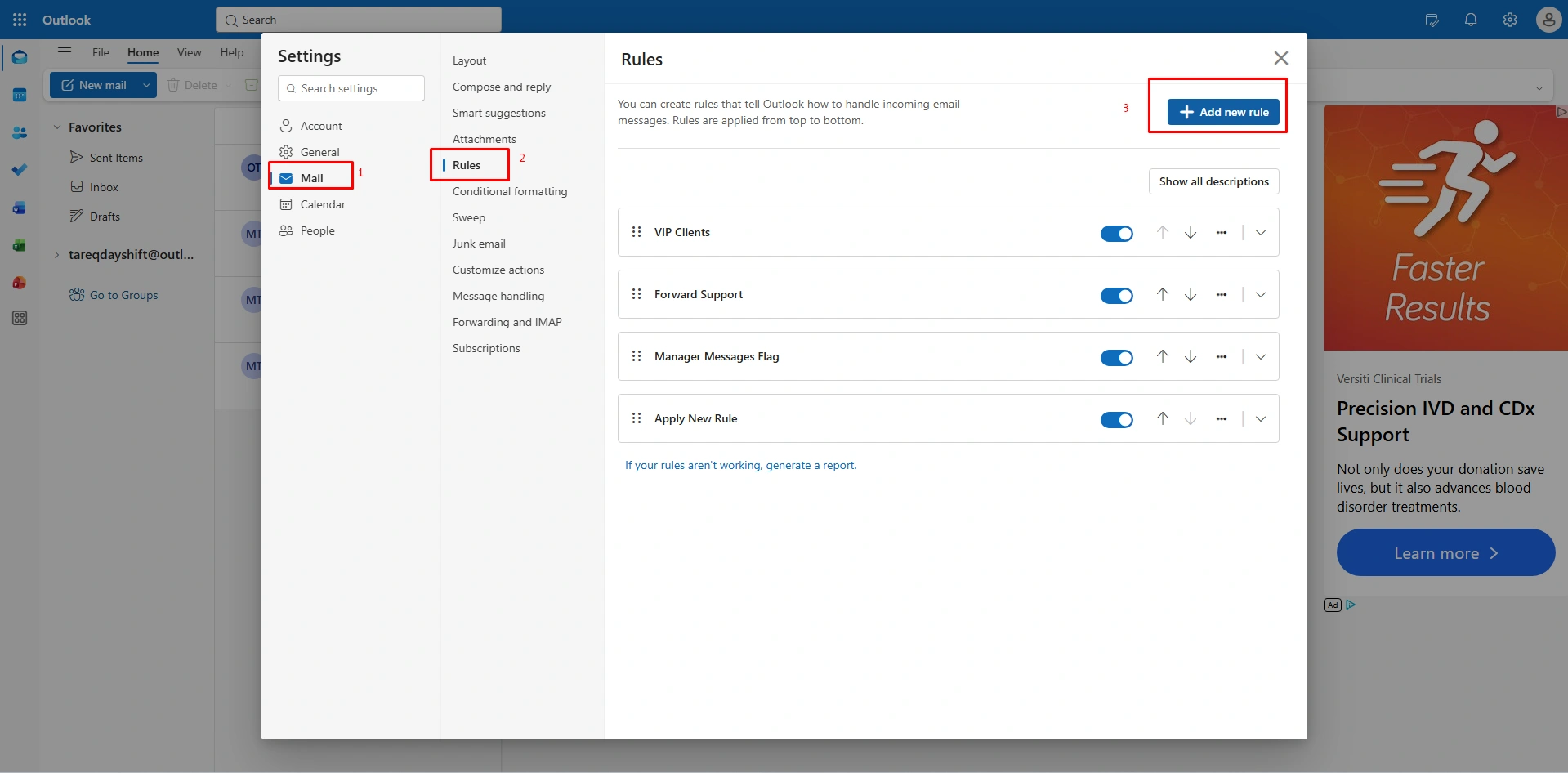
Step 1 (Open Rule Settings)
Just click on the “Settings” gear icon in the top right corner,
- Select the option “Mail.”
- Then click “Rules.”
- And “+Add new rule.”
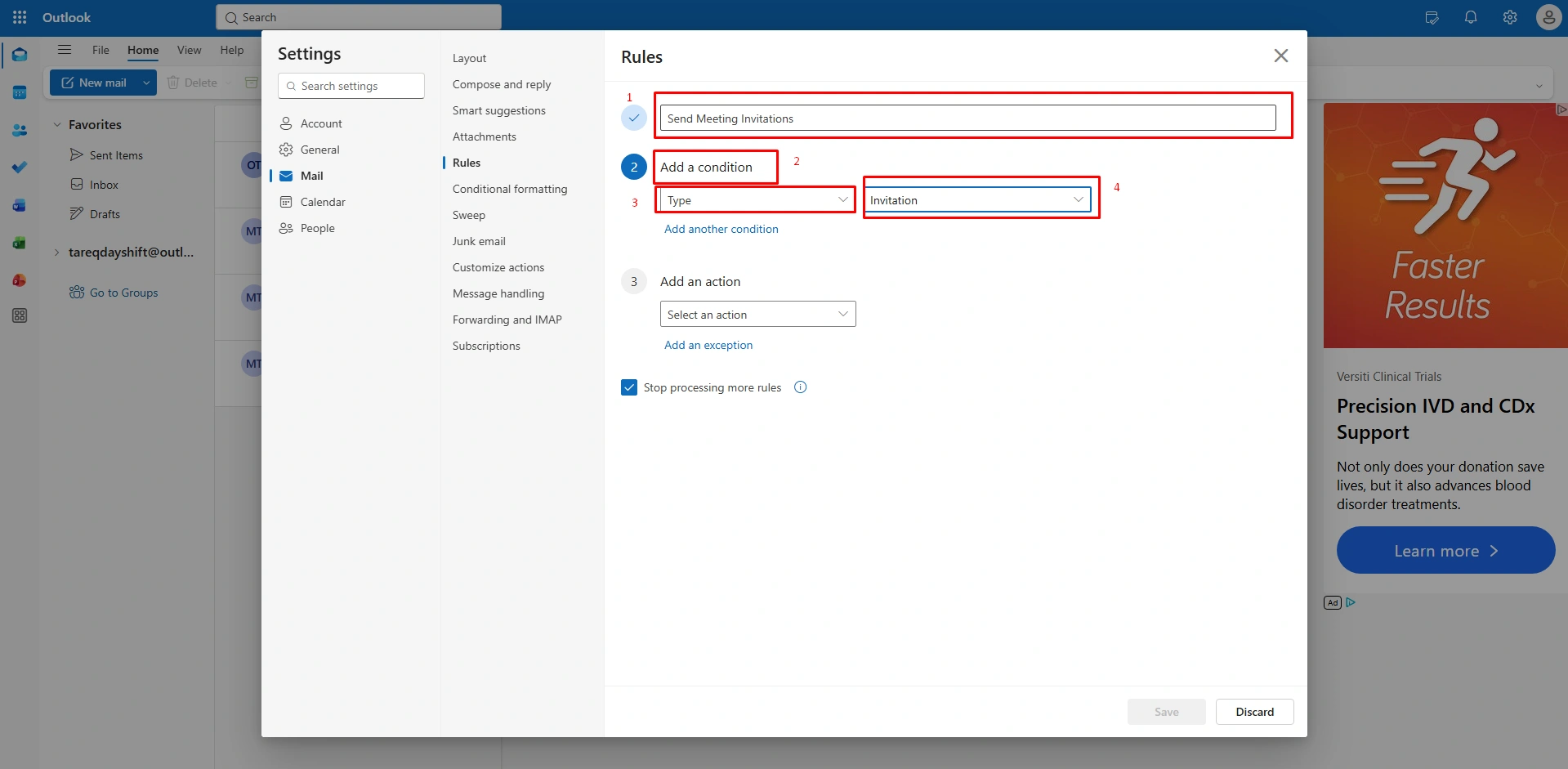
Step 2 (Define the Invitation Condition)
To create a new meeting, name your rule on “Meeting Invites.”
- Under “+ Add a condition,” scroll to the bottom and select Type.
- In the next dropdown menu, choose “Invitation.”
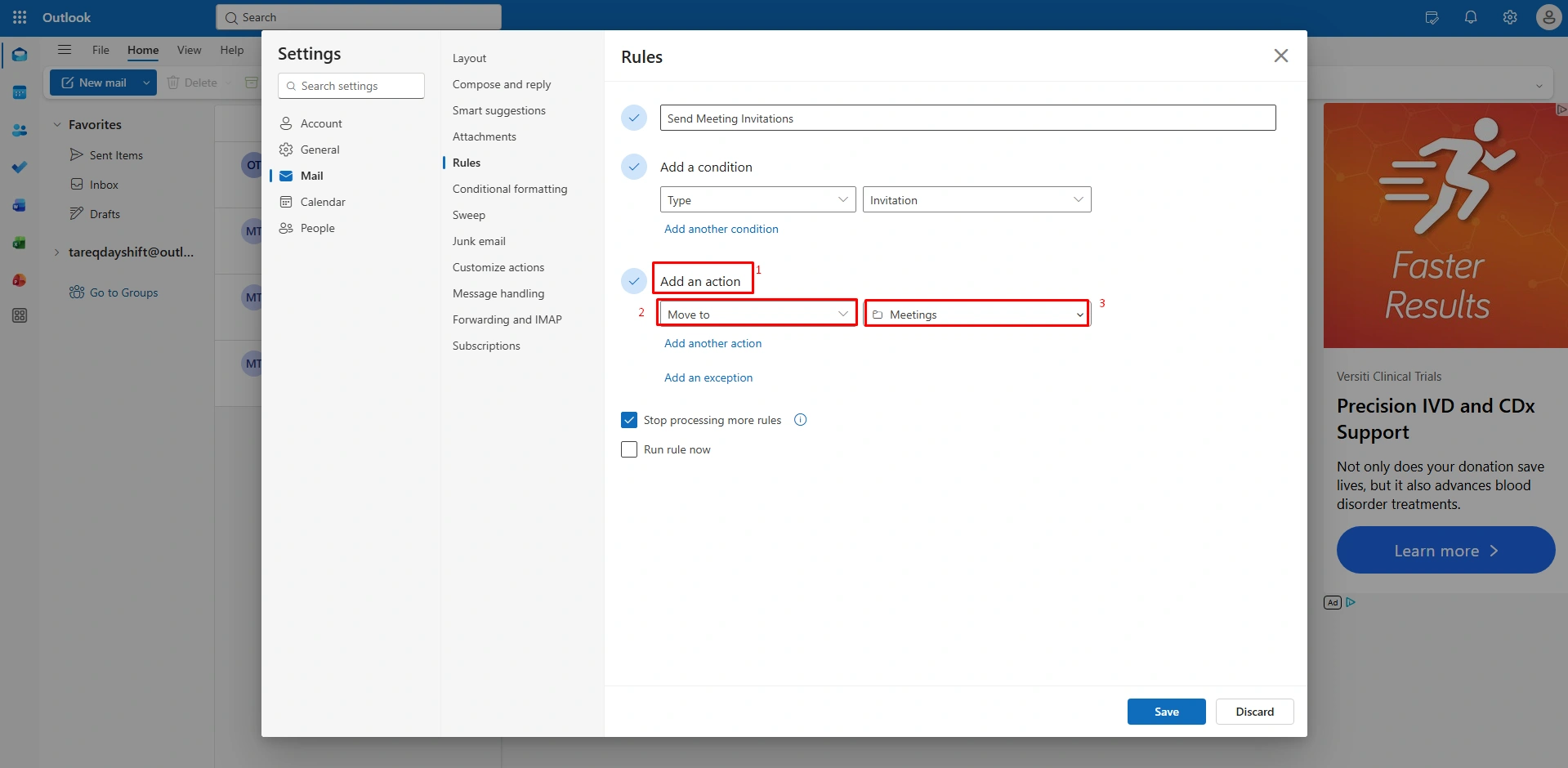
Step 3 (Select Action)
In this step, under an action step,
- Select “Move to”.
- Choose the folder where you want these invites to go (like, “Meeting”).
- And your invitations go to your designated folder.
Step 4 (Save and Execute)
At the end, click “Save.”
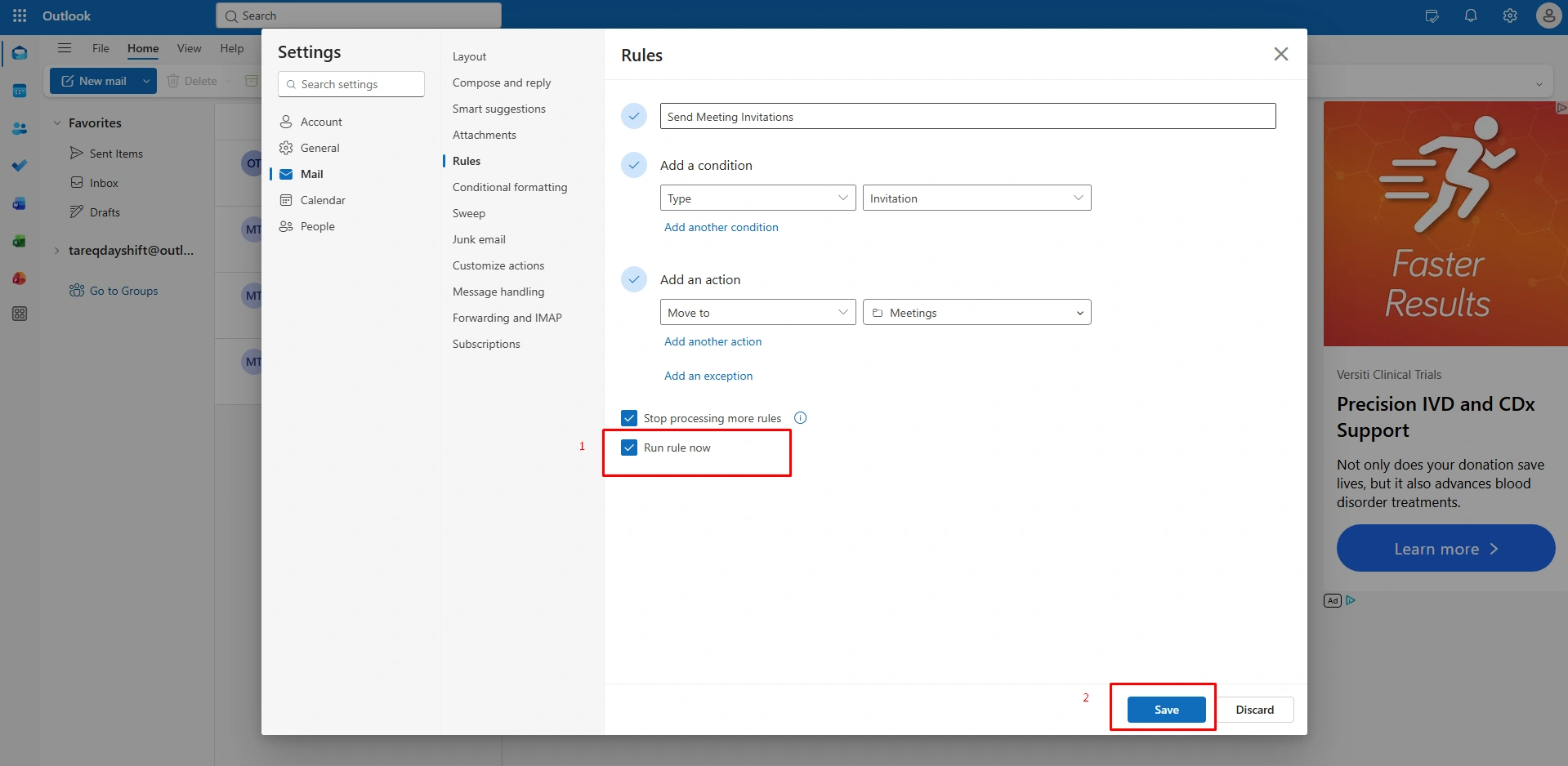
Note: To clean up your current inbox, click the “Play” Icon (Run rule now) next to your rule to move existing invitations into your new folder.
Rule #6 – Highlight Emails Containing Urgent Keywords
Ensure your “Urgent” emails never get lost by using a combination of Categories and Pinning. This rule can automatically apply a bright color label or move the message to the top of your list. It acts as an instant visual alarm, ensuring that high-priority requests from clients or teams get your attention at the moment you open the app.
How to Highlight Urgent Emails (New Outlook)
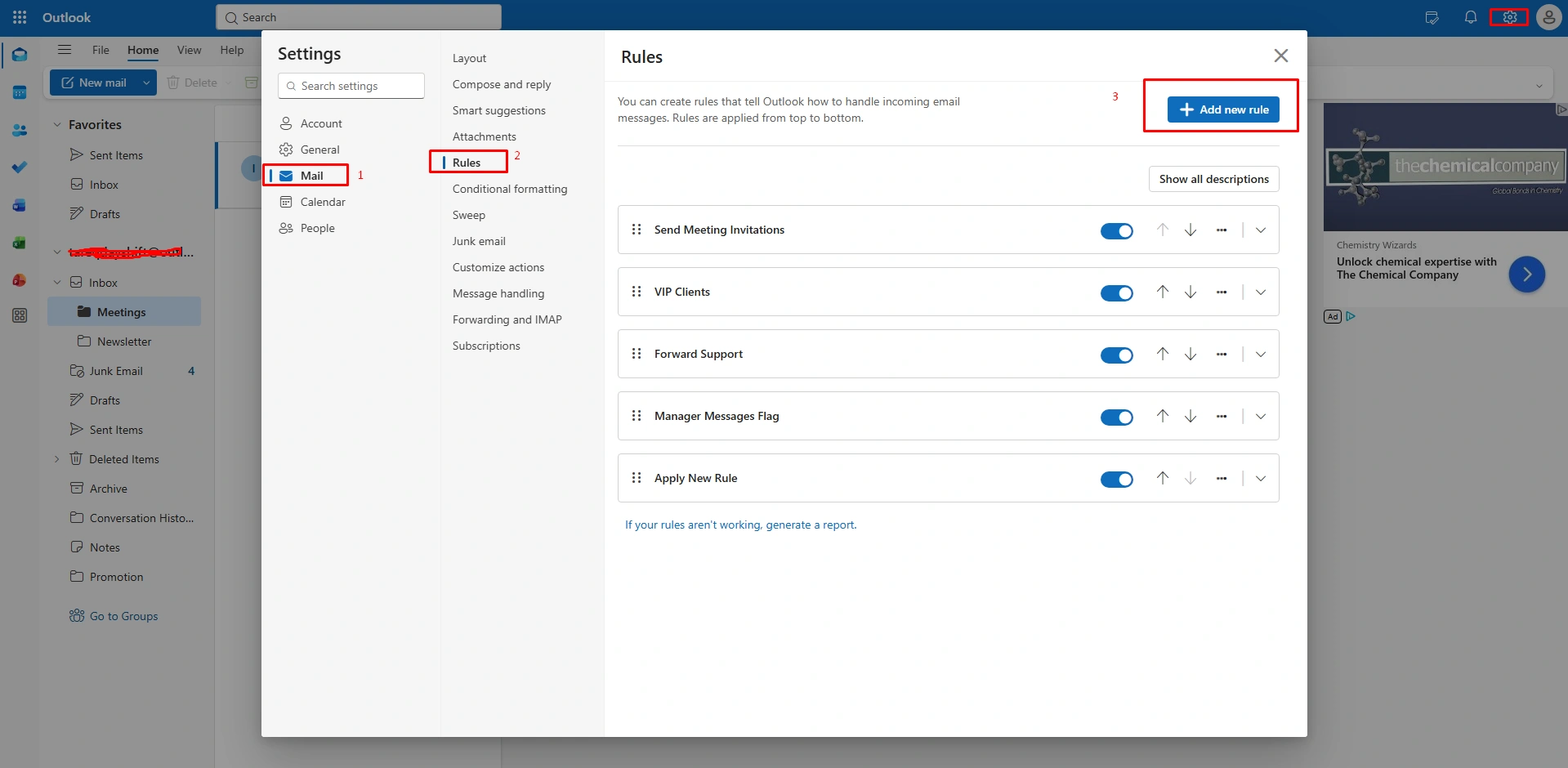
Step 1 (Open Rules Editor)
At the beginning of highlighting Urgent Emails (New Outlook)
- Go to the “Settings” gear icon at the top right side
- Then Go to “Mail” > “Rules”
- And click to “+ Add new rule.”
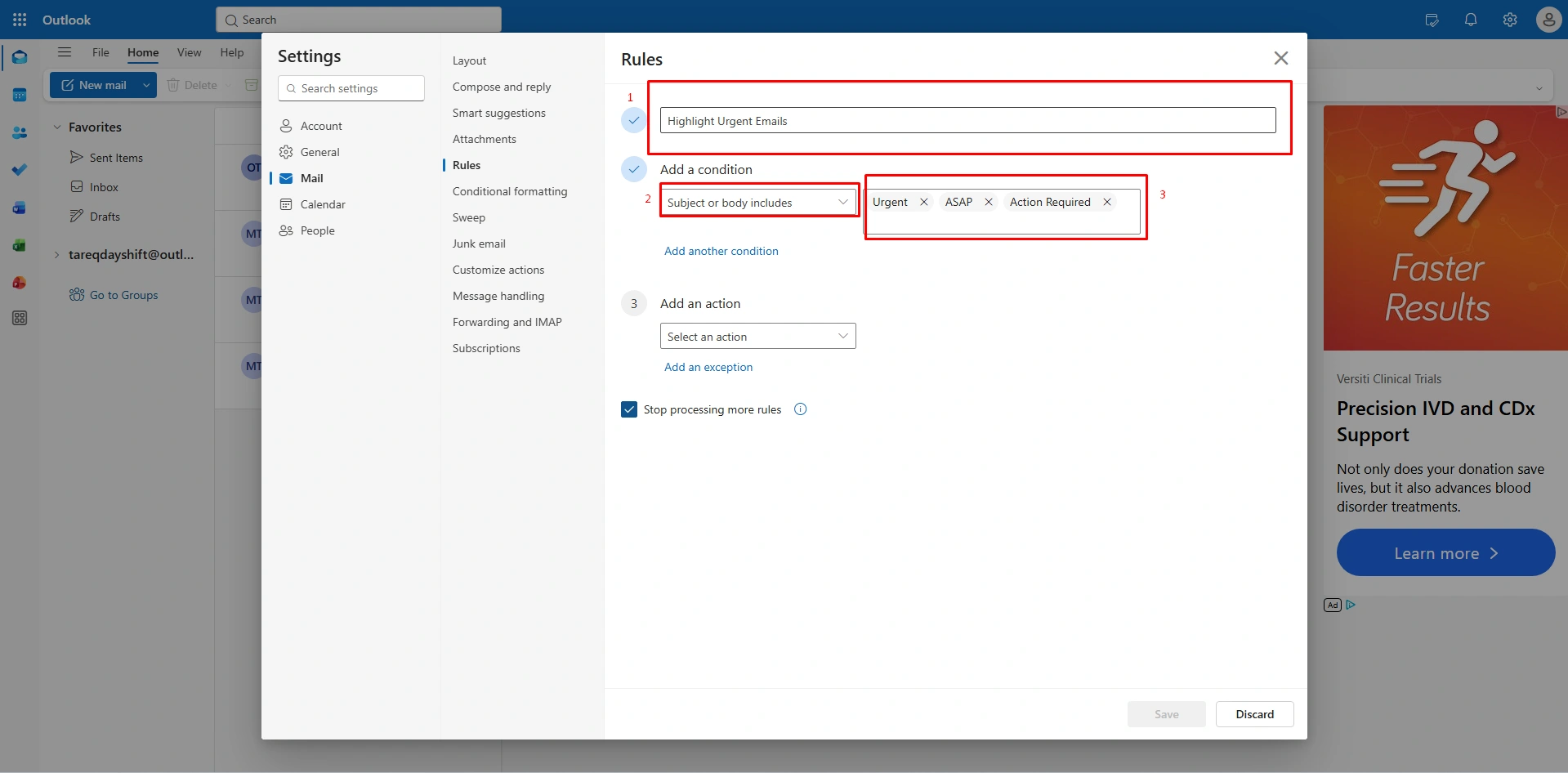
Step 2 (Define Keywords)
Naming your rule, under “Urgent Alerts,” with the following steps,
- Go to the option under “Add a condition”
- Select “Subject or body includes”
- Type “Urgent,” “ASAP,” or “Action Required”
- Then press “Enter.”
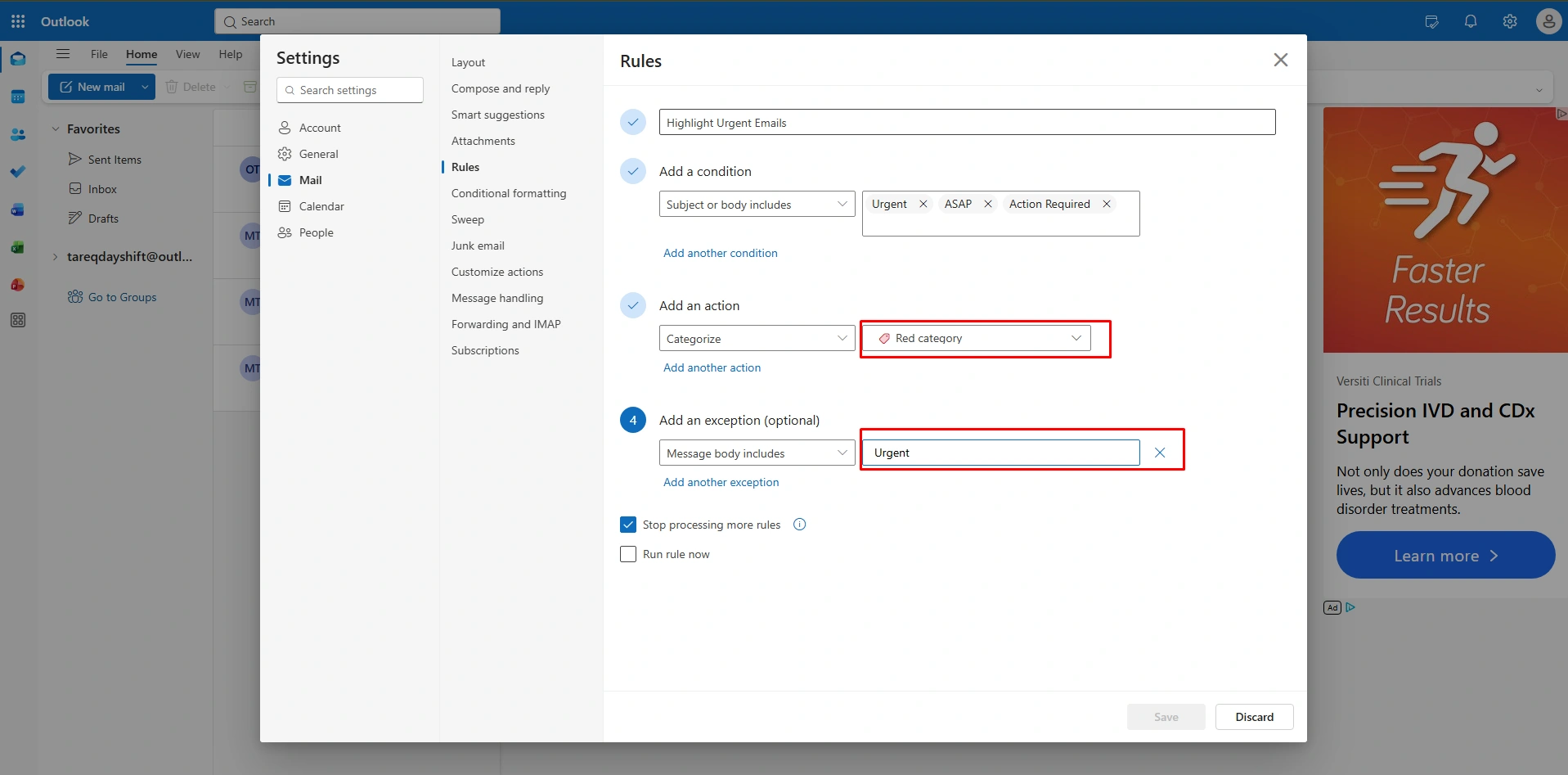
Step 3 (Apply Visual Label)
In this step, go to “Under Add an action.”
- Select “Categorize.”
- Choose a bright color (like RED).
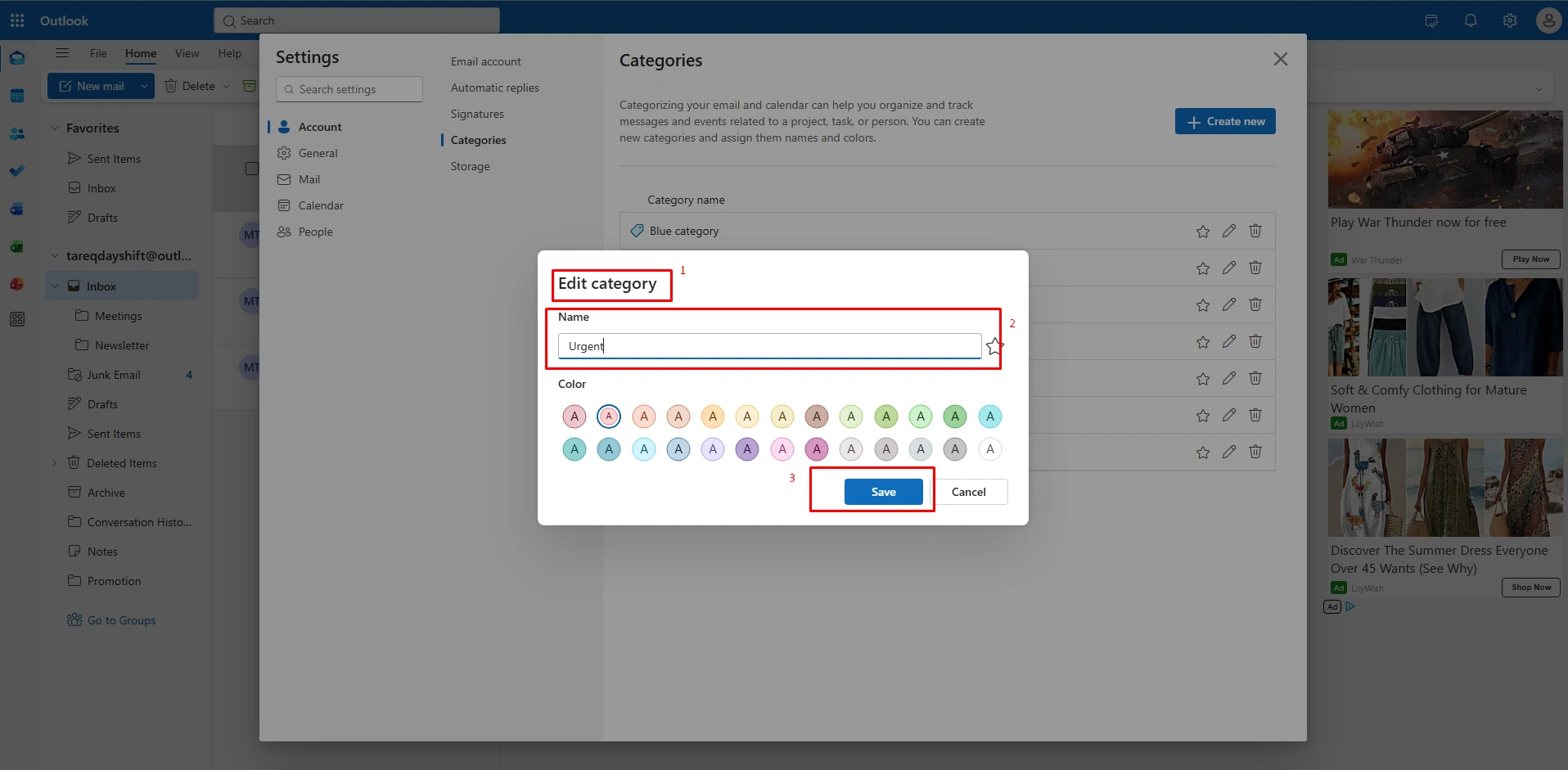
Now, go to the inbox and select an email, then
- Go to “Categories” under All Categories
- Select the “Red” color and edit it into “Urgent.”
- And label it as “Urgent.”
Rule #7 – Filter Automated System Notifications
System notifications are most sensitive in your business, like password resets, server alerts, or automated emails, can quickly block your view. In the New Outlook, you can group these machine-generated messages into a dedicated folder.
This will keep your workspace clean while ensuring technical logs are organized and easy to find when you actually need to troubleshoot.
How to Filter System Notifications (New Outlook)
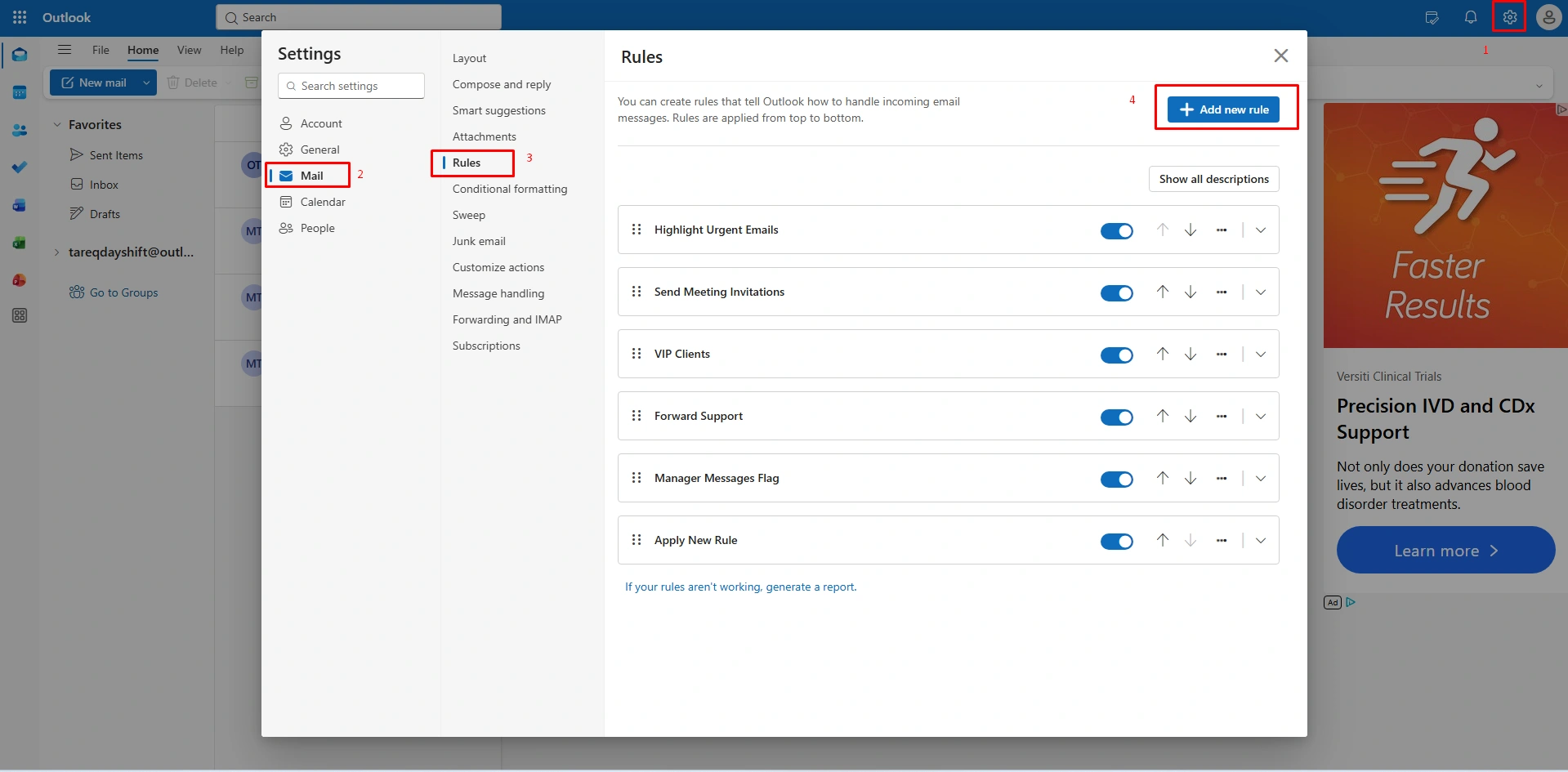
Step 1 (Access Rules)
To Filter Automated System,
- Go to the “Settings” gear icon at the top right corner.
- Then, go to “Mail” > “Rules.”
- Now, go to “+ Add new rule.”
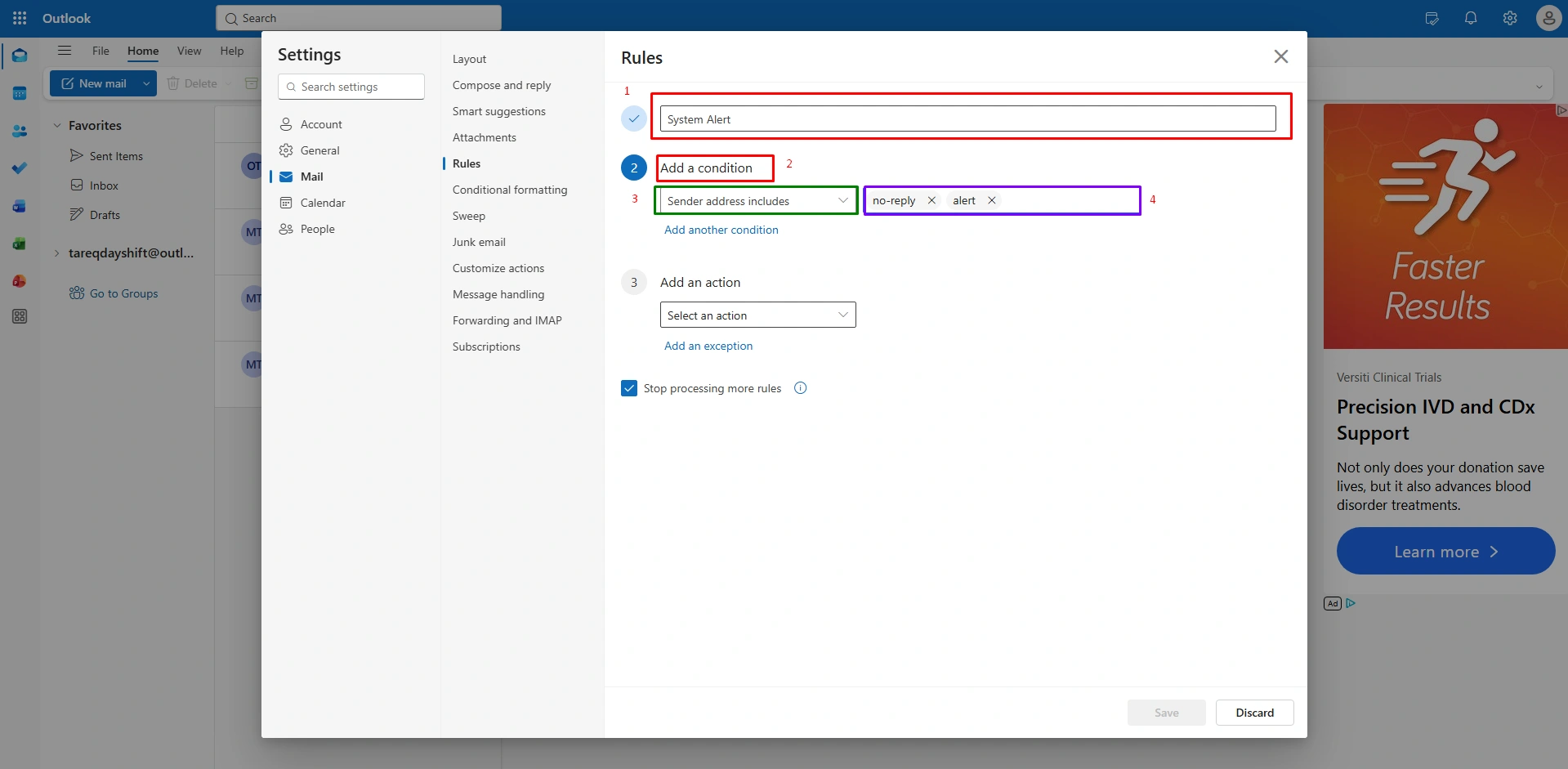
Step 2 (Target the Senders)
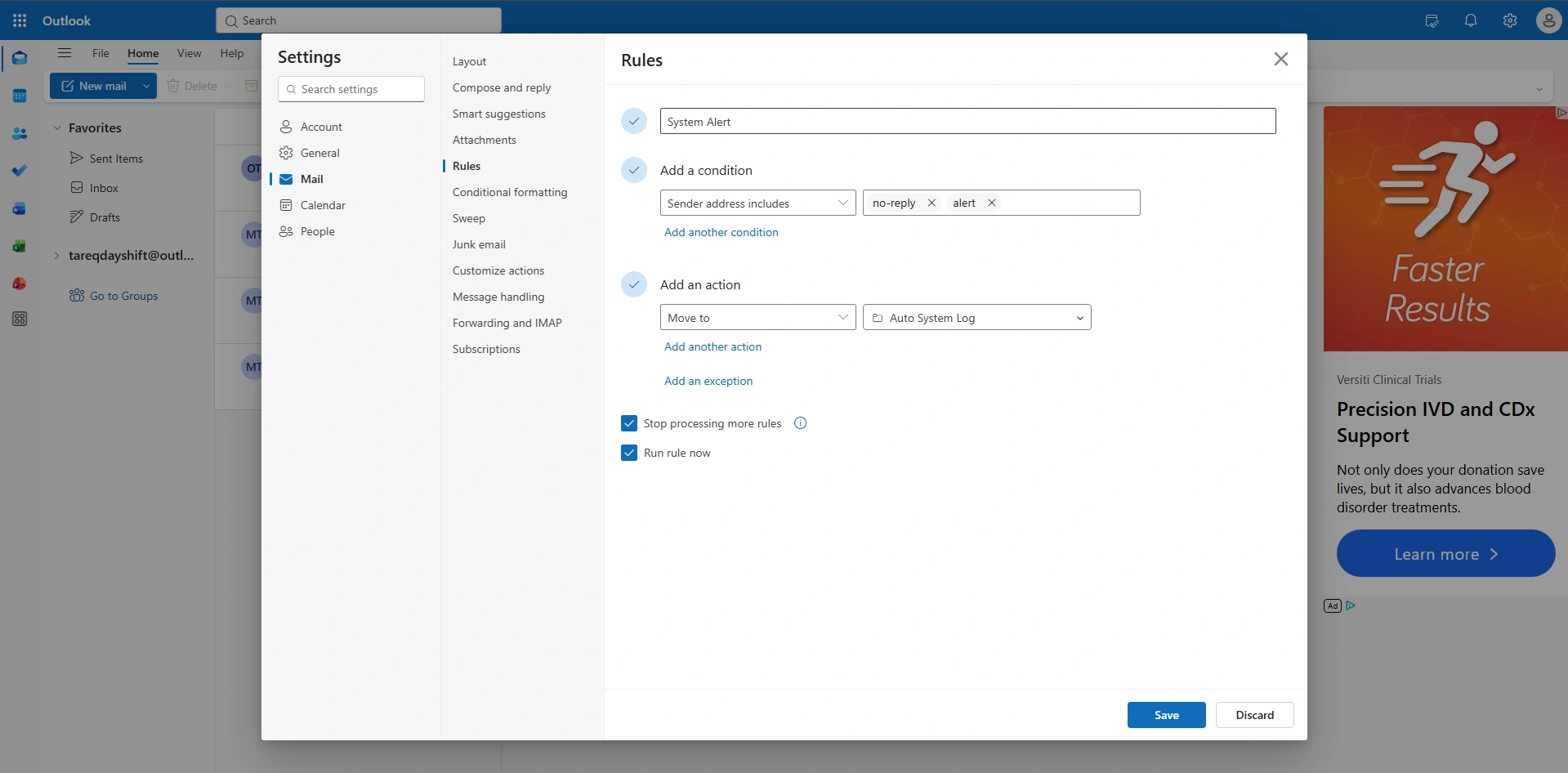
In this step, name your rule “System Alert”,
- Go to “Add a Condition” and choose “Sender address includes.”
- Type keywords like “no-reply” or “alert”
- Finally, press “Enter.”
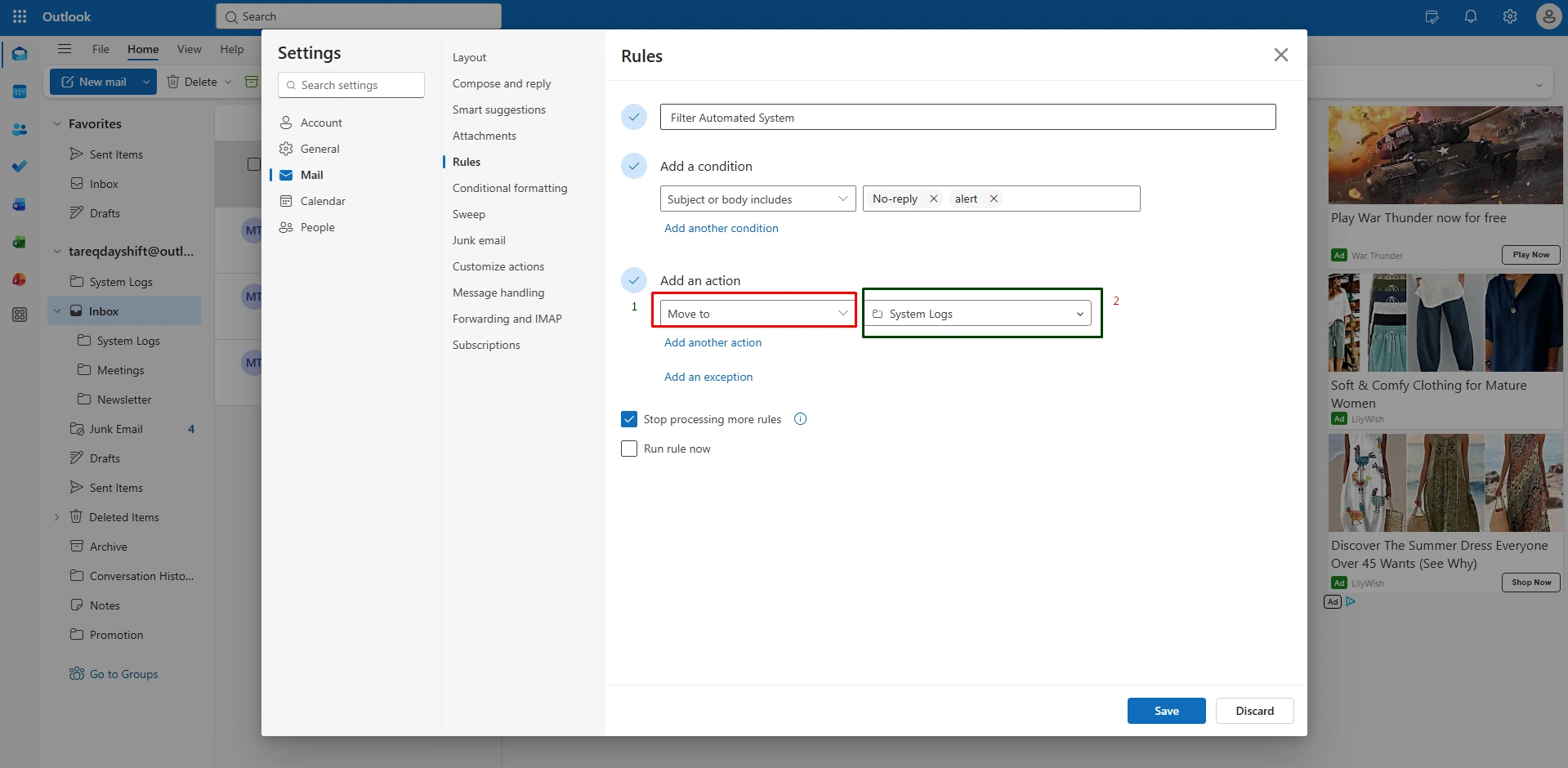
Step 3 (Choose the Action)
Now, under “Add an action,”
- Choose “Move to” from the dropdown menu.
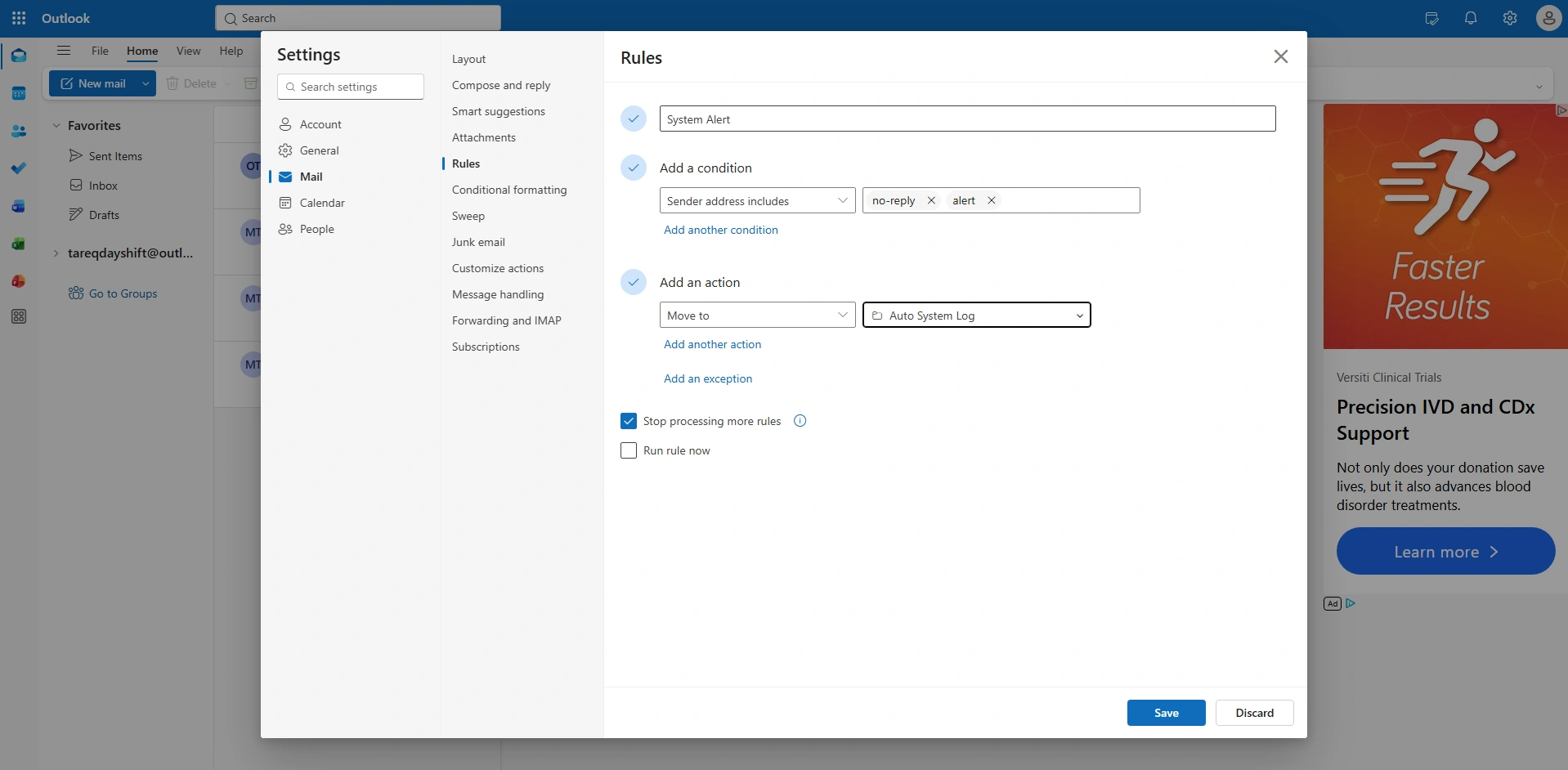
- Choose and choose a folder named “System Logs.”
Another option: you can go below and click on “New folder” to create a new one.
Step 4 (Save and Run)
Finally, complete the process
- Clear your automated clutter currently in your inbox, and click the Play icon (Run rule now) next to your new rule.
- Click to “Save.”
Rule #8 – Archive Old Emails Automatically
Keep your inbox active and ensure uninterrupted productivity. Over time, old emails, even those you might need later, create visual noise that makes it harder to find current tasks. This rule acts as an automated “digital filing assistant,” silently moving folder messages into an archive email folder.
You’ll keep your primary workspace focused on today’s priorities while ensuring your historical data remains searchable whenever you need.
How to Auto-Archive Old Emails (New Outlook)
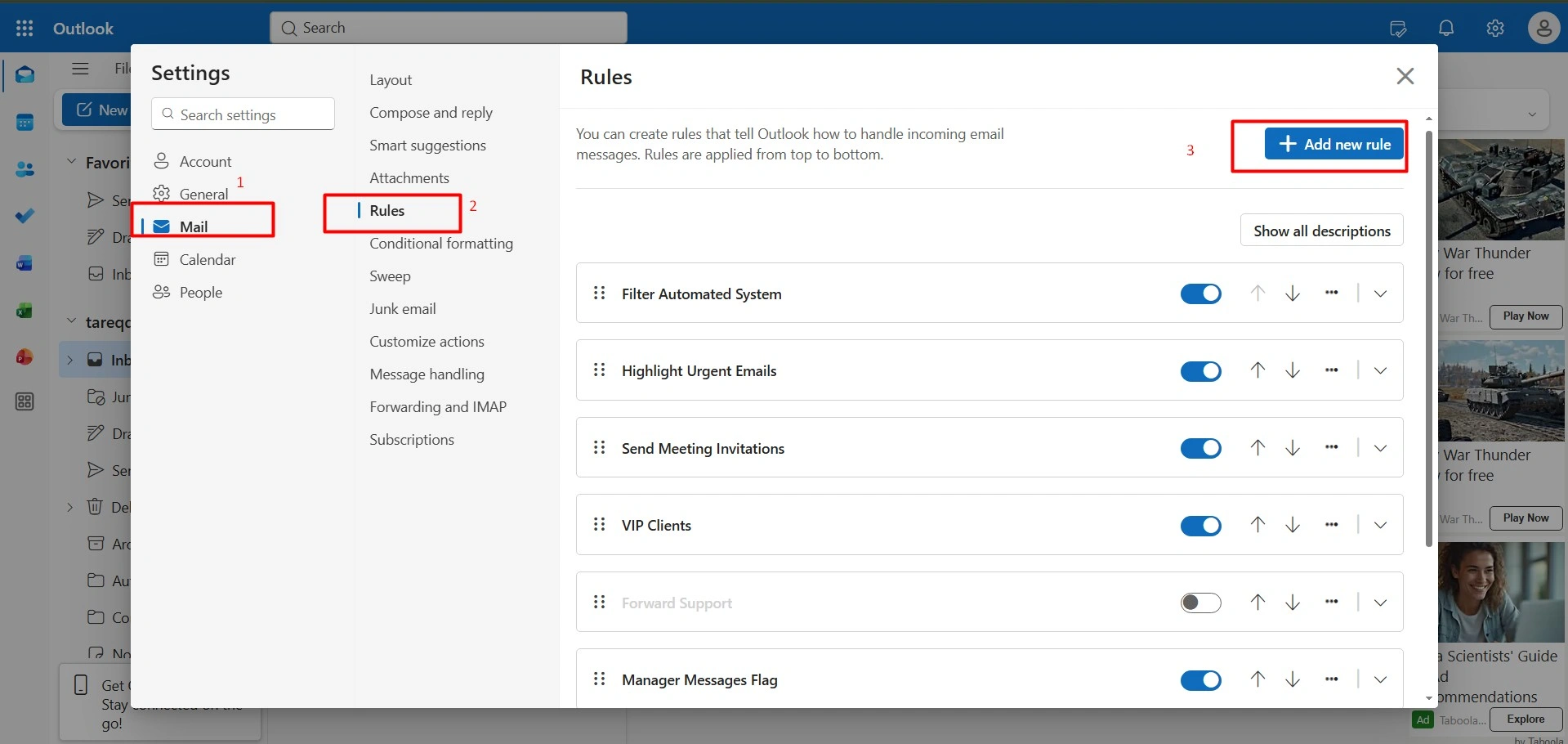
(Step 1) Open Rule Settings
Regarding auto-archive,
- First, click the ‘Settings’ gear icon in the top right corner.
- Then, select “+ Add new rule.”
Step 2 (Set the Age Trigger)
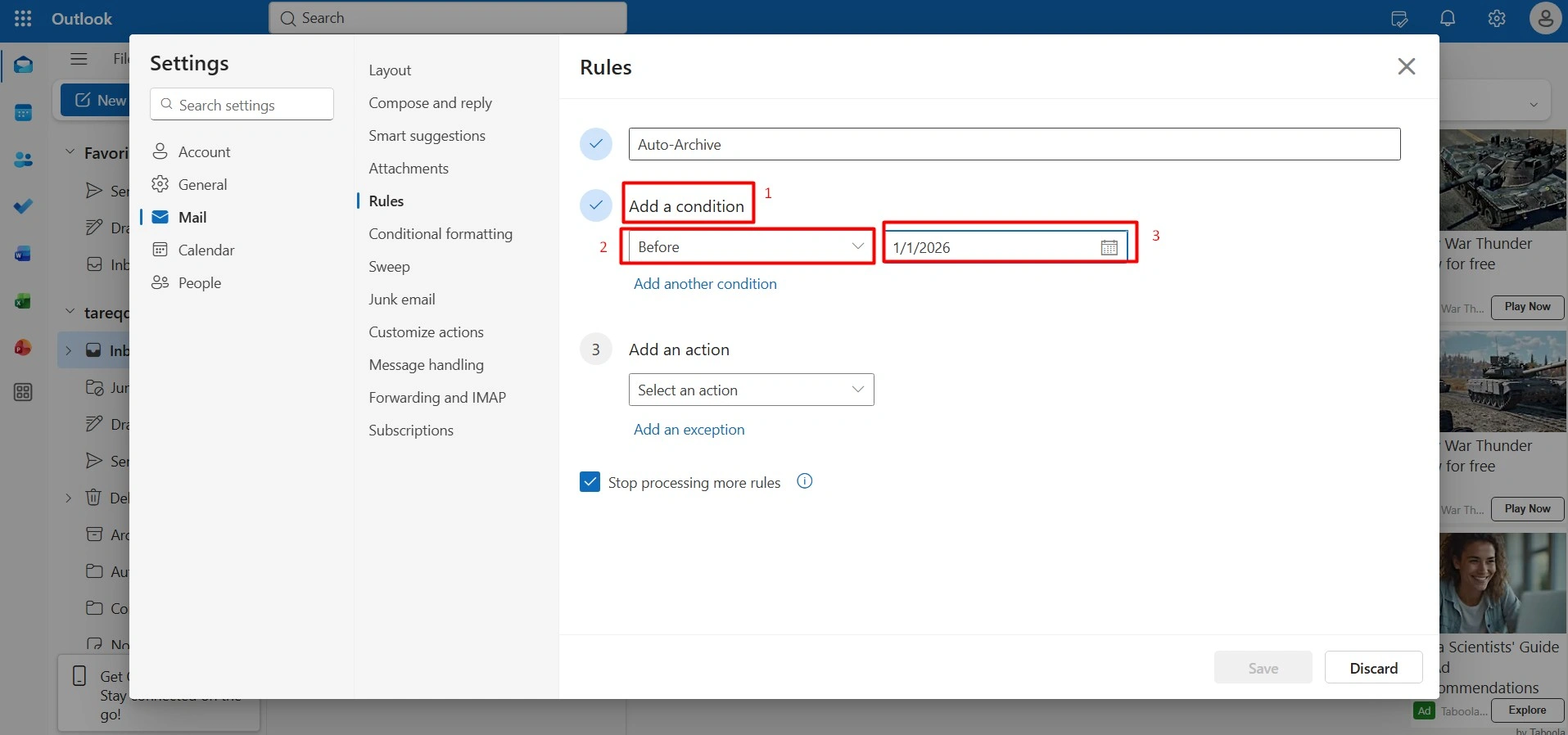
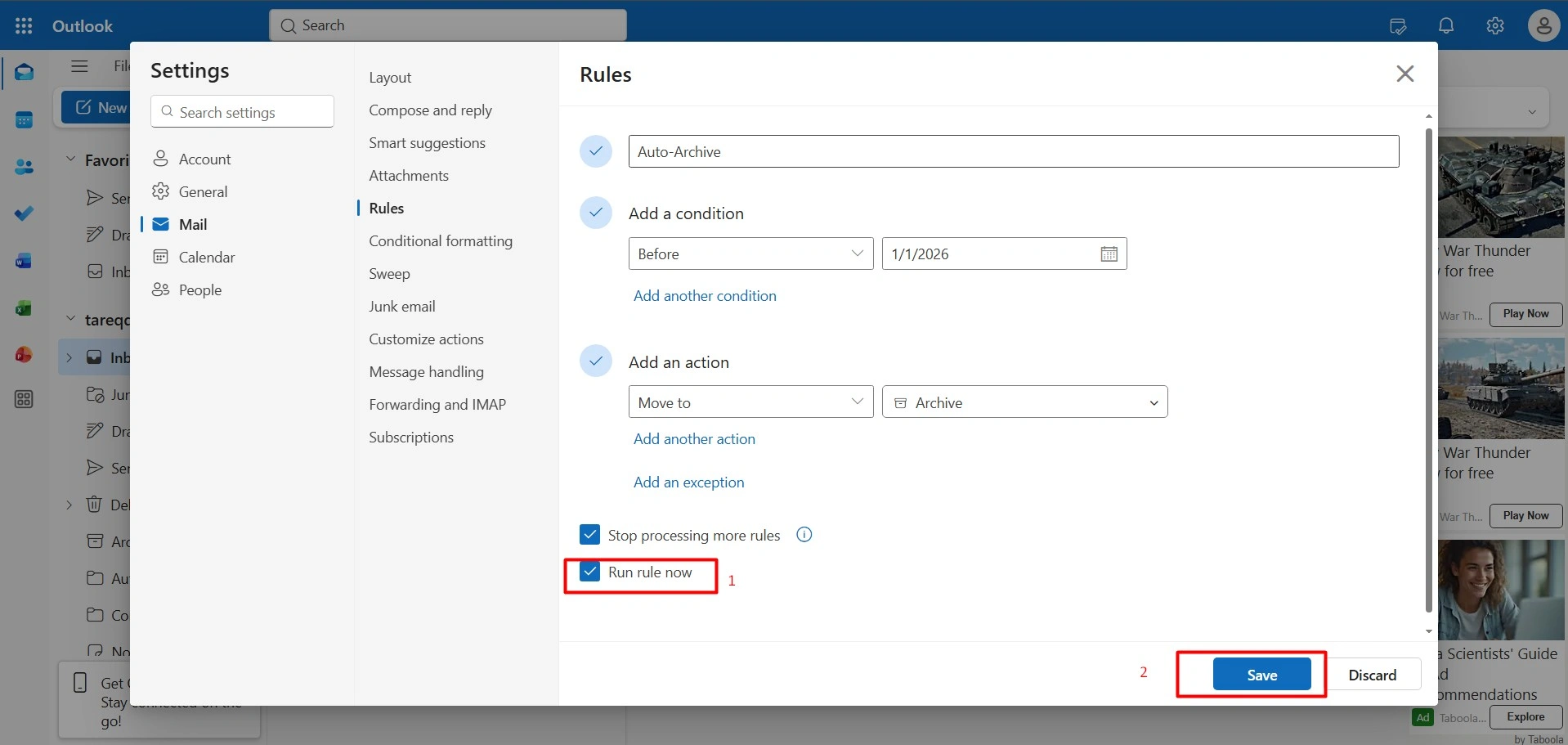
In this step, name your rule “Auto-Archive”
- Under “Add a condition, select “Before” and choose a date (like 3 or 6 months ago).
Step 3 (Select Move Action)
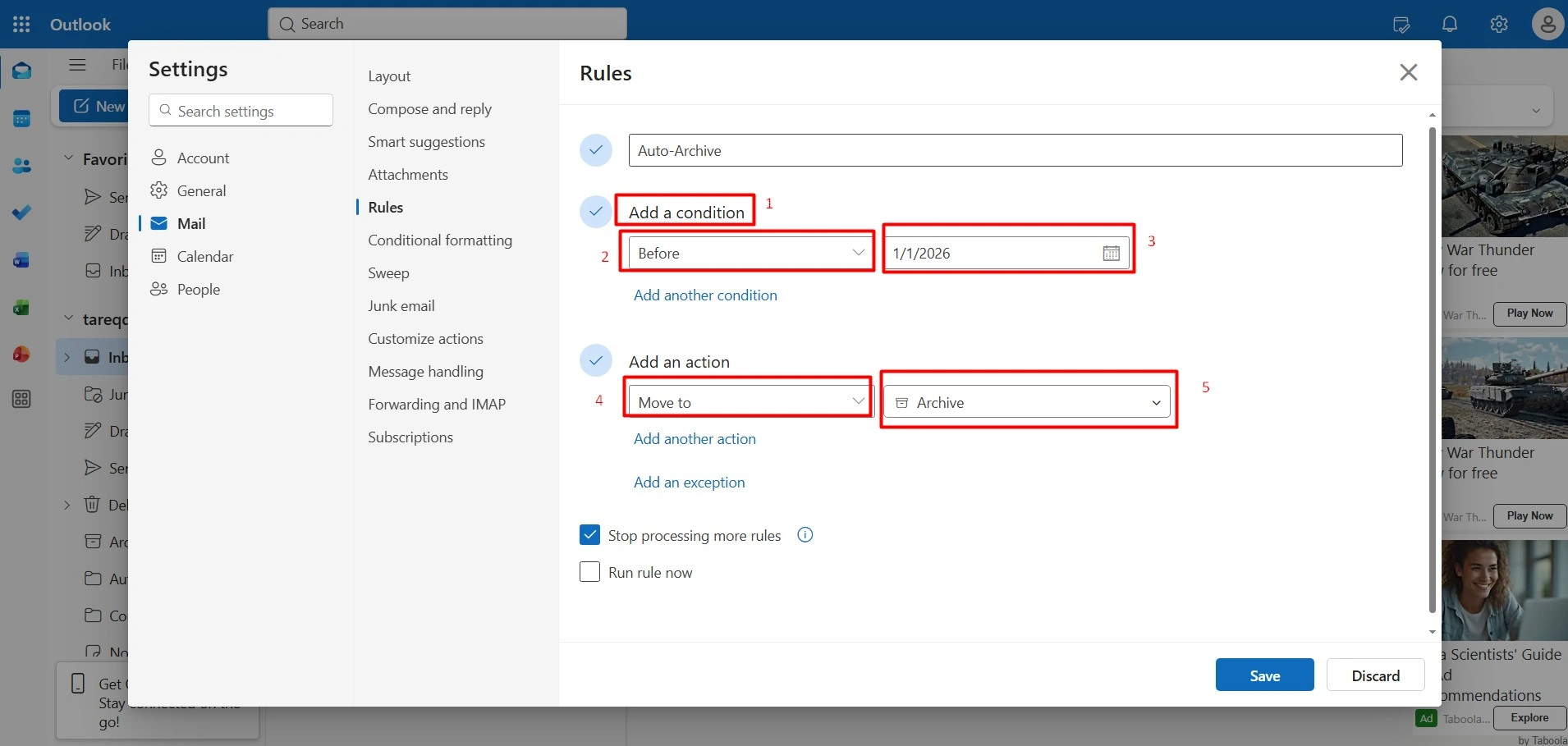
Now do the following:
- Right now, select “Move to”
- From the dropdown, choose your archive folder.
Step 4 (Finalize and Run)
Finally, click the Play button (Run rule now), and then click to ‘Save.”
Rule #9 – Block Spam and Unwanted Senders
Block your spam emails, you can use a rule that saves you from killing your productivity. Instead of manually deleting the disturbing messages every day, using this rule acts as your digital gatekeeper. For example, if you are tired of receiving emails from [email protected] or any messages offering “XYZ” benefits, this rule ensures they never touch your inbox.
Therefore, you can keep your notifications accurate and focus on your projects that actually work consistently in your email.
How to Block Spam Senders (New Outlook)
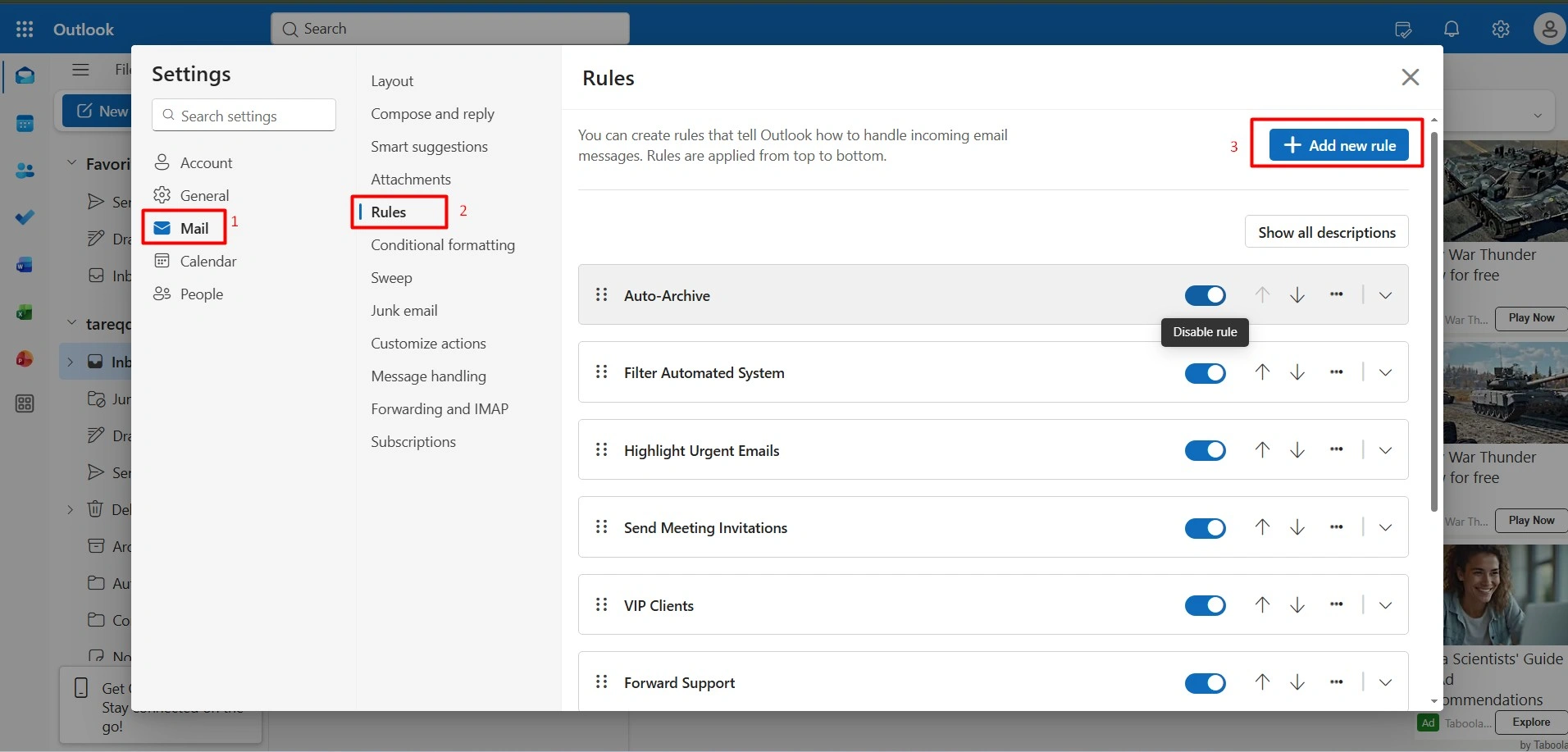
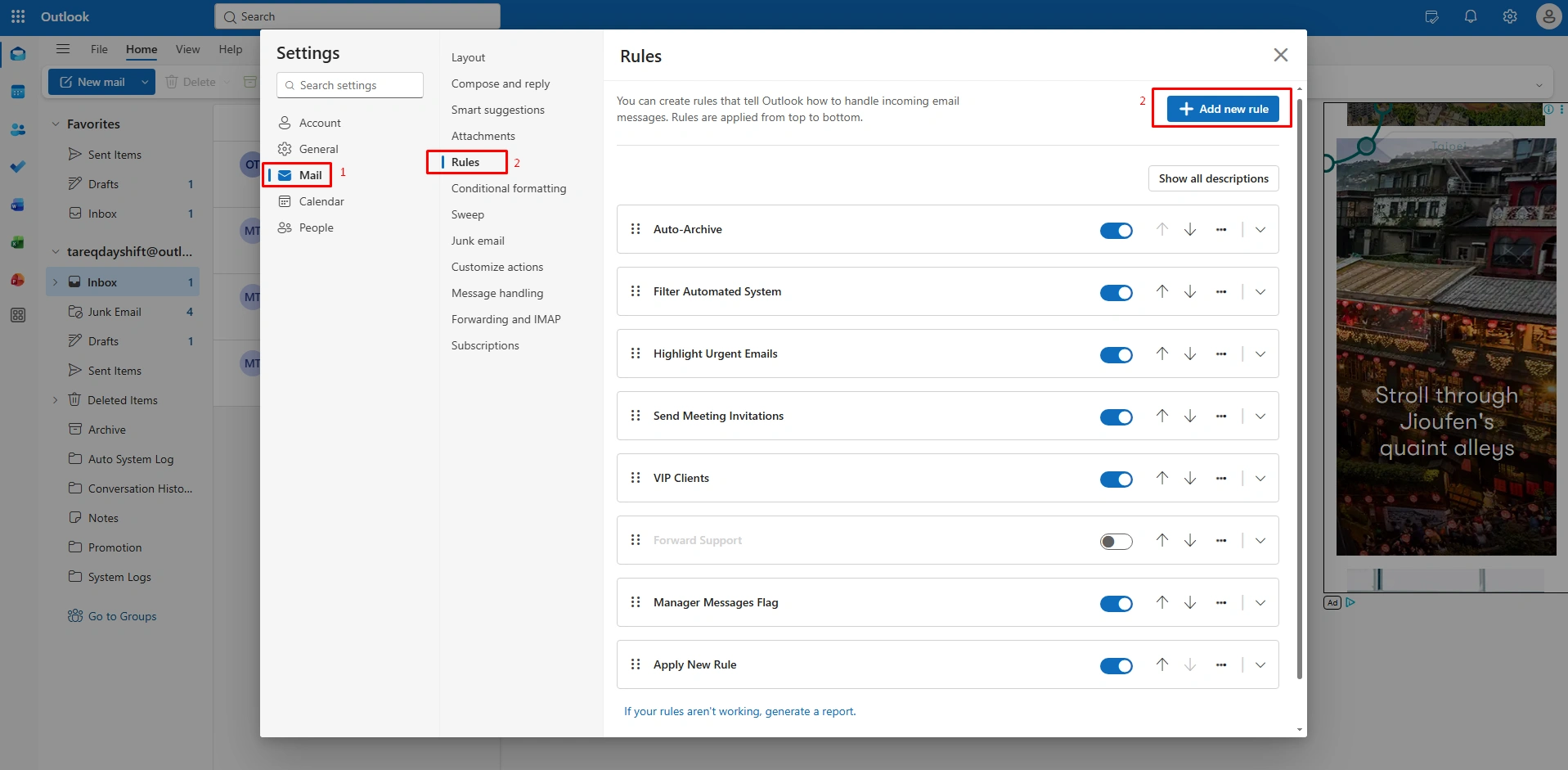
Step 1 (Open Rule Settings)
Go to the top right corner of the “Settings” gear
- Then, go to Mail > Rules
- Then, click “+ Add new rule.”
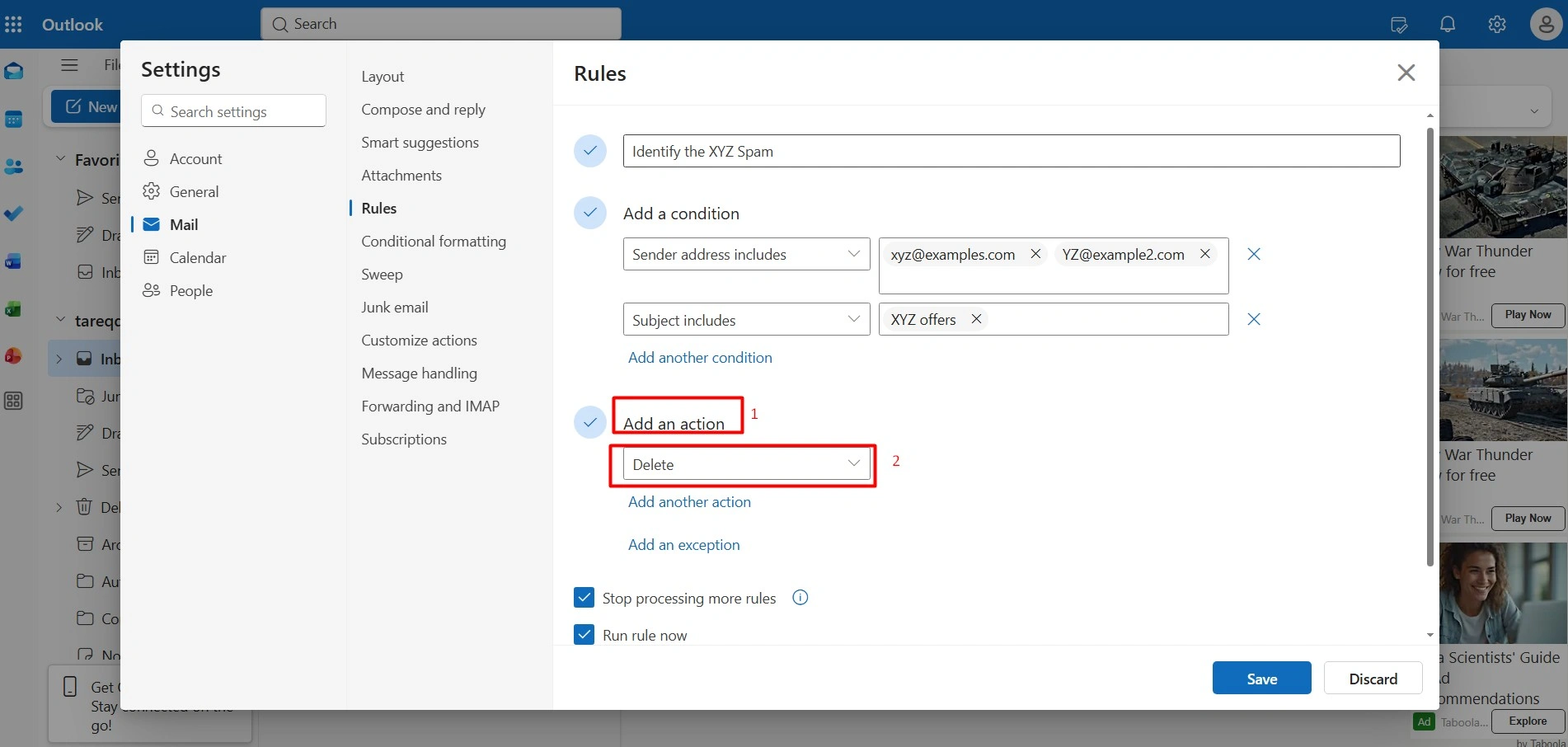
Step 2 (Identify the ‘xyz’ Spam)
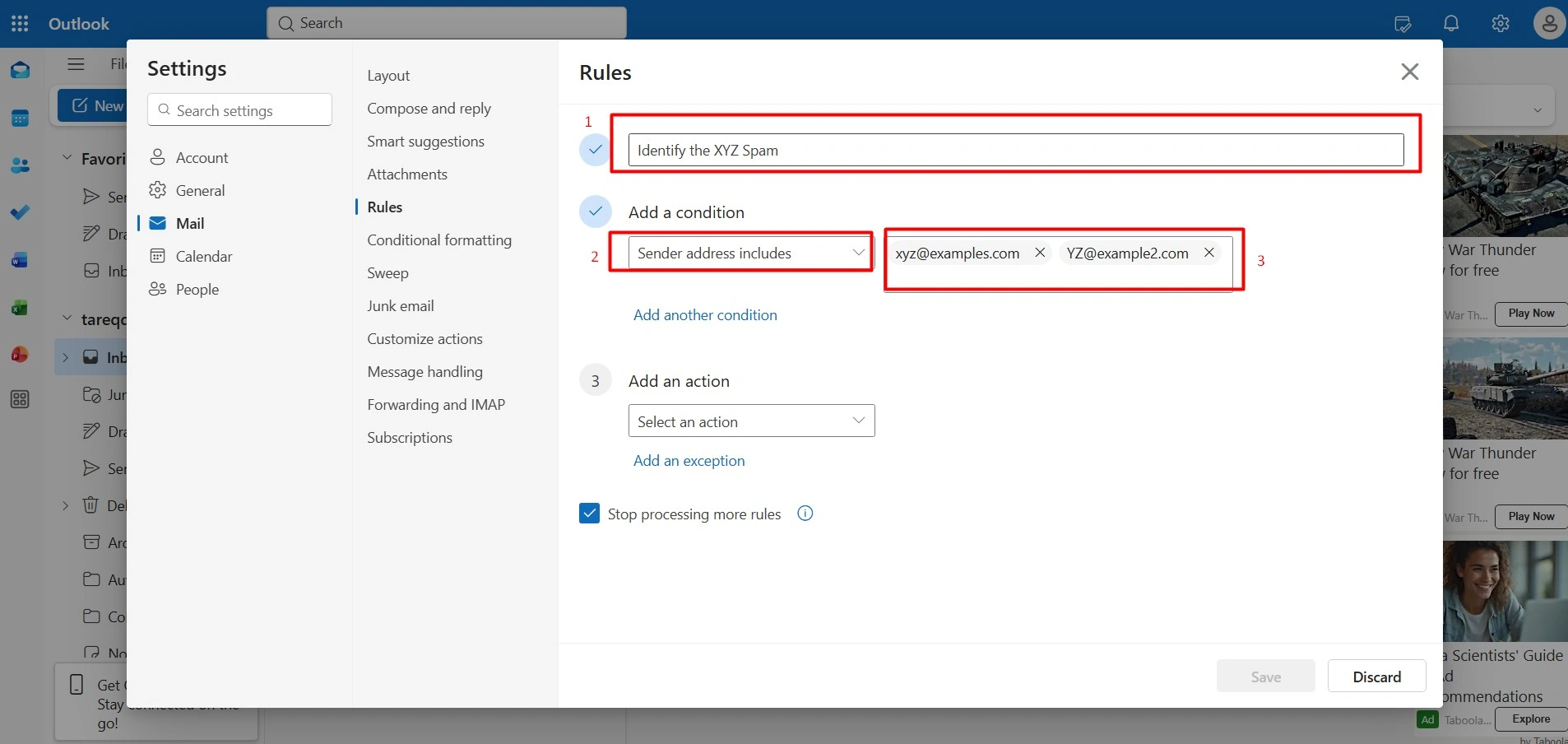
In the second step, now “Block XYZ” under “Add a condition”
- Choose “Sender address includes.”
- Then, type [email protected].
Step 3 (Add Keyword Filter)
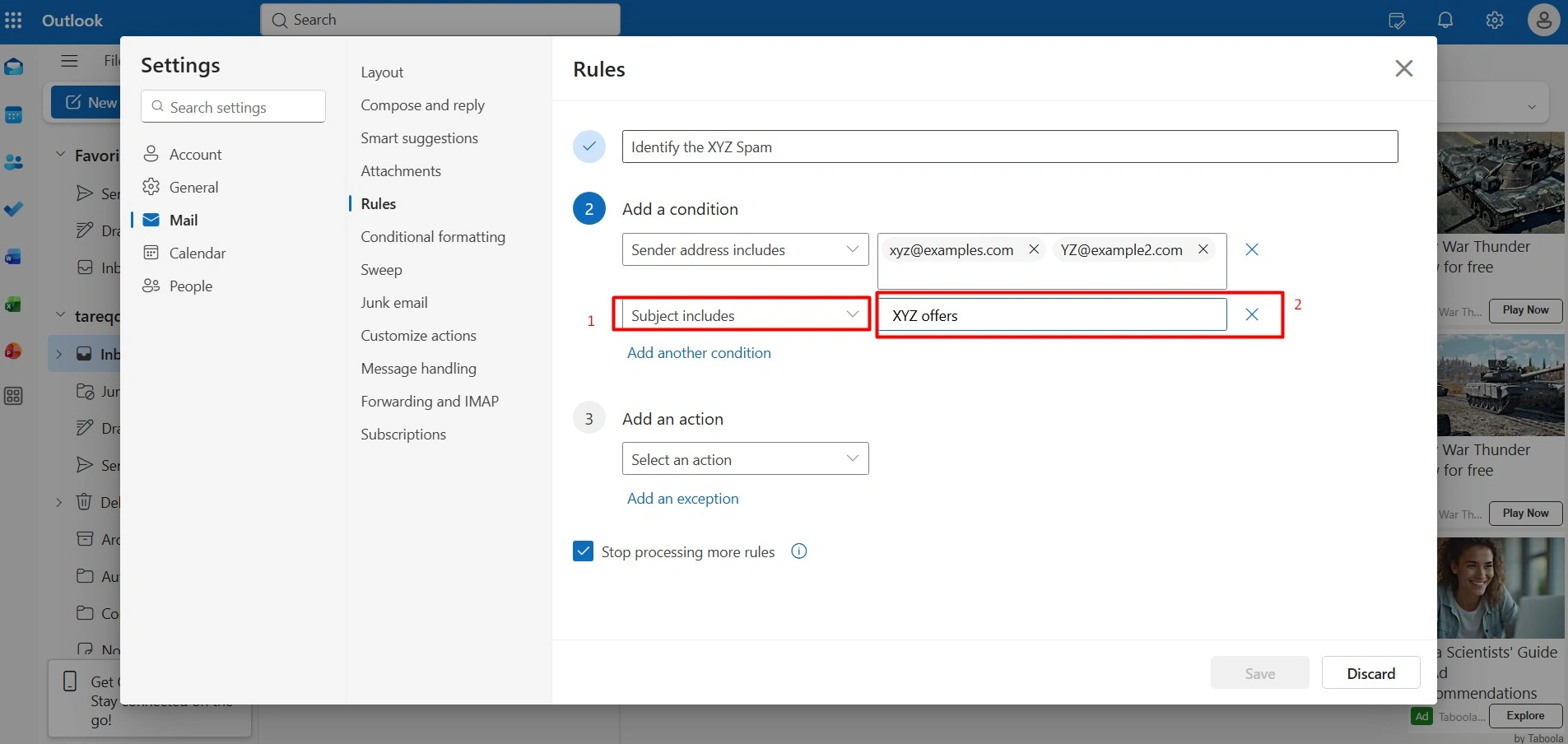
Now “Add another condition”
- Choose “Subject includes”
- Type “XYZ offer” to catch the variation of the spam email.
Step 4 (Set to Delete)
Now, under “Add an action”
- Select “Delete”
- This sends any matching “XYZ offer” email straight to the trash automatically.
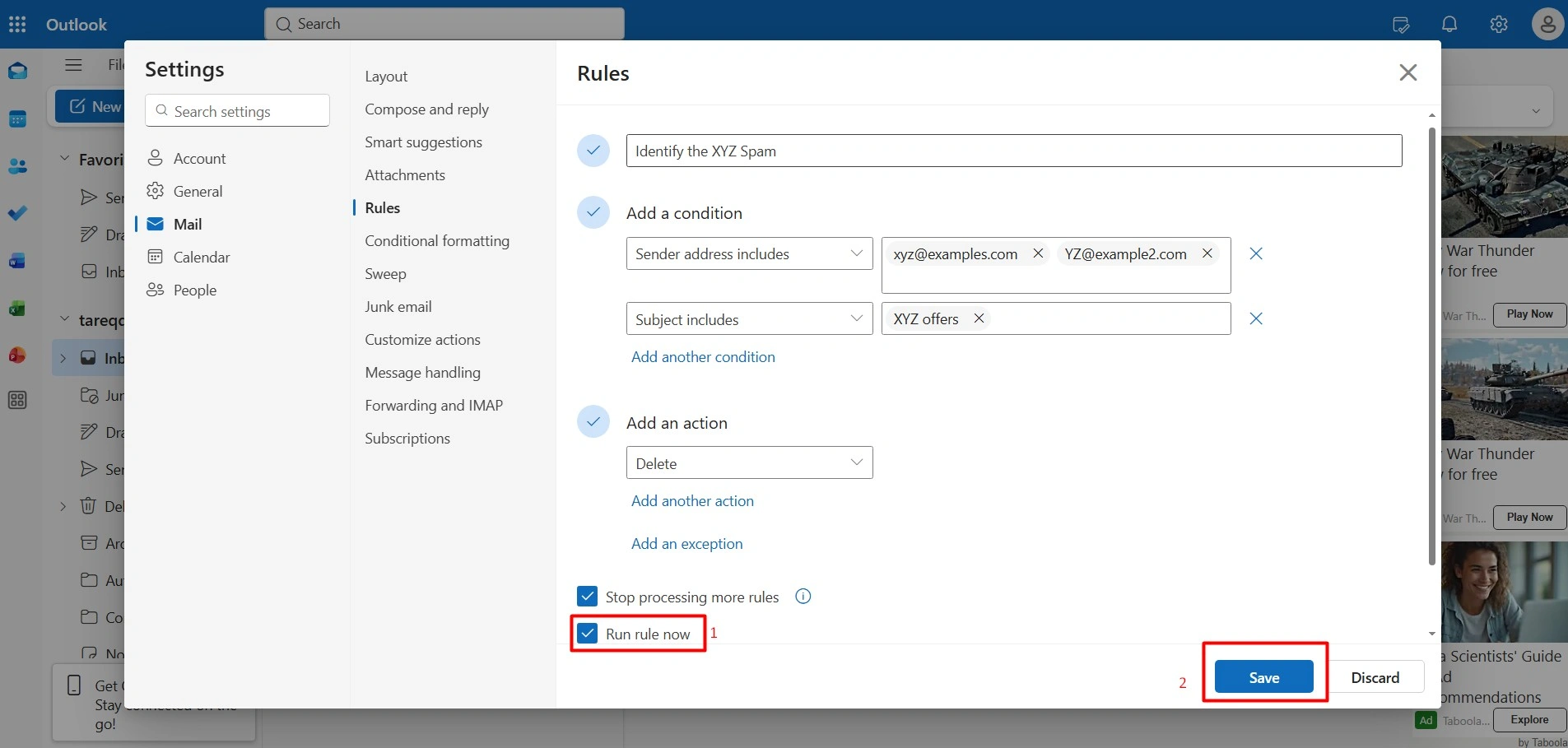
Step 5 (Save and Run)
Now, click the Play icon (Run rule now) to immediately delete all existing “XYZ offers” messages from your inbox.
Rule #10 – Separate Personal and Work Emails
Mixing personal and work emails in a single view makes it difficult to “switch off” after hours or stay focused during your workday. Then, set up rules that can easily identify your personal domains (Gmail or Yahoo) or specific personal contacts. Therefore, you can automatically route these messages into a dedicated “Personal folder.”
This simple separation enables you to maintain a professional workspace during business hours while organizing personal life and being accessible wherever you’re ready to check in.
How to Separate Personal Emails (New Outlook)
Step 1 (Access Rule Menu)
First, go to the ‘Settings” option in the top right corner
- Then go to “Mail” and select “Rules”
- And “+ Add new rule.”
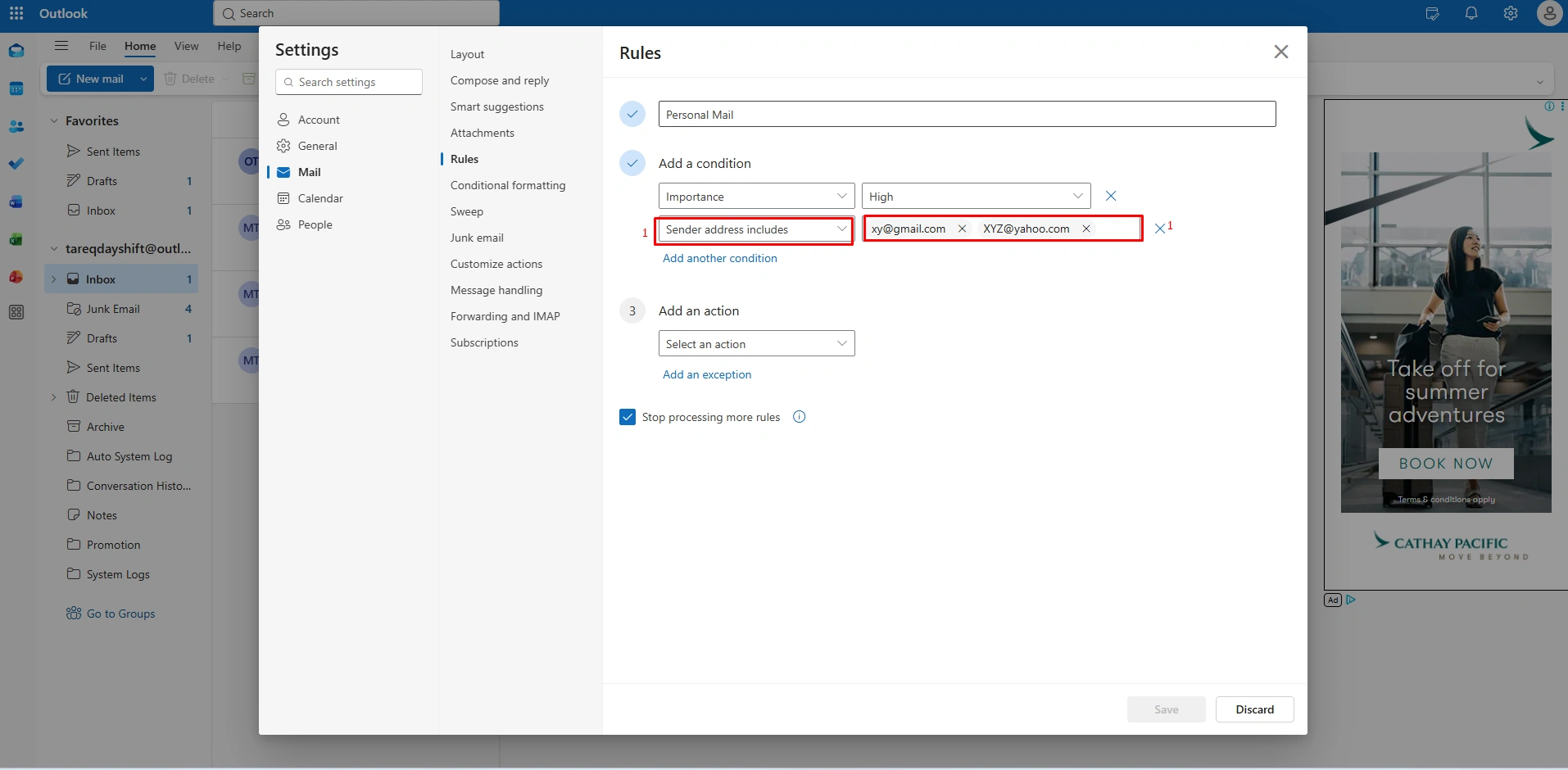
Step 2 (Identify Personal Domains)
In the second stage,
- Just name your rule as “Personal Mail” under “Add a condition.
- Choose “Sender address includes”
- Type personal email address or common domains (like gmail.com, Outlook.com, or yahoo.com)
Step 3 (Select Action)
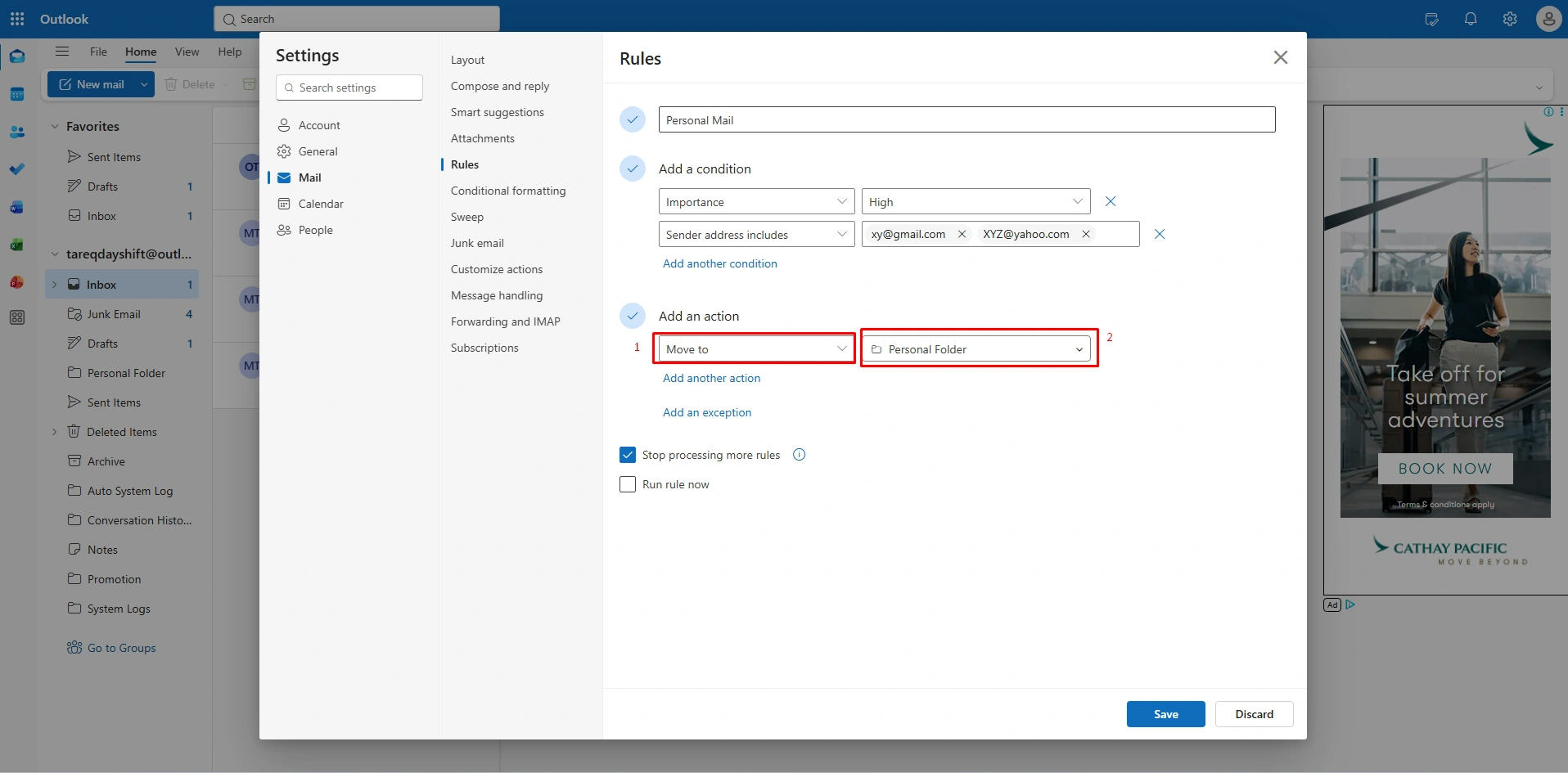
Under the “Add an action,
- Go to the drop-down menu and select “Move to”
- Choose your “Personal” Folder (or click “New folder to create a new one now)
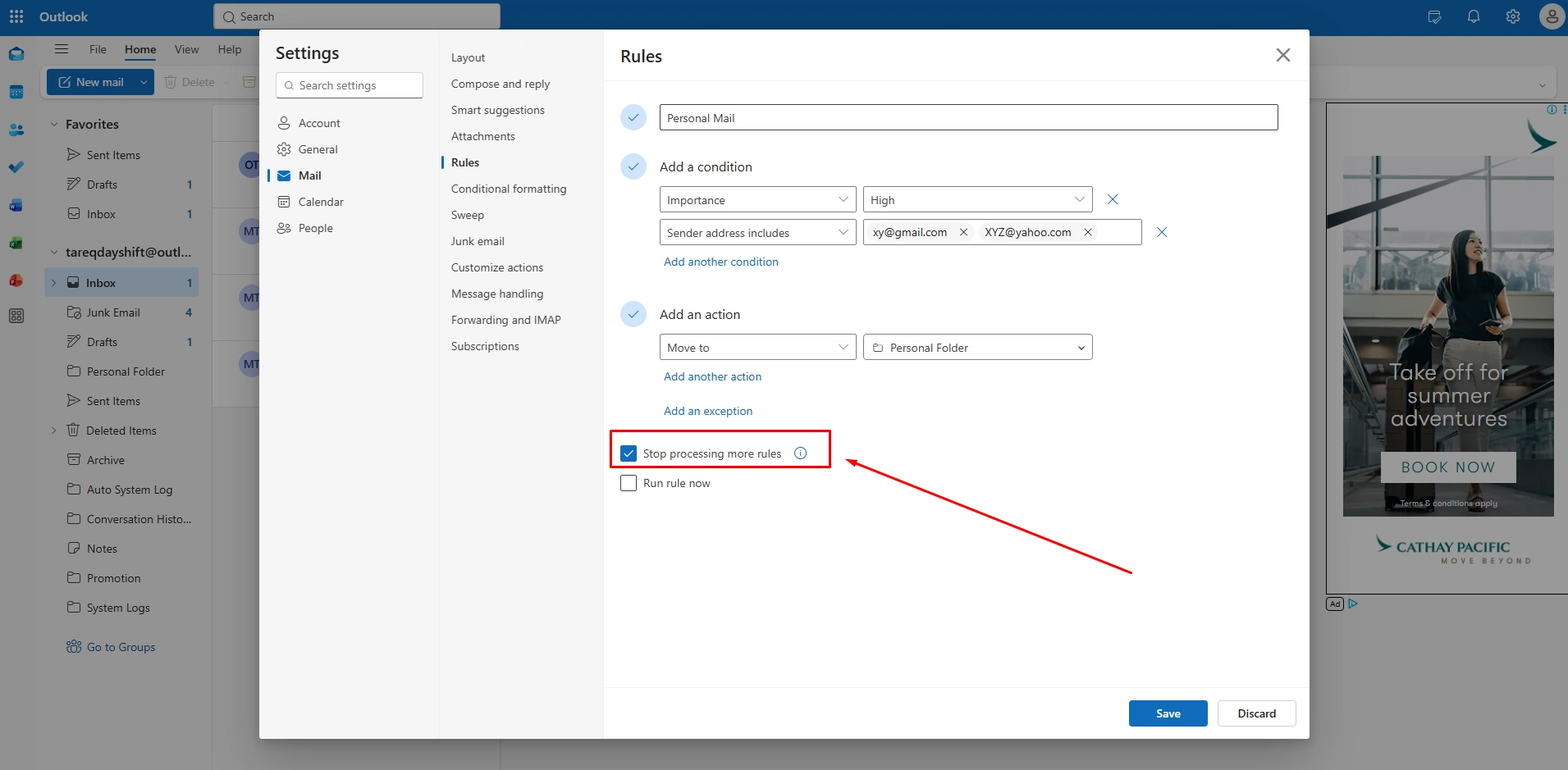
Step 4 (Stop Other Rules)
Check the box for Stop process more rules. This ensure once an email is moved to your personal folder, no other-related rules will affect it.
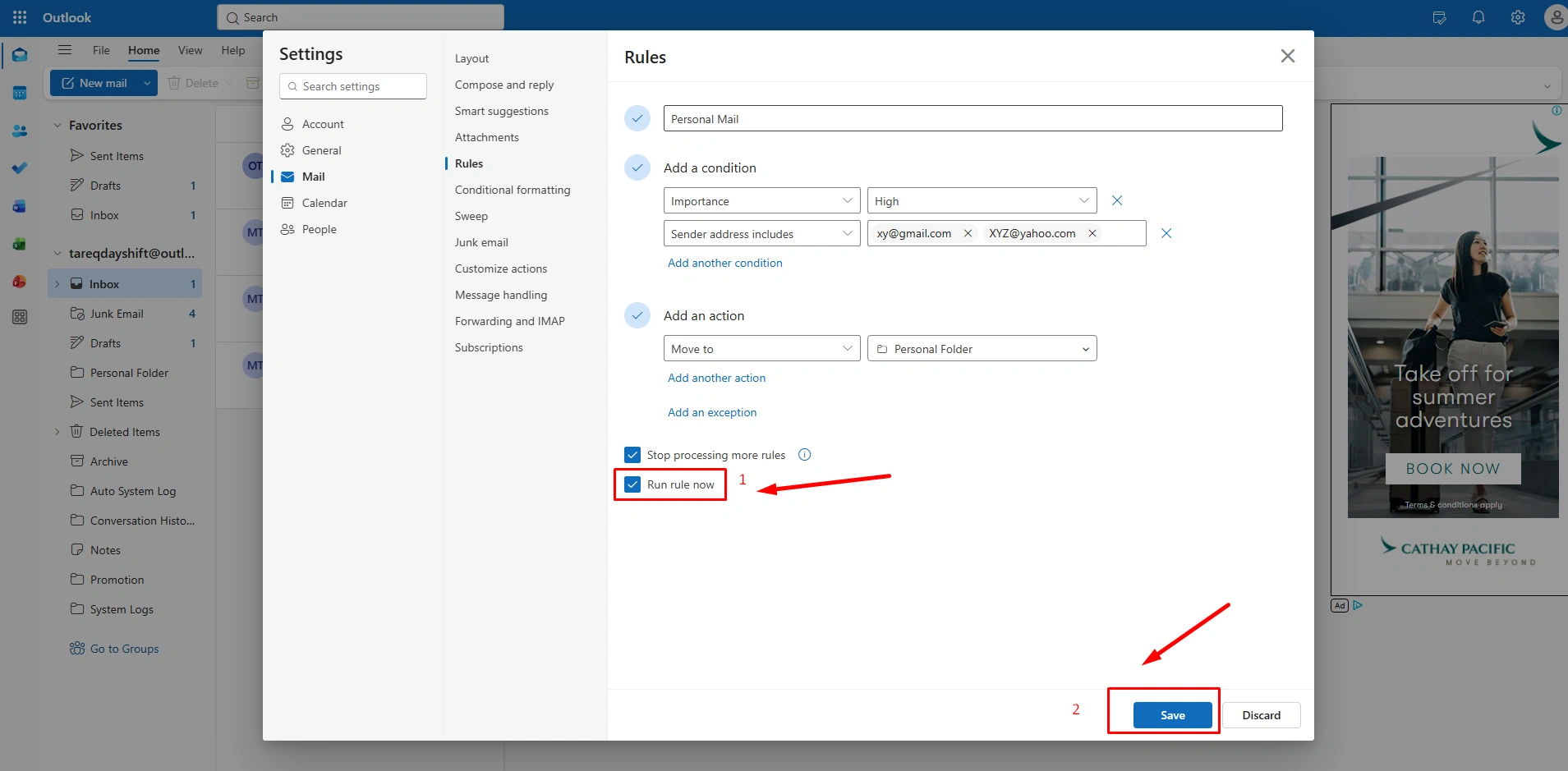
Step 5 (Save and Run)
To organize your current inbox,
- Click the Play button (Run rule now) next to your new rule.
- Now, Click to “Save.”
Conclusion
Automation is your digital first responder, which takes a few minutes to set up these rules in New Outlook today. This digital automation, also called cumulative time saver over a year, is measured in days. Whether it’s surfacing urgent messages from your manager or sorting “XYX” spam, when you’re working on another system or sleeping.
Set up these 10 rules with your Outlook using one address, and avoid your biggest daily burnout. Besides, sending all newsletters, promotional letters, and meeting invites to your defined folder at once makes your workflow consistent.